Tech Ideas & Best Practices
Launching an intranet is a lot like buying a desk plant. At first, it feels exciting and fresh. But without regular care, it slowly loses its charm.
While launching a SharePoint intranet template can be done quickly, maintaining a modern SharePoint intranet over time requires thoughtful planning. Many HR teams and SharePoint owners face the same challenge: the intranet starts strong, but ongoing SharePoint intranet maintenance updating banners, news, and announcements gradually becomes overwhelming.
This blog focuses on easy SharePoint Intranet maintenance best practices that help you design a low-maintenance SharePoint intranet, saving time while keeping it relevant and engaging.
1. Banner Image with Vision, Mission, and Values
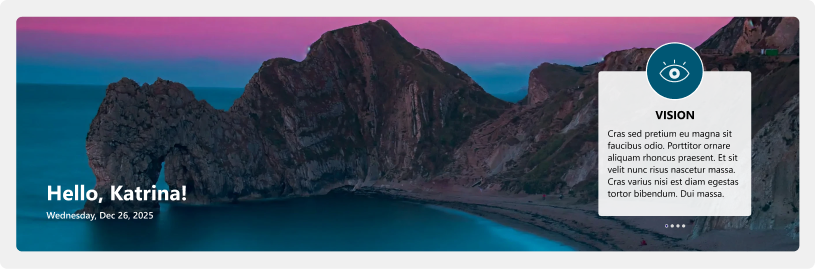
Your homepage banner sets the tone for your intranet. Instead of changing it frequently, align it with your organization’s vision, mission, and values. These rarely change, making them perfect long-term content. You may refresh the banner quarterly or during major company milestones to keep it visually fresh without constant updates. This approach supports long-term SharePoint intranet design without frequent visual changes.
2. News Through RSS Feeds
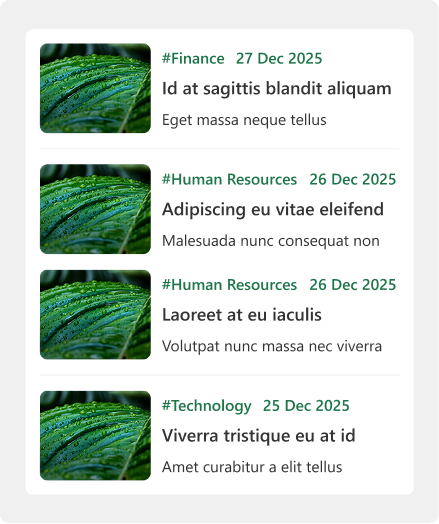
Instead of writing news articles from scratch, connect your intranet to RSS feeds from your company website or trusted external sources. This allows relevant news to appear automatically, keeping the site fresh and informative with minimal manual intervention. This keeps your SharePoint intranet content fresh without increasing maintenance effort.
3. Quote of the Day (QOTD)
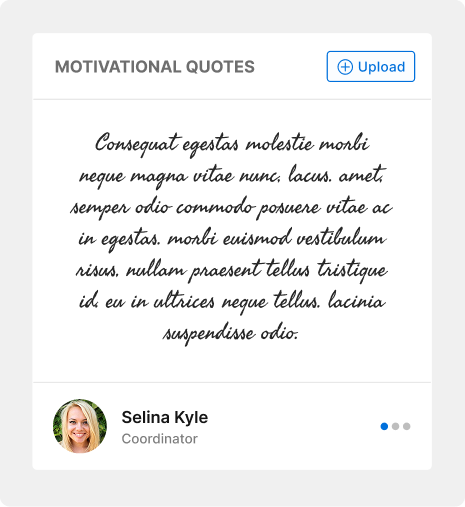
A Quote of the Day widget adds daily freshness to your intranet. By pulling from a predefined quote library or external source, a new quote can be published automatically each day. This small touch keeps the homepage dynamic and motivating.
4. Birthdays, Anniversaries, and New Joiners
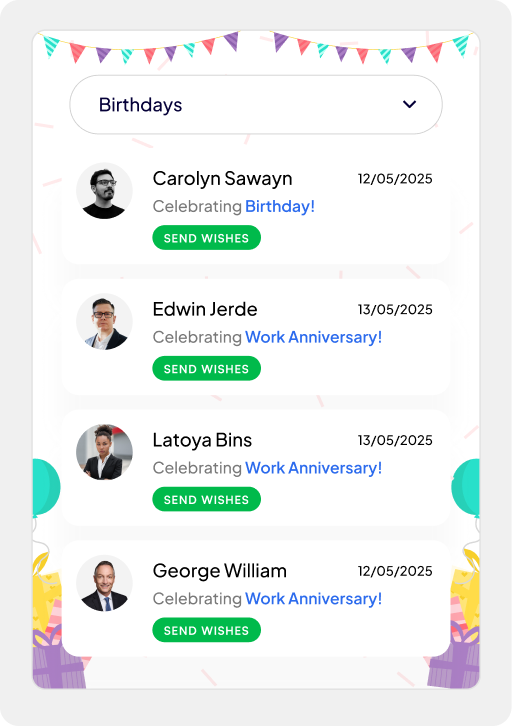
Manually updating people-related information is time-consuming. Integrating your intranet with Active Directory allows birthdays, work anniversaries, and new joiners to update automatically. This ensures accuracy, consistency, and keeps employees feeling recognized without extra effort from HR. Automation like this is a key part of sustainable SharePoint intranet best practices.
5. Sociable Kit for Social Media Updates
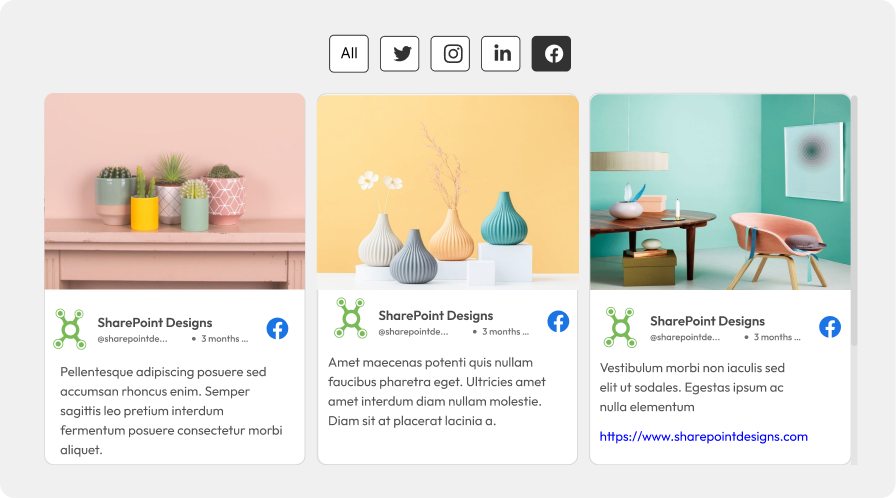
Employees often engage more with real-time content. A Sociable Kit can automatically pull posts from your company’s social media channels and display them on the intranet. This keeps internal communication aligned with external branding efforts.
6. Web Parts with Start and Expiry Dates
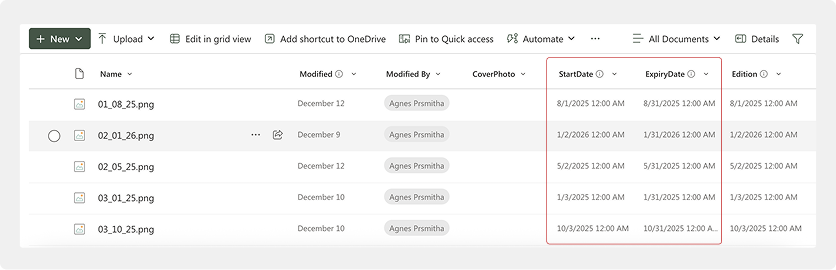
Using start and expiry dates for web parts ensures content appears only when relevant. Campaigns, announcements, or events automatically disappear after their expiry, keeping the intranet clean and clutter-free without manual cleanup.
7. Weather and Stock Market Widgets
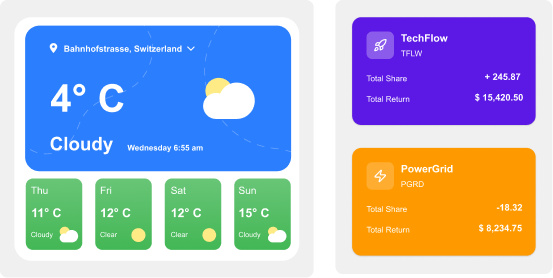
Live widgets such as weather or stock market updates add real-time value. Integrating trusted sources like MSN allows automatic updates and even severe weather alerts, keeping employees informed without maintenance effort.
8. One-Click ‘Add to Outlook’ for Events
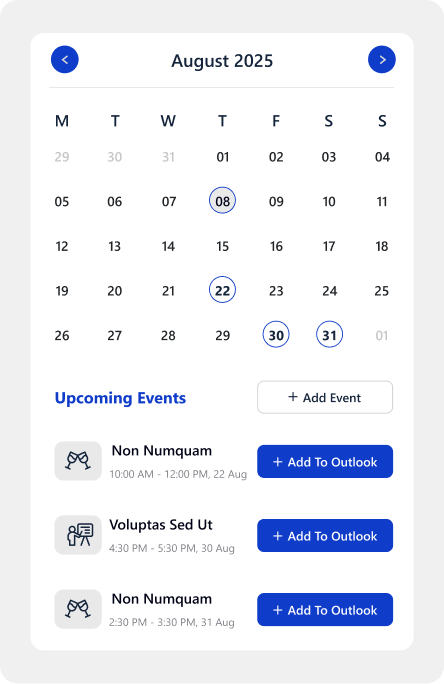
Events become more effective when employees remember them. A one-click ‘Add to Outlook’ option allows users to save events instantly to their calendars, improving attendance and reducing follow-up communication.
How to keep your SharePoint Intranet updated: Weekly, Monthly & Quarterly
9. Default Messages for Empty States

Empty sections can make a site feel broken. Set up friendly default messages with simple illustrations for times when there are no announcements or new joiners. This keeps the page visually complete and user-friendly.
10. Automated Holiday Themes
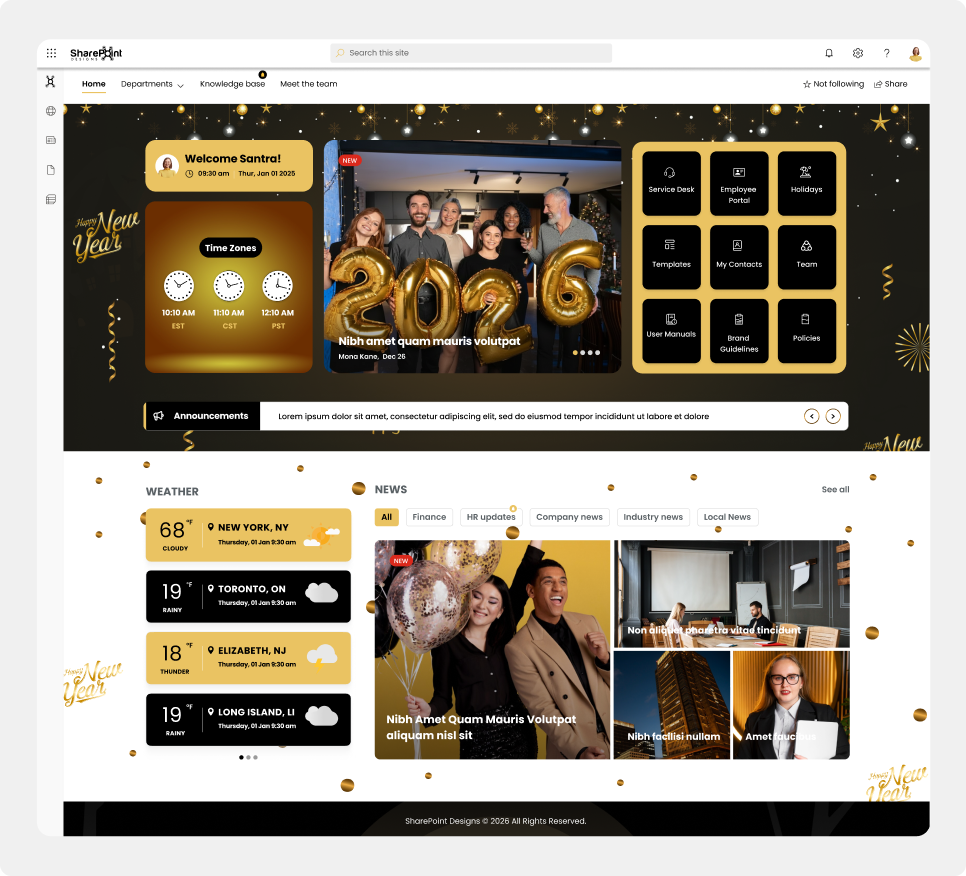
Holiday-themed designs add fun and warmth to the intranet. By scheduling these themes in advance, they can automatically go live before festive seasons, creating a bit of fun and excitement without last-minute design changes. Scheduled theming is commonly used in modern SharePoint intranet templates to balance culture and efficiency.
Final Thoughts
A well-planned SharePoint intranet does not demand constant attention. Think of it like a succulent rather than a high-maintenance desk plant. With the right setup, it doesn’t need daily watering, yet it continues to stay healthy and grow. In the same way, smart automation and thoughtful SharePoint configuration allow your intranet to remain fresh, engaging, and relevant, thriving on its own.
By following these SharePoint intranet maintenance best practices, organizations can create a modern intranet that continues to support employees long after launch.
Top 10 Tips for Easy SharePoint Intranet Maintenance (Practical & Proven)
Launching an intranet is a lot like buying a desk plant. At first, it feels exciting and fresh. But without regular care, it slowly loses its charm.

As organizations move away from traditional on-premises environments, SharePoint Online has become the foundation for building modern digital workplaces. Cloud modernization doesn't just upgrade your intranet, it unlocks a new set of features, integrations, and user experiences that weren’t possible before.
Top SharePoint Intranet Features That Work Best After Cloud Modernization
As organizations move away from traditional on-premises environments, SharePoint Online has become the foundation for building modern digital workplaces.

When working with SharePoint Site Pages and building custom page approval workflows in Power Automate, you may face a frustrating issue:
You click Review approval in the command bar, but the approval panel refuses to load.
Yet the approval email still arrives, and the workflow seems to run normally.
This problem occurs frequently when organizations replace the default “Configure page approval” feature with custom approval flows.
This guide explains why this happens, how to fix the approval panel, and how to configure Power Automate correctly so the approval interface renders every time.
Why Use SharePoint Page Approval?
SharePoint Page Approval helps maintain:
- Content governance for intranet and communication sites
- Quality control before publishing
- Consistent workflows for content reviewers
- A structured approval lifecycle for pages
However, custom approval flows introduce one common but critical issue:
SharePoint cannot render the panel unless Item Link + ETag are provided in the correct format.
Root Cause: Incorrect or Missing Item Link in the Approval Action
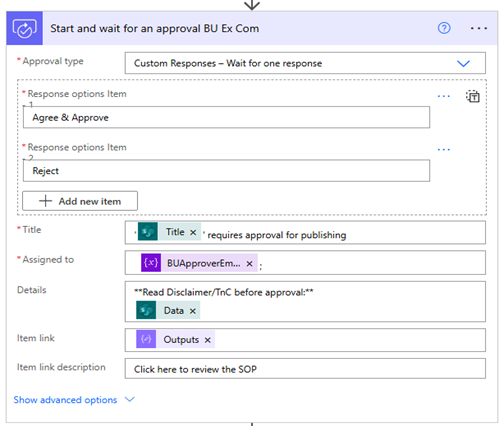
In Power Automate, the Start and wait for an approval action includes a field called Item Link.
This is the link SharePoint uses to open the approval panel when someone clicks Review approval.
If this link is missing the encoded ETag, the panel will not load.
To fix this, we must include two things:
- The page URL
- The properly encoded ETag of the item
Without these, the SharePoint panel cannot load approval data.
Step-by-Step Guide to Resolve the Approval Panel Rendering Issue in Power Automate
Step 1: Build the Correct Item Link
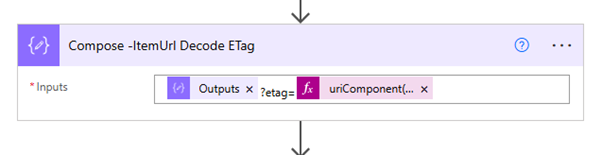
The correct format for the item link is: itemUrl?etag=uriComponent('ETag')
In Power Automate dynamic content, it should look like: outputs('Compose_ItemUrl')?etag=uriComponent(body('Get_file_metadata_-_Get-Etag')?['ETag'])
Why this works:
- SharePoint expects the ETag as a URL parameter.
- The ETag must be URI encoded using uriComponent().
In the Start and wait for an approval action, the ItemLink property controls the rendering of the approval panel when clicking 'ReviewApproval'.
Step 2: Retrieve the Current ETag Using “Get file metadata”
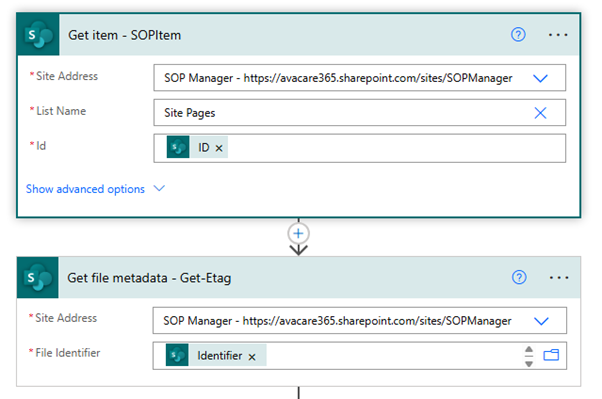
Add the Get file metadata action and pass the page’s file identifier.
This gets the latest ETag, which changes every time the page is edited or updated.
Why ETag matters?
SharePoint uses ETag to determine if the item version being approved is current.
If the ETag doesn’t match, the panel fails to load.
Use the Get file metadata action to retrieve the current ETag, as it changes frequently.
Step 3: Add a Short Delay Before Getting the ETag
When a page is saved or updated, SharePoint may take a few seconds to commit the latest version.
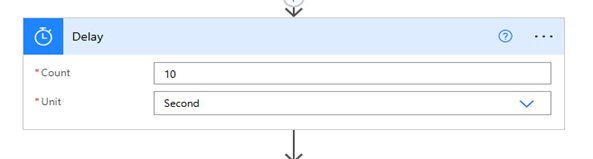
Add a Delay of 10–15 seconds before the "Get file metadata" action.
This ensures:
- You always get the latest ETag
- Approval panel loads correctly
Even a small delay significantly improves reliability.
Adding a short Delay (10–15 seconds) before retrieving the ETag may help ensure the latest version is fetched.
SharePoint “Review Approval” Not Loading? Here’s the Fix
When working with SharePoint Site Pages and building custom page approval workflows in Power Automate,

SharePoint remains one of the most versatile platforms for internal communication, document management, and team collaboration. However, SharePoint delivers its true value only when it is customized to reflect the unique workflows and structure of your organization. With the right enhancements and guidance from professional SharePoint consulting services, your intranet can become a productivity powerhouse.
As a digital workplace consultant with hands-on experience implementing SharePoint for diverse industries, we have seen how the right features can transform productivity. Below are the top customizations that consistently deliver measurable results.
1. Custom Document Libraries With Smart Rules
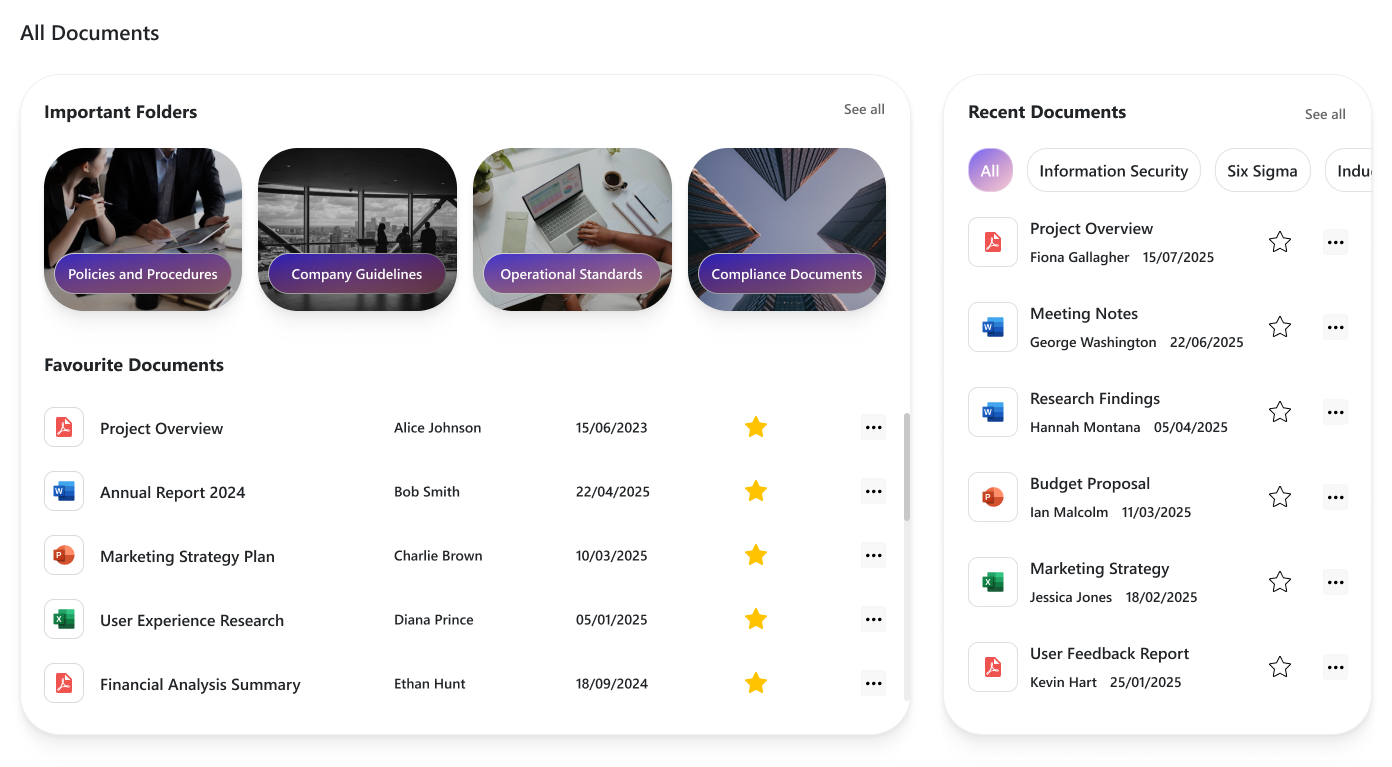
A traditional file system often comes with problems like duplication, outdated information, and poor searchability. SharePoint’s custom document libraries solve these challenges with structured metadata, automated rules, and strict version control.
Benefits include:
- Organized content using metadata and filters
- Fewer duplicated files
- Transparent document history and version tracking
- Custom approval workflows
- Department-level permission control
Organizations using structured libraries report up to 30% faster document retrieval, saving hours every week.
Top SharePoint Custom Features That Improve Productivity
SharePoint remains one of the most versatile platforms for internal communication, document management, and team collaboration.
A user is stuck on a long-loading screen, getting slightly frustrated. Suddenly, the UI shifts to a calming micro-animation, a soft breathing circle, and gently says, “Hang on, we’re almost there.”
Do you know what this moment represents?
It shows a human-like reaction: when we notice someone getting stressed, we naturally try to calm or comfort them.

That’s exactly what Neuro-Adaptive Interfaces are trying to do in UI design by 2026. They use data from user behaviour, emotions, and context to automatically adjust the interface’s tone, layout, content, or visual intensity to match the user’s mental and emotional state.
Why It Matters
1. Burnout-Aware Design

Modern users multitask more than ever, switching between apps, tabs, and devices. Neuro-adaptive design reduces cognitive strain by stepping in at the right moments, slowing things down, simplifying screens, or offering supportive cues before frustration builds.
2. AI Empathy Layer

Interfaces can now detect emotional arcs, not just actions. A stressed user gets softer tones and simpler paths. A confident user gets faster workflows. The system mirrors emotional intelligence by responding in a comforting, human-like way.
3. Neuro-Inclusion

Different brains process information differently. By adapting layouts, reducing distractions, or altering reading density, neuro-adaptive UIs create safer digital spaces for users with ADHD, anxiety, dyslexia, or sensory sensitivities.
4. Productivity & Retention

Emotionally aligned experiences encourage trust and flow. When a system “feels” supportive, users learn faster, commit fewer errors, and stay engaged longer, directly impacting product adoption.
How It Works
1. Mouse Movement Speed or Pauses

Detects: Frustration, hesitation, or confusion
Response: Highlights tooltips, simplifies layout options, slows animations, or guides with micro-hints.
2. Eye Tracking or Camera Input

Detects: Distraction, fatigue, or wandering focus
Response: Reduces motion, adjusts brightness, increases contrast, or declutters the screen.
3. Voice Tone Analysis

Detects: Stress, irritation, or urgency
Response: Shifts microcopy to a calmer tone or provides step-by-step instructions.
4. System Data (Time of Day, Workload)

Detects: Late-night usage, heavy task load, or deadlines
Response: Suggests short breaks, activates “focus mode,” or reduces interface density.
5. Biometric Feedback (Opt-in)

Detects: Elevated heart rate, stress responses
Response: Calming visuals, slow animations, ambient backgrounds, or mental reset prompts.
Expanded Real-World Use Cases
1. Microsoft Viva + Copilot
Recognizes emotional patterns across the workday and gently nudges users to manage workload, reflect, or reset, boosting well-being at work.

This image illustrates how Viva + Copilot visualizes emotional patterns and work rhythms, helping users stay balanced and productive throughout the day.
2. Healthcare Dashboards
During critical moments, interfaces shift to high-contrast, low-distraction modes to support better decision-making for doctors and nurses.
The dashboard image shows a high-contrast, distraction-free interface designed for doctors to make quicker, clearer decisions during critical moments.
3. E-Learning Platforms
Track attention levels and learning fatigue to dynamically adjust difficulty, add breaks, or change the lesson style.

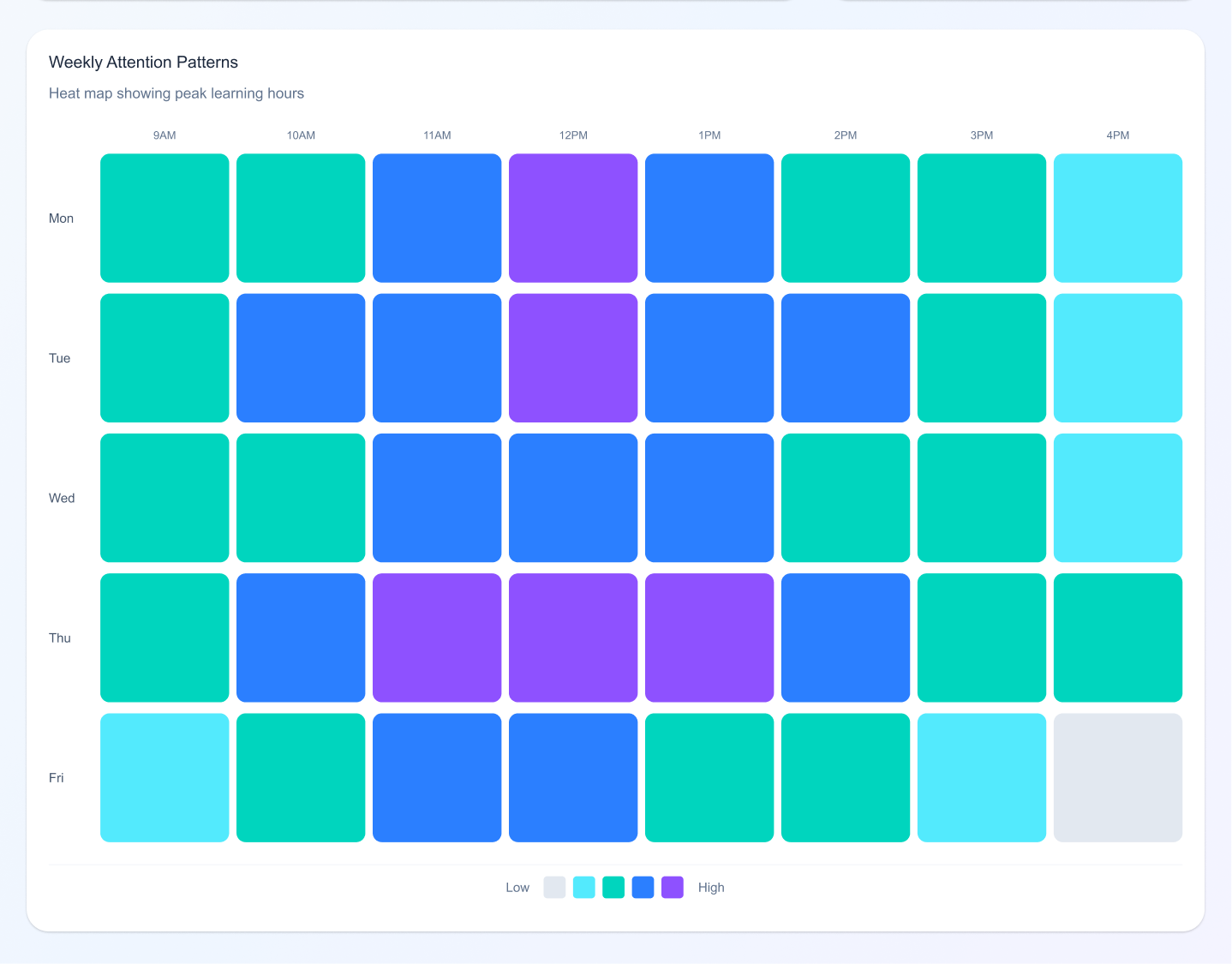
This example shows an adaptive learning screen that adjusts lesson difficulty and pacing based on a student’s attention level and engagement.
4. Banking Apps
Detect confusion during transactions and simplify steps automatically, reducing drop-offs and errors.
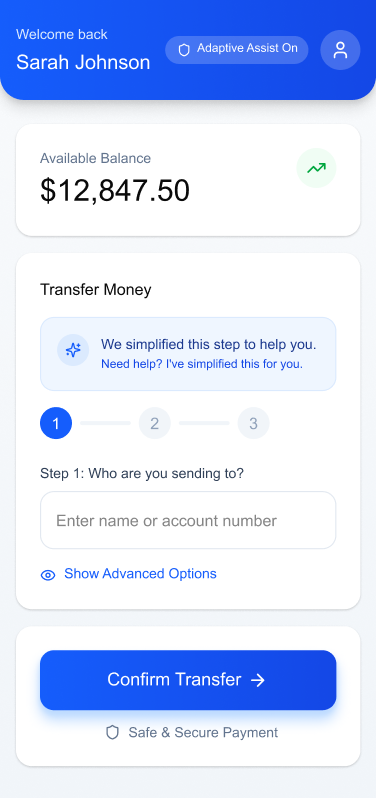
The banking UI demonstrates how steps can automatically simplify when confusion is detected, making complex transactions feel intuitive and safe.
5. Corporate Intranets
Enable “calm modes” during repetitive tasks soft colors, minimal UI, slower animations to reduce digital fatigue.
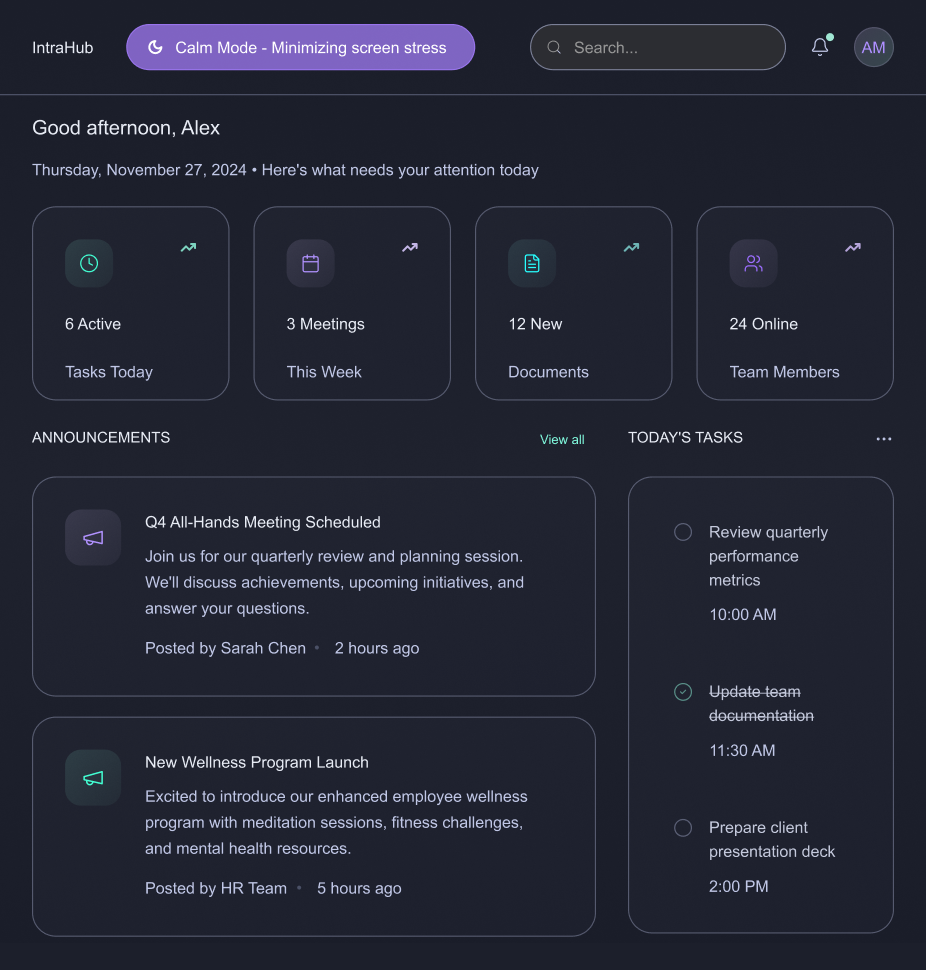
The intranet layout highlights a calm, minimal interface using soft colors and reduced visual noise to ease stress during repetitive workflows.
6. Productivity Tools
Apps like Notion, Asana, and Figma are beginning to experiment with emotion-sensitive features that adapt based on user pace and interaction mood.
Design Considerations for 2026 and Beyond
1. Privacy-First Emotion Tracking
Designers must ensure emotional data is opt-in, transparent, and stored responsibly. Users should always feel in control.
2. Avoid Over-Adaptation
Too much change can overwhelm users. Neuro-adaptive patterns must be subtle, predictable, and respectful.
3. Consistency with Human-Centered Language
Microcopy must balance empathy and clarity. Not every emotional signal needs a “comfort message”; sometimes simplifying the interface is enough.
4. Cross-Device Continuity
Emotion-aware experiences should sync across mobile, desktop, and wearable devices to maintain flow.
Conclusion
As we move into the next era of digital design, our role goes beyond usability. It’s about designing experiences that respect mental energy, emotional states, and human limitations.
Emotionally Intelligent and Neuro-Adaptive Interfaces remind us that great design doesn’t just speak, it listens, adapts, and supports.
This is the future of meaningful, human-centred digital experiences.

Emotionally Intelligent & Neuro-Adaptive Interfaces
Modern users multitask more than ever, switching between apps, tabs, and devices. Neuro-adaptive design reduces cognitive strain by stepping in at the right moments,

In this blog post, we’ll walk through how to manually upload an Intuit Interchange Format (IIF) file to a SharePoint document library and automatically parse its contents to create list items in a SharePoint list using Power Automate. This can be especially useful when working with QuickBooks for data exports.
Scenario Overview
1. Manually upload an IIF file to a SharePoint document library.
2. Trigger a Power Automate flow when the file is uploaded.
3. Read and parse the file content.
4. Extract relevant data (e.g., transaction details).
5. Create items in a SharePoint list based on the data.
Step 1: Set Up SharePoint Library and List
Document Library
1. Create a new library (e.g., "Time Tracker Excel Docs").
2. Assume we are uploading the file contains the values for the below fields,
- Date
- Type
- Amount
- Account
- Name
- Memo
3. Based on the above fields, create a necessary column in SharePoint list." Include Column Name along with type of column.
SharePoint List
1. Create a new SharePoint list (e.g., "IIF Uploads Data").
2. Define necessary columns like:
- Date
- Type
- Amount
- Account
- Name
Step 2: Uploading the IIF File
1. Users to manually upload .iif files to the “Time Tracker Excel Docs” library.
2. Example file name (e.g., Invoices_2025.iif).
Step 3: Create Power Automate Flow
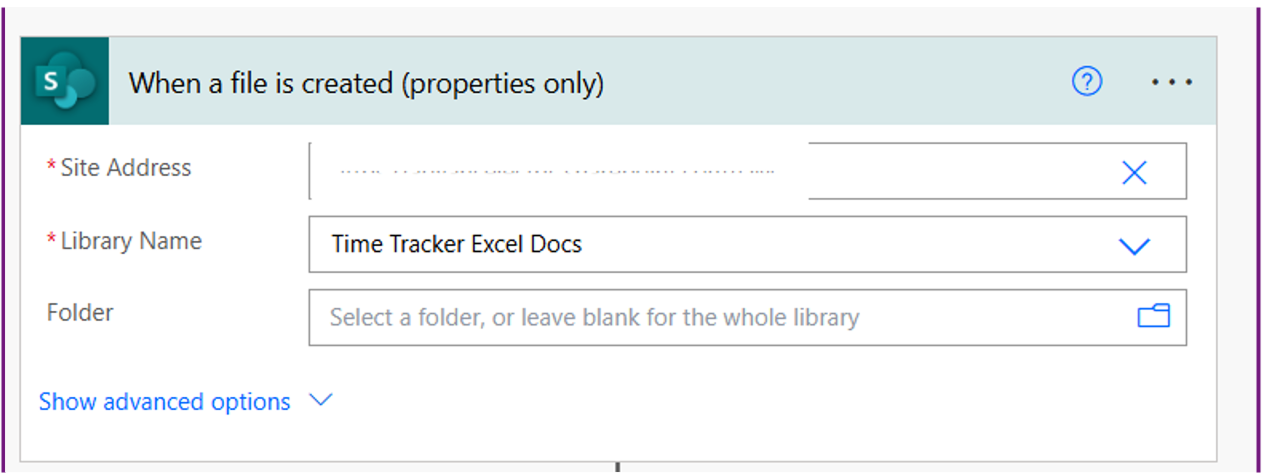
1. Trigger Action
Use “When a file is created (properties only)” to trigger the document library.
2. Get File Content
- Action: “Get file content”
- Use the Identifier from the trigger step.

3. Convert File Content from Base64 to String

- Action Name: ‘Compose ConvertBase64 IIF’
- Description: This Compose action decodes the base64 content of the uploaded .iif file into a readable string format.
- Expression Used: base64ToString(body('Get_file_content')?['$content'])
- Create an 'Initialize variable' action named 'varFileItems' with the type set to 'String' and use a 'Set variable 2' action to assign the output of the 'Compose' action to it.
- Get file content is the action where the file content is fetched from the SharePoint library.
- base64ToString() is the expression that converts the base64-encoded file content into plain text.
Automate IIF File uploads and data extraction with Power Automate and SharePoint
In this blog post, we’ll walk through how to manually upload an Intuit Interchange Format (IIF) file to a SharePoint document library

Why Modernize?
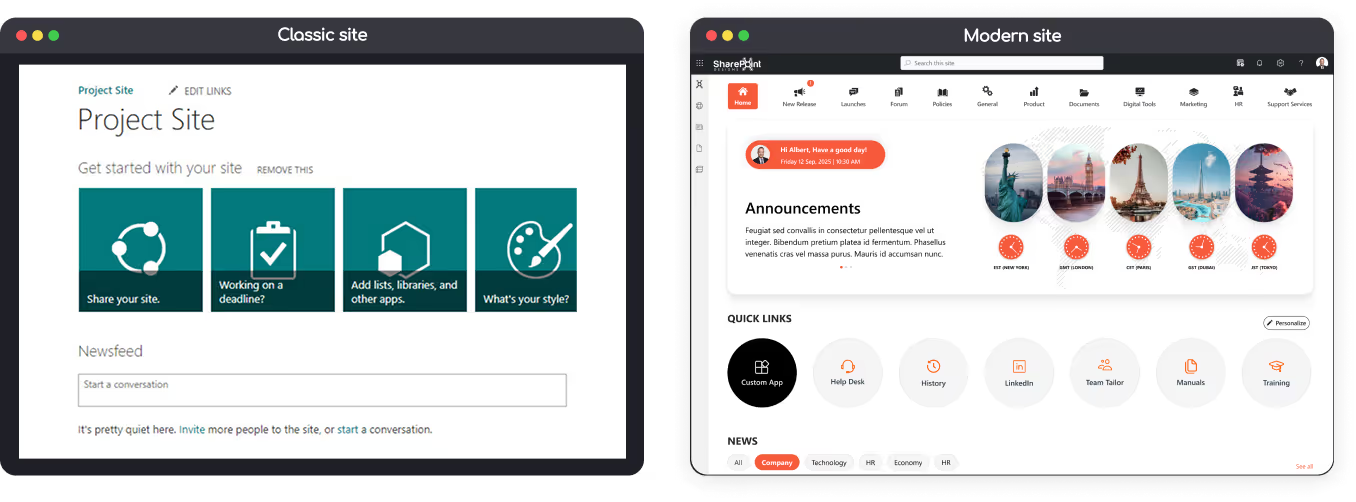
The modern SharePoint experience is responsive, faster, mobile-friendly, and supports modern web parts, improved search, and Microsoft 365 integrations.
You can modernize in-place (convert pages, enable modern lists and libraries) or create a new modern site and migrate content both approaches are valid depending on your customizations and risk appetite.
Approaches to Modernization
1. In-place modernization
Keep the same site, convert pages, and enable modern lists/libraries. Best if you want minimal URL change or have few subsites.
2. New modern site + migrate
Create a modern Communication or Team site and migrate content. Recommended for sites with heavy customizations, custom master pages, or complex navigation.
3. Hybrid approach
Modernize some sites in-place and create new modern sites for others. Copy content as needed.
Note: Always plan, inventory, and back up before touching production. Modernization modifies pages and layouts test in a dev or staging environment first.
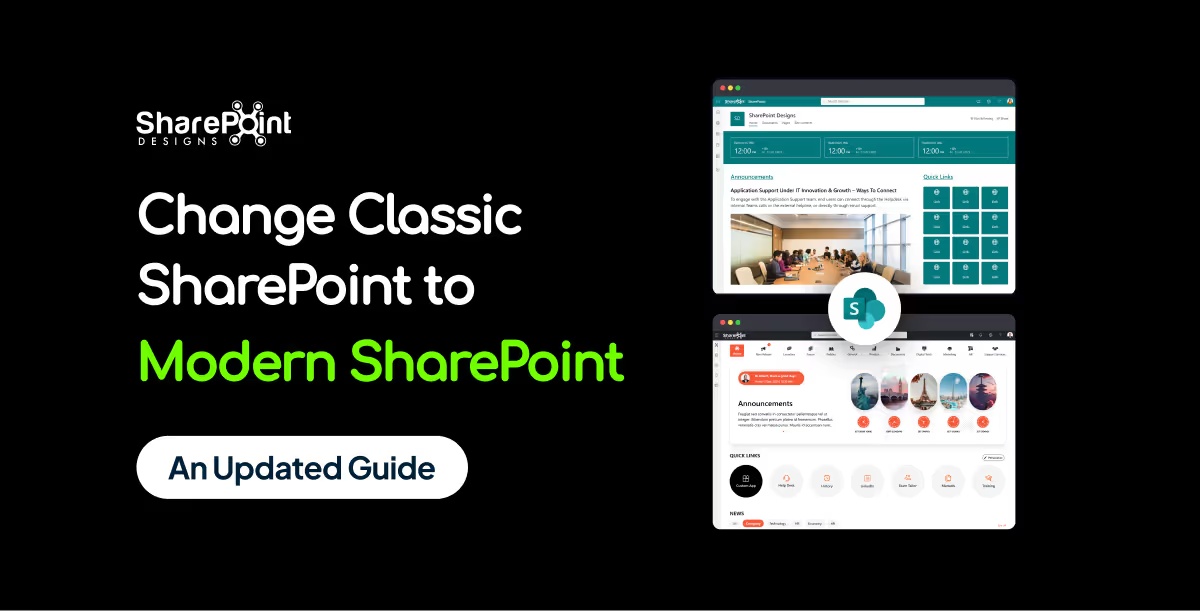
How to Change Classic SharePoint to Modern SharePoint (An Updated Guide)
The modern SharePoint experience is responsive, faster, mobile-friendly, and supports modern web parts,

Introduction: Importance of Collaboration and Role of SharePoint
Collaboration is the foundation that keeps any business intact. However, as your company grows, relying solely on manual processes becomes ineffective.
That’s where Microsoft SharePoint, a modern collaboration platform trusted by over 200 million active monthly users, becomes essential.
Many organizations still struggle to leverage SharePoint’s full potential due to a lack of understanding or poor implementation.
This guide will help you learn everything about SharePoint features, pricing, and implementation strategies so your team can collaborate seamlessly and efficiently.
What is SharePoint?
Microsoft SharePoint is a versatile intranet and collaboration platform that helps organizations create centralized hubs for communication, document sharing, and project management.
Whether you use the on-premises server or the cloud-based SharePoint Online, the platform simplifies teamwork even for non-technical users.
To explore real-world design examples, read our blog: Modern SharePoint Intranet Templates That Boost Employee Engagement in 2025
Features of SharePoint
SharePoint offers a powerful blend of collaboration and automation features. Below are its key functionalities:
1. Collaboration
SharePoint enables seamless teamwork regardless of where your employees are.
Multiple users can co-author documents in real time, comment, and restore older versions if needed.
Admins can set permissions in advance to manage who can edit or share files.
Additionally, SharePoint’s centralized dashboard keeps all updates visible, eliminating the need to sift through endless email threads.
(Related: The Ultimate Guide to Modern Intranet & Digital Workplace Success )
2. Project Management
SharePoint serves as a unified hub that consolidates all project information.
Its advanced search filters, calendar integration, and Outlook connectivity make it easy to schedule tasks and stay on top of deadlines.
For advanced setups, you can also automate project tracking with Microsoft Power Automate learn more in our post on Transforming Business Processes with AI in SharePoint Workflows.
3. Content Management
Beyond document storage, SharePoint doubles as a Content Management System (CMS).
It allows content managers to upload, publish, and archive content easily while maintaining version control.
Deleted or outdated versions can be restored instantly and no external tools are required.
Explore layout ideas for your library: 15 Modern SharePoint Document Library Web Part Layouts
4. Integration
Integration defines SharePoint’s true power.
It works seamlessly with Microsoft 365 apps includes Word, Excel, PowerPoint enabling real-time editing and collaboration without endless file transfers.
You can also integrate Microsoft Teams, Power Apps, or third-party CRMs to extend functionality.
5. Security
Security is non-negotiable in any enterprise solution.
SharePoint offers robust controls for access management, data encryption, and multi-factor authentication.
Admins can restrict external sharing, define user roles, and even require sign-ins for document access.
For governance insights, read Governance of Data in SharePoint: Tools, Policies, and Best Practices
SharePoint Pricing Plans
When selecting a SharePoint plan, it’s important to choose one that aligns with your organization’s size, collaboration needs, and integration goals. Microsoft offers SharePoint primarily through two main licensing options are SharePoint Online Plan 1 and Microsoft 365 Business Standard each offering distinct benefits.
1. SharePoint Online Plan 1
Best for: Small to medium businesses that need a secure intranet and document collaboration platform without requiring the full Microsoft 365 suite.
Key Features:
- Team sites, document libraries, and version control
- Real-time co-authoring and file sharing
- 1 TB of OneDrive storage per user
- Lists, libraries, and customizable pages
- Access from web and mobile devices
- Enterprise-grade security and compliance controls
Pricing:
Starts at $5.00 USD per user/month (annual commitment).
This plan focuses purely on SharePoint and does not include Office desktop apps or Exchange-based email.
Recommended for companies that want a lightweight, scalable intranet solution built purely on SharePoint Online.
2. Microsoft 365 Business Standard
Best for: Businesses seeking a complete productivity suite including SharePoint, Teams, and the full Office app ecosystem.
Key Features:
- Everything included in SharePoint Online Plan 1
- Desktop, web, and mobile versions of Word, Excel, PowerPoint, and Outlook
- Microsoft Teams for meetings, chat, and collaboration
- Business-class email hosting with 50 GB mailbox
- 1 TB cloud storage per user via OneDrive
- Security and compliance tools integrated across Microsoft 365 services
Pricing:
Starts at $12.50 USD per user/month (annual commitment).
Ideal for organizations looking to integrate document management, internal communication, and collaboration tools under one Microsoft 365 umbrella.
Explore next: Modern SharePoint Design Examples for Corporate Intranets
3. Enterprise Options (E1, E3, E5)
For large organizations or enterprises needing advanced compliance, analytics, and automation, Microsoft offers Enterprise (E1/E3/E5) plans.
Highlights:
- Enhanced governance and security capabilities
- Advanced data loss prevention (DLP)
- Power Automate and Power Apps integration
- Advanced analytics with Power BI
- Unlimited cloud storage in higher tiers
Pricing:
Enterprise plans vary by feature set and start around $10–$38 USD per user/month depending on the license type.
You can check the detailed pricing Plans here: Microsoft SharePoint Pricing Plans
A Guide to SharePoint: All You Need to Know About SharePoint and How to Implement It
Collaboration is the foundation that keeps any business intact. However, as your company grows,
Introduction: Why Intranets Still Matter
Intranets have evolved far beyond internal newsboards or file repositories.
Today, a modern intranet acts as the central nervous system of an organization a place where communication, collaboration, and knowledge come together to drive productivity.
Yet, many companies struggle to realize their intranet’s full potential. Employees often rely on scattered email threads or outdated file systems because their intranet lacks structure, usability, or engagement features.
A well-designed intranet built on Microsoft SharePoint or a similar platform transforms internal operations. It unites teams, simplifies access to resources, and fosters a culture of transparency.
This guide explores the key components, technologies, and strategies behind a high-performing digital workplace.
Core Components of a High-Performing Intranet
A high-performing intranet isn’t just a place to store documents , it’s the digital backbone of your organization.
It aligns people, information, and workflows under one unified digital workplace.
Modern intranets blend strategy, structure, and technology, ensuring employees can communicate, collaborate, and contribute effectively.
Below are the core pillars that define an effective modern intranet.
1. Structure and Information Architecture
Your intranet’s structure is its nervous system if navigation fails, engagement follows.
A well-defined information architecture ensures employees find what they need in three clicks or fewer.
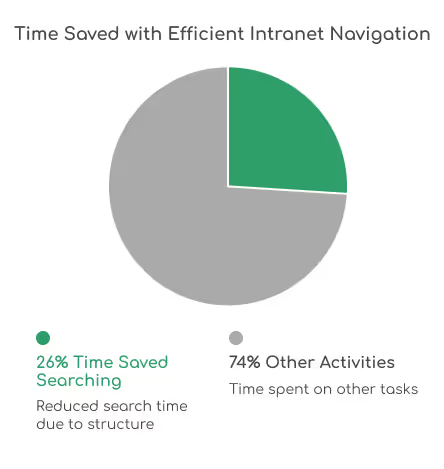
Research by Nielsen Norman Group shows that users spend 26% less time searching when intranet navigation is logically structured.
Start by mapping your content into intuitive categories like Departments, Projects, and Resources.
Use consistent site hierarchies, quick links, and breadcrumbs to guide users smoothly across pages.
A confusing layout can cost hours in lost productivity each week, especially in large enterprises.
Related: 5 Custom SharePoint Quick Links Layouts to Elevate Intranet Navigation
(Discover creative ways to simplify navigation using custom layouts and web parts.)
2. User Experience (UX) and Design
Great intranet design isn’t about flashy visuals, it’s about how effortless it feels to use.
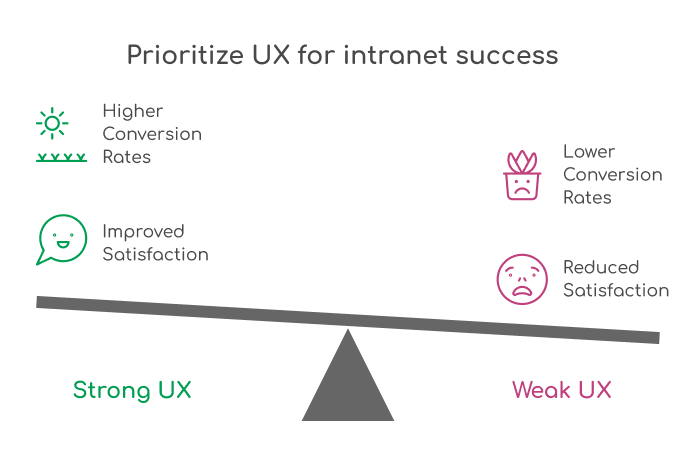
In fact, according to Forrester Research, companies with strong UX see up to 400% higher conversion rates and improved employee satisfaction scores.
Your intranet should reflect your brand identity while keeping accessibility and mobile responsiveness at its core.
Consistency in typography, colors, and page layouts builds familiarity and trust.
Features like personalized dashboards, dark mode, and employee spotlight sections enhance inclusivity and engagement especially for hybrid teams.
Explore our Intranet Design Checklist 2026 (A step-by-step guide to designing a SharePoint intranet your team actually loves to use.)
3. Governance and Compliance
Governance is the invisible framework that keeps your intranet secure, compliant, and scalable.
Without clear ownership and workflows, intranets quickly turn into cluttered repositories.
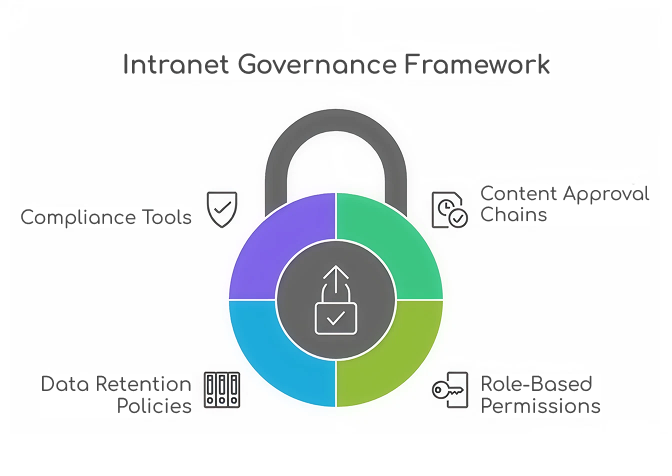
Define content approval chains, role-based permissions, and data retention policies early in your governance model.
According to AIIM, 60% of organizations struggle with document version control due to poor governance.
SharePoint offers built-in compliance tools and policy automation capabilities when properly configured, these can reduce data breaches and policy violations by over 30%.
Learn how to implement effective governance frameworks that protect your intranet and your data with our detailed blog on Governance of Data in SharePoint: Tools, Policies, and Best Practices
4. Content Management
Your intranet’s success is directly tied to the quality and freshness of its content.
Employees should be able to search, filter, and discover information easily.
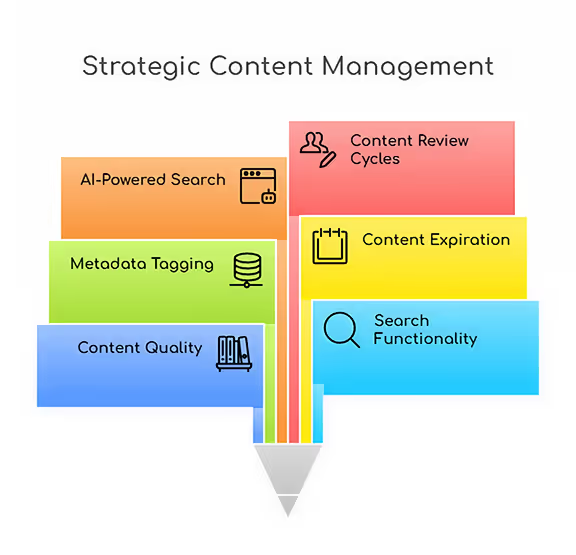
This is where metadata tagging, content expiration policies, and AI-powered search can make a measurable difference.
Microsoft reports that employees spend up to 20% of their time searching for internal information an issue solved by structured content libraries and taxonomy-based metadata.
Set up content review cycles and empower department owners to maintain pages regularly.
Read: 15 Modern SharePoint Document Library Web Part Layouts to explore creative ways to organize, display, and manage your digital assets effectively
5. Integration and Automation
The modern intranet isn’t static, it’s an intelligent workspace.
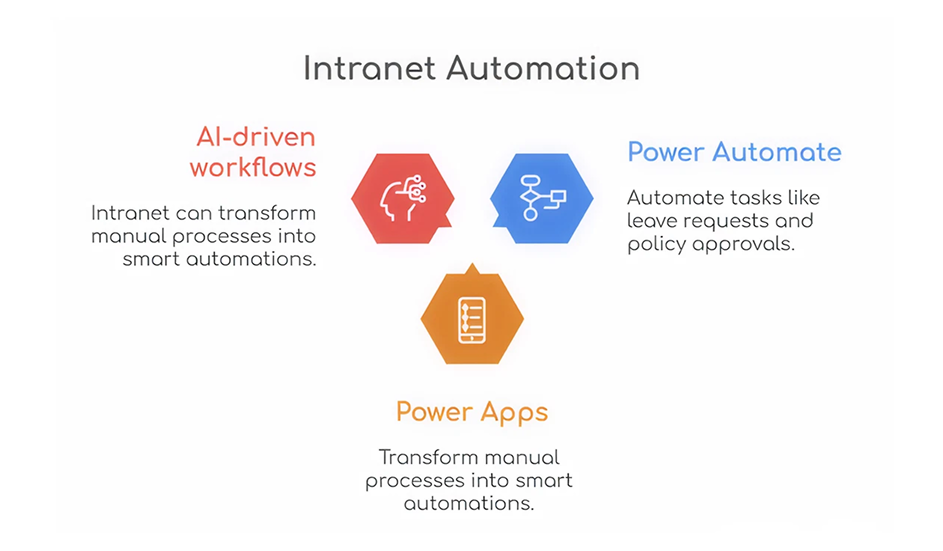
Through Microsoft Power Automate, Power Apps, and AI-driven workflows, your intranet can transform manual processes into smart automations.
Imagine automating tasks like leave requests, policy approvals, or IT ticket routing.
According to Gartner, automation can save organizations 25,000 hours per year in administrative tasks on average.
With SharePoint, integrating Teams, Outlook, and third-party CRMs enhances overall digital synergy.
Bringing It All Together
A truly high-performing intranet aligns these five components structure, UX, governance, content, and automation under a strategic vision.
When each pillar functions cohesively, your organization gains not just an intranet, but a connected, intelligent workspace that drives efficiency and engagement.
The Ultimate Guide to Modern Intranet & Digital Workplace Success
Intranets have evolved far beyond internal news boards or file repositories.
Ever missed a task because you forgot to follow up?
SharePoint reminders and alerts make sure that never happens again.
Whether you’re tracking project deadlines or document approvals, you can automate it all no coding required!
How to Set Up Automated Reminders and Alerts in SharePoint (Step-by-Step Guide 2026)
SharePoint reminders and alerts make sure that never happens again.
Microsoft 365 brings together two powerful platforms for teamwork SharePoint Online and Microsoft Teams. SharePoint provides a secure place to store, organize, and manage content, while Teams enables real-time communication and collaboration. By integrating a new SharePoint site with Teams, organizations can provide employees with a unified hub where conversations, files, and resources live together.
In this blog, we’ll walk through the steps to integrate a new SharePoint site with Microsoft Teams and highlight best practices for seamless collaboration.
Steps to Integrate a SharePoint Site with Microsoft Teams
Step 1: Create a New SharePoint Site
1. Check out this blog for creating a SharePoint site.
(or)
2. Navigate to the SharePoint Admin Center (or directly via the SharePoint home page).
3. Click Create site.

4. Choose the Communication site template (recommended for collaboration).
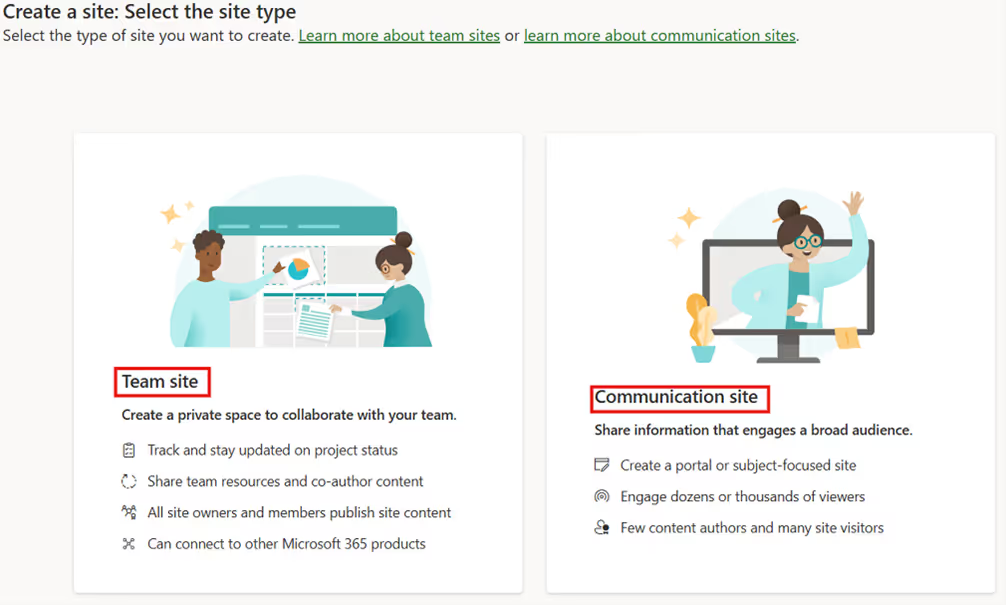
5. Enter site name, owners.
6. Once created, your site will have its own document library, lists, and permissions.
Note: Use clear and consistent naming conventions so the site is easily recognizable in Teams.
Step 2: Connect the SharePoint Site to Microsoft Teams
You can link your existing SharePoint site to a new or existing Teams channel.
Option A: Add a SharePoint Site to Teams (opens directly within Teams)
1. In Teams, go to your desired team and channel.
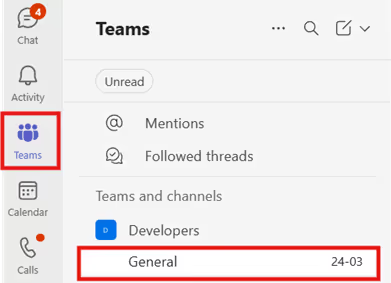
2. Click + (Add a tab).

3. Select SharePoint.
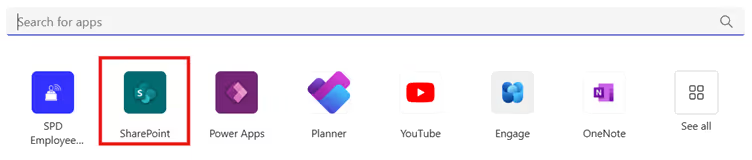
4. Select Any SharePoint site and paste the SharePoint site link in the text box.
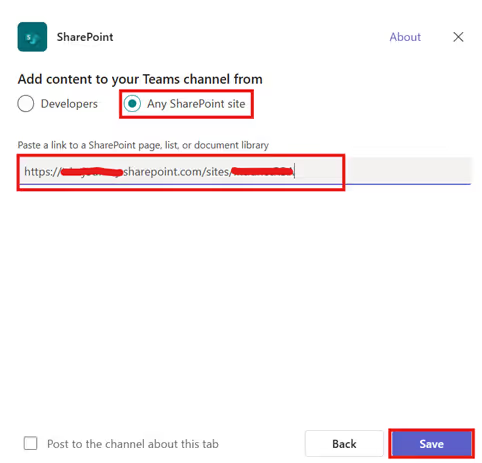
5. Click Save to add it as a new tab.

This allows members to interact with SharePoint pages (like dashboards or news pages) without leaving Teams.
Option B: Add SharePoint Site as a Website Tab (opens in a new browser tab)
If you want to link the entire SharePoint site:
1. Go to the desired team channel in Teams.
2. Click + (Add a tab).
3. Search for Website.

4. Paste your SharePoint site URL.
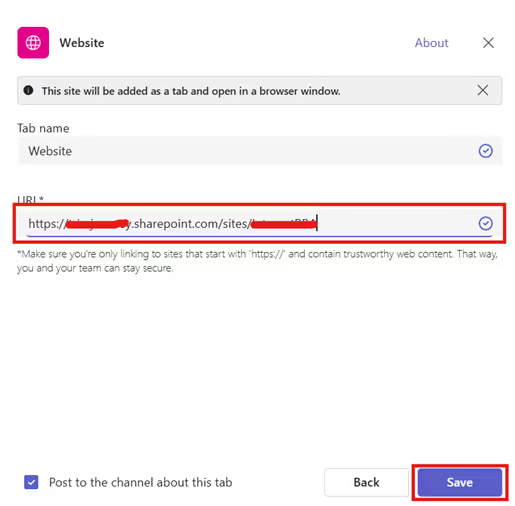
5. Click Save to add it as a new tab.

Step 3: Manage Permissions Effectively
Teams and SharePoint permissions are linked:
- Adding a member to Teams automatically grants them access to the connected SharePoint site.
- Removing a member from Teams revokes SharePoint access.
Conclusion
Integrating SharePoint with Microsoft Teams bridges the gap between structured content management and fluid team communication. By connecting your new SharePoint site into Teams, you create a single hub for collaboration where users can chat, share, and co-author documents all without switching between apps.
Related Blogs
How to Create a SharePoint Site: Step-by-Step Guide
Explore the Best SharePoint Intranet Examples: 16 Practical Applications

Integrate SharePoint with Microsoft Teams for Seamless Collaboration
Microsoft 365 brings together two powerful platforms for teamwork SharePoint Online and Microsoft Teams.

Celebrations are the heartbeat of workplace culture.
Whether it’s a birthday, a work anniversary, or simply welcoming a new colleague, these moments create opportunities to connect, appreciate, and build stronger bonds across teams. But in busy workplaces, it’s easy to let these special days slip by unnoticed.
That’s where Celebration Web Parts come in bringing birthdays, anniversaries, and milestones right onto your intranet. With simple, elegant, and engaging designs, they make it effortless to recognize your people and spread positivity with just one click.
All-in-One Celebrations Web Part
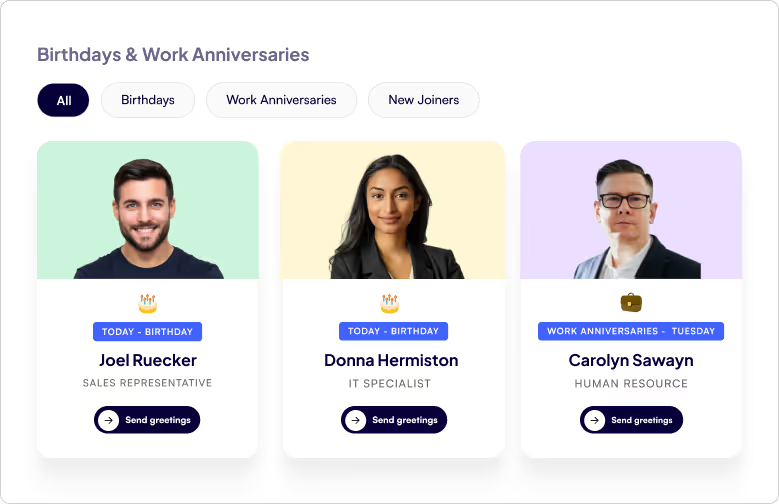
- Web Part Title at the Top Left - A clear, customizable title so employees instantly know what the section is about.
- Tabbed Navigation - Switch effortlessly between Birthdays, Work Anniversaries, and New Joiners with dedicated tabs.
- Employee Cards in a Clean Box Layout - Each person being celebrated gets their own spotlight in a beautifully organized card.
- Profile Image - Displays the employee’s photo to make celebrations more personal and recognizable.
- Celebration Type - Clearly shows whether it’s a Birthday, Work Anniversary, or a New Joiner being introduced.
- Employee Details - Includes the employee’s name and designation, giving context and recognition.
- Send Greeting Button - A one-click “Send Greeting” button that directly opens Outlook, allowing colleagues to instantly send warm wishes or a welcome note.
Celebrations in a Vertical View
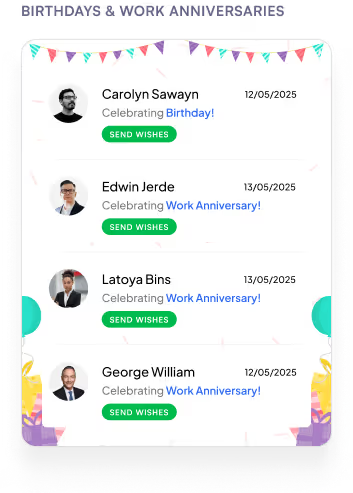
- Web Part Title on Top - A clear heading that immediately tells you what the section is about.
- Vertical List Layout - All employees celebrating a Birthday or Work Anniversary are neatly displayed in a vertical order.
- Profile Picture on the Left - Each employee’s photo is placed on the left for quick recognition.
- Employee Information in the Center
1. Displays the name and designation for context.
2. Includes a Send Greeting button that opens Outlook so you can instantly share wishes.
- Date on the Right - Clearly shows the date of the birthday or work anniversary, so you never miss a celebration.

Employee Recognition Made Easy: SharePoint Celebration Web Parts
Celebrations are the heartbeat of workplace culture.

Calendars aren’t just about dates anymore. They’re about making sure you don’t double-book that meeting, forget your training, or miss the office party.
Custom Calendar Web Parts the unsung heroes of workplace organization. They don’t just sit quietly on your intranet, they remind, guide, and sync like a personal assistant who never takes a coffee break.
Whether it’s a new training, an all-hands event, or just keeping tabs on your week, these calendars are here to turn “Oops, I forgot” into “Don’t worry, I’m already on it.”
Plan Smarter with the Classic Calendar Web Part
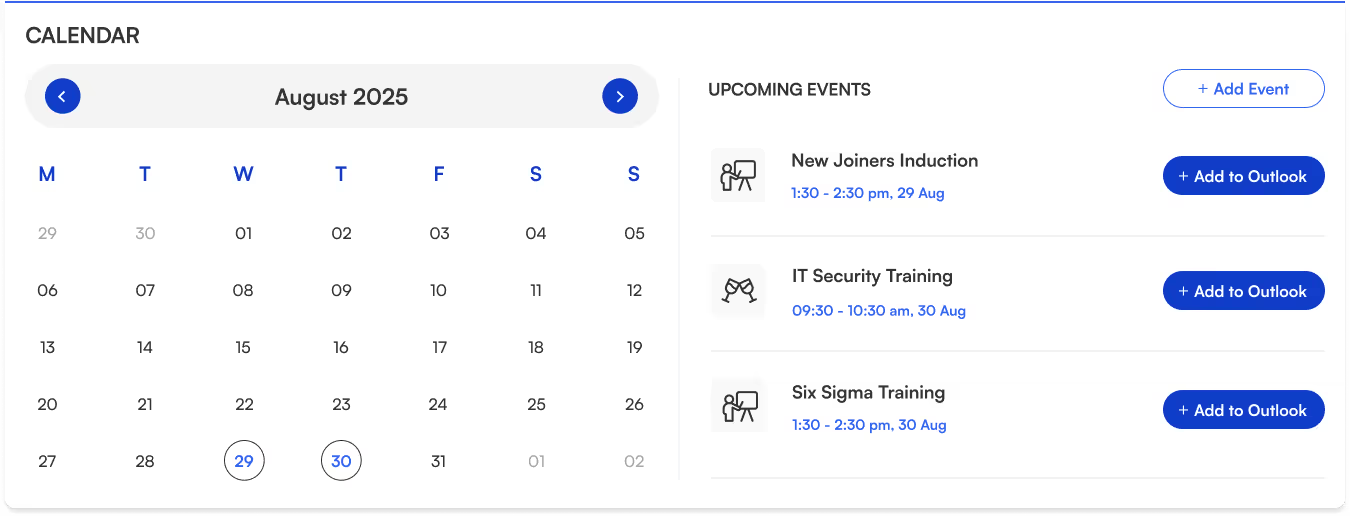
- Title sits neatly at the top-left for quick identification.
- Two-section layout:
Left → interactive calendar view.
Right → upcoming events list.
- Each event shows its name, icon, date, and time clear and scannable.
- “Add to Outlook” button beside every event for instant sync and reminders.
- “Add Event” button (top-right corner) makes creating events quick and easy.
- Perfect for day-to-day scheduling.
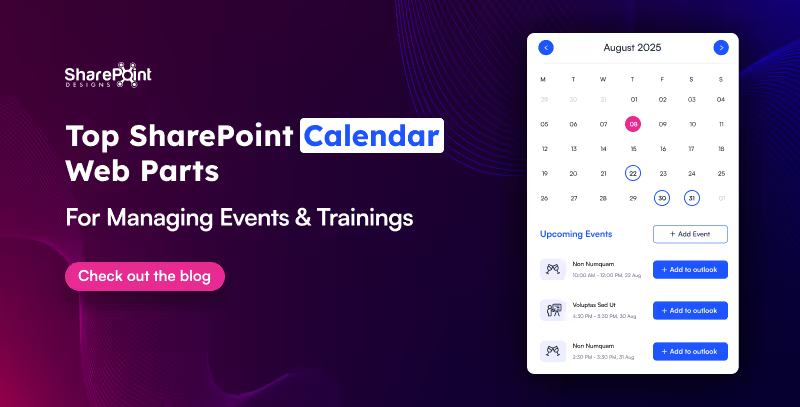
Top SharePoint Calendar Web Parts for Managing Events & Trainings
Calendars aren’t just about dates anymore. They’re about making sure you don’t double-book that meeting, forget your training,
Hunting down a document shouldn’t feel like solving a mystery novel.
That’s where Document Library Webparts swoop in like superheroes for your intranet. From sleek slides to smart filters, they don’t just store your files they showcase them in style, keep everything organized, and make searching as easy as scrolling your Insta feed. Whether it’s policies, SOPs, trainings, or your team’s most important docs, there’s a layout here designed to save your time.
1. Important Documents Library, Your One-Stop Space

- Organized as sleek slides with images, category, title, and short description.
- Shows who last viewed the document and how long ago (down to minutes or seconds).
- Department tabs below the title for instant filtering.
- See All link on the top-right to view the complete library.
- Smart, sleek, and makes key files easy to find.
2. Mandatory Trainings Library, Essential Learning Hub

- Every training document is displayed as slides with cover images.
- Category tag (top-left) and file type icon (bottom-left) on each slide.
- Short descriptions for quick context.
- Department tabs for category-based filtering.
- All links on the top-right for the full training collection.
- Keeps all your must-do training just a click away.

15 Modern SharePoint Document Library Web Part Layouts for Smarter File Management
Hunting down a document shouldn’t feel like solving a mystery novel.
In a big organization, remembering who’s who can feel like trying to recall names at a never-ending party.
The Organization Chart Web Part makes it easy to put faces, names, and roles together in seconds.
Whether you’re welcoming a new joiner, looking for the right colleague to collaborate with, or simply trying to understand the reporting flow, these web parts make navigating your org chart a breeze. They also integrate seamlessly into your SharePoint intranet design, helping employees connect faster and work smarter.
Smart Search & Quick Actions
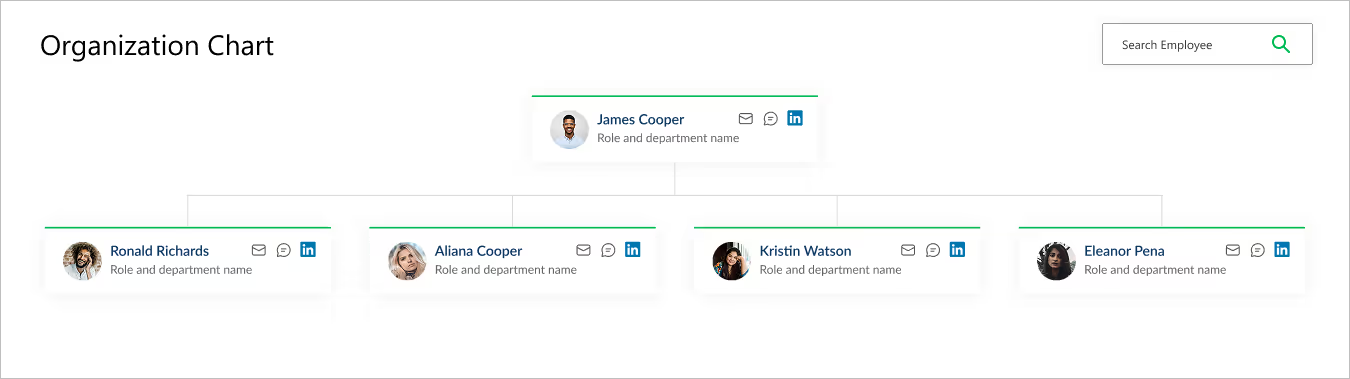
- Title & Search Bar: Title sits at the top left, while a smart search bar on the top right makes it effortless to find employees.
- Profile Cards: Each card brings the chart to life with a photo, name, and role.
- Quick Connect Icons: Handy action buttons on the right let you email, message, or even connect via LinkedIn in a single click.
- Why It’s Great: A simple yet powerful way to explore your company structure and stay connected.
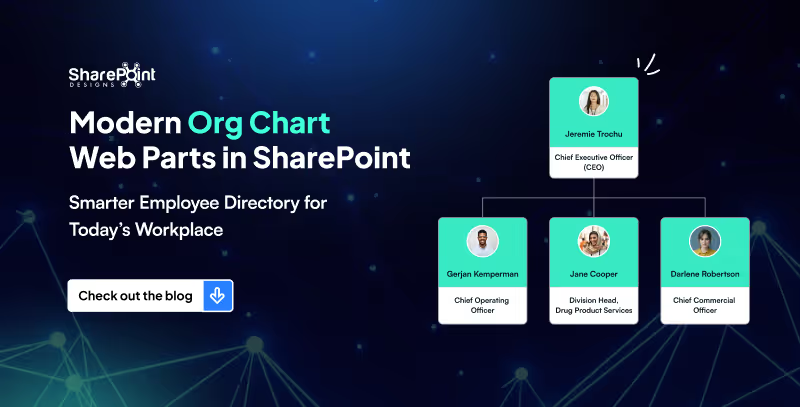
Modern Org Chart Web Parts in SharePoint: Smarter Employee Directory for Today’s Workplace
In a big organization, remembering who’s who can feel like trying to recall names at a never-ending party.
In today’s digital era, businesses rely on SharePoint for collaboration and data management. However, SharePoint alone cannot provide advanced analytics. By connecting SharePoint with Power BI, organizations can transform static lists and documents into interactive, data-driven dashboards that drive smarter decision-making.
Why Connect SharePoint with Power BI?
Integrating SharePoint and Power BI offers several advantages:
- Centralized Data Access: Use SharePoint as a single source of truth and visualize it in Power BI.
- Real-Time Insights: Keep dashboards updated with automated refreshes.
- Better Decision-Making: Convert raw SharePoint data into meaningful visualizations.
- Microsoft Ecosystem Integration: Both tools seamlessly connect with Office 365 and Azure.
How to Connect SharePoint with Power BI
1. Connect SharePoint Lists to Power BI
SharePoint lists often hold structured project or business data.
Steps to connect:
1. Open Power BI Desktop → Get Data.
2. Select SharePoint Online List.
3. Enter your SharePoint site URL (e.g., https://company.sharepoint.com/sites/project).
4. Sign in with organizational credentials.
5. Load the required lists into Power BI.
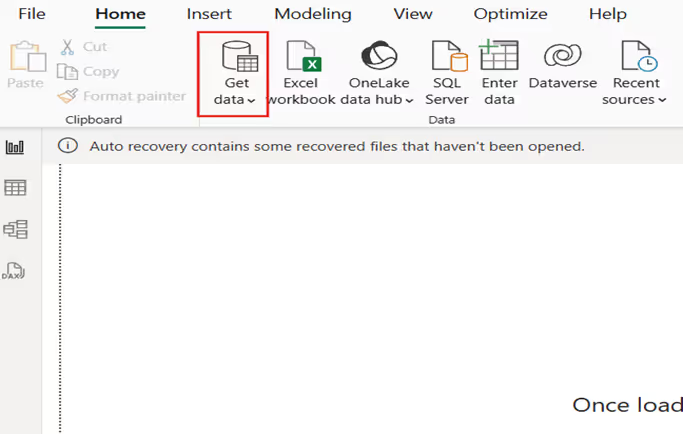
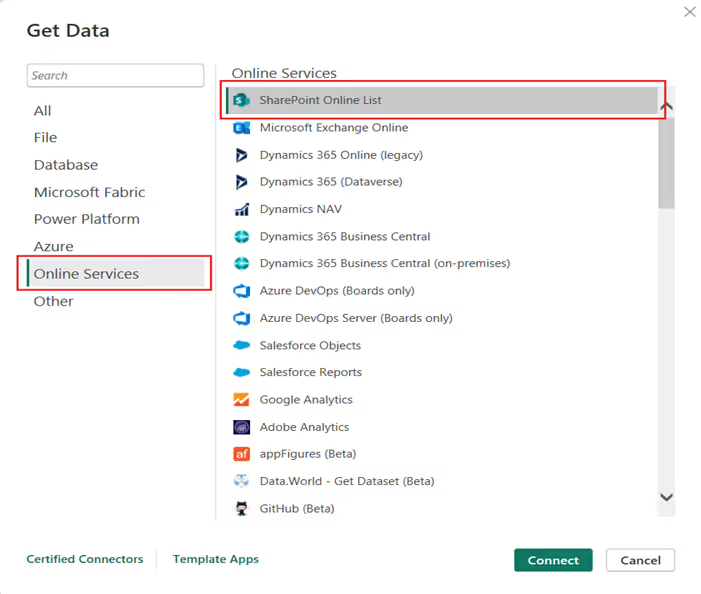
Best for: task management, issue tracking, and HR records.
Connecting SharePoint with Power BI for Data-Driven Dashboards
In today’s digital era, businesses rely on SharePoint for collaboration and data management.

Quick Links aren’t just about getting from point A to point B, they are about making navigation effortless, engaging, and even a little exciting.
Imagine your intranet where every click feels smooth, every layout looks polished, and every user finds what they need without the clutter. From sleek boxed designs to dynamic interactive panels, these Quick Links layouts aren’t just functional, they’re stylish upgrades that bring personality and flow to your digital workspace.
1. Horizontal Boxed Layout

- Sleek and streamlined, this layout lines up your quick links like a well-dressed team of icons and titles.
- Clean, consistent, and perfect for top-of-page navigation, it delivers fast clicks with a fresh, flowing look.
2. Quick Links with Dropdown Menu
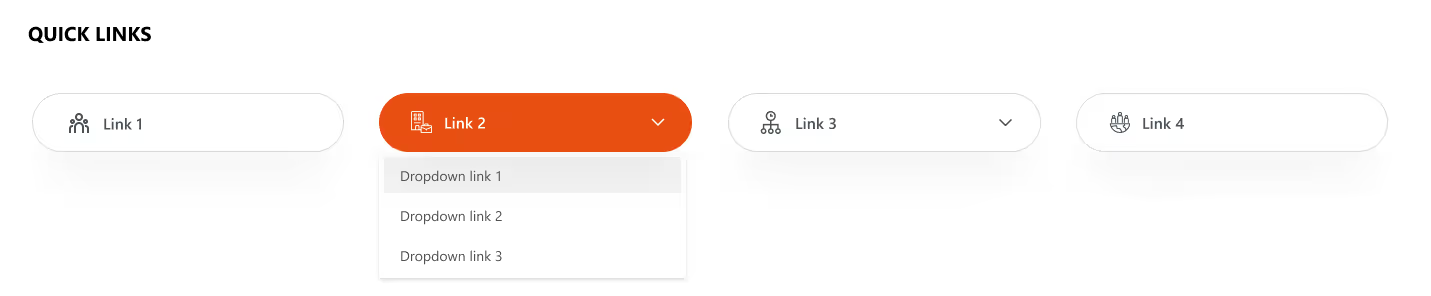
- Turn things up a notch with icons, titles, and a smart dropdown.
- Compact yet clever, this layout lets you pack in more links without clutter.
- Just click, expand, and boom; navigation made simple and stylish.
Explore our SharePoint Intranet Templates to implement these Quick Links layouts instantly.
3. Two-Row Boxed Quick Links
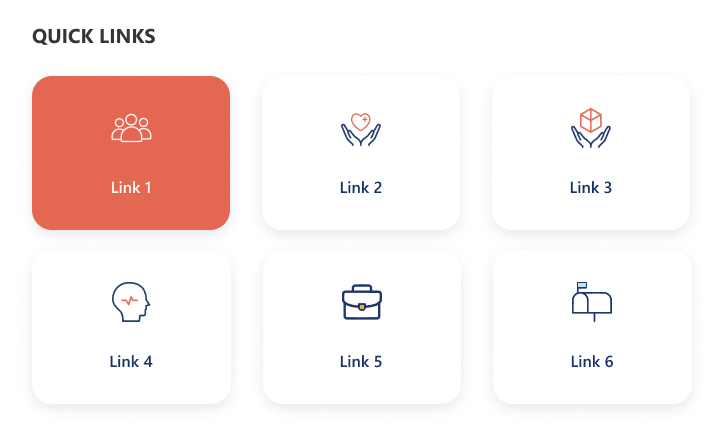
- Balanced and tidy, this design stacks your links in two neat horizontal rows.
- With crisp icons and clear titles, it’s perfect for organizing more content in a way that’s stylish, accessible, and easy on the eyes.
4. Department-Based Quick Links
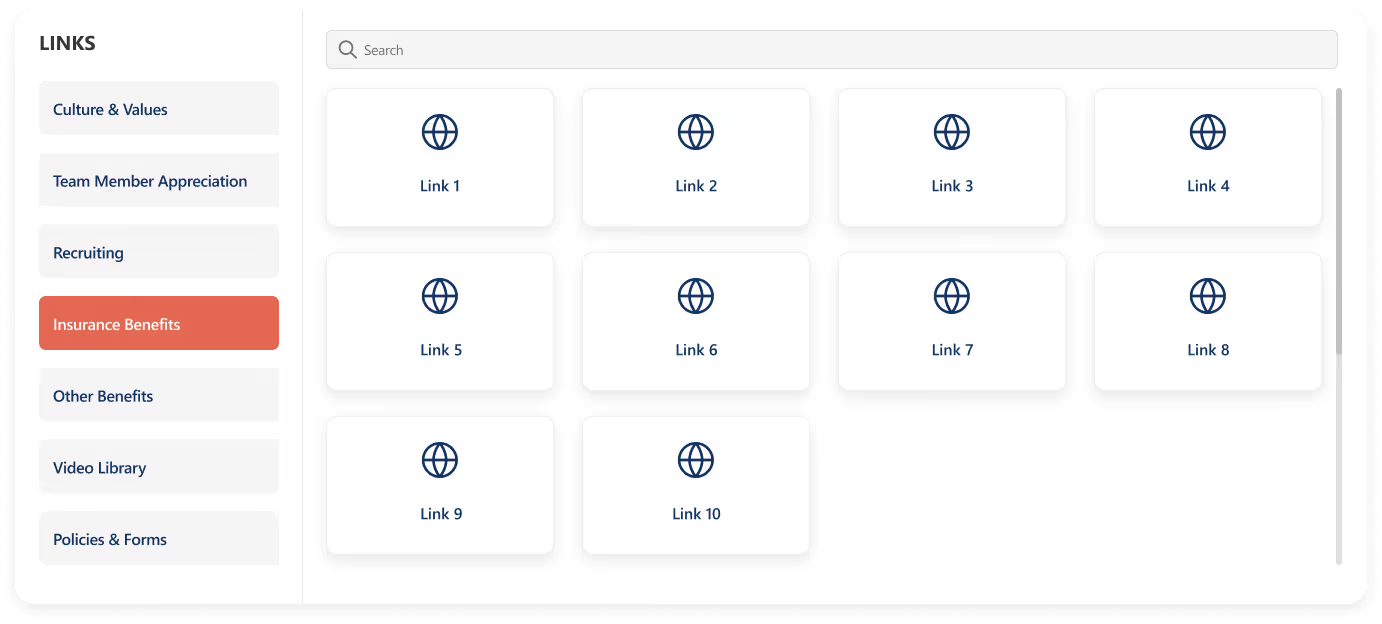
- Built for clarity and speed, this layout stacks departments vertically on the left for quick switching, while the right side features a handy search bar for precision.
- Below, a clean boxed display shows the selected department’s links.
- Add a custom web part title on top for your own flair.
5 Custom SharePoint Quick Links Layouts to Elevate Intranet Navigation
Quick Links aren’t just about getting from point A to point B, they are about making navigation effortless, engaging, and even a little exciting.
News doesn’t have to be boring, especially on your intranet!
Imagine a space where every update feels alive: bold images, smooth layouts, and department filters that make sense. That’s exactly what our Custom News Web Part brings to the table. From dynamic tabs to sleek carousels, we’ve designed layouts that don’t just share information they show it off. Whether your team loves to scroll endlessly, skim quickly, or spotlight the big stories, we’ve got a style that fits.
1. Dynamic Department Tabs
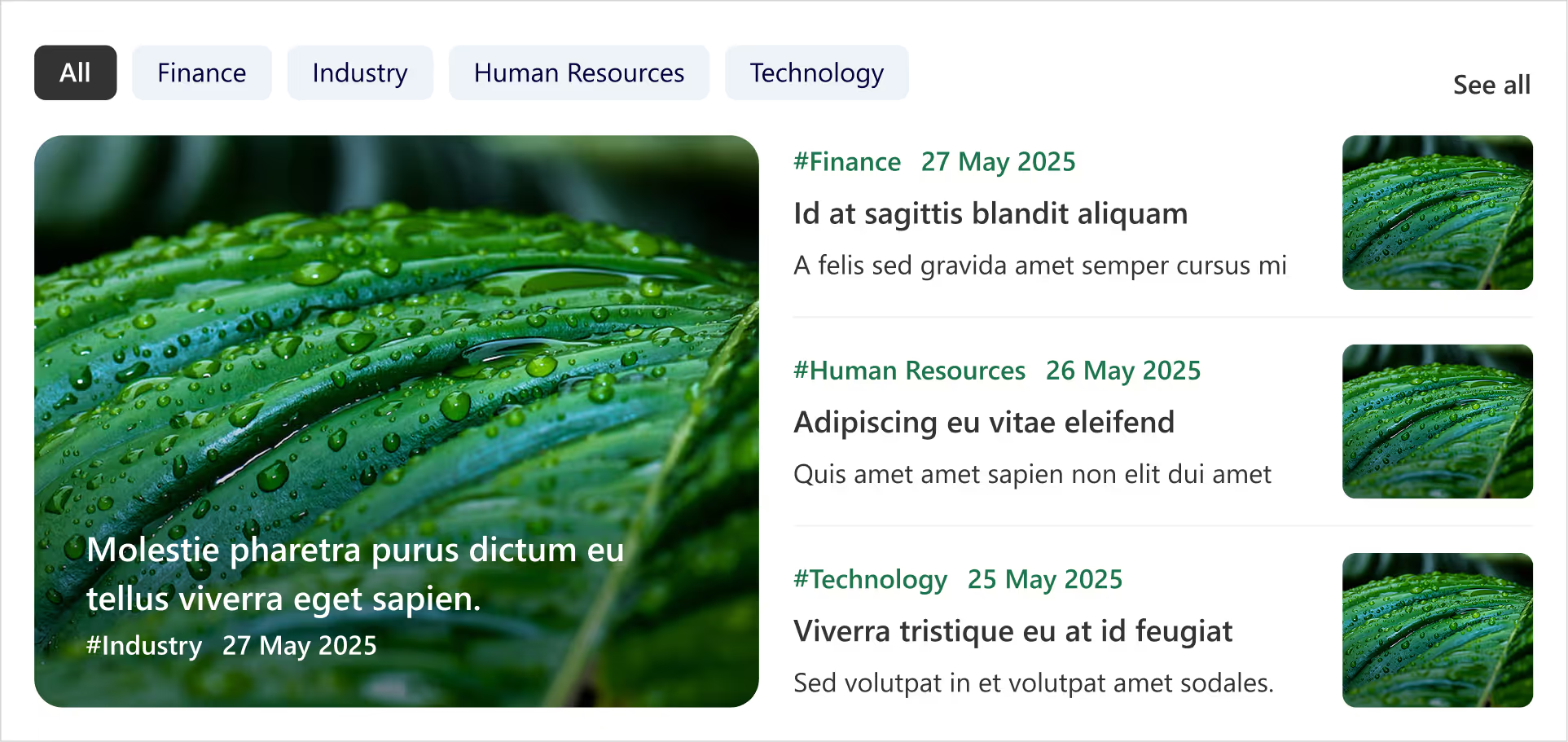
- Clickable tabs for each department (HR, Finance, Marketing, etc.).
- Instantly update the news feed when you tap a tab.
- Each Box includes department tag, crisp images, and publish date.
- Handy ‘See All’ link at the top-right corner for a dedicated news page.
- Smart, fresh, and perfectly tailored for departmental updates.
8 Custom SharePoint News Web Part Layouts to Boost Employee Engagement (That Employees Actually Love)
Imagine a space where every update feels alive: bold images, smooth layouts, and department filters that make sense.
Ever spent more time hunting for a document than actually using it?
Let’s be honest in the modern workplace, no one has time to play hide and seek with files. Whether it’s that one policy doc, a video tutorial, or even a quick note from leadership, you need it fast, and you need it now.
Enter the Custom Search Web Part, your digital sidekick that makes searching feel less like a chore and more like a superpower. It’s not just a search box; it’s smart, stylish, and totally customizable. From cheerful greetings and real-time clocks to sleek filters and layouts that fit your vibe, this tool turns the daily hunt for information into a smooth, almost fun experience.
1. Classic Centered Layout
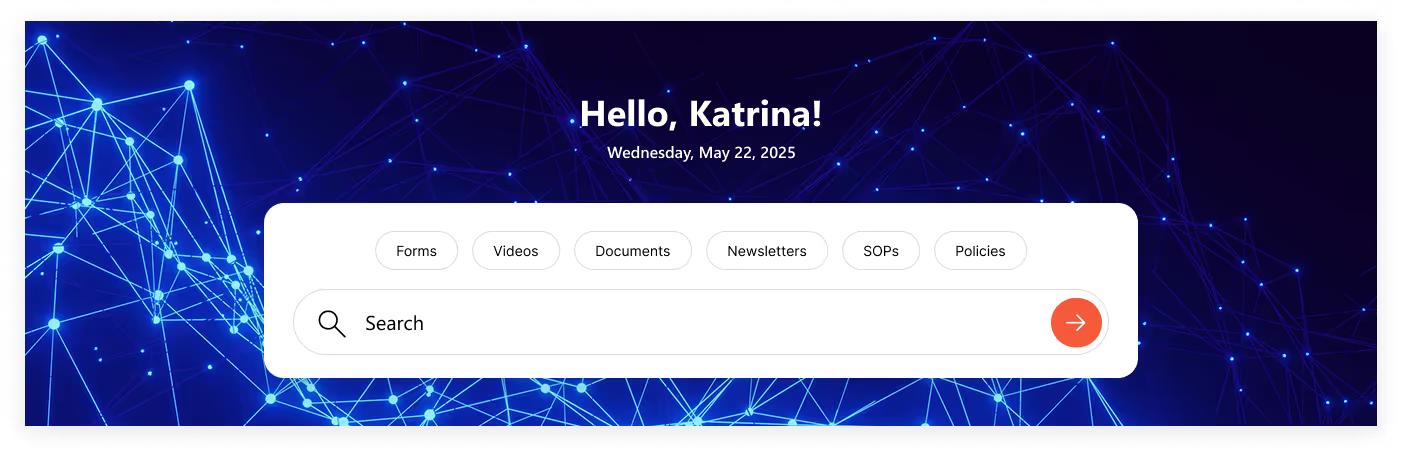
- Customizable Welcome Message: Greet users with “Hello", "Welcome”, “Good Morning” or your own style.
- Personalized Touch: Username of the logged-in user is automatically fetched.
- Always On Time: Displays accurate date & time synced with the user’s time zone.
- Smart Search Bar: Quickly search for file types across the organization.
- Built-In Filters: Narrow results instantly with categories like: Forms, Videos, Documents, Newsletters, SOPs & Policies.
2. Modern Open Layout
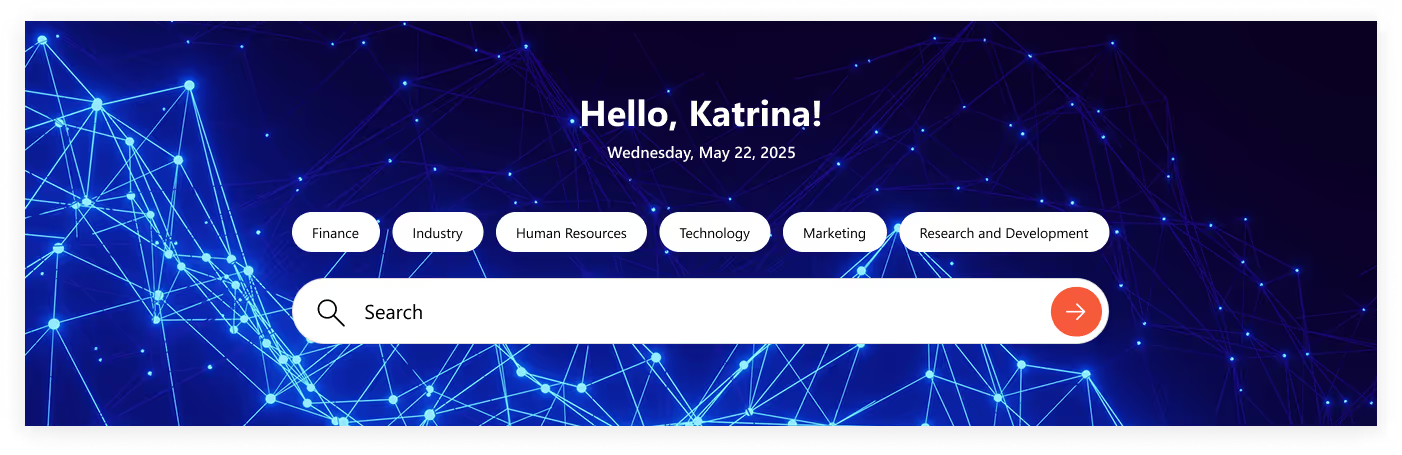
- Same Core Features: Welcome message, username, and real-time date & time.
- Fresh Look: No boxy background, just a clean, open design.
- Seamless Blend: Minimal, modern layout that fits perfectly with your site’s style.
- Smart & Sleek: Functionality remains strong, but with a lighter, more stylish touch.
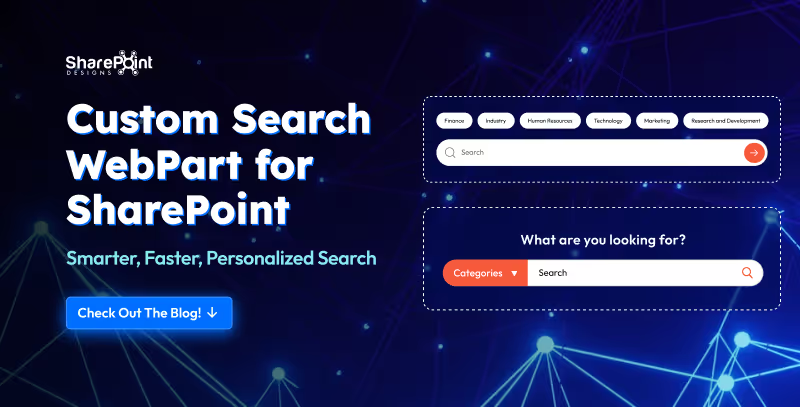
Custom Search Web Part for SharePoint - Smarter, Faster, Personalized Search
Let’s be honest in the modern workplace, no one has time to play hide and seek with files.
Welcome Home Digitally...Meet the Custom Welcome Banner Web Part
Your SharePoint homepage doesn’t have to be just a portal, it can be a personal greeting, a global dashboard, and a daily dose of inspiration all in one. With the Custom Welcome Banner Web Part, every visit feels tailored, a warm welcome message, your name, the current time, and even live updates from around the world.
From rotating messages that showcase your company’s vision to interactive clocks and weather boxes for global teams, this web part turns a standard homepage into a dynamic, engaging experience. Stylish, personal, and smart, your SharePoint home just got a personality upgrade.
Explore Our Custom Welcome Banner Web Parts
Global Time Greeting Banner

- Left side: Customizable welcome message, user’s name, local date/time.
- Right side: World clock zone
- Box displaying date/day of selected country.
- Three analog clocks showing different UTC time zones.
- Clean, informative, globally connected layout.
Vision & Values Spotlight Banner
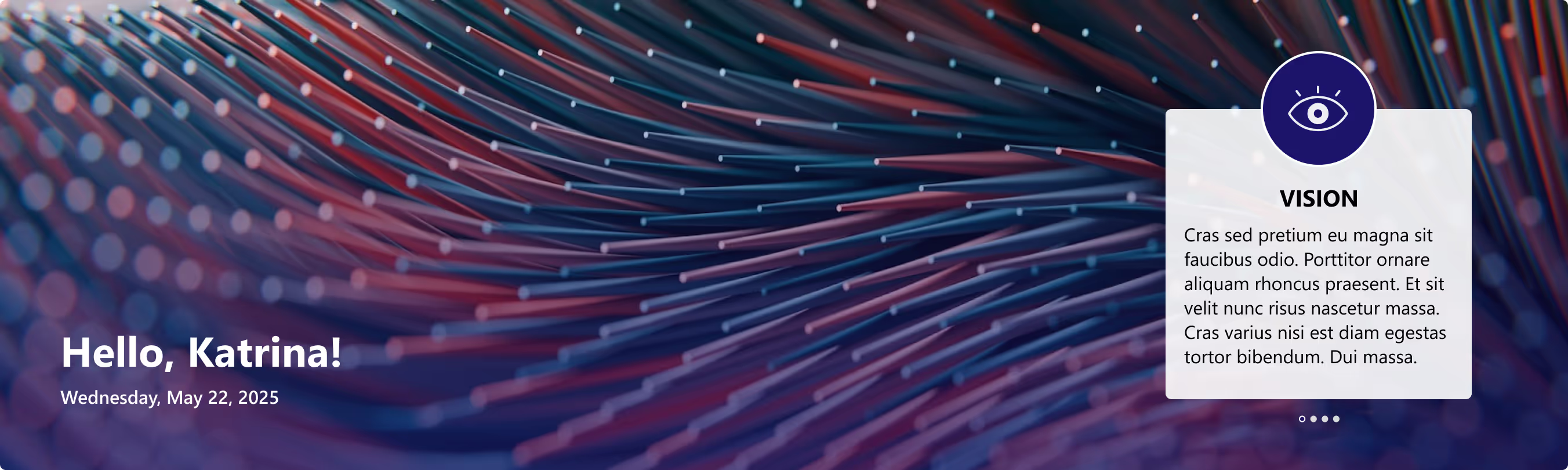
- Right side: Box for organization’s vision, mission, and values.
- Messages rotate dynamically at intervals.
- Highlights the company’s core values in a clear, engaging way.

Transform Your SharePoint Homepage with Custom Welcome Banner Web Parts
Your SharePoint homepage doesn’t have to be just a portal, it can be a personal greeting, a global dashboard, and a daily dose of inspiration all in one.
For today’s employees, getting the right information quickly is critical to staying productive. Employees need to access the right information with minimal clicks, avoiding cluttered menus and outdated links. This is where a Custom Top Navigation Web Part comes into play. This web part is not just a design enhancement, it is a functional solution that makes SharePoint intranets smarter, cleaner, and more user-friendly.
From simple menus to dynamic mega menus, we offer various custom top navigation web parts. Here’s what they look like.
1. The Informative Navigation Bar

- Organization’s Logo: neatly placed on the left, giving the navigation bar a professional, branded look.
- Quick Links: positioned right beside the logo, each with its own icon and label for tools, portals, or important pages just a click away.
- Standout Feature (Right Side):
1. Livestock market updates
2. Current date display
3. Real-time currency values for key countries - Overall Design: clean, functional, and designed to keep users informed and connected directly from the top of the page.
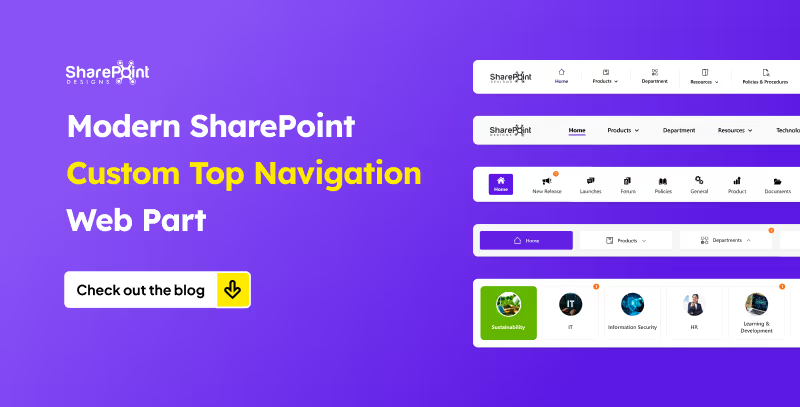
Modern SharePoint Custom Top Navigation Web Part: Boost UX and Productivity
For today’s employees, getting the right information quickly is critical to staying productive.
For nearly two decades, SharePoint has been at the core of enterprise collaboration, document management, and intranet solutions. Over time, it has evolved from the Classic SharePoint experience to today’s Modern SharePoint experience.
Many organizations now face a common question: Should we continue with Classic sites, or transition to Modern sites?
The decision is not as simple as flipping a switch, it depends on your existing environment, level of customization, user adoption needs, and your digital transformation strategy. Let’s explore both approaches in depth to help you make the right choice.
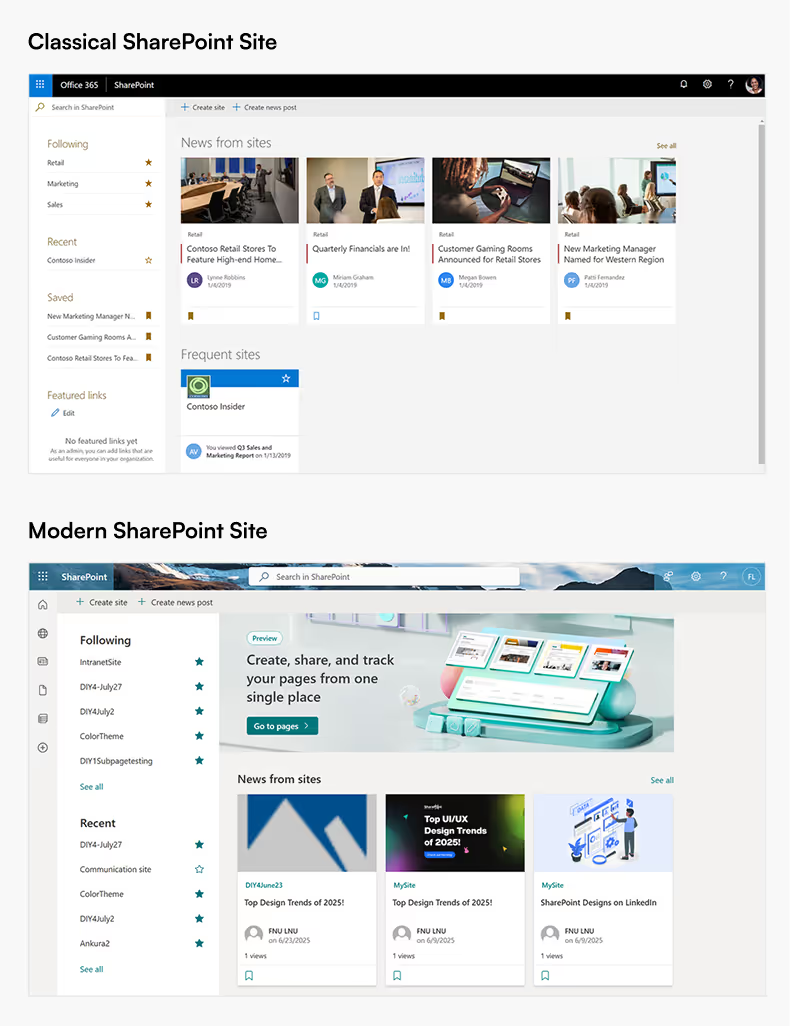
What are Classic SharePoint Sites?
Classic SharePoint sites represent the long-standing interface that many enterprises have relied on for years.
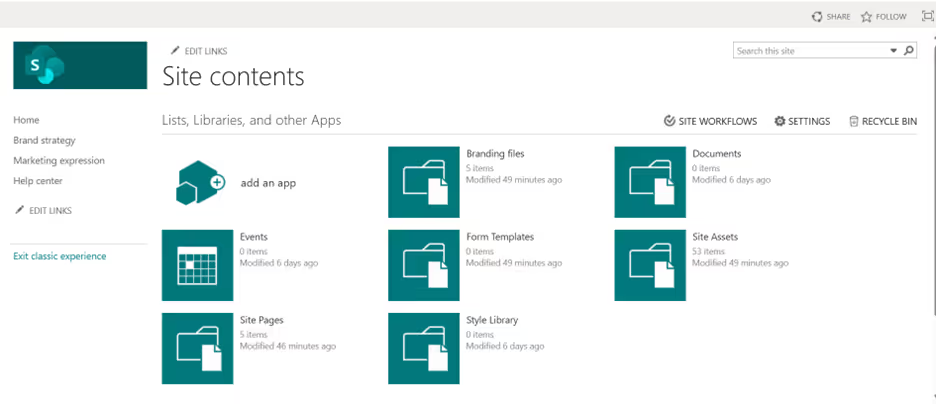
Key Characteristics:
- Traditional User Interface: A familiar, structured layout that legacy SharePoint users know well.
- Extensive Customization: Supports master pages, page layouts, and script injection, giving developers granular control.
- Legacy Tools: Compatible with SharePoint Designer workflows and InfoPath forms, which are still critical in some organizations.
- Detailed Control: Offers deep configuration options for site navigation, branding, and permissions.
Challenges with Classic Sites:
- Outdated, less intuitive design compared to modern web standards.
- Limited responsiveness for mobile users.
- Heavy reliance on custom development, increasing maintenance costs.
- Only maintained for compatibility, no new features are being developed for Classic.
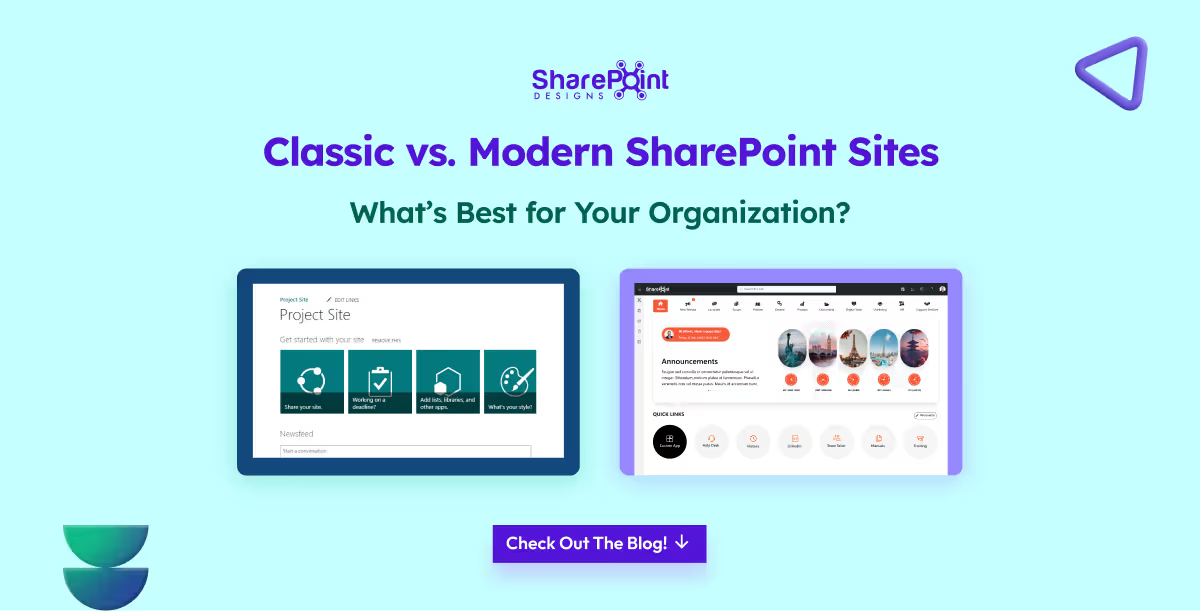
Classic vs. Modern SharePoint Sites - What’s Best for Your Organization?
For nearly two decades, SharePoint has been at the core of enterprise collaboration, document management, and intranet solutions.

Introduction
In today’s hybrid work model, managing office attendance and allocating seats can be a real challenge, especially in shared workspaces. That’s why companies are increasingly turning to the best hybrid workplace App solutions.
Our Power Apps based Attendance & Seat Management solution helps employees book desks, track attendance, and gives managers real-time visibility into office usage. It’s more than just a seat booking app it’s a complete hybrid workplace management app built on Microsoft Power Apps.
Best Hybrid Workplace App: Smart Attendance & Seat Management with Power Apps
In today’s hybrid work model, managing office attendance and allocating seats can be a real challenge, especially in shared workspaces.
Logging into a company intranet should feel like walking into a great party. Imagine stepping into a room where you’re greeted warmly, the atmosphere feels alive, and there’s something fun or useful waiting for you at every corner.
You wouldn’t want to hang around at a dull party where no one talks to each other, the music is flat, and the vibe feels lifeless. The same goes for an intranet; if it feels static and boring, employees won’t engage with it.
What is Employee Engagement?
Employee engagement is the emotional commitment employees have toward their work, team, and organization. It’s not just about job satisfaction , it’s about employees feeling motivated, connected, and willing to go the extra mile because they believe in the company’s mission.
When engagement is high, employees actively participate, share ideas, and contribute beyond their basic responsibilities. An engaging intranet plays a big role in nurturing this commitment by making communication, recognition, and collaboration more seamless.
Why is Employee Engagement Important?
Employee engagement is more than just a “feel-good” factor; it drives measurable business impact:
- Higher Productivity: Engaged employees are more focused and proactive.
- Lower Turnover: They feel valued, reducing resignation rates.
- Stronger Collaboration: Engagement improves teamwork and communication.
- Better Customer Experience: Happy employees create better customer interactions.
- Culture Building: Recognition and inclusion foster a positive workplace culture.
A well-designed modern intranet directly fuels engagement by offering recognition, communication, personalization, and collaboration tools making it a hub where employees feel connected to the company and each other.
So how to make some small adjustments to your intranet home page so that your employees keep coming back for more every day?
In this article, we’ll explore 14 modern, Gen Z-inspired ways to boost intranet engagement practical ideas designed for today’s workplaces that want to blend productivity, collaboration, and fun.
1. Personalized welcome message with a small animation to water a plant or feed a fish
Imagine logging in and being greeted by your own virtual plant or a goldfish that you can take care of with just a click. This small act adds a personal, fun touch to the start of the workday. It creates a sense of ownership and routine, making employees feel more connected.
Simple animations like watering a plant or feeding a fish bring joy while reinforcing engagement.
When they're not logged in for more than 3 days may be send a notification saying, "you plant is dying or please feed your fish", that way they login, of course this feature can be disabled when they are on vacation.
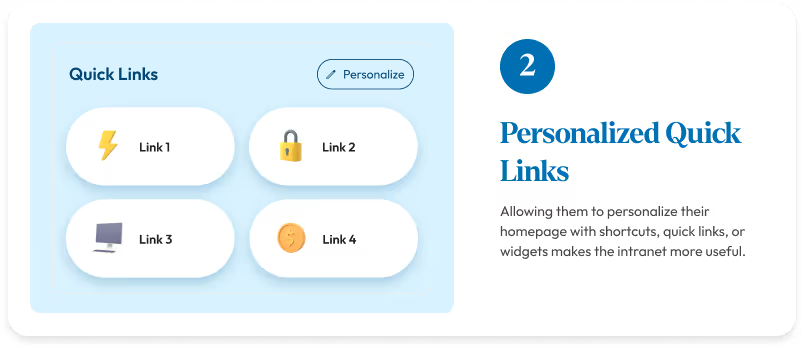
2. Personalized Quick links
Employees have different needs based on their roles.
“Allowing them to personalize their homepage with shortcuts, quick links, or widgets makes the intranet more useful."
Instead of spending time to search for the information, now everything is within reach. This saves time and keeps them coming back to use the platform.
3. Shoutouts & Kudos with animations
Recognition is one of the strongest motivators. Adding shoutouts and kudos with fun animations makes appreciation more visible and engaging.
A simple “well done” can feel special when paired with a celebratory animation like confetti or balloons.
It makes the employees feel motivated and valued.
14 Fresh Intranet Content Ideas to Boost Employee Engagement (Inspired by Gen Z)
Logging into a company intranet should feel like walking into a great party.
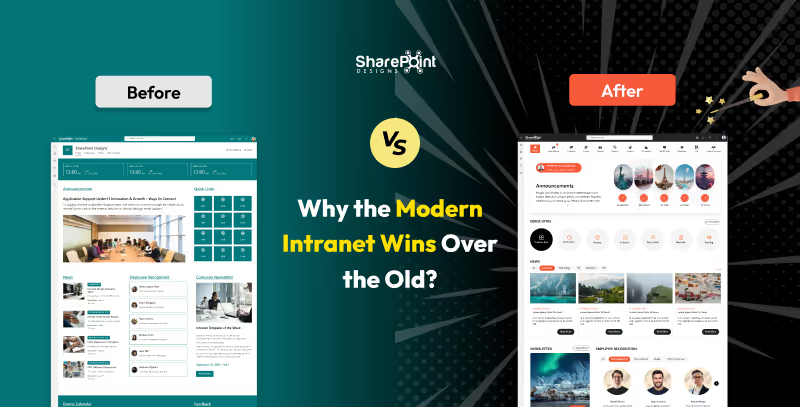
Intranets once felt revolutionary, a digital space to find documents, read announcements, and access links. But in reality, they never went beyond that.
Think of the old intranet like an office bulletin board, HR pinned policies, IT posted updates, and management shared announcements. Employees glanced, downloaded a form, and moved on.
Conversations? None. Connections? Missing.
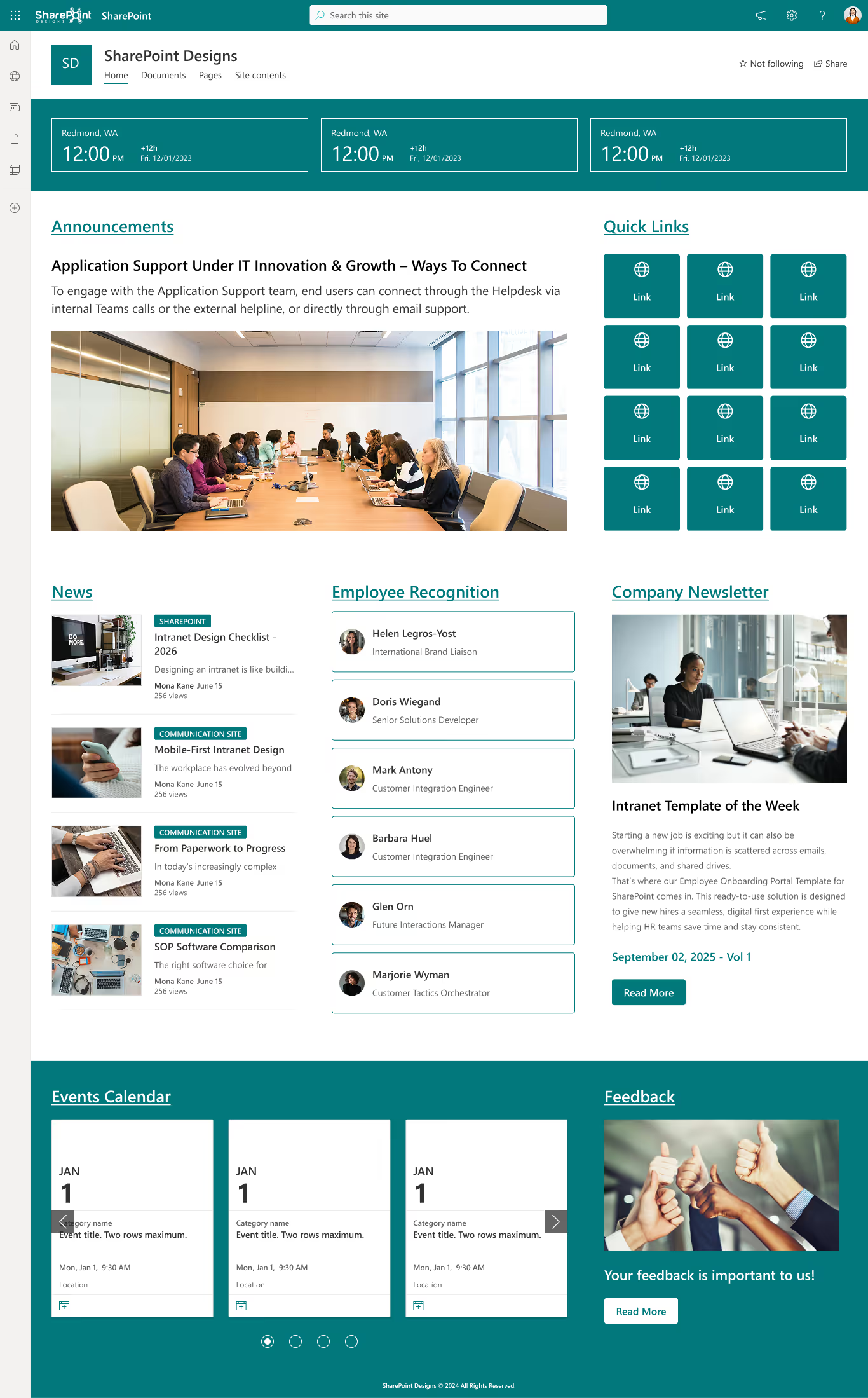
Here is the old intranet,
The chaotic arrangement can really throw you off, making it tricky to locate things swiftly and adding a touch of confusion to the hunt.
Whereas, the modern intranet is streamlined, user-friendly, and free of clutter. Everything is organized logically, so employees genuinely enjoy using it.
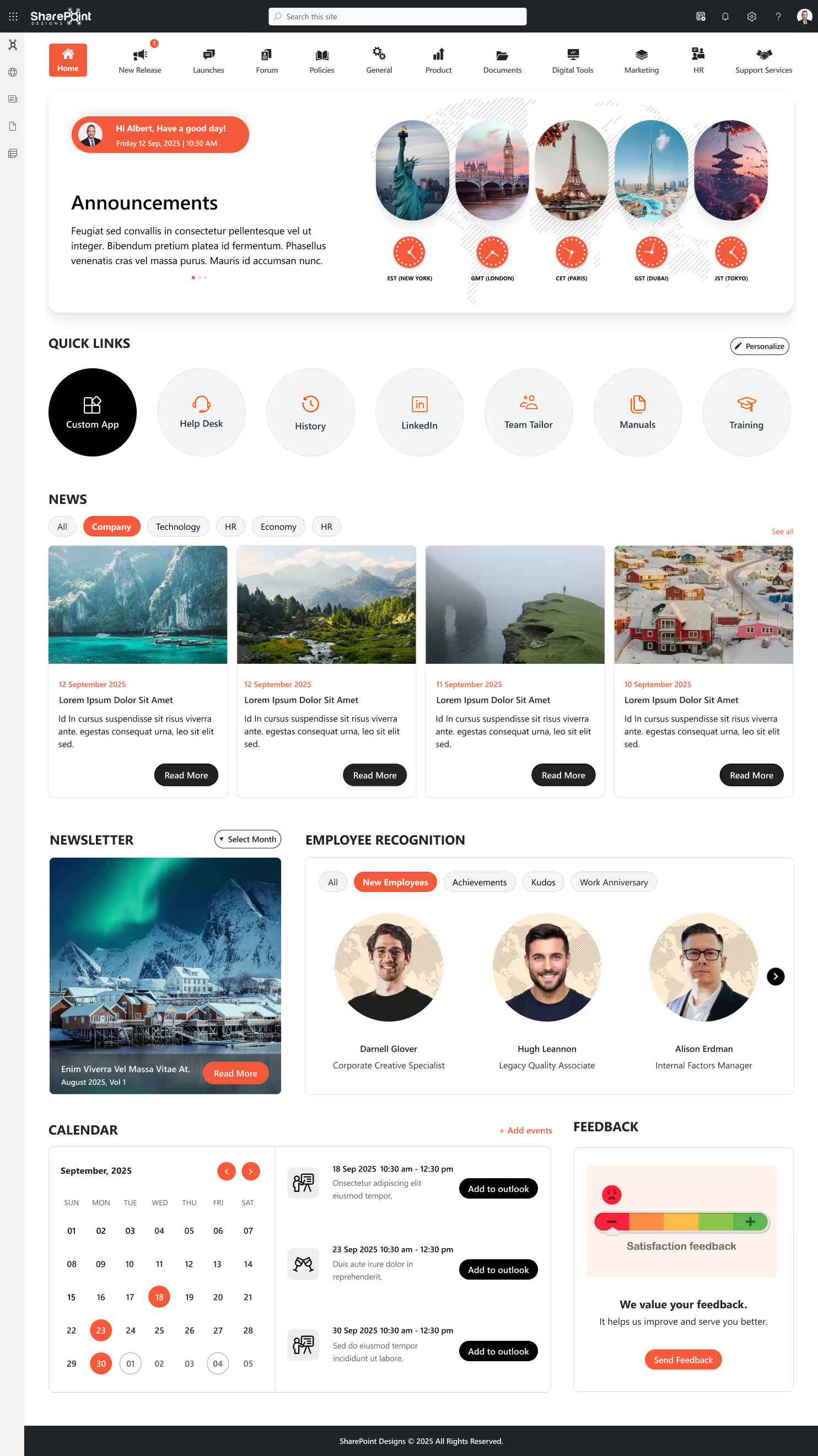
You can clearly spot the difference between the old intranet and the modern one. Now, let’s break it down further.
Web parts are the building blocks of any intranet, and they tell the story best. So, let’s compare how web parts looked and felt in the old intranet versus how they shine in the modern intranet.
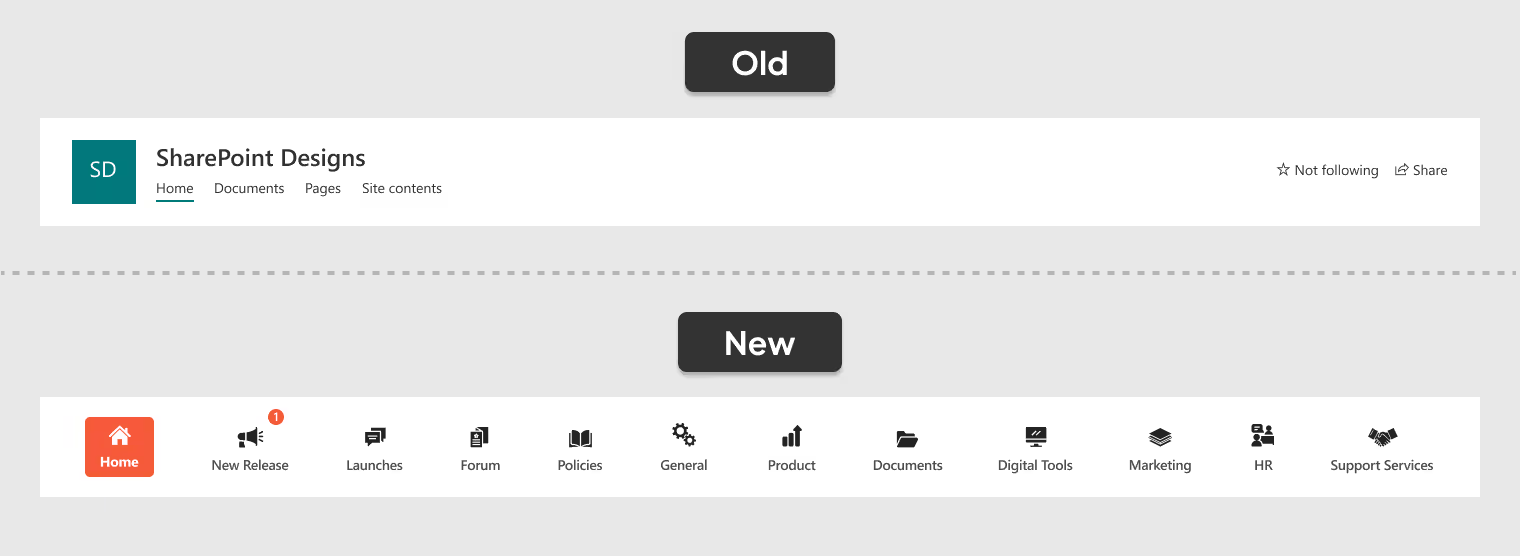
1. A Smarter Way to Navigate
- Old Navigation: A simple, text-based menu with no icons, hierarchy, or alerts, making it functional but less engaging and harder to scan quickly.
- New Navigation: A centralized, icon-based menu with real-time alerts, organized categories, and a modern design that makes navigation effortless and engaging.
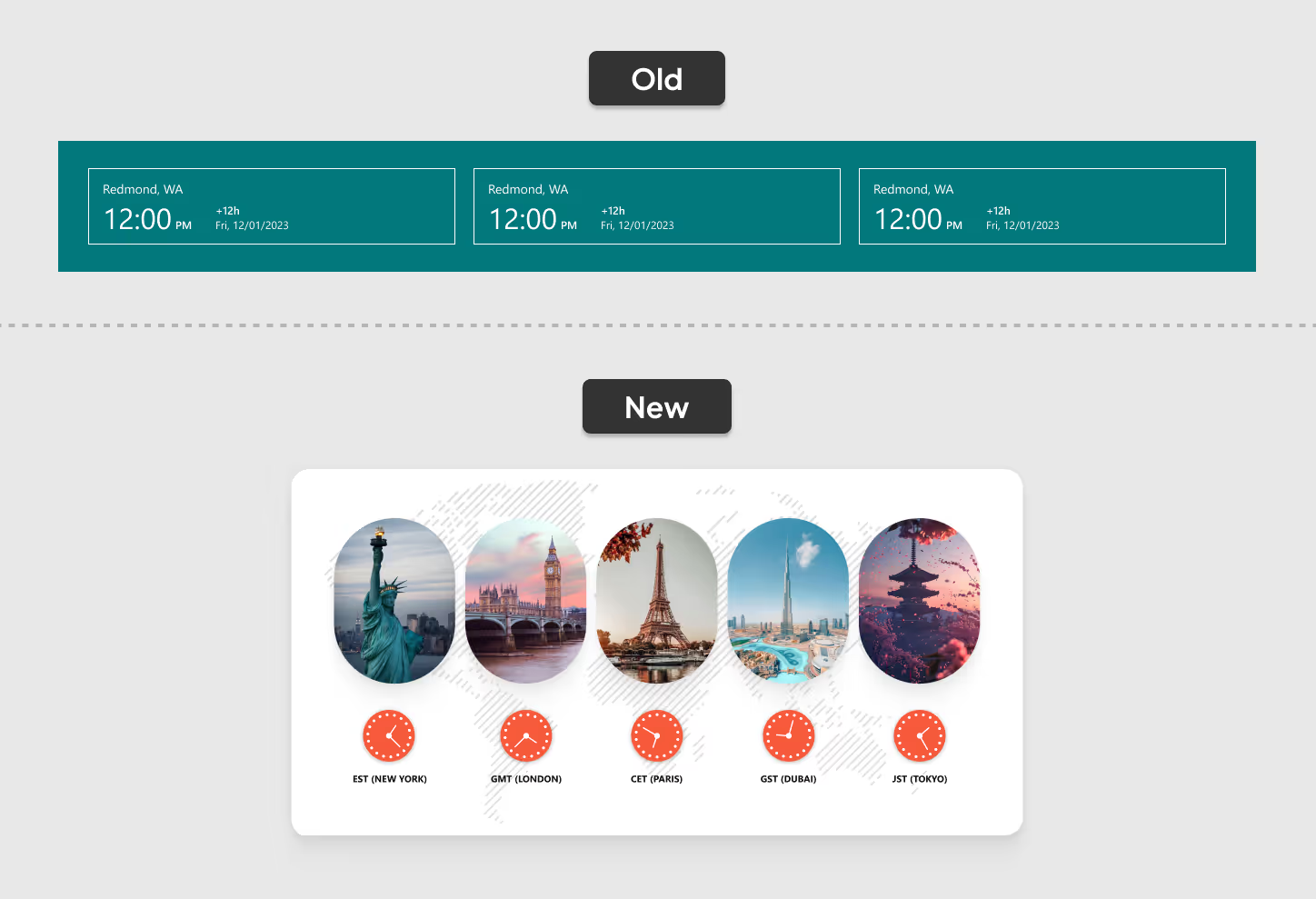
2. Global Time Zones at a Glance
- Old Clocks: Three small, cluttered clocks made it hard to read time zones and left users guessing.
- New Clocks: Five neatly displayed clocks in the Welcome Banner show key time zones clearly making global collaboration effortless.
Modern Intranet vs Old Intranet: Why the Modern Intranet Wins Over the Old?
Intranets once felt revolutionary, a digital space to find documents, read announcements, and access links.
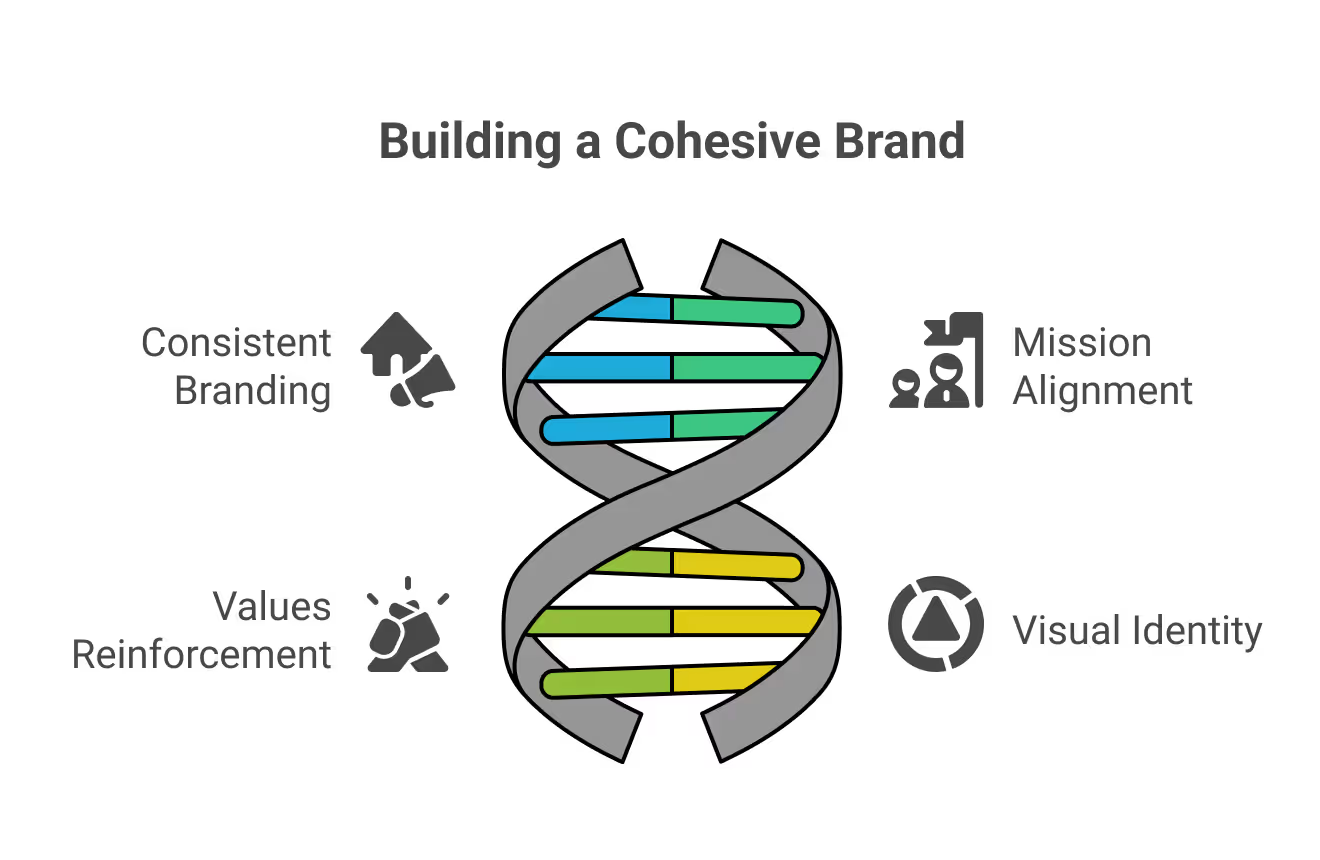
1. Unified Company Identity
When the intranet reflects the same branding used across other platforms, employees feel more connected to the organization’s mission, values, and visual style. This alignment helps everyone work toward shared goals.
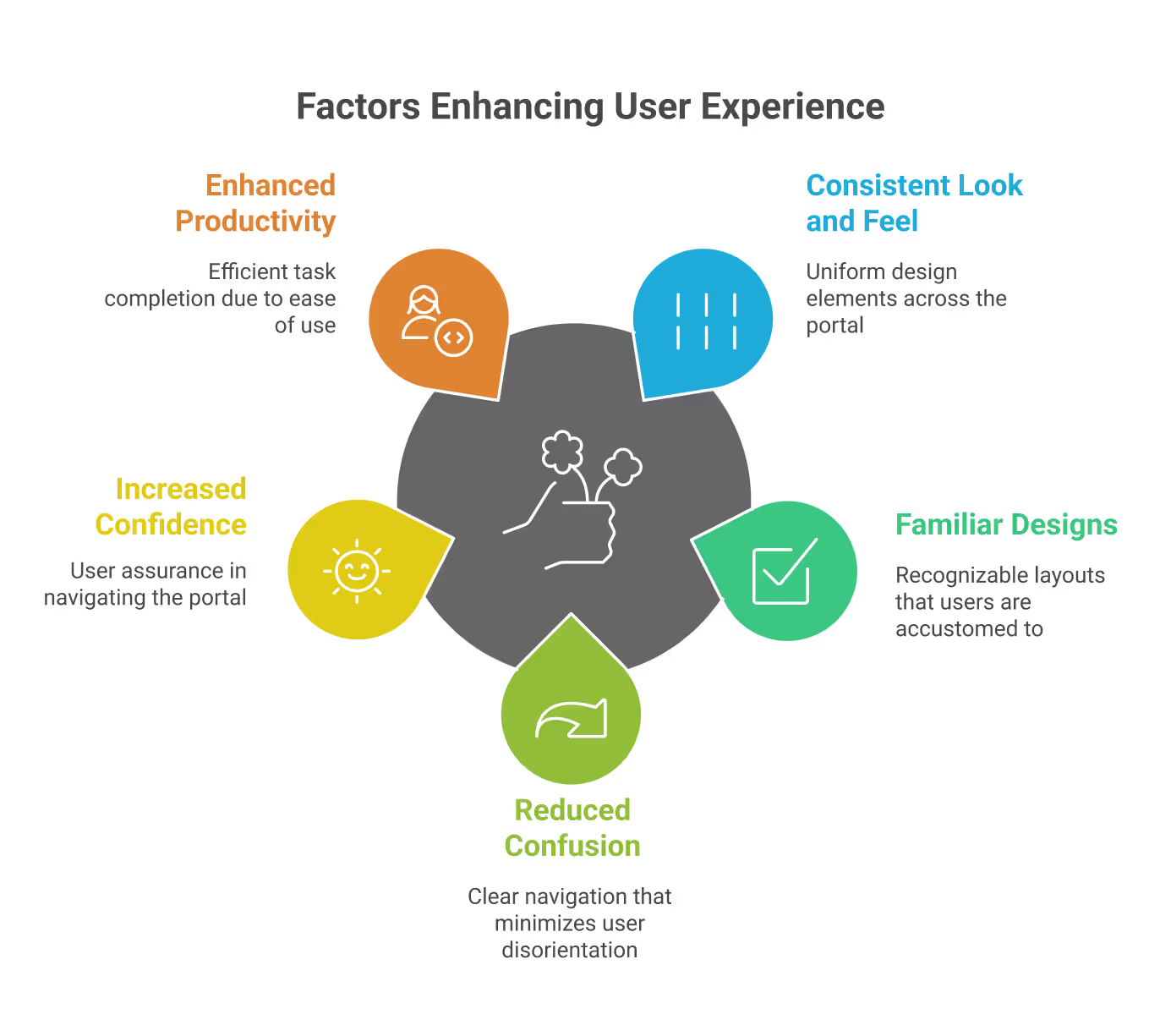
2. Better User Experience
A familiar and consistent design minimizes confusion, making it easier to navigate. Employees quickly recognize patterns, which improves efficiency and allows them to focus on their tasks instead of adapting to different layouts.
3. Stronger Workplace Culture
Embedding company values and culture into the intranet design helps employees feel connected and valued. It strengthens a shared identity across the workplace and inspires people to work in line with the organization’s vision.
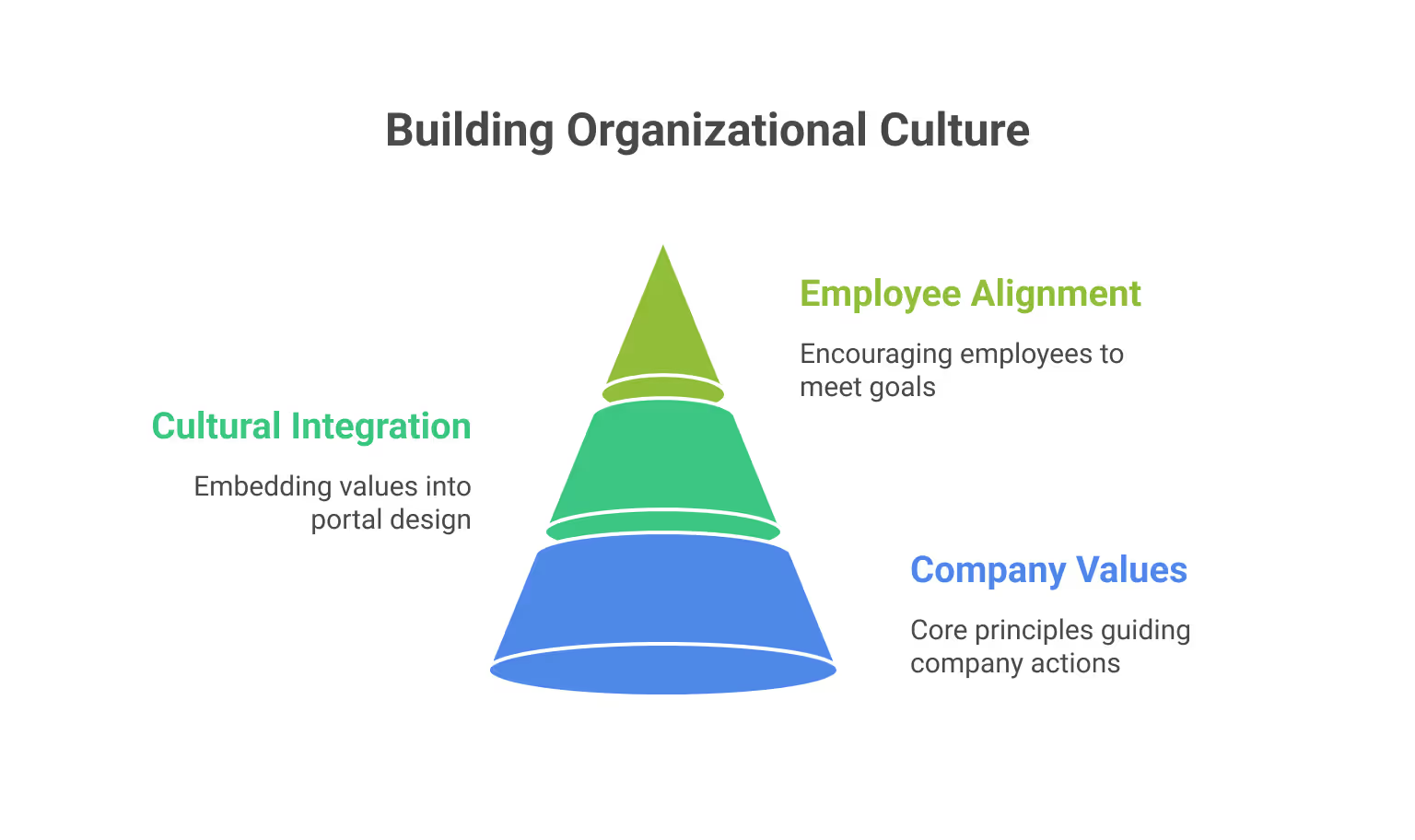

The Power of Consistent Branding in Intranet Portals
When the intranet reflects the same branding used across other platforms, employees feel more connected to the organization’s mission, values, and visual style.

Designing an intranet is like building a home. Before breaking ground to lay the foundation, you need to have a blueprint in place and invite everyone who will live in that house to share their dreams and ideas.
Likewise, before starting the development of an intranet, you should involve your future intranet users from the very beginning. Their voices and aspirations help create a space where everyone feels welcome, heard, collaborates, and is inspired to contribute.
To ensure your intranet is aesthetically appealing, functional, and engaging, you can follow this comprehensive checklist:
1. Meet Stakeholders and Define Your Sitemap
Begin by meeting with stakeholders across departments. This step is crucial for gathering requirements, understanding different needs, and ensuring buy-in from all areas of the business. Use these discussions to create a sitemap that outlines the structure of your intranet.
If you need ideas and don’t know where to start, please browse through our ready-to-install templates. You can even pick and choose different components from each design to create your own custom design.
2. Establish Branding Elements
Consistent branding helps employees connect with the intranet. Decide on your company’s branding colors, logo, and preferred font. While fonts can be optional, a unified look and feel will make the platform more professional and recognizable.
We at SharePoint Designs help you visualize your end product in a minute by using our DIY design tool. Provide your theme color and upload your logo; your custom intranet design is ready in seconds.
Find the link below for quick access: DIY Design Tool
You can even download the designs to discuss them with your stakeholders. It may not be 100% perfect to your end product, but it will definitely provide you with a good starting point.
3. Select High-Quality Visuals
As the adage goes, "A picture is worth a thousand words”. Where appropriate, incorporate high-quality images.
Why do Images Matter?
- 90% of the information processed by the human brain is Visual.
- Good images enhance user experience & engagement.
- Poor images can make designs feel inauthentic & untrustworthy.
Best Practices for Selecting Images
- Relevance & Context: Align images with the message
- Authenticity: Avoid overly staged or artificial-looking photos
- Consistency: Maintain a uniform color, tone, & style
- Quality & Resolution: Use high-quality, sharp images
- Licensing & Copyright: ALWAYS check usage rights
- Customization: Adjust colors, crop, or add overlays to match branding.
Intranet Design Checklist - 2026
Designing an intranet is like building a home. Before breaking ground to lay the foundation,
The workplace has evolved beyond physical boundaries. Today’s hybrid workforce isn’t tied to desks; they collaborate from coffee shops, client sites, or even while commuting. In this new era of work, an intranet that works beautifully on mobile isn’t optional; it’s essential.
A mobile-first intranet empowers employees to access vital information, engage with their teams, and complete tasks, regardless of their location or the device they’re using. This blog explores how to design an intranet that meets the demands of hybrid work and goes beyond just responsive design.
Why Mobile-First Intranet Design Matters?
Designing with mobile-first principles means prioritizing the mobile user experience, starting with small screens and scaling up. This approach ensures that all employees, whether working remotely, in the office, or in the field, receive a consistent and efficient intranet experience.
Key Benefits:
- Instant Access to tools and content, anytime, anywhere.
- Faster Load Times and improved performance on mobile networks.
- Higher Engagement from frontline and remote employees.
- Better Accessibility for diverse roles and work styles.
Must-Have Webparts for a Mobile-First Intranet
To go beyond simple responsiveness, focus on purpose-driven features built with mobile usability in mind. Below is essential intranet components designed for hybrid teams:
1. Weather Webpart
Whether you’re on a jobsite, traveling to meet a client, or planning an outdoor event, having quick weather info at your fingertips helps you prepare better. On a mobile intranet, it’s right where you need it, no extra apps required.
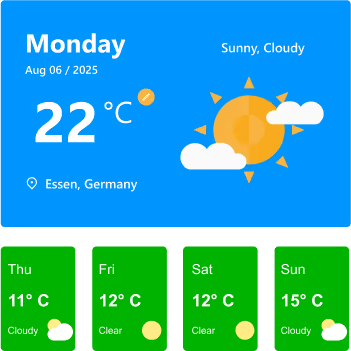
Features:
- Displays current day’s weather with location, date, temperature, and conditions (e.g., Sunny, Cloudy).
- Location detection to automatically fetch weather details for the user’s city.
- Toggle option for Celsius/Fahrenheit for personalized preference.
- 7-day or current-week forecast cards showing temperature, condition icons, and quick visual cues.
- Clear weather icons and colors for instant understanding at a glance.
Watch: Weather Webpart Demo
2. Birthday Reminder Webpart
In a hybrid workplace, you don’t pass by a colleague’s desk to say happy birthday. This Birthday reminder webpart ensures no one’s special day is forgotten, wherever you’re working from.
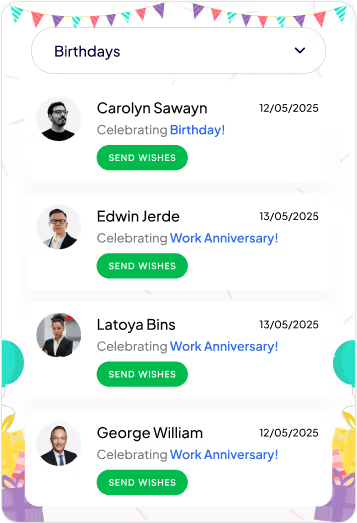
Features:
- Category Filter: Dropdown menu lets you switch between multiple celebration types, including birthdays, work anniversaries, new joiners, and recognitions.
- Personalized Cards: Each entry shows the person’s photo, celebration type, and date, making it easy to identify and remember the occasion.
- Quick Action (Send Wishes): Dedicated “Send Wishes” button for each person allows you to instantly send greetings or messages.
- Event Feed Layout: Scrollable list of celebration cards helps you quickly see all upcoming and current occasions at a glance.
- Engaging Visuals: Festive header and clean card design create a cheerful, celebratory feel without overwhelming the UI.
Watch: Birthday Reminder Webpart Demo
3. Top Navigation
On mobile, clarity is everything. A well-structured top navigation makes it easy to get where you need to go without endless scrolling or tapping.
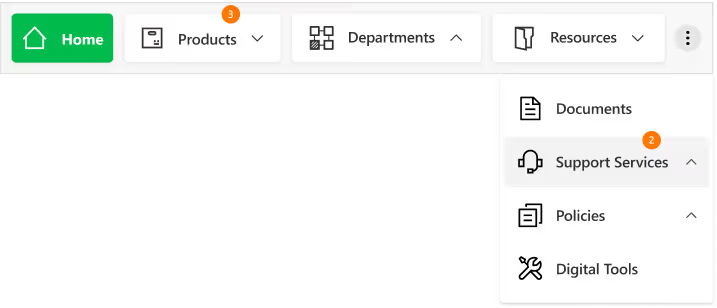
Features
- Sticky Positioning: Stays visible as you scroll for constant access.
- Custom-Styled Navbar: Fully themed navigation bar with clean typography, consistent iconography, and a modern, minimal look for better brand alignment.
- Intuitive Menu Structure: Clear text labels paired with relevant icons make it easy to identify sections at a glance.
- Expandable Options: The three-dot menu keeps extra navigation links organized without crowding the main bar.
- Real-Time Notifications: Numeric badges on menu items instantly indicate new updates or unread content, helping users prioritize.
- Dropdown Navigation: Smooth, organized dropdown menus allow quick access to subcategories like “Training & Development” or “Policies & Procedures.”
4. News Webpart
Company updates shouldn’t get buried in your email inbox. The mobile-friendly news webpart keeps important announcements front and center in a clean, scrollable feed you can check anywhere. With its slider design, category tags, and filtering options, it ensures you never miss a relevant update.

Features:
- Multi-Slide View: Browse several updates within a compact space using horizontal sliders.
- Category Tags: Each news item is labelled for quick context (e.g., Industry, Company).
- Active Slide Indicators: Clear visual markers show your current position in the feed.
- Smart Sorting & Filtering: Dropdown and "Sort by" options help you quickly find relevant news.
Watch: News Webpart Demo
5. Events Calendar
From virtual town halls to on-site training, the events calendar ensures everyone stays informed about upcoming activities, even on the go. It combines clear scheduling with easy interaction for a seamless event experience.

Features:
- Month Slider Navigation: Quickly preview previous or next month’s events without leaving the current view.
- Upcoming Events List: Displays event details like time, date, and category directly below the calendar.
- Category Filters: Group events by type (e.g., Meetings, Training, Conferences, Community & CSR) for faster access.
- Add to Outlook Integration: Instantly save events to your Outlook calendar with one tap.
- Add Events Button: Allows users to add their own events to the shared calendar for team-wide visibility.
6. Organization Chart
When teams are distributed across locations, knowing who’s who becomes essential, the organization chart provides a clear, structured view of roles, teams, and reporting lines, making it easier to identify colleagues, understand team connections, and reach the right person without delays.
Features:
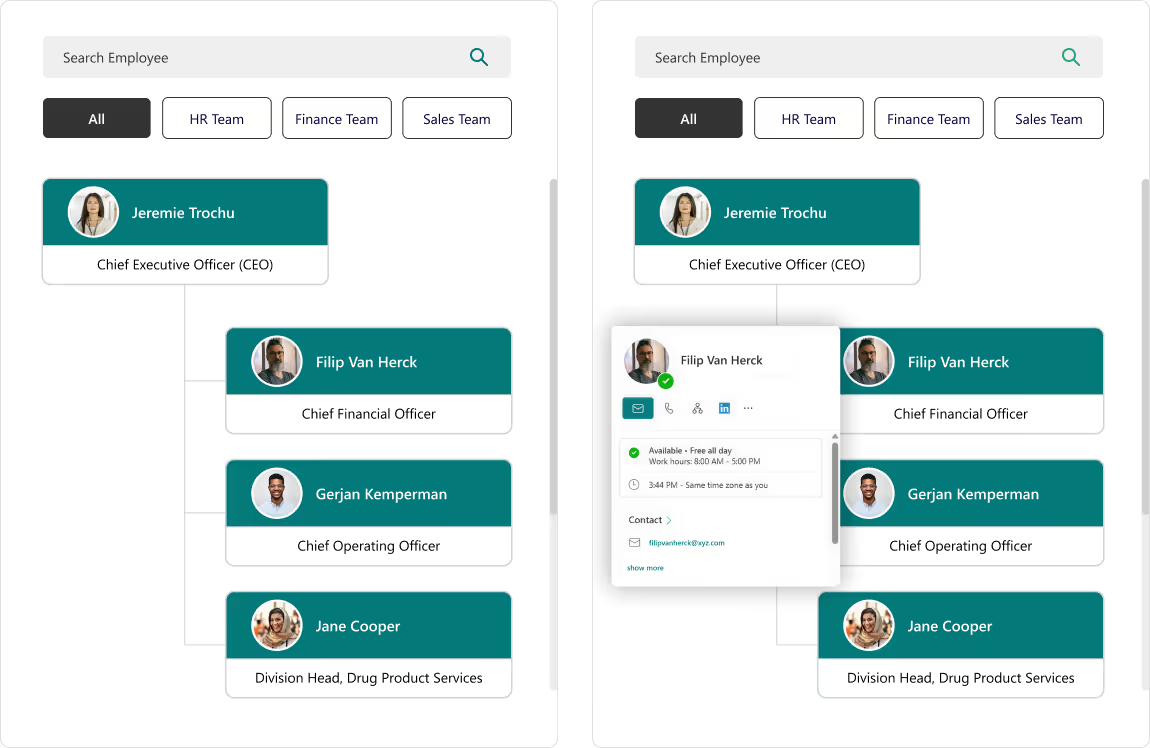
- Search Bar: Instantly find employees by name without scrolling through the entire directory.
- Department Filters: View team members grouped by specific categories like HR, Finance, or Sales.
- Interactive Hover Cards: Access quick actions like chat, email, call, or LinkedIn profile directly from a colleague’s profile card.
- Hierarchical View: Clearly see reporting structures and leadership levels for better team understanding.
7. Document Library
The Document Library keeps all files organized, searchable, and up to date, so you can quickly access the right document when it matters most. Whether filtering by category, searching by keyword, or sharing a file on the go, you’ll always have the latest version at your fingertips.
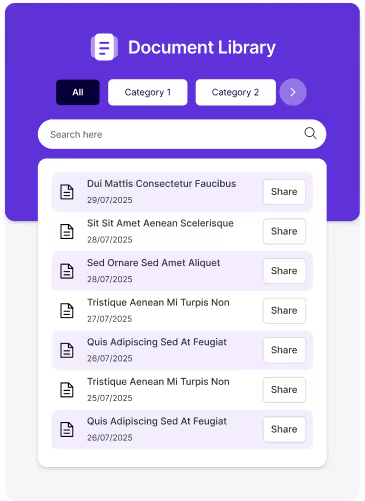
Features:
- Category Filters: Organize files into categories for easy navigation and reduced clutter.
- Search Functionality: Locate specific files instantly using the built-in search bar.
- Share Option: Share documents directly with colleagues in just one click.
- Clean, Mobile-Friendly Design: Ensures quick access and smooth browsing on any device.
8. Feedback and Improvement
An interactive platform to capture employee or user feedback instantly, helping organizations make data-driven improvements. The engaging design and one-tap access make it quick and easy to share thoughts.

Features:
- One-Tap Feedback Submission: Directly link to online feedback forms for instant input without delays.
- Engaging Visuals: Animated and expressive icons encourage higher participation rates.
- Actionable Insights: Feedback can be analyzed to identify trends and improve services.
Mobile-First Intranet Design for the Hybrid Workforce
The workplace has evolved beyond physical boundaries. Today’s hybrid workforce isn’t tied to desks.
In today's increasingly complex workplaces, onboarding new employees seamlessly is crucial. Traditional methods often involve mountains of paperwork, lengthy orientations, and manual tasks. A recipe for wasted time and errors.
Employee onboarding software: a game-changer that streamlines the process, fosters engagement, productivity, and ultimately, retention. A smooth and engaging process Here's how to leverage employee onboarding platforms and HR software to create a winning onboarding experience.
This blog explores how onboarding software revolutionizes the new hire experience, ultimately benefiting both employees and employers.
Challenges of Traditional Onboarding
- Paperwork Overload:
Manual document processing is time-consuming and prone to errors. - Inconsistent Communication:
Mixed messages or lack of clear expectations can lead to confusion. - Generic Approach:
A one-size-fits-all approach doesn't cater to individual needs. - Limited Engagement:
Passive learning methods fail to capture interest and motivation.

Speed Up Onboarding with Automation Tools
In today's increasingly complex workplaces, onboarding new employees seamlessly is crucial. Traditional methods often involve mountains of paperwork,
The right software choice for managing standard operating procedures (SOPs) can improve compliance, efficiency, and onboarding of new employees. The decision can be daunting with so many tools available in the market. In this comparison, we look into four industry leading SOP management systems: Microsoft SharePoint, Trainual, Scribe and Whale.
1. Microsoft SharePoint
Overview
Microsoft SharePoint is a sophisticated document management system due to its strong internal communication capabilities and an enterprise-grade document repository. When integrated together with specialized SOP manager plugins, it transforms into a robust SOP management system.
Pros
- Highly customizable: Supports unique SOP formats, metadata tagging, workflows as well as access on roles-based permissions.
- Integration: Seamless integration with Microsoft 365 apps such as Teams and Outlook alongside Power Automate.
- Compliance-ready: Features like audit trails monitoring, document versioning and retention policies provide built-in compliance monitoring.
- Scalable: Well, suited for both small and mid-sized businesses (SMBs) alongside large enterprises.
Cons
- Requires either IT support or a consultant specialized in SharePoint for initial setup and customization.
- More difficult for non-technical teams to adapt to compared to other solutions.
Best For
Companies that are mid-size to larger have already adopted Microsoft 365 since it's easier to integrate. Companies needing specific workflows tailored to compliance needs also fit here more easily than other competing brands.
2. Trainual
Overview
Trainual is an SOP and training software that is cloud-based, ideally for small businesses and startups. It has a user-friendly interface with content authoring tools integrated within the program.
Pros
- Employee onboarding: Retention and training are maintained through strong emphasis on accountability.
- Templates: Comes with pre-built SOP templates.
- Progress tracking: Track who read what and passed which test.
Cons
- Basic workflow customization.
- Limited document control and metadata features.
- Deep Microsoft tool integrations lacking.
Best For
Startups and small businesses that need to quickly devise, share, instruct, and create Standard Operational Procedure documents.
3. Scribe
Overview
Scribe is an AI-powered software that captures workflows and converts them into step-by-step documentation automatically.
Pros
- Quick SOP creation: Great time saver.
- Collaboration friendly: Shareable links with extensions available in browsers.
- Automatic documentation: Captures clicks and screens in real-time.
Cons
- Hard-structured formats to organize SOPs severely lacking.
- Standalone as an incomplete SOP management solution.
- Limited versioning, approval features, compliance capabilities.
Best For
Teams needing step-by-step guides visually documented or quick instructional tutorials tailored towards internal documentation of repetitive tasks.
4. Whale
Overview
Whale focuses on onboarding, training, and knowledge retention by providing a dedicated SOP and knowledge management platform.
Pros
- Visual and structured SOPs: Use rich editing tools like videos and images to embed them into the SOPs.
- Integration-ready: Slack, Chrome, and Teams.
- Onboarding workflows: Content can be triggered to onboard new users automatically.
- Insights: Provides analytics such as engagement metrics, versioning data, and user analysis.
Cons
- Unlike SharePoint, document customization features are not as flexible.
- Small teams may find the pricing model unfavorable.
- Automation of workflows is not as sophisticated when compared with Power Automate from Microsoft.
Best For
Teams looking for off-the-shelf software that allows them to easily integrate Standard Operating Procedures (SOP) alongside training components and provides user analytics will find this useful.
If you are searching for a Trainual alternative, Scribe alternative, or Whale alternative, Microsoft SharePoint stands out as the most versatile and future-proof choice for SOP management. Unlike standalone tools, SharePoint offers enterprise-grade document control, advanced workflow automation, and seamless integration with Microsoft 365 apps like Teams, Outlook, and Power Automate. Its highly customizable framework allows organizations to design SOP processes that align perfectly with compliance requirements, departmental needs, and operational goals. Whether you are scaling operations, improving onboarding, or streamlining documentation, SharePoint delivers a robust, all-in-one platform that outperforms other solutions in flexibility, security, and scalability.
Conclusion
Selecting the right software for SOPs requires consideration of level of business structure, size and operational goals.
- Consider choosing SharePoint if your need is enterprise-level complex compliance policies, advanced workflows as well as office 365 integration.
- Go with Trainual when you are a small business looking for quick-onboarding frameworks.
SOPs also available rapidly alongside guides and how-to-do docs which help less experienced personnel execute assigned tasks seamlessly without much oversight- Makes work life enjoyable is another key strength that comes client servicing software.
Fabulous results swiftly obtained via whale where in-depth analysis is key blended value-add features hence let the analytics do the talking, boast an all-in-one battle quarter driven by desires optimal sop blended plus powerful onboarding surge.
Searching for help setting up SharePoint SOP Manager?
Book complimentary session with us and launch your SOP manager under 7 days!
SOP Software Comparison: SharePoint, Trainual, Scribe and Whale
The right software choice for managing standard operating procedures (SOPs) can improve compliance, efficiency, and onboarding of new employees.
SharePoint is powerful but let’s be honest: default SharePoint sites don’t always feel like modern websites.
The good news?
With the right design approach, a few smart configurations, and modern webparts, you can transform SharePoint into a visually stunning, user-friendly, website-like experience that employees actually enjoy using.
This guide walks you through the exact steps, best practices, and real-world use cases for taking your SharePoint site from “just functional” to “beautiful, branded, and intuitive.”
Why Make SharePoint Look Like a Website?
A modern, website-like experience instantly changes how employees interact with your intranet:
1. Higher User Engagement
Clean layouts, visuals, and intuitive navigation encourage users to return.
2. Professional Brand Presence
Perfect for internal portals, leadership hubs, service centers, and external-facing sites.
3. Optimized Responsiveness
Works beautifully across desktop, tablet, and mobile screens.
4. Clear, Simplified Navigation
Clear menus and pages improve usability.
Step-by-Step: Transform SharePoint into a Website-like Experience
1. Choose the Right Site Template
Your foundation matters.
• For broad communication → Communication Site
• For content presentation → Topic or Showcase templates
Avoid classic sites unless you require heavy customization.
2. Design a Home Page That Feels Like a Real Website
Your home page is your “digital lobby.”
Use elements such as:
• Hero web part to highlight services, announcements, or campaigns
• Quick links for most-used resources
• Section layouts (grid, two-column, full-width) to create visual flow
A well-designed homepage sets the tone for the entire site.
3. Customize Branding to Match Your Identity
Navigate to:
Settings → Change the Look
Update:
• Theme: Apply brand colors
• Header: Use minimal/compact for a clean look
• Logo: Add your company logo
• Footer: Include links, copyright, addresses
Pro Tip: Use a 2–3 color palette to maintain visual consistency.

How to Make Your SharePoint Site Look Like a Modern Website (Without Coding)
SharePoint is powerful but let’s be honest: default SharePoint sites don’t always feel like modern websites.
The SharePoint intranet homepage serves as the digital gateway to your organization. It’s where employees go to find updates, access tools, and connect with the broader company. A well-designed homepage can boost employee engagement, improve productivity, and reduce time wasted navigating cluttered systems. In this guide, we outline the best practices to help you design a high-impact SharePoint intranet homepage that aligns with your business goals.
Why Your SharePoint Homepage Matters
The homepage sets the tone for your entire intranet experience. When done right, it:
- Increases intranet adoption
- Centralizes communication and resources
- Encourages cross-departmental visibility
- Reduces support tickets and duplicated work
1. Focus on User-Centric Design
Your homepage should cater to employees, not administrators. Conduct user interviews or surveys to understand what information they need daily. Ensure that:
- Content is organized by relevance and frequency of use
- Icons and labels are intuitive
- Pages load quickly on desktop and mobile
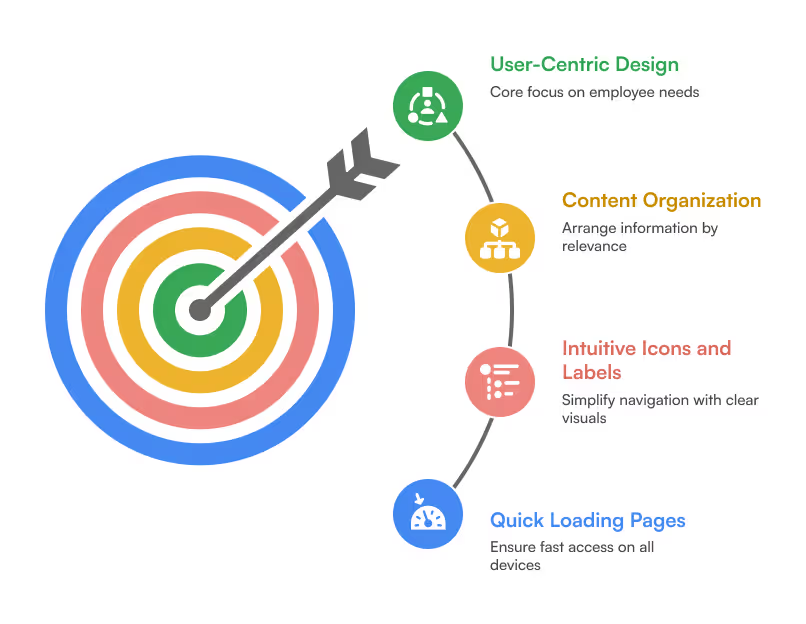
2. Prioritize Key Web Parts
Use Out-of-the-Box (OOTB) and custom SharePoint web parts to surface important information:
- Hero Web Part: Feature announcements, department portals, or campaigns
- News Web Part: Company updates, events, and HR bulletins
- Quick Links: Direct access to frequently used tools or resources
- Events Calendar: Highlight upcoming meetings, holidays, and webinars
- People Web Part: Show key contacts or newly joined team members
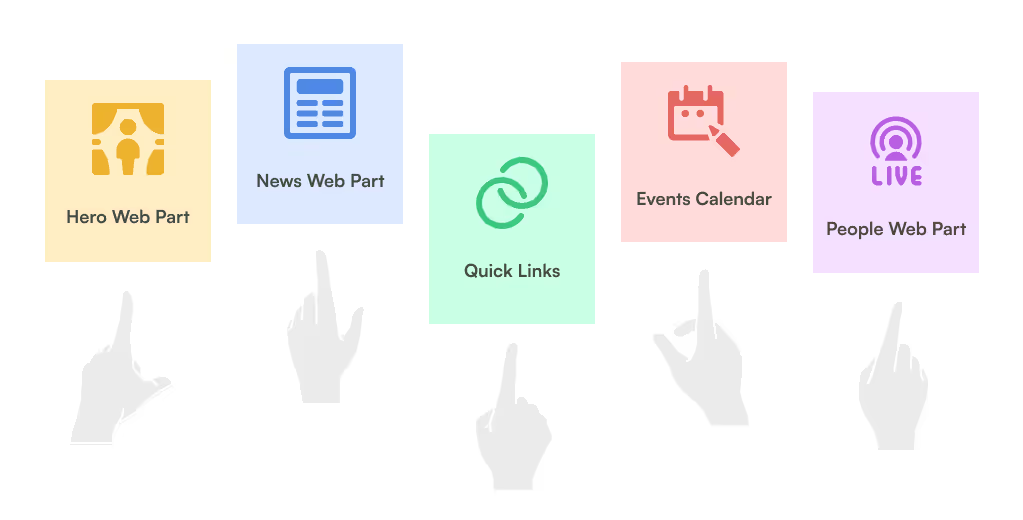
3. Personalize Content with Targeting
Leverage SharePoint’s audience targeting features to show content based on department, location, or role. This ensures employees only see what’s relevant to them, reducing clutter and improving relevance.
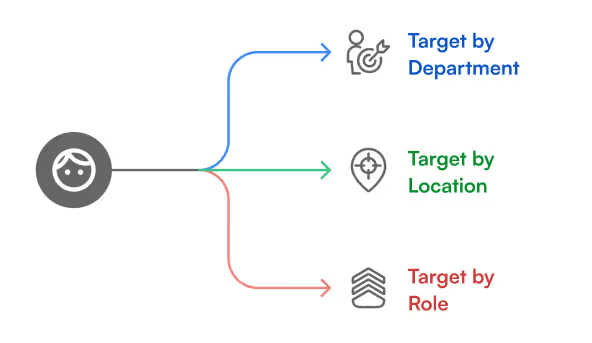
4. Design for Mobile & Accessibility
With hybrid work models, ensure your intranet is responsive and accessible:
- Use responsive layouts for mobile usability
- Add alt text to images
- Ensure color contrast meets accessibility standards (WCAG)
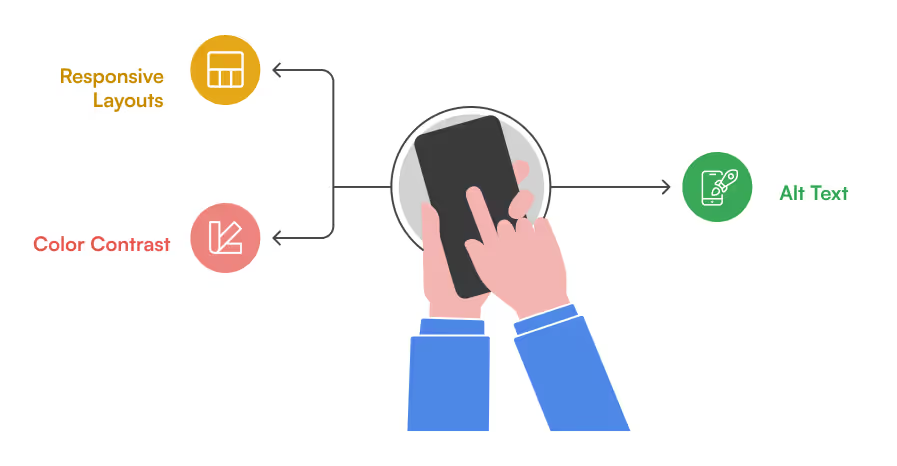
5. Use Branding to Reinforce Culture
Your intranet should reflect your organization’s identity. Customize:
- Suite bar with logo and brand colors
- Fonts and icons aligned with your internal guidelines
- Background images or banners that highlight team culture
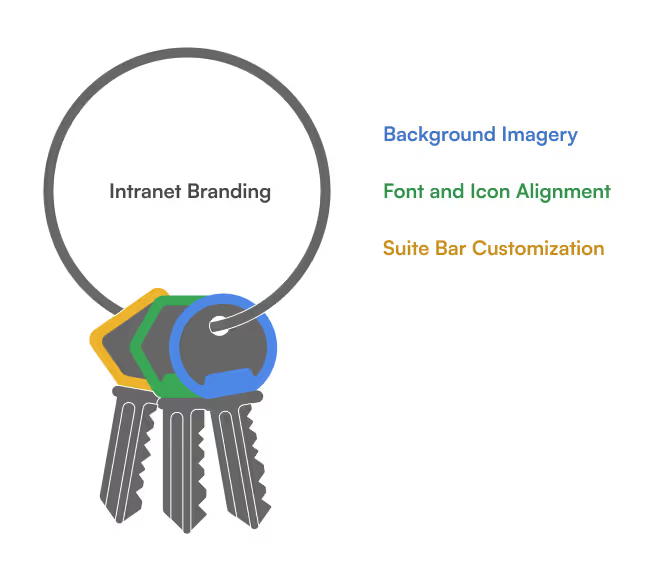
SharePoint Intranet Homepage Best Practices to Boost Engagement and Usability
The SharePoint intranet homepage serves as the digital gateway to your organization.
Introduction: Why This Guide Matters
In this detailed guide, we’ll cover:
- Why hiring a SharePoint consultant is often better than going in-house
- Key criteria to evaluate consultants
- The questions you must ask before signing a contract
- Common mistakes to avoid
- Freelancer vs. consulting firm - pros and cons
- A practical hiring checklist
- Conclusion: What kind of partner your business really needs
1. Why Hire a SharePoint Consultant?
Many organizations begin their SharePoint journey with internal IT or a basic out-of-the-box setup. But they soon hit barriers:
- Low user adoption
- Poor navigation and UI
- Inconsistent file governance
- Inability to scale for business needs
- Missed automation and integration opportunities
What a SharePoint Consultant Brings:
- Deep platform expertise: SharePoint Online, SPFx, Power Platform, Teams, Microsoft Graph, etc.
- Strategic alignment: Matching SharePoint’s capabilities to your business goals
- Process mapping and workflow design
- Knowledge of compliance (GDPR, HIPAA, ISO) and secure architecture
- Post-launch support, training, and optimization
Think of a consultant not just as a technician, but as an intranet architect who ensures your digital workplace performs at every level.
2. Key Criteria to Evaluate a SharePoint Consultant
Choosing the right consultant isn’t just about experience or pricing. You need a well-rounded partner.
Key Evaluation Criteria:
A. Experience & Portfolio
- Do they have a track record of successful SharePoint deployments?
- Have they worked in your industry or with your use case?
B. Business Understanding
- Can they translate business challenges into platform solutions?
C. Design & UX Skills
- Do they offer modern, branded, user-friendly designs or just functional backends?
D. Custom Development Capability
- Can they build SPFx web parts, automate flows, and integrate with Teams, Power BI, and Azure?
E. Communication & Transparency
- Will they walk you through every phase, or just drop a delivery?
F. Support & Training
- Do they train internal admins and end-users for long-term success?
3. Questions to Ask Before You Hire
A consultant’s true value shows in how they respond to these questions:
Strategy & Planning
- What is your approach to understanding our business needs?
- How do you decide between out-of-the-box features and custom development?
Implementation & Delivery
- What’s your delivery methodology? Agile? Waterfall? Hybrid?
- Can you give us a timeline with milestones and checkpoints?
Adoption & Training
- How will you ensure adoption across departments?
- Do you offer training sessions, videos, or documentation?
Post-Launch Support
- What does your support structure look like after go-live?
- How do you handle future feature requests or troubleshooting?
4. 5 Costly Mistakes to Avoid When Hiring a SharePoint Consultant
Hiring the wrong consultant leads to low ROI and high frustration. Here are mistakes you should avoid:
Mistake #1: Hiring for Cost, Not Capability
Low-cost freelancers or agencies may lack the depth needed for complex setups, resulting in patchy work that requires rework.
Mistake #2: Ignoring UX and Branding
A clunky UI kills adoption. A great SharePoint consultant should care about layout, navigation, and branding as much as backend logic.
Mistake #3: No Roadmap or Governance Plan
Without a roadmap, SharePoint turns into a dumping ground. Consultants must help you structure libraries, permissions, metadata, and workflows.
Mistake #4: Not Involving End-Users Early
User feedback helps shape a usable, useful system. If you don’t involve real users early, expect resistance at launch.
Mistake #5: No Post-Implementation Support
A consultant who leaves right after go-live can leave your internal team stranded. Support, iteration, and governance are essential.
5. SharePoint Freelancer vs. SharePoint Consulting Firm: Pros & Cons
Depending on your project’s complexity, timeline, and internal capacity, you might consider a freelancer or a full consulting team.
Freelancers
Pros:
- More affordable
- Fast for small tasks or isolated issues
- Flexible for short-term work
Cons:
- Limited skillset (often one-person team)
- Risk of unavailability or bandwidth issues
- Little to no project management or documentation
- No support continuity
SharePoint Consulting Firms (Like SharePoint Designs)
Pros:
- Team-based expertise (UI, backend, architecture, governance)
- Better quality assurance and peer review
- Defined SLAs, training, and documentation
- Long-term support and scalability
Cons:
- Higher investment (but also higher ROI)
- May require more structured planning
Tip: Choose a freelancer for one-time help. Choose a firm for enterprise-wide impact.
6. SharePoint Consultant Hiring Checklist
Use this checklist before making a final decision:
- Can they demonstrate relevant, recent SharePoint projects?
- Do they understand business processes beyond just SharePoint tech?
- Have they asked about your end-users, pain points, and KPIs?
- Can they balance out-of-the-box and custom solutions intelligently?
- Do they offer user training and documentation?
- Are they clear about scope, timelines, and pricing?
- Do they support post-launch optimization?
- Do they bring design, automation, and compliance thinking into one plan?
7. Final Thoughts: Hire for Growth, Not Just Setup
A SharePoint consultant isn't a plug-and-play hire. You're choosing a partner who will define how your team works every day, how they collaborate, how they find information, how they feel about internal tools.
At SharePoint Designs, we bring the full package:
- Branded and user-friendly intranets
- End-to-end DMS and KMS setups
- Process automation with Power Platform
- AI integrations and Copilot agents
- Deep understanding of your people, not just your platform
We don’t just build SharePoint portals, we maximize your team’s performance through smarter digital workspaces.
Let’s Talk
If you're exploring SharePoint for the first time or need to fix what's already built, we're happy to help.

The Complete Guide to Hiring a SharePoint Consultant for Your Business
SharePoint is a powerful platform but only when implemented the right way. Whether you're planning to build an intranet,
Launching a SharePoint intranet in 2025 is no longer just about setting up pages or storing files. It’s about building a digital workspace that enhances communication, strengthens culture, and drives productivity across hybrid and distributed teams. But one critical decision remains for every organization:
“Should you build your SharePoint intranet from scratch or buy a ready-to-deploy solution?”
This blog explores both options in depth, breaking down the pros, cons, and hidden costs so you can make the smartest decision for your team.
Why Companies Need a SharePoint Intranet in 2025
Before we dive into build vs buy, let’s clarify why companies are prioritizing SharePoint intranets more than ever:
- Unified Communication Hub: Bring together remote, on-site, and hybrid teams through a single, connected platform.
- Policy & Knowledge Access: One location for SOPs, HR policies, FAQs, and compliance docs.
- Team Engagement: Celebrate wins, share updates, and spotlight people.
- Process Automation: Streamline onboarding, approvals, and content workflows.
- Microsoft 365 Integration: Seamlessly tie into Outlook, Teams, Power Automate, and more.
Option 1: Building a SharePoint Intranet from Scratch
Custom-built SharePoint intranets give you full control over the design, components, and structure. This route is often favored by companies with complex needs, internal development resources, or highly specific branding and workflows.
Pros of Building:
- 100% tailored experience to your organization’s workflows
- Flexible design and custom branding options
- Ability to integrate unique business apps or third-party systems
Cons of Building:
- High upfront development cost (often $25K+ for mid-sized organizations)
- Long implementation cycles (typically 3 to 6 months)
- Requires skilled SharePoint developers and administrators
- Ongoing maintenance and troubleshooting responsibilities
- Inconsistent UX if not built with best practices
Build vs Buy: What’s the Smartest Way to Launch a SharePoint Intranet in 2025?
Launching a SharePoint intranet in 2025 is no longer just about setting up pages or storing files.
In today’s fast-paced, hybrid work environment, an intranet is more than just a file repository, it’s the digital heart of your workplace. For companies using Microsoft 365, SharePoint intranet templates are a powerful way to launch engaging, user-friendly portals without starting from scratch.
In 2025, the best modern SharePoint intranet templates go beyond design. They focus on employee engagement, collaboration, and productivity making your intranet a daily go-to space for your team.
According to a Gallup Workplace Report, companies with highly engaged employees see:
1. 21% higher profitability
2. 17% higher productivity
3. 41% lower absenteeism
A modern, well-structured SharePoint intranet can directly contribute to these results, if it’s designed with engagement, efficiency, and business goals in mind.
Why Leaders Should Care About Intranet Templates
For CEOs, CIOs, HR directors, and Operations Heads, an intranet is not just an IT tool, it’s an ROI generator.
- Faster decision-making: Centralized, accurate data reduces delays.
- Lower operational costs: Reduced time wasted searching for documents (IDC estimates knowledge workers spend 2.5 hours/day searching for information).
- Better compliance: Controlled access and version history reduce risks in audits.
- Improved onboarding retention: Structured learning reduces early attrition.
Using ready-to-deploy SharePoint templates means you can achieve these benefits in days instead of months, without high custom development costs.
Why Employee Engagement Matters in Your Intranet Design
An intranet’s purpose is to connect employees to the tools, people, and information they need. A well-designed intranet can:
- Foster a sense of community in hybrid and remote teams.
- Reduce time wasted searching for documents.
- Improve communication across departments.
- Enhance transparency through centralized updates.
Modern SharePoint templates combine beautiful layouts with smart functionality, ensuring employees don’t just visit the intranet, they use it regularly.
Key Features of Modern SharePoint Intranet Templates in 2025
Here’s what’s driving engagement in this year’s top intranet designs:
1. Personalized Dashboards
Employees see customized news feeds, tasks, and resources based on their department, location, or role.
Example: HR news for HR staff, project updates for project teams.
2. Mobile-First Design
With remote work and field operations, mobile optimization is no longer optional.
Modern templates offer responsive layouts and app-like experiences on any device.
3. AI-Powered Content Recommendations
Leveraging Microsoft’s AI tools, intranet pages now suggest relevant documents, people, and announcements to keep employees engaged.
4. Integrated Communication Tools
Direct integration with Microsoft Teams and Outlook ensures employees can act on updates without leaving the intranet.
5. Gamification Elements
Badges, leaderboards, and recognition walls encourage participation and interaction across the company.
10 Modern SharePoint Intranet Templates for 2025
1. Employee Hub Template
A centralized landing page for all employees, featuring company-wide news, announcements, events, quick links, and HR resources in one place.
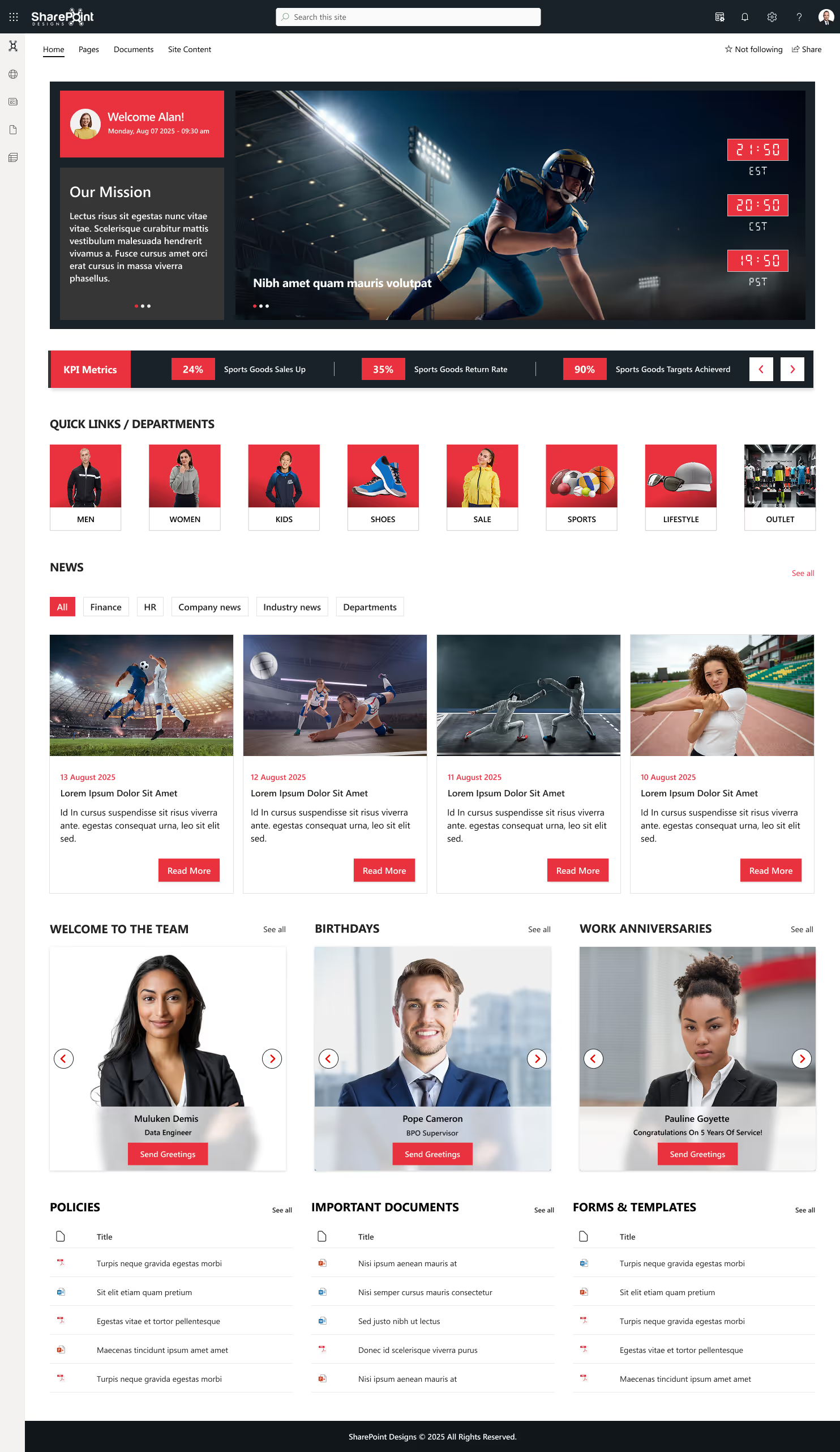
Benefits:
- Improves organization-wide communication.
- Builds transparency between leadership and staff.
- Reduces time spent searching for important updates.
- Encourages daily engagement with company culture.
2. HR Portal Template
A dedicated HR site where employees can access policies, submit leave requests, check benefits, download forms, and find contact details.
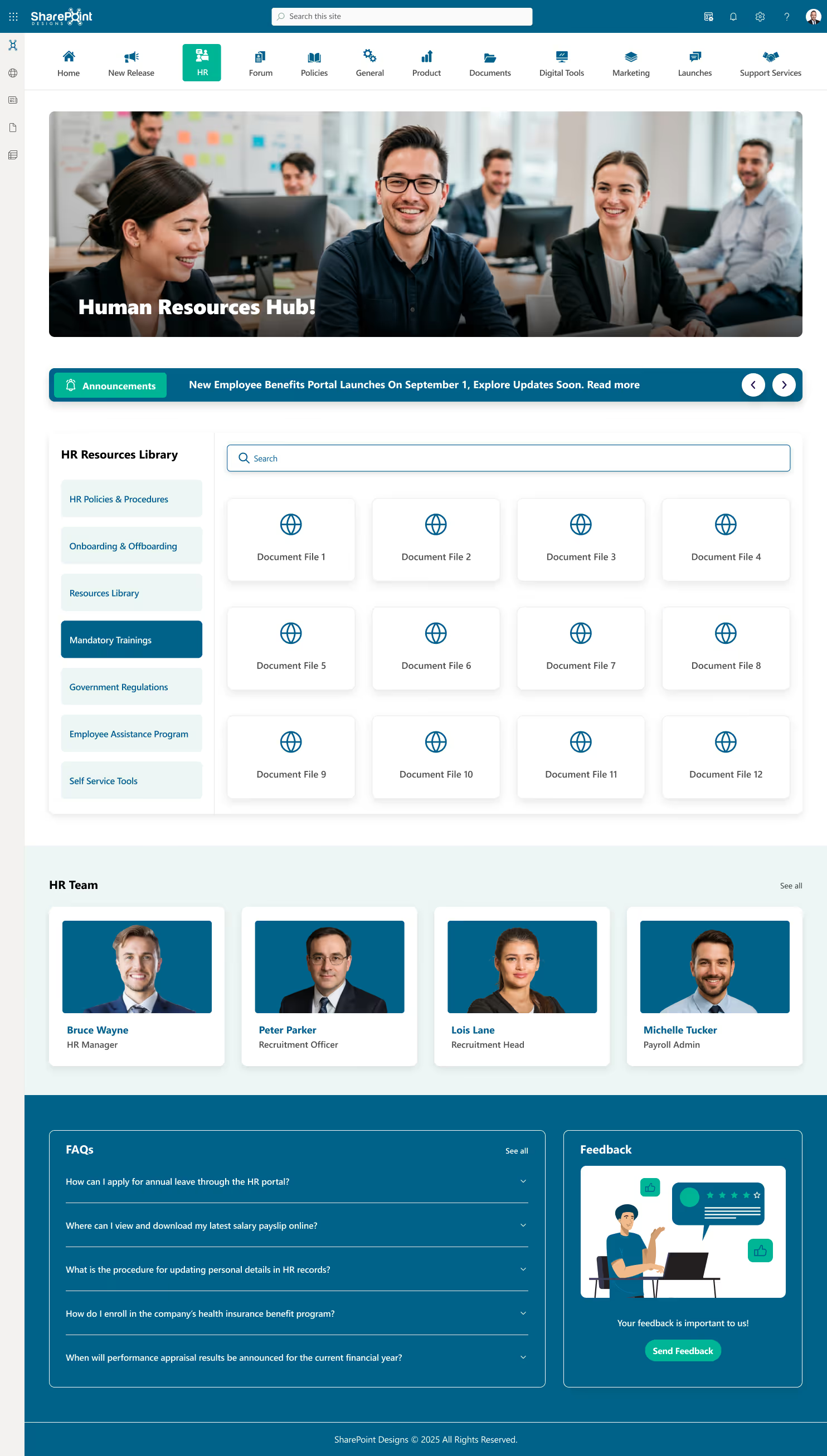
Benefits:
- Cuts HR admin workload by up to 30% via self-service tools.
- Ensures policies are always accessible and up-to-date.
- Speeds up HR approvals through automated workflows.
3. Learning & Training Center
A modern intranet template is designed to centralize learning resources, manage employee training programs, and track skill development across the organization. Perfect for enterprises focusing on continuous learning, compliance training, and professional development.
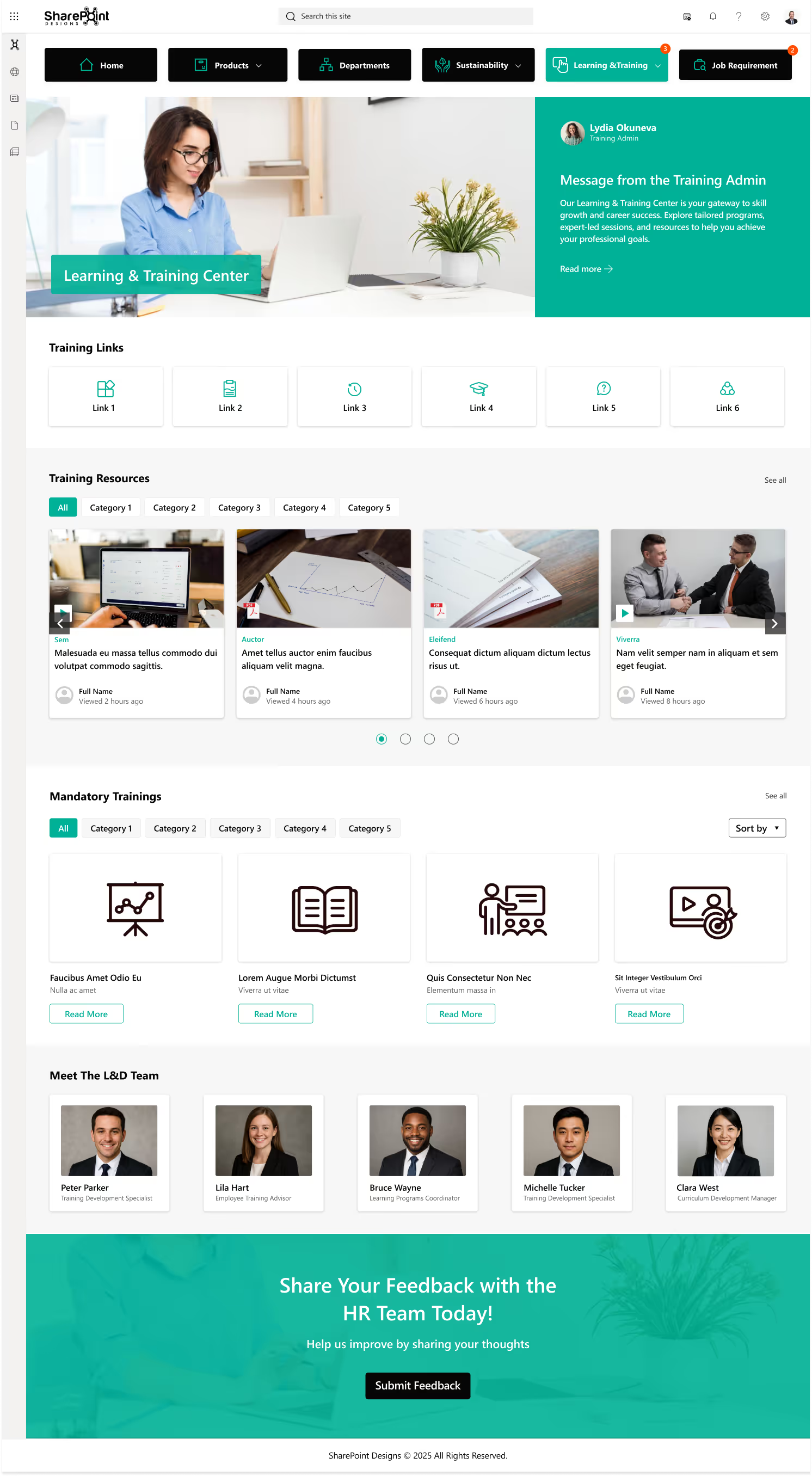
Benefits:
- Speeds up onboarding with a one-stop learning hub for new hires
- Reduces training costs by 30-40% through digitized learning materials
- Enables leadership to track workforce skill gaps and plan upskilling investments
- Improves retention rates by fostering a growth-oriented culture
- Boosts productivity by ensuring employees have quick access to the knowledge they need
4.Onboarding & Training Template
A structured portal guiding new hires through welcome messages, training videos, FAQs, and mandatory policy sign-offs.
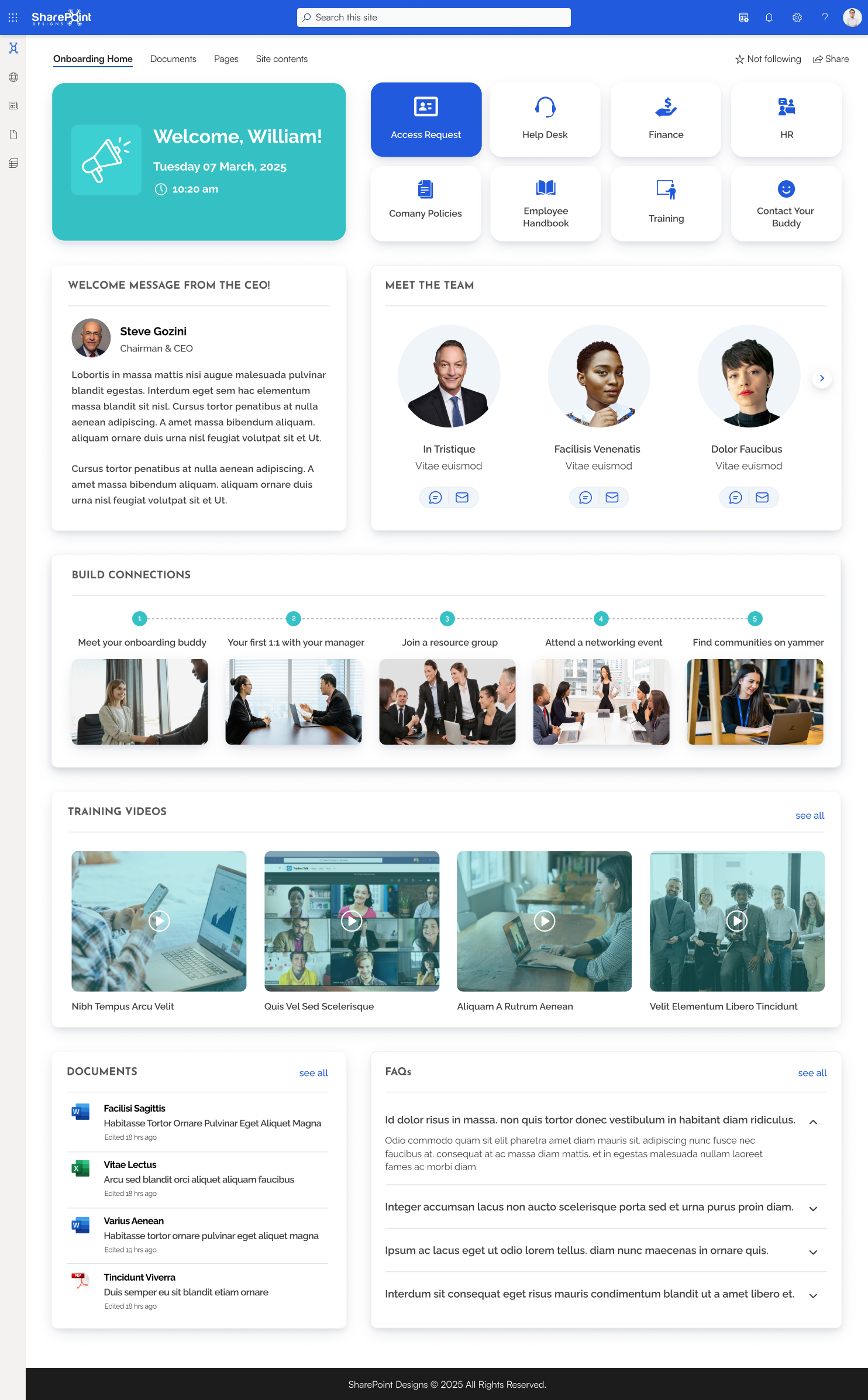
Benefits:
- Improves new hire ramp-up speed by up to 50%.
- Reduces HR’s repetitive onboarding workload.
- Enhances retention by making employees feel supported.
5. Departmental Site Template
Customizable sites for each department (IT, Finance, Marketing, Sales, etc.) with team-specific resources, updates, and tools.
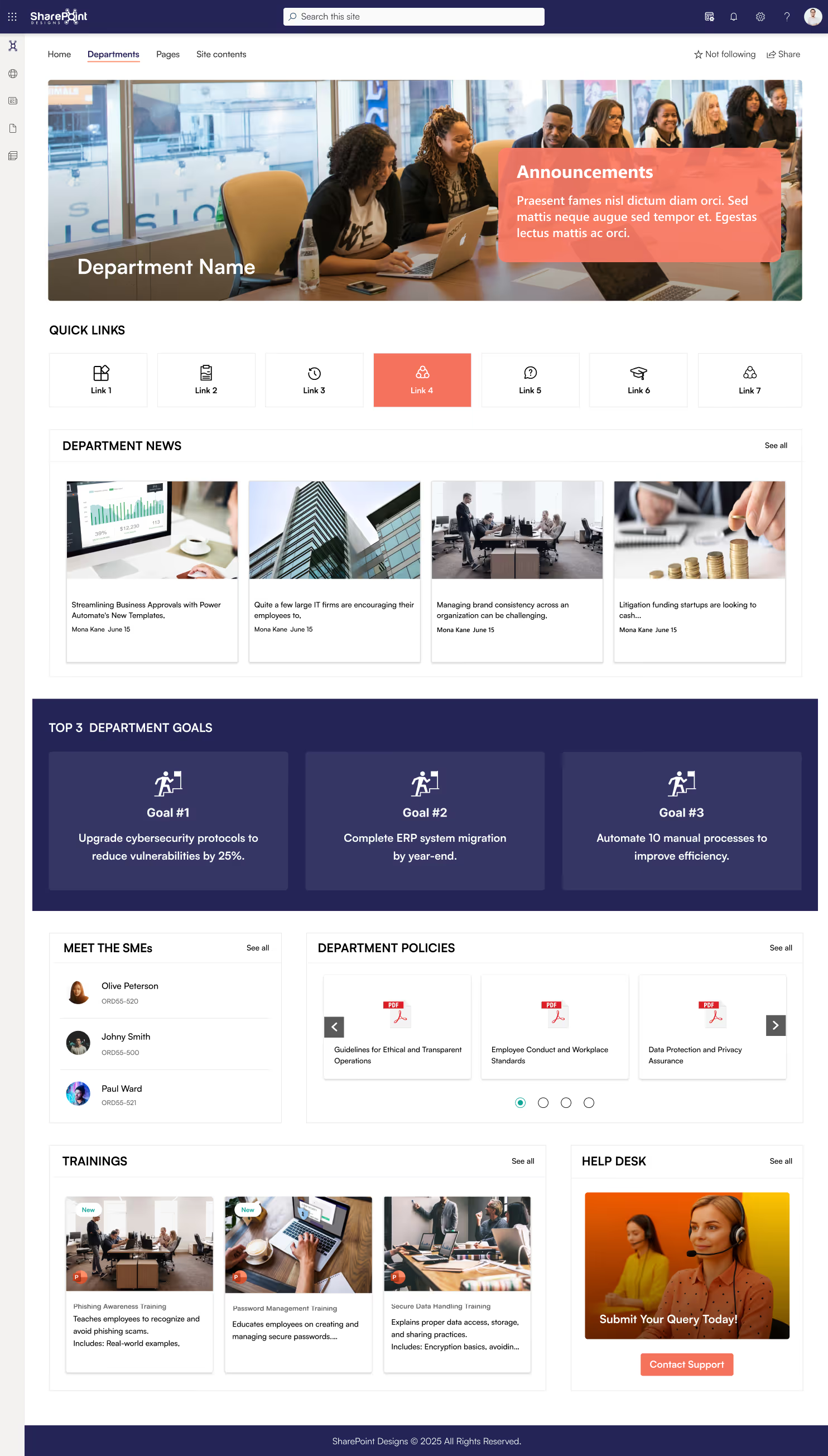
Benefits:
- Increases departmental productivity with relevant information.
- Strengthens team identity and goal alignment.
- Maintains corporate branding while allowing flexibility.
6. ISO Compliance & Document Management Template
A secure, audit-ready library for controlled documents, procedures, and compliance records with version tracking.
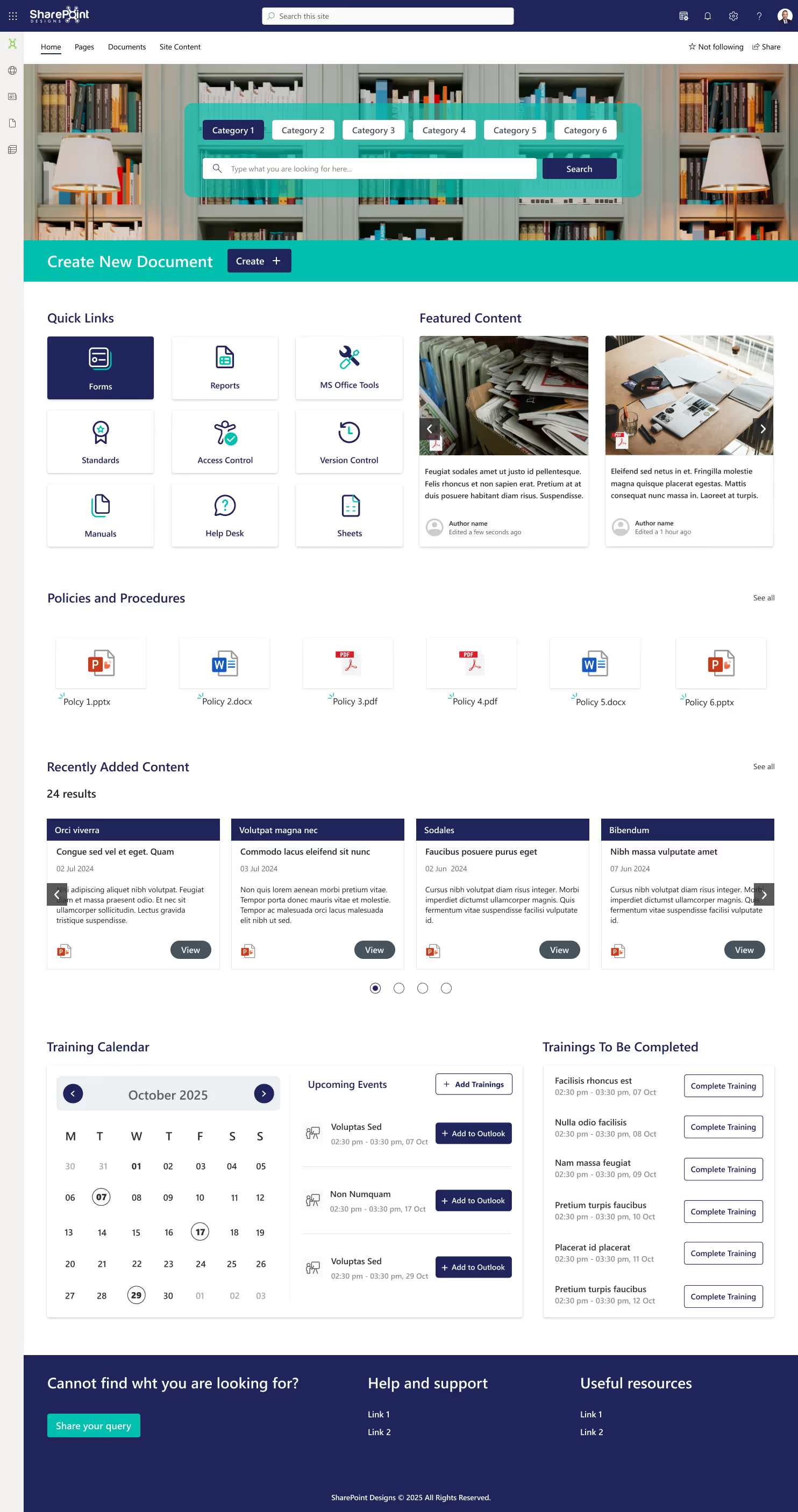
Benefits:
- Reduces audit preparation time by up to 40%.
- Ensures only approved versions are in circulation.
- Protects sensitive compliance documents with role-based permissions.
7. Internal Communication & Social Engagement Template
Includes blogs, discussion forums, polls, and recognition boards to encourage interaction beyond work tasks.
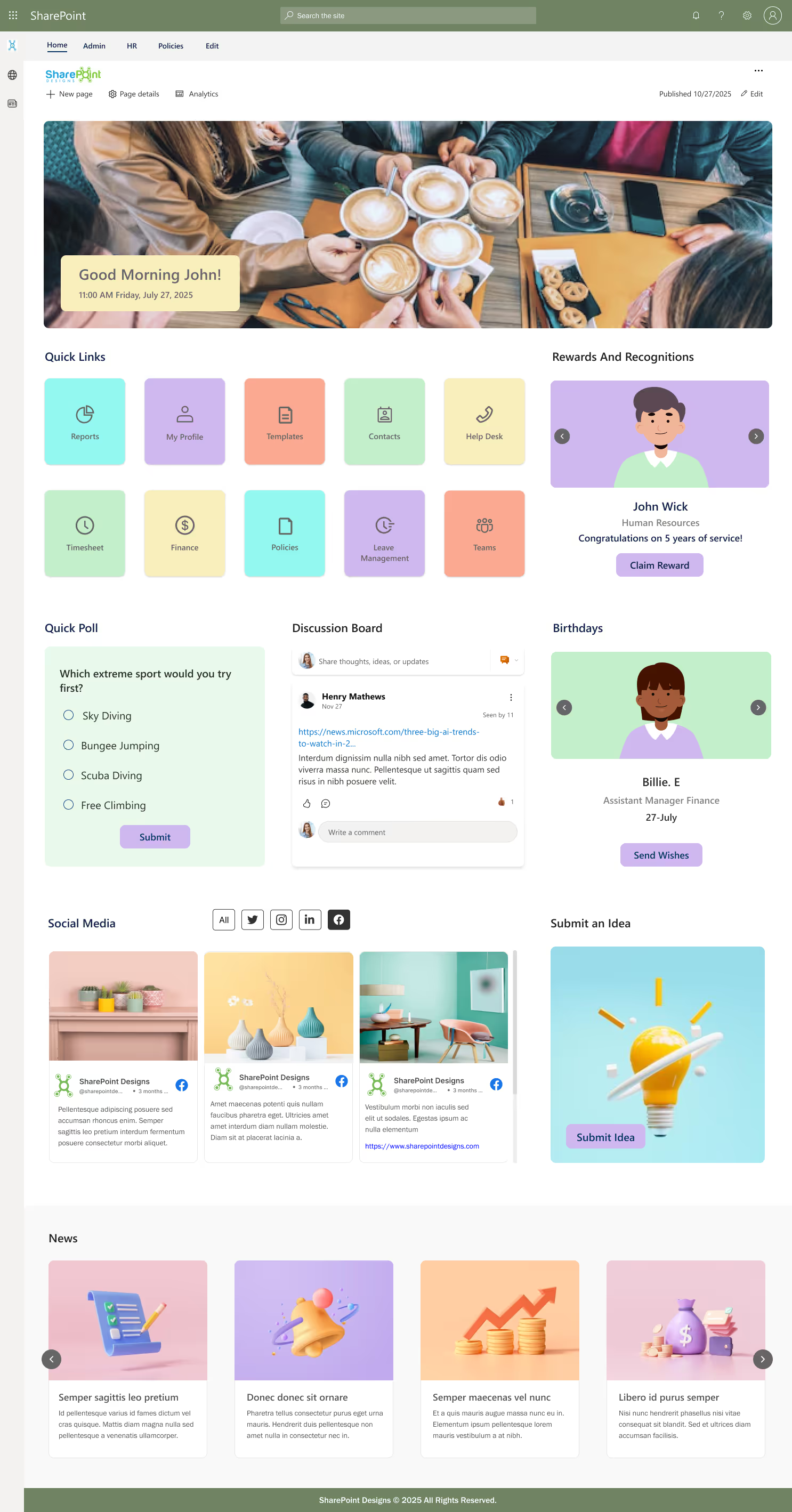
Benefits:
- Increases cross-departmental knowledge sharing.
- Boosts morale through peer recognition.
- Creates a sense of belonging in hybrid/remote setups.
8. Knowledge Base / FAQ Template
Central hub for SOPs, troubleshooting guides, and common queries, searchable by keyword or category.

Benefits:
- Cuts repetitive queries to IT, HR, and Operations.
- Improves efficiency with quick self-service answers.
- Maintains a single source of truth for processes.
9. CSR (Corporate Social Responsibility) Initiative Hub
A dedicated SharePoint template to plan, track, and promote your organization’s CSR activities. From volunteer programs to social campaigns, it helps align internal teams with your company’s mission to make a positive impact.

Benefits:
- Enhance corporate reputation with transparent CSR reporting.
- Increases employee engagement 79% of employees prefer socially responsible employers.
- Streamlines volunteer sign-ups and event participation tracking.
- Provides decision-makers with clear impact metrics for stakeholders.
- Strengthens partnerships with NGOs and local communities.
10. Sustainability & ESG Compliance Page
A purpose-built template to showcase and track your sustainability and ESG initiatives. It provides leadership with clear insights into environmental performance and compliance while inspiring employees to participate in green programs.
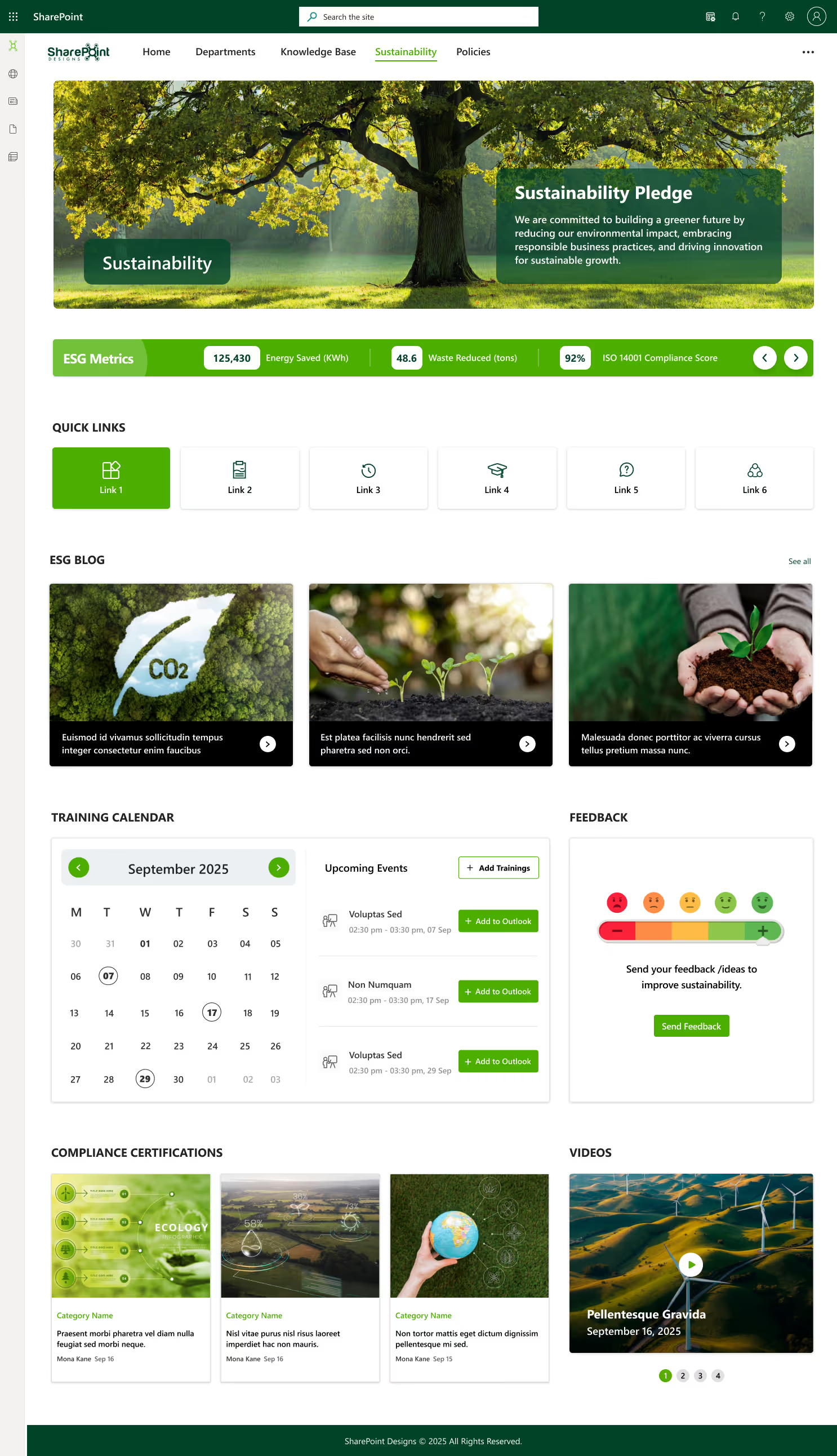
Benefits:
- Supports ESG compliance and sustainability certifications like ISO 14001.
- Improves brand positioning as a responsible and future-ready organization.
- Provides measurable metrics on energy savings, waste reduction, and carbon footprint.
- Encourages organization-wide participation in eco-friendly challenges.
- Helps attract investors and partners who prioritize sustainable practices.
Best Practices to Boost Engagement with SharePoint Templates
- Keep Navigation Simple: Too many links can overwhelm users.
- Use Rich Media: Images, videos, and infographics keep the intranet lively.
- Enable Feedback Loops: Polls, forms, and comment sections encourage interaction.
- Highlight Employee Achievements: Spotlight teams and individuals on the homepage.
- Refresh Content Regularly: Outdated pages discourage repeat visits.
Organizational Benefits & ROI
Implementing these templates delivers tangible business value:
- Time Savings: If each employee saves 15 minutes/day through better search &navigation, a 500-employee company recovers 1,562 hours/month worth ₹6.5-7.5lakh in productivity.
- Faster Communication: Centralized announcements reach 100%of staff instantly, avoiding delays that can cost opportunities.
- Lower Training Costs: Onboarding templates reduce manual HR training sessions, saving resources.
- Better Retention: Engaged employees are 87% less likely to leave, reducing recruitment costs.
For decision-makers, templates offer the best cost-to-benefit ratio when speed, scalability, and adoption rates matter.
How SharePoint Designs Can Help
At SharePoint Designs, we specialize in delivering ready-to-use modern intranet templates that are fully customizable to your brand and business needs.
We provide:
- Mobile-friendly, modern UI
- Role-based access setup
- AI and Microsoft 365 integrations
- Fast deployment with minimal IT effort
Whether you need an employee hub, departmental site, or onboarding portal, we can deliver a branded intranet that boosts engagement and productivity from day one.
Our clients report:
- 35-40% faster intranet adoption rates
- 20% reduction in internal email volume
- Significant productivity gains within the first 3 months
Ready to Launch Your Modern SharePoint Intranet in 2025?
Let’s build an engaging, future-proof intranet that your employees will love to use.
Additional Resources
Modern SharePoint Intranet Templates That Boost Employee Engagement in 2025
In today’s fast-paced, hybrid work environment, an intranet is more than just a file repository, it’s the digital heart of your workplace.
If your organization is aiming for ISO certification whether it’s ISO 9001 (Quality Management), ISO27001 (Information Security), or other standards one of the most important steps is setting up a secure, controlled, and audit-ready Document Management System (DMS).
An ISO-compliant DMS ensures that all your policies, procedures, records, and manuals are organized, controlled, and easily accessible to the right people. Without it, companies often struggle with scattered files, version confusion, and audit delays.
Microsoft SharePoint is one of the most effective platforms for building a centralized document control system that meets ISO requirements. With the right configuration, SharePoint can:
- Maintain strict version control
- Provide secure, role-based access
- Automate document approvals and reviews
- Enable faster ISO audits
In this article, we’ll explain why SharePoint is ideal for ISO documentation, how to set it up as your ISO-ready DMS, and the best practices to keep your company compliant.
Why ISO Certification Requires a Robust DMS
Regardless of the ISO standard, certain documentation requirements remain consistent:
- Document control - Approved procedures must be easy to identify and retrieve.
- Record retention - Evidence of compliance must be securely stored.
- Version management - Only the latest approved version should be in use.
- Audit readiness - Auditors must be able to easily verify compliance.
Without a proper DMS, companies risk:
- Outdated or duplicate files during audits
- Unclear document ownership
- Missing records for ISO compliance checks
An ISO-certified business needs a structured and traceable documentation process and this is exactly where SharePoint shines.
How to Use SharePoint as an ISO-Compliant Document Management System (DMS)
If your organization is aiming for ISO certification whether it’s ISO 9001 (Quality Management), ISO 27001 (Information Security),

A well-structured intranet is essential for organizations to enhance communication, foster collaboration among users, and efficiently manage important documents. Microsoft offers a powerful and flexible platform called SharePoint, which enables the creation of exclusive intranets tailored to an organization's needs using both built-in and customizable web parts. This guide will walk you through building a simple intranet using only the out-of-the-box components available in SharePoint Online.
Step 1: Site Creation
Follow these steps to create your SharePoint intranet:
1. Navigate to the SharePoint Admin Center:
- Go to the Microsoft 365 admin center (admin.microsoft.com).
- Select SharePoint from the left-hand menu.
- Click on Active Sites --> Create to start creating a new site.

2. Choose the Type of Site:
You can select from Team Site or Communication Site based on your needs:
- Team Site: Ideal for collaboration within smaller groups or teams working on projects.
- Communication Site: Best for sharing news, reports, and information with a wider audience.
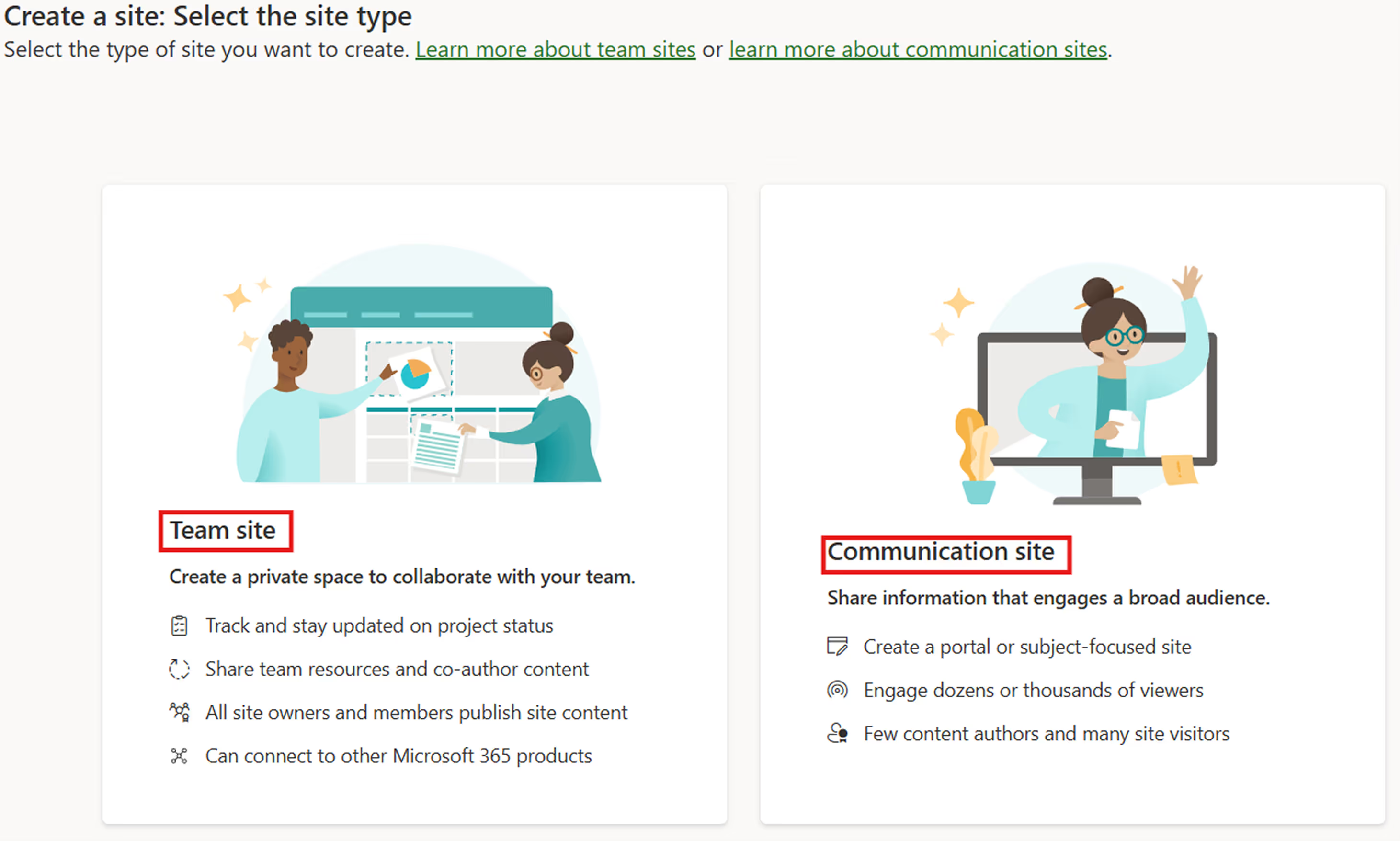
3. Select a Template:
SharePoint offers predefined templates like:
- Human Resources Template
- Learning Template
- Volunteer Template
Choose any of these templates to get started quickly or select the Blank Template to design your intranet from scratch.
4. Configure Site Details:
- Click on Use Template after selecting the template.
- Provide a Site Name that reflects the purpose of the intranet.
- Add the Site Owner who will manage permissions and content.
- Click Next to proceed.
5. Set Language and Timezone:
- Select the preferred Language and Timezone for your organization.
- Click on Create Site to finalize the site creation.
Step 2: Modifying Site Appearance in SharePoint
- Once the site is created, open it.
- SharePoint allows customization of the Theme, Font, Header, Navigation, and Footer.
- Click on the gear icon in the top-right corner and select "Change the look."
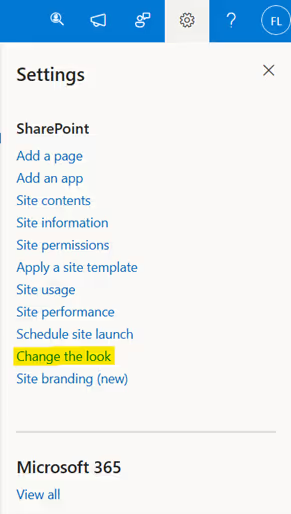
- In this section, you can modify various elements, including Navigation, Header, Theme, and more to personalize the site's appearance.
Step 3: Adding Web Parts in SharePoint
SharePoint provides the flexibility to add both Out-of-the-Box (OOTB) Web Parts and custom web parts to enhance site functionality.
- OOTB Web Parts: These include built-in components like Banner, Image Gallery, Button, Media, Weather, Events, Quick Links, Stream, etc.
- Custom Web Parts: If the available web parts do not meet specific requirements, custom web parts can be developed and deployed on SharePoint pages.
Now, let's explore a customized web part template sample to understand how we can build and integrate a tailored solution.

This SharePoint design template includes various components to enhance user experience and streamline organizational communication. Below is the purpose of each component:
1. Customized Suite Bar
- Displays the company logo with a custom suite bar color for branding.
2. Top Navigation
- Provides quick access to essential sections for better navigation.
3. Welcome Banner
- Displays the current date and time along with a custom message before the logged-in user’s name.
- Includes a multiple time zone clock that updates based on the selected location.
4. Let’s Wish
- A scrolling carousel showcasing employees with birthdays.
- Users can send customized birthday wishes via the “Let’s Wish” button.
How to create a SharePoint site-A Step-by-Step Guide
A well-structured intranet is essential for organizations to enhance communication, foster collaboration among users,
Migrating to SharePoint can unlock a range of benefits for your organization from improved collaboration and document management to tighter integration with Microsoft 365. However, one of the biggest concerns during any migration is potential downtime, which can disrupt operations, reduce productivity, and frustrate users. The good news? With the right SharePoint migration consulting partner, you can execute a seamless migration without any major interruptions.
In this blog, we’ll walk you through best practices for smooth migration and how SharePoint Designs, a trusted SharePoint migration consultant, ensures zero-downtime transitions.
Why Zero-Downtime SharePoint Migration Matters
Even a short period of system unavailability can:
- Affect team productivity
- Interrupt business-critical processes
- Lead to data inconsistency
- Result in poor user adoption
This is why it's crucial to plan and execute a migration with minimal to no disruption and that requires expert SharePoint consulting services.
Step-by-Step SharePoint Migration Best Practices
1. Engage a Trusted SharePoint Migration Consultant
Partnering with experienced SharePoint migration consulting experts ensures your project is scoped correctly, risks are identified early, and the best tools and methods are applied. At SharePoint Designs, our consultants have successfully executed dozens of no-downtime migrations for global clients across industries.
2. Pre-Migration Assessment & Strategy
- Current data structure and volume
- Customizations and workflows in use
- Integration points with other systems
- User access and permission settings
A strategic plan should include timeline, scope, fallback plans, and communication protocols. Our SharePoint consulting services team will align the migration plan with your business goals while minimizing risks.
3. Choose the Right Migration Tools
Based on your assessment, select tools that best suit your content types, volume, and complexity. Our SharePoint consulting services team recommends Microsoft’s SharePoint Migration Tool (SPMT),ShareGate, or AvePoint for different scenarios. Tool selection is critical to maintaining uptime and data integrity.

How to Migrate to SharePoint Without Downtime Best Practices & Expert Advice
Migrating to SharePoint can unlock a range of benefits for your organization from improved collaboration and document management to tighter integration with Microsoft 365.
Intranets often get a bad reputation. They're seen as clunky, outdated platforms that employees avoid unless absolutely necessary. But it doesn’t have to be that way.
With the right combination of modern SharePoint web parts, your intranet can offer the same polished, intuitive experience users expect from today’s best websites. When executed well, a SharePoint intranet becomes more than a place to store documents or publish announcements, it becomes a branded, interactive digital workplace.
Let’s look at the essential web parts that can elevate your SharePoint site into something employees actually want to visit and use every day.
1. Hero Web Part
First impressions matter. The Hero web partlets you create a visually engaging entry point on your homepage using bold images, clear calls to action, and customizable tiles. This is your opportunity to spotlight internal campaigns, policy changes, department resources, or leadership messages in a highly visual way just like a homepage banner on a public website.
What it does well:
- Drives focus to high-priority content
- Supports branding through imagery and layout
- Makes the page feel designed, not templated
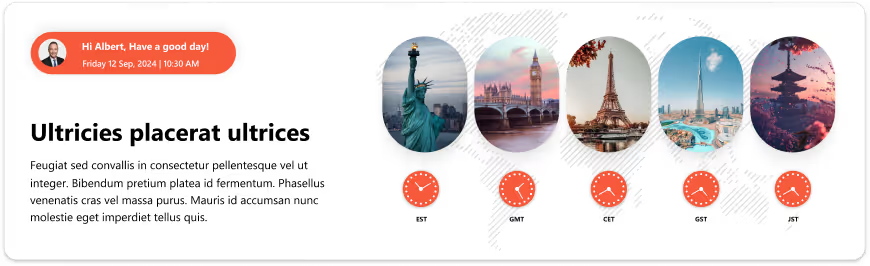
2. Quick Links Web Part
Users love efficiency, and websites make it easy to get where you need to go quickly. The Quick Links web part brings this concept to your intranet by offering neatly grouped, clickable buttons that take users directly to forms, tools, or frequently accessed pages.
You can present links as buttons, icons, or image tiles making it feel modern and user-friendly.
Best for:
- Onboarding checklists
- HR or IT service shortcuts
- Team tools and document hubs

3. News Web Part
Think of this as your company blog or newsroom. The News web part is essential for sharing updates across departments, showcasing achievements, and reinforcing transparency. Formatted with thumbnails, titles, and short summaries, it mimics the newsfeed-style layout that users are familiar with from popular websites and apps.
Why it works:
- Keeps content fresh
- Drives repeat visits
- Encourages leadership visibility
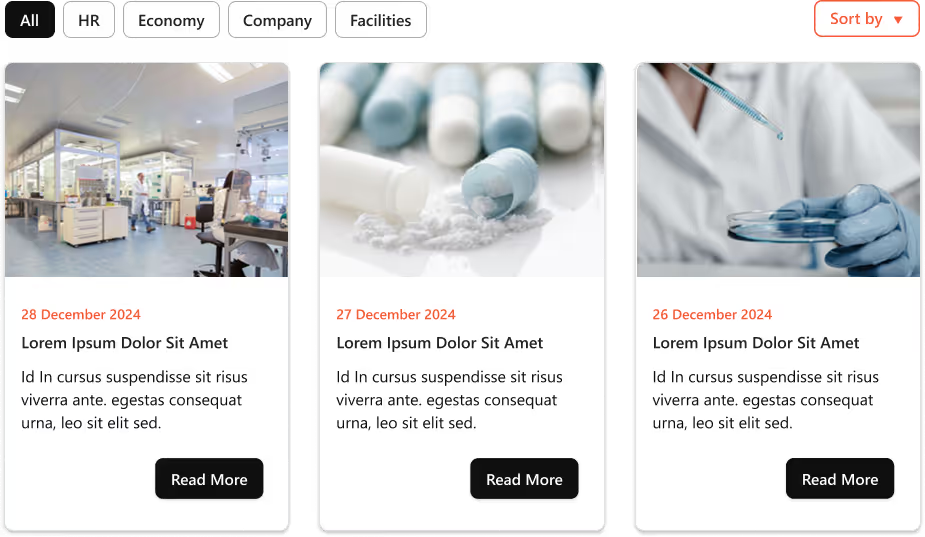
Web Parts That Make Your SharePoint Intranet Feel Like a Website
Intranets often get a bad reputation. They're seen as clunky, outdated platforms that employees avoid unless absolutely necessary.
What’s one lifehack that was shared by three influential leaders: Barack Obama, Steve Jobs, and Mark Zuckerberg?
All three of them are known for wearing almost the same outfit every day, inadvertently creating their own personal brand.
Why?
One of them said, "To reduce decision fatigue and free up mental energy for more important tasks."
What is decision fatigue?
It refers to a state of mental exhaustion that occurs after making too many decisions, especially when those decisions are complex or significant.
In the digital realm, users encounter countless decisions daily, such as which buttons to click, which boxes to check, and which forms to fill out that leads to cognitive overload. As designers, how can we simplify the users' experience and make their decision-making process a no-brainer?
Let's discuss a few tips based on real-life scenarios.
If the famous poet Robert Frost were to summarize this blog in his words, he might say something along the lines of:
“Two roads diverged in a yellow wood, and
the user took the one more traveled by,
And that has avoided all the confusion!”
If you had to wear the same outfit every day, which one would you choose?
Happy Decision Making!

The Science Behind the Click: The Psychology of Decision-Making!
All three of them are known for wearing almost the same outfit every day, inadvertently creating their own personal brand.
Imagine driving on a road full of potholes, that’s how your employees feel when using your intranet which has too many UX issues. Here’s a list of common UX pitfalls that make employees frustrated or even hate using your company’s Intranet.
1. Slow Load Times
Waiting equals frustration. If pages take more than a few seconds, users give up or get distracted.
How to fix?
Focus on optimizing the network infrastructure, server performance, and content delivery. Consider content management practices like archiving old content, optimizing images and videos, and using caching mechanisms.
2. Confusing Navigation
If users can’t find what they need quickly, they’ll either click around endlessly or just ask someone else.
How to fix?
Use a clear menu, group related tasks, and include a sitemap.
3. Too Many Clicks
Making users go through 5+ clicks to find the relevant information or to complete a simple task is NOT acceptable.
How to fix?
Streamline user flows; use personalized quick links /shortcuts for frequent tasks.
4. No Mobile Optimization
If it doesn’t work well on phones or tablets, remote or field employees are stuck.
How to fix?
Make sure the design is responsive by testing on different sized devices

10 UX Pitfalls that make your employees hate your Intranet!
Imagine driving on a road full of potholes, that’s how your employees feel when using your intranet which has too many UX issues.
Remember the game “Passing the Message”? One person whispers a message to another, and by the time it reaches the last player, the sentence has completely changed. It’s fun, but it also teaches a valuable lesson about communication and it's eerily similar to what happens in many organizations today.
Without a centralized, user-friendly platform, internal communication often gets lost in translation. An intranet helps by bringing all company information together in one place. However, the success of an intranet depends not just on its features but also on the user experience (UX).
Like in the game, a poor UX can lead to confusion, disengagement, and misinformation. Conversely, A great UX ensures that the message is communicated clearly, consistently, and enthusiastically across the organization.
So, how does UX truly impact intranet adoption? Let’s explore.
How Can a Better User Experience Engage Users?
To create an intranet that employees enjoy using, we need to think beyond just logic. A good user experience should connect with users emotionally. Just as we connect with our favorite apps or websites, the intranet should feel familiar, easy to use, and enjoyable. It should align with the way people think, feel, and work every day. Let’s break it down using the human senses as a guide:
Eyes – Grabbing Attention
First impressions matter. Just as our eyes help us notice things quickly, the visual design of the intranet plays a major role in capturing attention. When the design provides a visually pleasant experience and incorporates your company’s colors, fonts, and images, it feels familiar. Employees feel a connection, thinking, 'This is ours’.
Examples:
- Shaping the intranet design to echo your company's brand values.
- A simple, clear design helps users focus on what’s important.
- Rotating banners or hero images that reflect current campaigns or internal events.

Mind – Aligning with Intuition
Once the eyes notice something, the mind starts to think and judge. It compares what it sees with existing knowledge. That’s why the intranet should be easy to understand and navigate. A straight forward layout, intuitive menus, and neatly organized content make users feel at ease. When people don’t have to guess where to find information, they’re more likely to return and use it again.
Examples:
- Grouping content logically: HR policies, quick links, department pages.
- Intelligent search that understands shortcuts and key terms.
- Easy-to-access menus that remember the user’s last location.


Curiosity – Inviting Exploration
Once the design grabs the eye and aligns with the mind, users become curious, encouraging them to explore more. If the intranet includes well-designed and interactive tools, it captures their interest. As a result, occasional visitors may start using it more actively.
Examples:
- Interactive web parts like calendars, polls, and task reminders.
- Custom dashboards with relevant information based on role or department.
- News feeds and boards that celebrate employee achievements, birthdays, and new joiners.


How Good UX Drives Intranet Adoption?
To create an intranet that employees enjoy using, we need to think beyond just logic. A good user experience should connect with users emotionally.
In today’s fast-paced work environment, keeping everyone updated with the latest news and announcements is crucial. With Power Automate, you can streamline the process of creating news posts in SharePoint directly from Outlook emails. This automation saves time and ensures that important information is shared quickly and efficiently. This blog walks you through the steps to set up this efficient integration.
What You’ll Need
- Power Automate: Included with most Microsoft 365 plans for creating automated workflows.
- SharePoint Site: The destination site where your news articles will be published.
- Outlook Account: A Microsoft 365 Outlook account to receive emails.
Step-by-Step Guide to Create Your Flow
Step 1: Set Up the Trigger
Begin by signing in to Power Automate and creating a new flow using the "When a new email arrives" trigger from Outlook. You can set specific conditions to filter the emails that will initiate the flow, such as emails with a particular subject line (e.g., "News Update")

Step 2: Extract Content and Attachments
After setting the trigger,
Outlook Attachments:
- Add a "Get Attachment (V2)" action to set the "Message Id" and “Attachment Id” in the action.
- Use an "Apply to each" action to iterate through the attachments.
- Add a "Create file" action to store the Outlook attachment(image.png) in SharePoint, specifying the Site Address, Folder Path, File Name, and File Content. Then, use a "Get files (properties only)" action to retrieve the properties of the uploaded image for use in the news post.


From Inbox to Intranet: Automate SharePoint News Posts in Real-Time
In today’s fast-paced work environment, keeping everyone updated with the latest news and announcements is crucial.
Introduction
SharePoint introduced flexible layout section, within the flexible section we can move the webpart anywhere on the two-dimensional grid, resizing, over lapping and grouping the webparts, this guide covers how to use flexible sections in SharePoint, from adding web parts to customizing layouts for mobile views.
How to add flexible section in SharePoint Page
Just like adding other sections, click the Section button. This will open the Section toolbox. In the toolbox, you will see the Flexible Section listed first. Click on Flexible to add a Flexible Section to your page.

How to add web parts inflexible sections
- After adding a Flexible Section to your page, web parts cannot be added directly. Instead, you need to drag them from one of the Column Layouts into the Flexible Section, duplicate an existing web part, or use the Toolbox pane. The Toolbox pane, located on the right side, allows you to easily add web parts by clicking or using the drag-and-drop feature into the Flexible Section.

- The Flexible Section contains a 12-cell,two-dimensional grid. We can move web parts anywhere within this grid. When dragging and dropping a web part, grid lines will appear to help with alignment. The web part's top-left corner will automatically align with the nearest border.

How to Resize Web Parts
- We can easily resize web parts using the resize handles, which are located at the center of the left and right borders of the web part. Simply drag the handles to increase or decrease the size of the web part within the Flexible Section. Additionally, web parts can be overlapped within Flexible Sections for a more customized layout.


- Web part resizing options vary depending on the type of web part. Web parts such as Text and Image can be resized to any widths. Other web parts, like Quick Links and People, have a default minimum width of four grid columns and a maximum width of eight grid columns. Similarly, custom web parts added within the Flexible Section follow the same default resizing limits, with a minimum width of four grid columns and a maximum of eight. Resize hints will appear while adjusting the web part size.


How to Resize Flexible Sections
To adjust the height of the Flexible Section, Click on the section to see the section resize handles located at the bottom. If you need more space to add web parts within the Flexible Section, simply drag the resize handles to adjust the section's height as needed.

How to Arrange and Group Web Parts
- If web parts overlap within the Flexible Section, we can easily arrange them. In the web part toolbar, click on the Arrange Item icon from the dropdown to reposition the web parts, adjusting which one appears in front and which one appears in the back.

- We can also group web parts within the Flexible Section. To do this, click on the first web part you want to group, then hold down the Ctrl key (Windows) or Option key (Mac) and select the other web parts you want to include. Once all the desired web parts are selected, click on the Arrange Items icon, then choose Group from the dropdown to group them together. Now, you can move the entire group by dragging it anywhere within the Flexible Section.

- To ungroup a web part, select Ungroup from the dropdown to separate the web parts.


How to Use Flexible Sections in SharePoint Pages: A Simple Guide
SharePoint introduced flexible layout section, within the flexible section we can move the webpart anywhere on the two-dimensional grid,

In your Microsoft 365Tenant, there may be a lot of workflows running numerous times every day some execute automatically, some follow a schedule, and others trigger instantly upon user requests. Additionally, Desktop Flows are used to integrate with legacy systems. As a result, multiple workflows operate simultaneously to meet various requirements.
With many workflows running, several challenges arise:
- Monitoring each flow is time-consuming.
- Validating execution times can be complex.
- Flow owners receive summary notifications for failed workflows but must manually check each one to diagnose issues.
To overcome these challenges, Microsoft introduced the Automation Center.
What is a Power Platform Automation Center?
The Automation Center in Power Platform is a central hub for tracking and managing automation in Power Automate. It helps different users, like creators, operators, CoE team members, and business analysts, to oversee and improve their automation processes. With a clear, all-in-one view of automation data, it makes it easier to gain insights and improve the efficiency of their automation workflows.
Key Features of the Automation Center
- Overview Tab: The Overview tab in the Automation Center gives you a clear, high-level view of their automation performance. It tracks all related cloud and desktop flow runs, allowing you to monitor the entire process from start to finish. With insights on total runs, success rates, and key performance metrics, you can quickly identify trends, ensure smooth operations, and optimize workflows for better efficiency.
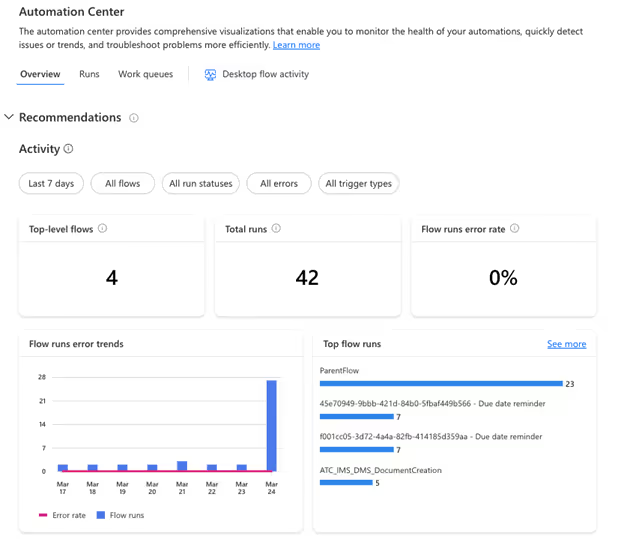
- Runs and Process Map Pages: These pages provide clear visuals and data on your cloud and desktop automation runs, helping you quickly see if your workflows are successful or need attention. With detailed insights into each step, business users can make informed decisions to improve efficiency and ensure smooth operations.

- Recommendations: The Automation Center provides proactive and reactive suggestions to enhance the reliability, efficiency, and general health of your automation. These recommendations follow the best practices and offer actionable insights to improve your workflow.
- Integrated Copilot: The Automation Center includes an integrated copilot that assists you in navigating the platform and optimizing their automation processes. The copilot provides guidance and support, making it easier for you to manage their workflows effectively.

- User-Friendly Interface: With its intuitive dashboard and user-friendly interface, the Automation Center enables users to access and analyze automation-related data effortlessly. The platform's design ensures that users can quickly find the information they need and take appropriate actions to optimize their workflows.

Boosting Your Business with the Automation Center in Power Platform
In your Microsoft 365 Tenant, there may be a lot of workflows running numerous times every day some execute automatically,

So, the success party for the launch of your new intranet is over, and now you face the important task of ensuring it remains current and engaging. Maintaining your SharePoint intranet is crucial for effective communications, team productivity, and ensuring the system stays fresh and functional.
It is important to establish a strategy for regularly updating the content and providing a steady flow of new information. So, here's a checklist to keep your Intranet buzzing, and make your team coming back for more!
Weekly checklist
These brief, quick check-ins conducted on a weekly basis may enhance relevance and activity within your intranet:
- Check for Latest news / announcements. Ensure they are updated at the source from where your intranet fetches the content, e.g. like social media sites, intranet pages etc.
- Gather feedback from users and respond to user feedback or comments.
- Ensure the Events calendar is up to date and all the important events / holidays are updated.
- Ensure Any reminders / alerts which are past the due date, are removed.
Monthly checklist
These monthly tasks aim at maintaining the security, organization, and usability of your SharePoint site:
- Ensure the new joiners are updated in the HR repository and their joining date, birthdays are updated. This will ensure their date get automatically pulled on the new joiners / birthdays & anniversaries webpart if you have included them on your intranet homepage.
- Ensure the Monthly calendar is up to date and all the important events / holidays are updated.
- Archive documents and pages that are stale or rarely used.
- Ensure that all department pages and respective department contacts are updated with recent data.
- Ensure all the admin / auto-response emails are active and the inbox is not full.
- Verify appropriate functioning of forms, workflows, and other automations.
- Fix all broken internal links and ensure there is no loose hanging content in any of the subpages.
- Modify user permissions to include new users and remove stale users as needed.
- Monitor total storage space and clean up unnecessary redundant content.
Quarterly checklist
Feel free to do these every now and then to ensure content remains engaging and everything runs smooth:
- Ensure the department wise contacts are up to date.
- Ensure the townhall calendars are up to date, if any.
- Revise branding as well as promotional materials, banners, and visuals set on the homepage.
- Gather comments from department leads on what improvements can be made.
- Enhance the intranet’s performance to evaluate the speed and ease of navigation.
With these simple checklists, your SharePoint intranet will stay reliable, clean, and helpful. Set reminders for these tasks and keep improving your digital workspace and we guarantee your users will keep coming back for more!

How to keep your SharePoint Intranet updated: Weekly, Monthly & Quarterly Checklists.
So, the success party for the launch of your new intranet is over, and now you face the important task of ensuring it remains current and engaging.
Typography is constantly evolving, with new trends emerging that shape how brands communicate visually. In 2025, several typography styles are defining modern UI/UX design:
1.Monospace Fonts
Monospace fonts continue to rise in popularity, especially in UI design for coding interfaces, tech branding, and minimalist aesthetics. They bring a structured and technical look to digital experiences.

2. Retro Revival Fonts
Vintage-inspired typefaces from the 1970s, 1980s, and 1990s are resurging in popularity, bringing a sense of nostalgia and personality to modern designs. These fonts feature bold, expressive styles and playful textures that bring a sense of familiarity and warmth, while enhancing authenticity and character in designs.

3. Minimalist Sans Serif Fonts
Characterized by clean, simple lines and lack of decorative elements, minimalist sans serifs convey modernity and sophistication. They remain a top choice for contemporary brands looking for a sleek and timeless feel.

4.Handwritten & Organic Fonts
Mimicking natural handwriting, these fonts add a personal touch to digital experiences, making brands feel more authentic, creative, and approachable. They are widely used in branding that aims to foster a closer connection with users.

5. Sci-Fi & Futuristic Fonts
Sci-fi and futuristic fonts are becoming increasingly popular with the rise of AI, Web3,and tech-driven branding. These typefaces typically showcase sharp angles, geometric shapes, and a digital look, making them perfect for brands aiming to express innovation and a futuristic edge. These fonts are used in AI-driven applications, fintech platforms, and gaming interfaces, creating a sleek and modern appeal.


Typography Trends for 2025
Typography is constantly evolving, with new trends emerging that shape how brands communicate visually.
Migrating OneNote pages to SharePoint as documents can be a tedious task when done manually. In this blog, I will explain a step-by-step process to automate the migration using Power Automate.
Note: Images inside OneNote pages cannot be migrated using this method. A different approach and some manual works are required for that.
Step-by-Step Automated Migration Flow
1. Trigger: Manual Trigger
I have used a manual trigger for this flow, but you can modify it as per your needs. Additionally, I have initialized two variables to store the notebook key and section key.

2. Get OneNote Notebooks
I used the "Get recent notebooks" action to fetch the available notebooks and added a condition to select only one notebook, storing its key in a variable. If needed, you can loop through all the notebooks instead.


Automating OneNote to SharePoint Migration Using Power Automate’s OneNote Actions
Migrating OneNote pages to SharePoint as documents can be a tedious task when done manually.

SharePoint Online continues to evolve, bringing new features and enhancements to improve user experience and streamline administrative tasks. In this blog, we'll cover three major updates: the introduction of the Table Toolbar, changes to the API Access page in the SharePoint Admin Center, and improvements to the SharePoint eSignature service.
1. Table Toolbar: Enhanced Table Management
The new Table Toolbar in SharePoint Online is designed to offer users an intuitive and efficient table management experience. Previously, table styling options were available within the text web part, but now, with the dedicated Table Toolbar, users gain access to a comprehensive set of table-related functionalities.
Key Features of the Table Toolbar:
- Expanded Table Styles: Enjoy all the familiar Table Styles along with additional formatting options.
- Merge and Split Cells: Seamlessly merge or split table cells for customized layouts.
- Add Space Before and After: Improve table readability by adding space before and after your tables.
- Always Accessible Menu: The toolbar remains in focus while working on a table, eliminating the need for constant context switching.
- Responsive Design: The toolbar adapts to your section layout. When using narrower layouts, table options conveniently move into the overflow (...) menu.
This streamlined approach ensures that content creators have quick access to table management tools, enhancing productivity and content presentation.
2. API Access Page Updates in the SharePoint Admin Center
Microsoft is introducing changes to the API Access page within the SharePoint Admin Center. These adjustments aim to ensure that SharePoint Online remains secure and functional.
What’s Changing?
- Pre-Authorized Permissions: A set of additional permissions will be automatically pre-authorized by Microsoft.
- Seamless Functionality: These permissions are essential for the core functionality of SharePoint Online.
- Improved Visibility: Admins will have better insights into the permissions required for SharePoint Online to operate effectively.
Rollout Timeline:
- Targeted Release: Starting mid-March 2025, completing by mid-March 2025.
- General Availability: Rolling out worldwide by late March 2025.
Read more: How to grant API permissions in SharePoint admin?

Latest Updates on SharePoint Online: Table Toolbar, API Access Changes, and eSignature Enhancements
SharePoint Online continues to evolve, bringing new features and enhancements to improve user experience and streamline administrative tasks.
Effective governance in SharePoint ensures data security, compliance, and optimal collaboration. This extended guide details key governance tools, policies, and practical examples in SharePoint, referencing official Microsoft guidelines.
1. Information Architecture
Information architecture organizes, labels, and structures content to ensure efficient discovery and usability. A strong information architecture improves productivity by enabling users to quickly locate and utilize necessary data.
- Sites and Hubs: SharePoint structures content through site collections and hub sites. Hub sites connect related sites, ensuring consistent navigation and themes. For instance, an organization might establish a hub site for Human Resources, linking to subsites such as Recruitment, Policies, and Employee Benefits.
- Navigation and Search: Implement clear navigation paths and configure search to improve content discoverability. For example, create intuitive navigation bars, breadcrumb trails, and use refiners in search results to help users narrow down content quickly.
- Metadata and Content Types: Use managed metadata and content types to classify and standardize data organization. For instance, a document library for project documents might use content types such as "Project Plan," "Risk Assessment," or "Budget Reports," each with specific metadata fields like project phase, due dates, or project managers.
2. Permissions and Access Control
Permissions manage user access to SharePoint content, preventing unauthorized access and ensuring content integrity.
- Default Groups and Roles: SharePoint provides default permission levels (Owners, Members, Visitors). For example, HR site owners manage permissions, HR team members contribute content, and other employees might only have viewing permissions.
- Least Privilege Principle: Assign users only the permissions necessary to complete their tasks. For example, provide read-only access to employees for compliance documentation, reserving editing rights for compliance managers only.
- Regular Reviews and Auditing: Perform routine audits of permissions to ensure that former employees or role changes do not result in improper access. Regular permission checks could reveal that a contractor who left three months ago still has access, prompting immediate removal.

Governance of Data in SharePoint: Tools, Policies, and Best Practices
Effective governance in SharePoint ensures data security, compliance, and optimal collaboration. This extended guide details key governance tools, policies, and practical examples in SharePoint,
This beginner-friendly guide will introduce you to PowerApps and guide you through building a simple app. You'll learn how to choose different layouts, enable coauthoring, and use modern controls. It also covers adding data sources, designing, testing, and publishing your app, ultimately inspiring you to explore advanced features and integrations.
What is PowerApps?
PowerApps is a Microsoft tool that comes under Microsoft 365 services. This allows you to create custom apps without coding. It helps businesses automate tasks, connect with various data sources like SharePoint, SQL, Excel, and Dynamics 365, and create user-friendly apps with drag-and-drop functionality.
Step-by-Step Guide to Create a Simple PowerApps App
Step 1: Sign in to PowerApps
- Go to PowerApps website
- (https://powerapps.microsoft.com), sign in with your Microsoft account. Enter your Email ID and Password.

- Click on Create and choose Start with a blank canvas.

- Choose any one of the three layouts based on your requirements.

- Responsive Layout – Automatically adjusts to different screen sizes for a better user experience across devices.
- Tablet Layout – Best for larger screens like iPads, tablets, and desktops.
- Phone Layout – Optimized for mobile devices with a vertical scrolling design.
Which one should you choose?
- If your app will be used mostly on desktops or tablets, select Tablet Layout.
- If it’s mainly for mobile users, select Phone Layout.
- If you need a flexible design that adjusts to different screens, select Responsive Layout.
Next Step:
- Choose the layout based on your needs.
- Click Create to start designing your PowerApps application.
- Enter your App name.
Step 2: Enable Coauthoring in Power Apps
Coauthoring allows multiple users to work on an app simultaneously. To enable this feature:
- Go to Power Apps Studio and open the app.
- Click the Settings icon.
- Click the Updates menu from thesidebar
- Under the New tab, turn on the Coauthoringtoggle.
- Click OK to update the settings.
- Publish the app. After that changes can be visible if some updates the app.
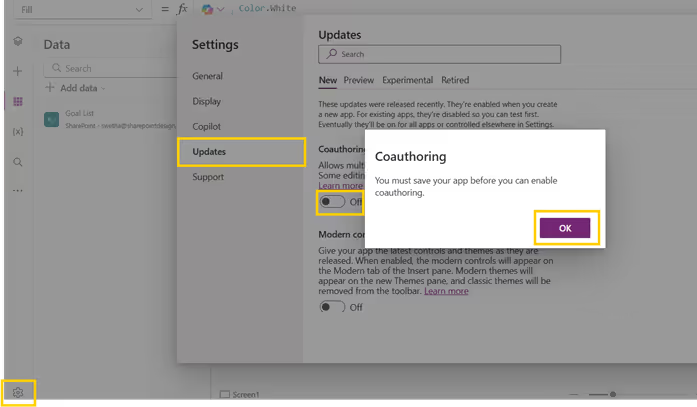
Step 3. Enable Modern Controls in Power Apps
Modern controls improve the app's UI and usability. To enable them:
- Go to Power Apps Studio and open your app.
- Click the Settings icon.
- Click the Updates menu from the sidebar.
- Under the New tab, turn on the Modern controls and theme toggle.
- Save and refresh the app to access new modern controls (e.g., modern buttons, text inputs, and combo boxes).
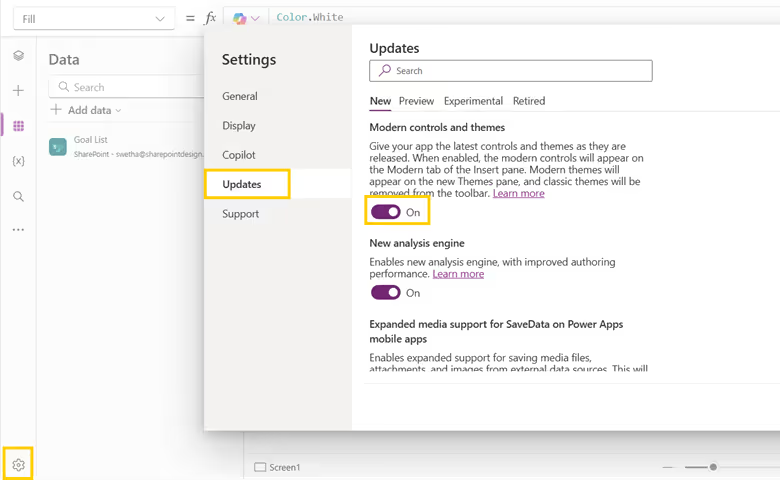
Step 4: Add a Data Source
For this example, we will use a SharePoint site stored in the list.
- Click Data (on the left panel)> Add Data > Select SharePoint.

- Choose your SharePoint site and select the correct list to connect.
Step 5: Design Your App
- Add a Text Input, labels, Date Picker and Button to allow users to add new records.

- Set the button’s OnSelect property:
- Click Insert > Gallery> Vertical to display data.
- Set the gallery’s data source to your SharePoint list.

Step 6: Test and Publish
- Click the Play button to test your app.
- If everything works fine, click Save and Publish.
Conclusion
This is just the beginning—PowerApps allows you to create more advanced apps with automation, complex logic, and integrations. PowerApps can integrate with Power Automate for automation, Power BI for reporting, and much more. Keep exploring and creating amazing apps!
How SharePoint Designs Can Help
At SharePoint Designs, we specialize in delivering expert PowerApps consulting services tailored to your business needs. As a trusted PowerApps consultant, we help organizations of all sizes design, develop, and optimize custom applications that improve efficiency and reduce manual effort.
Customized PowerApps Consulting
We work closely with your stakeholders to understand business processes, identify automation opportunities, and build tailored apps that solve real operational challenges. From initial strategy and planning to design, development, and support, our end-to-end consulting ensures a seamless experience.
Integration with SharePoint, Teams, and Microsoft Ecosystem
Our PowerApps consultants specialize in creating intelligent apps that connect seamlessly with Microsoft 365 tools, including SharePoint, Teams, Outlook, and Power Automate. These integrations streamline workflows, centralize data access, and enable efficient collaboration across your organization.
Whether you're building your first app or scaling Power Platform adoption enterprise-wide, SharePoint Designs is your go-to partner for strategic PowerApps consulting that drives measurable business outcomes.

PowerApps for Beginners: A Guide to Building Your First App
This beginner-friendly guide will introduce you to PowerApps and guide you through building a simple app.
Introducing Microsoft Copilot Studio
Microsoft Copilot Studio is an innovative platform enabling businesses to easily create and deploy intelligent AI assistants integrated seamlessly into familiar Microsoft 365 applications. With custom-built conversational agents, your organization can significantly enhance productivity, collaboration, and employee engagement.
The February 2025 release introduces exciting new capabilities, ranging from seamless integration within Microsoft Teams to advanced analytics, enhanced security, and expanded multilingual support.
Yet, leveraging such powerful technology can feel daunting, especially for organizations without dedicated internal resources.
That's why SharePoint Designs is offering a Free 1-Hour Consultation to help you understand exactly how Copilot Studio can be integrated effectively into your business workflows.
What's New in Copilot Studio – Simplified
1. Publish Custom AI Agents Directly in Microsoft 365
Easily publish AI agents into Microsoft 365(Teams), allowing natural interactions within familiar apps.
2. Powerful Enterprise Data Integration
Connect your AI assistants seamlessly with enterprise platforms like Salesforce, GitHub, and Stack Overflow using built-in Microsoft Graph connectors.
3. Reusable AI Components
Accelerate AI development by reusing conversational flows, knowledge bases, and automation triggers across different agents.
4. Enhanced Analytics & Robust Security
Gain clear performance insights through advanced analytics and protect your organization with improved built-in security features.
5. Multilingual & Developer - Friendly
Build agents quickly in new languages and leverage JavaScript support, making development accessible to more teams globally.
How SharePoint Designs Becomes Your Extended AI Team?
At SharePoint Designs, we recognize many businesses don't have the luxury of an in-house AI development team. That's exactly why our consultative approach is designed to seamlessly fit your needs. We’re not just external consultants—we function as your dedicated in-house AI developers, fully invested in your success.
We support you by providing:
1. Tailored Consultation & AI Strategy
Our specialists provide in-depth guidance, aligning Copilot Studio’s capabilities directly with your business objectives.
2. Custom Agent Development & Deployment
Our developers build, configure, and deploy custom AI solutions specifically tailored to your unique workflows and brand identity.
3. Effortless Enterprise Data Integration
We expertly handle connecting your AI agents with the relevant enterprise data sources, ensuring your AI delivers meaningful and precise answers.
4. Continuous Analytics & Optimization
We proactively monitor your AI agents, using detailed analytics to refine their effectiveness continuously.
5. Security & Compliance Management
We provide proactive security management, ensuring your AI solutions meet compliance standards and remain protected from evolving threats.
Get Started Today with a Free 1-Hour Consultation
Not sure how to start, or simply want a clearer vision of what Copilot Studio can do specifically for your business? We invite you to take advantage of our Free 1-Hour Consultation.
In this session, our SharePoint Designs experts will help you:
- Understand how Microsoft Copilot Studio fits within your unique business context.
- Identify immediate opportunities for automation and productivity gains.
- Develop an actionable roadmap for implementing custom AI solutions quickly.
This complimentary consultation is your first step towards leveraging Microsoft Copilot Studio’s powerful capabilities effectively—with SharePoint Designs acting seamlessly as your extended development team.
Ready to explore AI’s potential for your business?
Claim your Free 1-Hour Consultation now and let SharePoint Designs guide you toward smarter, more productive ways of working.

Maximize Your AI Potential In-House with Copilot Studio & SharePoint Designs - No Hiring Overhead!
Microsoft Copilot Studio is an innovative platform enabling businesses to easily create and deploy intelligent AI assistants integrated seamlessly into familiar Microsoft 365 applications.
In today’s digital-first world, businesses are constantly seeking ways to improve collaboration, streamline workflows, and enhance productivity. Microsoft SharePoint has emerged as a leading platform for achieving these goals, offering robust tools for document management, intranet development, and workflow automation. However, implementing and optimizing SharePoint requires specialized expertise, which is where SharePoint consulting services come into play.
This comprehensive guide dives deep into SharePoint consulting services, exploring their benefits, processes, and best practices. Whether you’re considering a SharePoint migration, custom development, or governance strategy, this blog will equip you with the knowledge to make informed decisions and maximize your SharePoint investment.
1. Introduction to SharePoint Consulting Services
What is SharePoint Consulting?
SharePoint consulting involves partnering with experienced professionals who specialize in designing, implementing, and optimizing SharePoint solutions tailored to your business needs. These consultants bring technical expertise, industry knowledge, and best practices to ensure your SharePoint environment is efficient, secure, and aligned with your organizational goals.
SharePoint consultants help businesses navigate the platform’s complexities, from initial setup to ongoing management. Whether you’re migrating from an older version, customizing workflows, or ensuring compliance, SharePoint consulting services provide the guidance and support you need to succeed.
Why Businesses Need SharePoint Expertise
While SharePoint is a powerful platform, its implementation can be challenging without the right expertise. Common pain points include:
- Difficulty in customizing SharePoint to meet specific business needs.
- Challenges in integrating SharePoint with existing systems and tools.
- Ensuring data security and compliance with industry regulations.
- Managing the platform efficiently without overburdening internal IT teams.
SharePoint consultants address these challenges by providing tailored solutions, ensuring smooth implementation, and helping businesses unlock the platform’s full potential.
Comprehensive Guide to SharePoint Consulting Services – Benefits, Process, and Best Practices
In today’s digital-first world, businesses are constantly seeking ways to improve collaboration, streamline workflows, and enhance productivity.
As organizations adapt to the demands of modern workplaces, selecting the best intranet software has become crucial for streamlining workflows, enhancing collaboration, and fostering employee engagement. Among the top contenders in the industry, Microsoft SharePoint continues to shine as a versatile, feature-rich solution. Let’s compare SharePoint with its key competitors and explore why it remains the preferred choice for businesses in 2025.
1. Microsoft SharePoint
Overview:
SharePoint is a highly customizable and scalable intranet solution that integrates seamlessly with the Microsoft 365 ecosystem. Trusted by organizations of all sizes, it offers a range of advanced features for collaboration, document management, automation, and security.
Key Features:
- Deep integration with Microsoft 365 tools like Teams, Power Automate, and Outlook.
- Advanced document management with metadata tagging, AI-powered search, and version control.
- Customizable intranet layouts and workflows tailored to business needs.
- Enterprise-grade security features, including role-based access and compliance tools.
- Scalable solutions for both SMBs and global enterprises.
Why Choose SharePoint?
SharePoint stands out as the most comprehensive and best intranet solution, offering a secure and scalable digital workplace. SharePoint’s versatility makes it a strong foundation for businesses seeking to build a modern and secure workplace. With the support of expert SharePoint consulting services, businesses can unlock the full potential of this powerful intranet platform.
2. Google Workspace Intranet
Overview:
Google Workspace offers basic intranet functionality through tools like Google Sites and Drive. It is a lightweight solution designed for simplicity and ease of use, making it a popular choice for startups and small teams.
Key Features:
- Ease of Use: Intuitive interface for quick setup and collaboration.
- Cloud-Based: Fully cloud-native, ensuring accessibility from anywhere.
- Integration: Works seamlessly with other Google tools like Gmail, Calendar, and Docs.
- Limitations: Lacks advanced document management, metadata tagging, and workflow automation.
- Best For: Small teams prioritizing simplicity over complexity.
While Google Workspace excels in user-friendliness and basic collaboration, businesses requiring more robust features like automation, compliance tools, and advanced security often look to SharePoint for a more comprehensive solution. Google Workspace lacks advanced document management. It’s suitable for basic needs but falls short for businesses requiring enterprise-grade features.
3. Atlassian Confluence
Overview:
Confluence is a knowledge management and collaboration platform widely used by agile teams in technology and software development. It provides tools for creating wikis, sharing knowledge, and managing projects.
Key Features:
- Knowledge Management: Great for creating and sharing internal documentation.
- Project Collaboration: Works well with Jira for agile project management.
- Search: Basic search capabilities for finding pages and content.
- Limitations: Limited automation, customization, and advanced document management.
- Best For: Tech-savvy teams managing documentation-heavy workflows.
Confluence serves as a strong option for knowledge sharing but lacks the comprehensive capabilities of a platform like SharePoint for managing complex workflows, compliance, and enterprise-grade document management.
4. Slack with Intranet Add-Ons
Overview:
Primarily a communication platform, Slack can function as a lightweight intranet when integrated with third-party tools. It’s ideal for teams prioritizing real-time collaboration.
Key Features:
- Real-Time Messaging: Exceptional for instant communication.
- Integration-Friendly: Connects with numerous third-party apps.
- Collaboration: Supports file sharing and team channels.
- Limitations: No native document management or automation capabilities.
- Best For: Small to medium teams looking for enhanced communication.
Slack’s real-time communication is its strength, but its reliance on third-party integrations to mimic intranet functionalities can lead to fragmented workflows compared to SharePoint’s all-in-one platform.
5. Workplace by Meta
Overview:
Workplace by Meta is a social collaboration platform designed to engage employees through a social media-like experience. It emphasizes communication and engagement over technical features like document management.
Key Features:
- Social Collaboration: Feeds, chat, and live video features.
- User-Friendly: Familiar social media-style interface.
- Limitations: Minimal document management, no automation, and weak integration options.
- Best For: Companies focusing on improving employee engagement.
Workplace by Meta is a good choice for organizations prioritizing social engagement. However, it lacks the depth and flexibility of SharePoint, especially for enterprises managing large-scale workflows and documents.
6. Staffbase
Overview:
Staffbase is a leading employee experience platform, focused on improving communication and engagement through user-friendly tools. It’s an excellent choice for companies prioritizing employee interaction and alignment.
Key Features:
- Intuitive employee communication tools, including branded mobile apps.
- Pre-designed templates for quick intranet deployment.
- Easy integration with HR systems and analytics tools.
- Strong focus on employee engagement and communication.
Limitations:
Staffbase excels in engagement but lacks advanced document management, workflow automation, and AI-powered features. For businesses looking for a balance between communication and comprehensive collaboration tools, SharePoint is often the better choice.
7. Unily
Overview:
Unily is a modern intranet platform designed to offer seamless user experience with a heavy focus on user engagement, collaboration, and analytics.
Key Features:
- Highly polished and visually engaging user interface.
- Strong integration with tools like Microsoft 365 and Google Workspace.
- Built-in analytics to track employee engagement and content effectiveness.
- Personalization capabilities for tailored employee experiences.
Limitations:
Unily focuses more on aesthetics and engagement but lacks the deep integration and customization capabilities of SharePoint. For organizations needing extensive workflow automation and enterprise-level security, SharePoint remains the go-to choice.
Why SharePoint is the Best Intranet Software for 2025
While competitors like Google Workspace, Confluence, Slack, and Workplace by Meta each offer unique strengths, SharePoint stands out as the most well-rounded intranet solution.
Here’s why:
- Comprehensive Features: SharePoint combines collaboration, document management, automation, and compliance into one platform.
- Seamless Integration: Deep connectivity with Microsoft 365tools ensures a unified digital workplace.
- Customizable Solutions: SharePoint can be tailored to fit any organization’s unique workflows and branding.
- Enterprise-Grade Security: With advanced encryption, role-based access control, and compliance tools, SharePoint ensures your data remains protected.
It combines the best features of its rivals like robust collaboration, advanced document management, and enterprise-grade security into one comprehensive platform. SharePoint’s ability to integrate with Microsoft 365 tools, automate workflows with Power Automate, and provide AI-powered features like Syntex makes it the ultimate choice for businesses seeking a future-proof intranet.
How SharePoint Consulting Services Enhance Your Intranet
Implementing and customizing SharePoint requires expertise to unlock its full potential. Utilizing expert SharePoint consulting services, businesses can:
- Build fully customized intranets tailored to their specific needs.
- Streamline workflows and automate repetitive tasks with Power Automate.
- Ensure a seamless migration to SharePoint Online with minimal downtime.
- Enhance user adoption through training and support.
At SharePoint Designs, we have successfully delivered over 100 customized intranet solutions and automated 200+ processes, making us a trusted partner for businesses aiming to optimize their digital workplace.
Conclusion: SharePoint for the Modern Workplace
The intranet software landscape in 2025 is diverse, with many options catering to specific business needs. However, SharePoint remains the best intranet software for organizations looking for a scalable, secure, and feature-rich platform. Partnering with SharePoint Designs ensures your business leverages expert SharePoint consulting services to create a high-performance digital workplace and also specialize in tailoring SharePoint solutions that meets today’s demands and prepares for the future.

Best Intranet Software Platforms & Solutions for 2025
As organizations adapt to the demands of modern workplaces, selecting the best intranet software has become crucial for streamlining workflows
Managing permissions and user access in SharePoint is a critical aspect of site administration, especially when onboarding new users. SharePoint's REST API offers so many functionalities, including the ability to share files and send invitations. Here, in this blog, we will focus on how to use this API to add users to a SharePoint site and send them customized body invitations.
By using SharePoint Framework (SPFx) and the SharePoint REST API, you can automate this process, ensuring users are added to groups and send invitations link to the site. In this blog, we’ll walkthrough how to build a function in SPFx that adds users to a site group by their email, Azure Active Directory (AAD) ID, and SharePoint group ID, and sends a personalized email invitation automatically.
Step-by-Step Solution to Add Users and Send Invitations
We’ll break down the steps in implementing this functionality below,
1. Writing the Function to Send Email Invitations
Below is the code for the function that adds users to a SharePoint site's group and sends them an email invitation. It accepts parameters to specify the user’s email, Azure AD ID (aadId), and SharePoint group ID. The email content is predefined within the function.
2. Key Function Parameters Explained
This function accepts the following key parameters:
- context: WebPartContext: Provides the context of the current SharePoint site or page. It’s used to obtain the site URL and to make HTTP requests using spHttpClient.
- userEmail: string: The email address of the user you want to invite.
- groupId: string: The SharePoint group ID to which the user will be added.
- aadId: string: The unique Azure Active Directory (AAD) ID of the user, which ensures that the correct user is resolved in SharePoint, especially when email addresses or display names may not be unique.
3. How the Function Works
3.1 Constructing the API Request
The core part of this function is sending a POST request to SharePoint’s REST API endpoint /SP.Web.ShareObject, which handles sharing and adding users. The peoplePickerInput is where the user’s email and Azure AD ID are included, which helps SharePoint resolve the correct user.
3.2 Customizing the Invitation
The emailProperties object allows you to configure the content and behavior of the invitation. For instance, the roleValue field specifies the SharePoint group to which the user will be added by using groupId, and the emailBody is predefined to send a welcoming message to new users.
3.3 Sending the API Request
Once everything is configured, the function uses spHttpClient.post() to send the request to SharePoint. It handles both adding the user to the group and sending the email invitation.
The response is checked for success, and any errors encountered during the process are logged.
4. Additional Improvements and Best Practices
Here are a few suggestions to further enhance the solution:
- Dynamic Group Assignment: Modify the groupId parameter to dynamically select different SharePoint groups based on the user's role or other conditions.
- Bulk Invitations: Extend the functionality to handle bulk user invitations by passing an array of emails and looping through them.
- Automation with Power Automate: Further automate this API using Power Automate, enabling seamless integration with SharePoint workflows.
Conclusion
The process of adding users to SharePoint groups and sending personalized invitations using SPFx and the SharePoint RESTAPI can significantly streamline your SharePoint site management tasks. It saves time, improves the user onboarding experience, and ensures consistency.
Moreover, by integrating this solution with Power Automate, you can trigger these invitations automatically based on specific events or workflows, making the process even more efficient.
Stay tuned for future blogs where we'll explore more ways to automate and enhance SharePoint site management!

Triggering Out of Box User Invitations for a SharePoint Site Using SPFx and REST API
Managing permissions and user access in SharePoint is a critical aspect of site administration,
Welcome to 2025, where trends are shinier, smarter, and packed with all the good stuff! When it comes to intranet designs, predicting trends is kind of like weather forecasting, sometimes you nail it, and other times you’re caught in the rain without an umbrella. So, grab your coffee, and let’s explore what the future holds! Whether you’re in logistics, pharmaceuticals, or even organic food, we’ve got the best intranet design examples for 2025 tailored to your needs.
What is an intranet?
An intranet is like a private website or network that only people working in your company, can use.
Think of it like a club with a secret password. Once you're inside, you can share files, send messages, and access important tools and information, but only the people who are part of the group can join. It keeps everything safe, organized, ad easy to find without letting strangers see what’s inside.
Why Intranet?
Here's a short video explaining why you need an intranet for your company:
Here we present our Top 10 Trending Intranet Examples for 2025
From SharePoint services to industry-specific solutions, here are the top SharePoint intranet ideas designed to meet unique business requirements:
1. Logistics Industry SharePoint Design
Designed to streamline operations, track shipments, and centralize warehouse data.

2. Pharmaceutical Industry SharePoint Design
Built for compliance tracking, secure document management, and research collaboration.

3. Interior Decors Company SharePoint Design
Perfect for managing design projects, sharing portfolios, and enhancing team collaboration.


Intranet Trends of 2025!
Welcome to 2025, where trends are shinier, smarter, and packed with all the good stuff! When it comes to intranet designs,
Is it not amazing that 2025 has arrived? If you're still processing 2020, like me, it must be a major shock!
We are always excited and full of expectations regarding what the new year will bring while we prepare to greet it! At least for the initial days, until that rush wears off and vanishes forever. Alright, so what are the upcoming design trends for 2025? Here is what I anticipate and expect will be the trend, although I neither own the crystal ball nor am able to accurately forecast it.
1. Color of the year - 2025
The 2025 Pantone Color of the Year, PANTONE 17-1230 Mocha Mousse, has been revealed. This rich, chocolatey brown is a flexible option for a range of design applications since it radiates warmth and sophistication. According to Leatrice Eiseman, executive director of the Pantone Color Institute, Mocha Mousse is a multimodal experience that mimics common joys by appealing to taste, smell, and sight.

2. Sustainable Design
Sustainability would remain a key focus, influencing everything from physical products to UI/UX design. In digital spaces, designers are embracing eco-conscious practices by optimizing designs for energy efficiency, like using dark modes and lightweight assets to reduce power consumption. Similarly, brands are emphasizing their green credentials more than ever, showcasing eco-friendly practices in both their physical and digital experiences.
3. Inclusive Design
Inclusive design in UI/UX focuses on creating digital experiences that are accessible and usable by people of all abilities, ages, and backgrounds. It ensures designs cater to diverse needs, incorporating features like scalable text, high-contrast visuals, and keyboard navigation. Following WCAG (Web Content Accessibility Guidelines), inclusive design emphasizes principles such as perceivable content (e.g., alt text for images), operable interfaces (e.g., no time-sensitive tasks), understandable layouts (e.g., consistent navigation), and robust compatibility (e.g., assistive technologies). Inclusive design not only promotes accessibility but also enhances usability for everyone, creating equitable and enjoyable experiences.
4. Biophilic Design
Biophilic design in UI/UX brings elements of nature into digital experiences to promote a sense of calm and connection. This can include using nature-inspired color palettes like greens and earthy tones, organic shapes, and visual textures resembling wood or stone. Incorporating dynamic elements like flowing water animations or ambient sounds can further enhance this connection. By mimicking natural patterns and rhythms, biophilic design aims to reduce digital fatigue and create interfaces that feel more soothing and harmonious, fostering better user engagement and well-being.
5. Minimalism
Less is still more, with minimalism evolving into a blend of simplicity and functionality. Clean lines, white space, uncluttered elements, and intentional design choices will remain in focus. The new wave of minimalism incorporates warmth through earthy and neutral color palette, making it feel more inviting and less clinical.
6. AI as a Mainstream Design Tool
AI is transforming design by automating repetitive tasks and offering personalized solutions. From generating ready-to-go websites to customizing user experiences in real time, AI is now a staple tool for creatives. Expect smarter interfaces, adaptive branding, and hyper-personalized marketing to dominate the scene.
7. Organic Shapes
Goodbye rigid lines and hello flowing curves! Organic shapes inspired by nature—like waves, clouds, and pebbles might shape designs in 2025. These forms create a sense of movement and softness, giving a more human touch to digital and physical products alike. They’ll show up in everything from furniture to web designs.
8. Virtual Reality
VR is moving beyond gaming into mainstream applications like virtual showrooms, immersive training, and 3D design previews. Designers will focus on creating seamless, interactive, and hyper-realistic virtual environments. With accessibility improving, VR is set to transform how we engage with brands and products.
9. Voice and Conversational Interfaces
Voice-first interfaces are becoming more intuitive and widespread, thanks to advancements in AI. Think smart assistants that understand context and emotions better. These interfaces will be integrated across devices, focusing on creating smooth, natural conversations that feel less robotic and more human-like.
10. Ethical Design
Designing with ethics in mind means prioritizing transparency, inclusivity, and sustainability. It’s about creating solutions that are good for people and the planet, avoiding manipulative practices. In 2025, brands will embrace ethical storytelling, fair data usage, and socially responsible strategies to win consumer trust.
Conclusion
Design trends are undoubtedly moving in the direction of a future that prioritizes sustainability, diversity, and creativity as we are moving into 2025. Design is changing to meet the demands of a diverse and dynamic society, from biophilic components and eco-friendly materials to AI-driven personalization and immersive technologies like virtual reality. These themes represent a broader movement toward producing experiences that are ethical, meaningful, and user-focused rather than only being aesthetically pleasing. 2025 is looking to be a year where purpose and creativity come together in novel and fascinating ways, whether you're a designer or just an interested bystander.

Top Design Trends of 2025!
We are always excited and full of expectations regarding what the new year will bring while we prepare to greet it! At least for the initial days,
As digital products expand worldwide, we must create culturally sensitive UI/UX designs. They are vital for engaging and satisfying diverse users. Gone are the days when translation alone was sufficient for localization. To design products that resonate worldwide, we must understand cultures. We need to know their values, norms, and aesthetics.
In 2025, designers must be aware of users' diverse regional sensitivities. This guide covers essential aspects of culturally sensitive design in India, the U.S., the U.K., Germany, Australia, the Middle East, China, and Japan.
1. India: Celebrating Diversity and Localization
In a diverse country like India, it's crucial to recognize regional and cultural nuances for product adoption. Here’s how to design for Indian users:
- Language Diversity: India has over 20 official languages. Supporting regional languages such as Hindi, Tamil, and Bengali enhances inclusivity. Designers should account for text expansion and ensure UI flexibility.
- Color Sensitivity: Colors hold deep cultural significance. For example, red represents celebration, while white may signify mourning. Mindful color choices foster connection and avoid cultural missteps.
- Religious and Cultural Imagery: Religion is central to daily life. So, using respectful, relevant symbols helps maintain harmony. Avoid icons or colors tied to specific beliefs.
- Localized Payment Methods: Integrating popular methods, like UPI, boosts local usability.
2. United States: Inclusivity and Accessibility
In the U.S., inclusivity and accessibility are top priorities. They shape key UI/UX design principles.
- Color and Symbols: Use neutral colors to avoid unwanted associations. Avoid politically charged colors, like red and blue.
- Privacy and Transparency: We need explicit consent, with a focus on data privacy. Transparent data use policies are essential. Interfaces typically offer options for users to control their personal data, fostering trust.
- Accessibility Standards: Accessibility features are standard. They include screen readers, high-contrast themes, and keyboard navigation. Adhering to WCAG 2.1 requirements ensures inclusivity for users of all abilities.
3. United Kingdom: Tradition Meets Modernity
UK design combines tradition with contemporary aesthetics, favoring refined, polished interfaces.
- Subtle Design Language: British users often prefer muted color schemes with minimalistic layouts. Elegance and simplicity resonate well.
- Tone of Voice: A polite, formal tone aligns with British norms, contrasting with the more casual tone common in the U.S.
- Local Formats: Designs adopt the British date format (DD/MM/YYYY) and British English spellings, creating a sense of familiarity.
4. Germany: Structure, Directness, and Privacy
German design reflects values of clarity, structure, and privacy.
- Formal Layouts: Germans favor clear, direct interfaces with structured hierarchy. Functional designs with minimal embellishments suit German preferences.
- Privacy Consciousness: Germany’s strict data laws require detailed consent forms and privacy options. They ensure transparency.
- Direct Language: Germans appreciate straightforward, precise language, enhancing clarity and trust.
5. Australia: Relatable and Accessible Design
Australia’s laid-back culture favors approachable, nature-inspired designs.
- Friendly Tone: Australians prefer a friendly, conversational tone. It creates a relaxed, user-friendly experience.
- Nature-Inspired Imagery: Australians love the outdoors and value sustainability. So, eco-friendly themes and nature imagery align with their values.
- Accessibility Focus: High-contrast color schemes and clear fonts make apps inclusive. They help elderly users.
6. Middle Eastern Countries: Cultural Sensitivity and RTL Support
In Middle Eastern cultures, design must respect cultural values and language preferences.
- RTL Language Support: Arabic-speaking countries read right-to-left, requiring mirrored design layouts. Proper text alignment, icon placement, and navigation enhance usability.
- Symbolic Colors and Patterns: Green has religious significance, and ornamental patterns are popular. Gold, symbolizing luxury, is also prevalent in UI elements.
- Content Moderation: Imagery should respect cultural norms, especially regarding modesty and symbolism. Avoiding certain animals or icons prevents cultural missteps.
7. China: Dense Information and Super App Experience
China’s unique digital ecosystem favors multifunctional apps with information-rich layouts.
- Dense Information Display: Chinese users prefer data-dense layouts. They like compact, accessible icons, banners, and notifications.
- Red and Gold Colors: Red signifies prosperity, and gold is associated with wealth. These colors, especially popular around festivals, add a culturally resonant touch.
- Super Apps and Mini-Programs: Multi-functional apps like WeChat combine many services in one interface. This meets users' demands for convenience and a single, powerful app.
8. Japan: Simplicity, Balance, and “Kawaii” Aesthetics
Japan’s design philosophy emphasizes balance, simplicity, and a touch of playfulness.
- Minimalism and Harmony: Japanese design favors minimalism. It prefers clean layouts with ample whitespace. This reflects Zen-inspired aesthetics.
- Politeness in UX Writing: UX writing in Japan is often polite and formal, aligning with cultural norms around respect.
- “Kawaii” Elements: Cute, whimsical design elements are popular, adding charm to interfaces even in formal applications.
General Tips for Culturally Sensitive UI/UX Design in 2025
- Flexible Design Options: Let users customize themes or colors to match their cultural preferences. This creates a personalized experience.
- Date, Time, and Currency Localization: Adapting these to local formats boosts usability and familiarity.
- Inclusive Imagery: Use diverse representation in imagery to make users feel seen. Icons and avatars can reflect a range of skin tones, attire, and cultural elements.
- User Research and Feedback: Testing designs with local users uncovers their preferences. It ensures the design resonates with them.
- Respect for Privacy: Privacy standards vary by country. Transparent design with data control options builds trust, especially in privacy-conscious cultures.
Conclusion: Moving Beyond Translation to Cultural Resonance
Cultural sensitivity in UI/UX design is not a luxury but a necessity. Understanding and honoring each region's cultural nuances fosters trust and deepens engagement. By designing with respect for unique cultural values and aesthetics, we create digital spaces that welcome and serve users worldwide.

Cultural Sensitivity in UI/UX Design: A Global Perspective for 2025
As digital products expand worldwide, we must create culturally sensitive UI/UX designs. They are vital for engaging and satisfying diverse users.
Launching or re-launching an intranet is a crucial milestone for organizations aiming to enhance collaboration, communication, and productivity. A poorly planned rollout can lead to low adoption rates, while a well-executed launch sets the stage for a thriving digital workplace. To help you get it right, here’s a top 10 intranet checklist to ensure your launch is seamless and impactful.
Define Clear Goals and Objectives
Before diving into the technical details, define what you want to achieve with your intranet.
- Is it better communication across teams?
- Improved access to resources?
- Enhanced employee engagement?
- Setting measurable goals will help guide the design and functionality of your intranet.
Engage Stakeholders Early
Involve key stakeholders like HR, IT, department heads, and end-users from the beginning. Their input ensures the intranet addresses diverse needs and gets buy-in across the organization. Conduct surveys or focus groups to gather feedback on what employees expect.
Design an Intuitive User Experience (UX)
Your intranet should be easy to navigate and visually appealing. A cluttered interface leads to frustration and low usage.
- Use consistent navigation menus.
- Group content logically by department or function.
- Prioritize mobile responsiveness for on-the-go access.
Focus on Content Quality
Ensure the content is relevant, engaging, and up-to-date.
- Create content guidelines for contributors.
- Assign ownership for key pages to ensure accuracy.
- Highlight essential resources like policies, forms, and FAQs.
Customize for Your Organization’s Needs
A one-size-fits-all approach doesn’t work for intranets. Leverage customization to make the platform reflect your brand and culture.
- Add custom branding and themes.
- Create departmental hubs for team-specific tools.
- Integrate third-party apps like Microsoft Teams or Slack.
Test, Test, Test
Testing ensures a smooth user experience at launch.
- Conduct usability tests with a sample of employees.
- Test across devices and browsers.
- Check search functionality, permissions, and integrations.
Develop a Training and Onboarding Plan
An intuitive design helps, but employees still need training to fully leverage the intranet.
- Offer live demos or video tutorials.
- Create a guide for new hires to get familiar with the platform.
- Provide ongoing support for technical issues.
Plan an Exciting Launch Campaign
Build excitement around the launch to encourage adoption.
- Send teasers or sneak peeks to employees.
- Host a launch event, either in-person or virtual.
- Use gamification like contests or rewards for early adopters.
Monitor Adoption and Collect Feedback
After the launch, track how employees are using the intranet.
- Use analytics to monitor logins, time spent, and popular pages.
- Send periodic surveys to gather user feedback.
- Be prepared to make adjustments based on what you learn.
Establish a Governance Plan
Ensure your intranet remains relevant and valuable over time.
- Assign a team or committee to oversee updates and maintenance.
- Schedule regular reviews of content and features.
- Define roles for administrators, editors, and content creators.
Conclusion
Launching a successful intranet requires meticulous planning, collaboration, and follow-through. By using this checklist, you can create a platform that employees will love, ensuring it becomes an integral part of your digital workplace.
Let me know if you’d like to customize this further for your audience!

Top 10 Intranet Checklist for a Perfect Launch (or Re-launch)
Launching or re-launching an intranet is a crucial milestone for organizations aiming to enhance collaboration, communication, and productivity.
What is Microsoft Loop?
Microsoft Loop is an innovative collaborative workspace tool designed to help teams work together seamlessly in real time. Here's some of the features facilitates by Microsoft Loop,
Collaborative Workspace Tool
- Facilitates team collaboration by providing shared spaces where members can co-create, brainstorm and manage projects collectively.
- Provide Workspaces to consolidate ideas, discussions and project plannings.
- Integrates with Microsoft Planner and To-Do to assign and track tasks
Component based collaboration
- Enables sharing and embedding portable content blocks, known as Loop components, across various apps for streamlined teamwork.
- Shared the same content in Teams chat, emails
Real time syncing
- Ensures updates are instantly reflected everywhere a component is used, keeping everyone on the same page.
- Multiple team members can edit simultaneously.
Flexible Canvases
- Offers adaptable workspaces and pages that can accommodate a wide range of project needs, providing creative freedom and enhanced organization.
Core Elements of Microsoft Loop
Every tool has been built with different components or elements. Likewise, Microsoft Loop consists of three main elements to enable the collaboration between the teams. Those are,
Loop Workspaces
- Collaborative Hubs for Teams: Broader environments designed for managing related Loop pages and components in one place
- Centralized Organization: Consolidates all project information in one location for easy access and management.
- Contextual Progress Tracking: Offers visibility into team activities and highlights areas that need attention
Loop Pages
- Flexible Digital Canvas: A customizable space to structure and present various content types.
- Supports Various Content Types: Easily integrate text, images, videos and more.
- Customizable Layouts: Even though it offers multiple out-of-the-box (OOTB) layouts, this tool also allows us to customize designs, ensuring they align with a variety of project requirements.
Loop Components
- Portable Real-Time Content Blocks: Easily share and enable content across different platforms (MS Teams, MS Outlook 365, SharePoint).
- Dynamic Updates: Synchronize changes instantly for seamless collaboration across multiple platforms, wherever it added.
- Collaboration Ready: Designed for teamwork, ensuring everyone stays connected and informed.
When to use Microsoft Loop?
Microsoft Loop is tool from Microsoft 365, that can be adapted and utilized in various scenarios to enhance productivity, collaboration, and organization. Here’s how it fits different use cases:
Cross-functional project collaboration
Ideal for projects involving multiple teams or departments, Microsoft Loop provides a centralized workspace to manage tasks, share updates, and ensure seamless coordination. Teams can track progress in real time, bridging the gap between different functional units.
Brainstorming sessions
Perfect for the ideation process, Microsoft Loop offers flexible canvases to organize thoughts, generate ideas, and assign actionable tasks. Its dynamic components allow everyone to contribute in real time, fostering creativity and collaboration.
Meeting preparation and follow ups
Streamline meeting workflows by creating shared agendas, capturing meeting notes, and embedding Loop components directly into Microsoft Teams or Outlook. This ensures that everyone is aligned before, during, and after the meeting.
Remote and hybrid work scenarios
Designed to support distributed teams, Microsoft Loop enables a synchronous collaboration, ensuring that all team members—regardless of location or time zone—can stay connected, share updates, and contribute to ongoing projects effectively.
Conclusion
We 'SharePoint Designs' harness the power of Microsoft Loop to help build business smarter, more efficient based on your needs. By integrating loop's collaborative features into your process, we enable continuous team coordination, faster decision making, and enhanced productivity.
With our expertise, we help you:
• Design Custom Solutions: Customize Microsoft Loop to your specific processes, ensuring a perfect fit for your team's requirements.
• Enhance Team Collaboration: Leverage Loop’s real-time syncing, flexible canvases, and component-based collaboration to streamline communication and project management.
• Drive Organizational Efficiency: Simplify workflows and boost productivity by embedding Loop into your existing ecosystem, such as Microsoft Teams, Outlook, and more
By joining us, we can empower your teams to work smarter, collaborate better, and achieve more. Ready to transform your collaboration experience? Let us help you unlock the full potential of Microsoft Loop!

Boost Team Collaboration with Microsoft Loop
Microsoft Loop is an innovative collaborative workspace tool designed to help teams work together seamlessly in real time.
Ever been to an ice cream shop and wondered whether to grab a ready-made sundae or go all out creating your own masterpiece with your favorite flavors, toppings, and syrups? It's that classic choice: quick and convenient versus fully personalized to your taste. Both have their perks, right?
It’s the same story when you’re setting up your intranet! Do you go for a custom-built solution or stick with something out-of-the-box (OOTB)? It all comes down to what you need and how much flexibility you’re after. Let’s break down the pros and cons of both options so you can decide what works best for your organization.
Custom Intranet solution:
You build something tailored to your exact needs, like a made-to-order pizza!
Advantages
- Fits Like a Glove: You get exactly what you want, designed for your specific business processes or preferences.
- Scalable: Easier to add features as your business grows or changes.
- Competitive Edge: A unique solution can help you stand out from competitors who use generic tools.
- Integration-Friendly: Can be built to work seamlessly with your existing systems.
Disadvantages
- Time-Consuming: Building from scratch can take months (or longer).
- Expensive: Requires a bigger budget for development, testing, and maintenance.
- Maintenance Burden: You’ll need to handle updates, bug fixes, and support.
- Risk of Over-Customization: If your custom solution is too specific, it might be harder to adapt in the future.
Best For :
Businesses with unique needs, specific color and branding themes, rich UI/UX, custom animations, ample time , and budget availability.
Out-of-the-Box (OOTB) Solution
You get a ready-made tool, like buying a pizza off the menu!
Advantages
- Quick to Implement: Ready to go as soon as you set it up.
- Cost-Effective: Generally cheaper upfront than custom solutions.
- Tested & Reliable: Already tried and tested by others, so you can trust its stability.
- Regular Updates: Providers often add new features or fix bugs for you.
Disadvantages
- One-Size-Fits-All: May not align perfectly with your business processes.
- Less Flexibility: Limited ability to tweak or customize deeply.
- Dependency on Vendor: You're reliant on the provider for updates and support.
- Hidden Costs: Extra fees for add-ons, licenses, or premium features might pile up.
Best For:
Businesses needing a quick, affordable, and proven tool.
How to Choose?
- Go custom if you have unique needs, a solid budget, and time to spare.
- Pick OOTB if you need a quick, affordable solution and can adapt your processes to fit the tool.
We provide both custom and OOTB solutions as per your need. Please contact us for more details.
More Resources

Custom Intranet Vs Out-of-the-box (OOTB) solution
Ever been to an ice cream shop and wondered whether to grab a ready-made sundae or go all out creating your own masterpiece
Microsoft SharePoint offers many essential collaboration, information sharing, and communication features. SharePoint is a powerful tool that can be used to manage company documents, create intranets, and track assets.
In this guide, we’ll explore SharePoint intranet examples that can help your business improve employee engagement, streamline workflows, and keep everyone connected..
1. Employee Hub: A Digital Gateway to All Things Company-Related
A central employee hub is where all employees can access important information about the company, including tools and resources. Imagine it as your company's digital pulse.
Features:
- You will have access to all company policies and announcements.
- Links to software such as project management tools, payroll apps, and IT ticketing systems.
- Customizable dashboards for personalized experiences.
Real-World Impact:
Picture yourself entering an online platform where you can find all the latest company updates, submit vacation requests, and access project information. Centralizing data minimizes the time spent looking for it.
2. Document Management Sites: Organize Your Digital Assets
Every organization faces a difficult task in managing documents. SharePoint document management sites offer an easy way for employees to upload, retrieve, and share files.
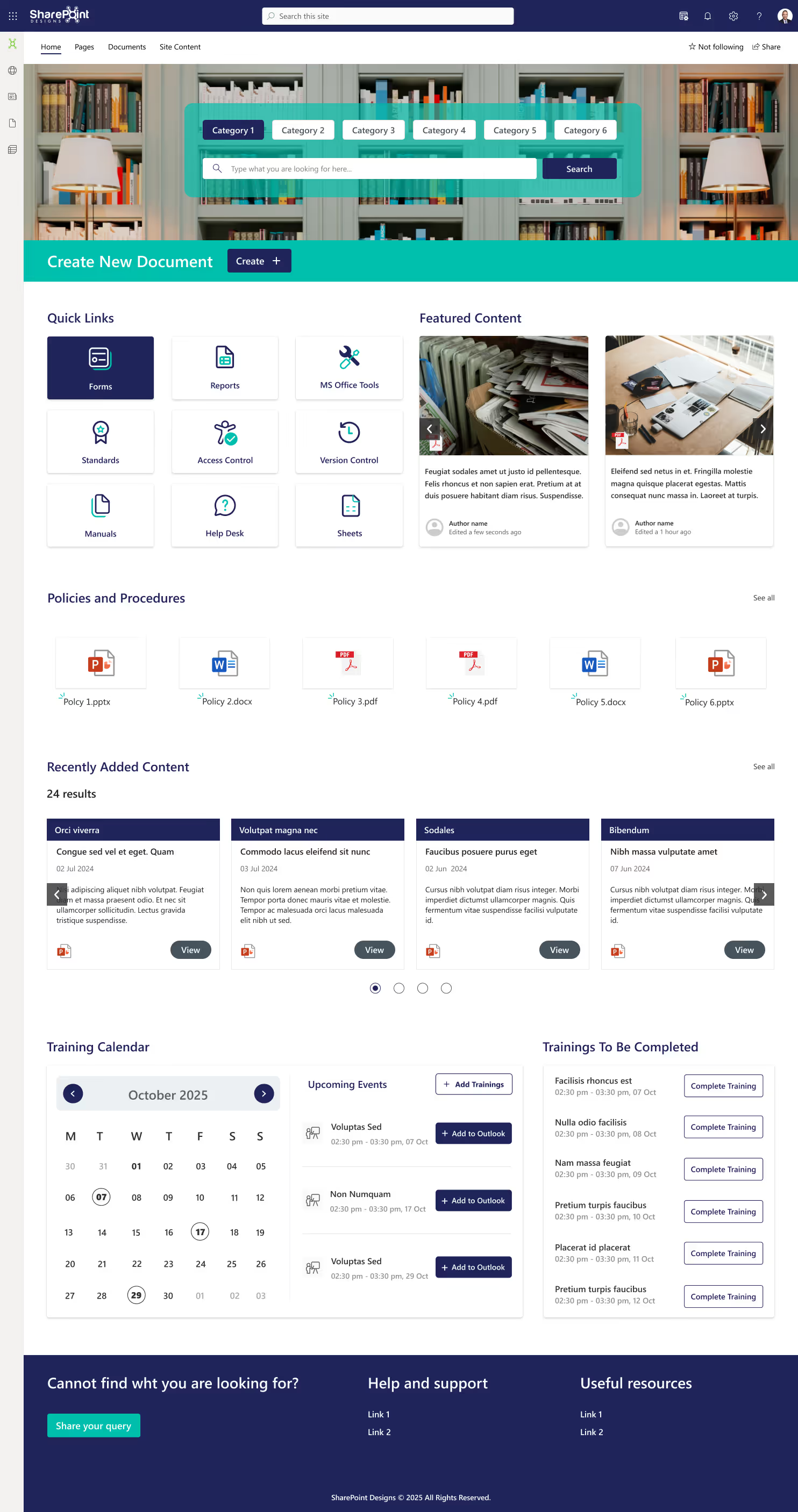
Features:
- Tag metadata to enhance searchability
- History of previous versions to restore and track any changes.
- Document approval workflows can be automated.
Real-World Impact:
The consulting firm stores client contracts, project deliverables, and documents on a document-management site. This ensures that the most recent version of each item is available at all times and that approved workflows are followed automatically.
3. Knowledge Base: Making Organizational Wisdom Accessible
This valuable information is often trapped in email or personal notebooks. SharePoint knowledge bases are a great place to store this helpful information.
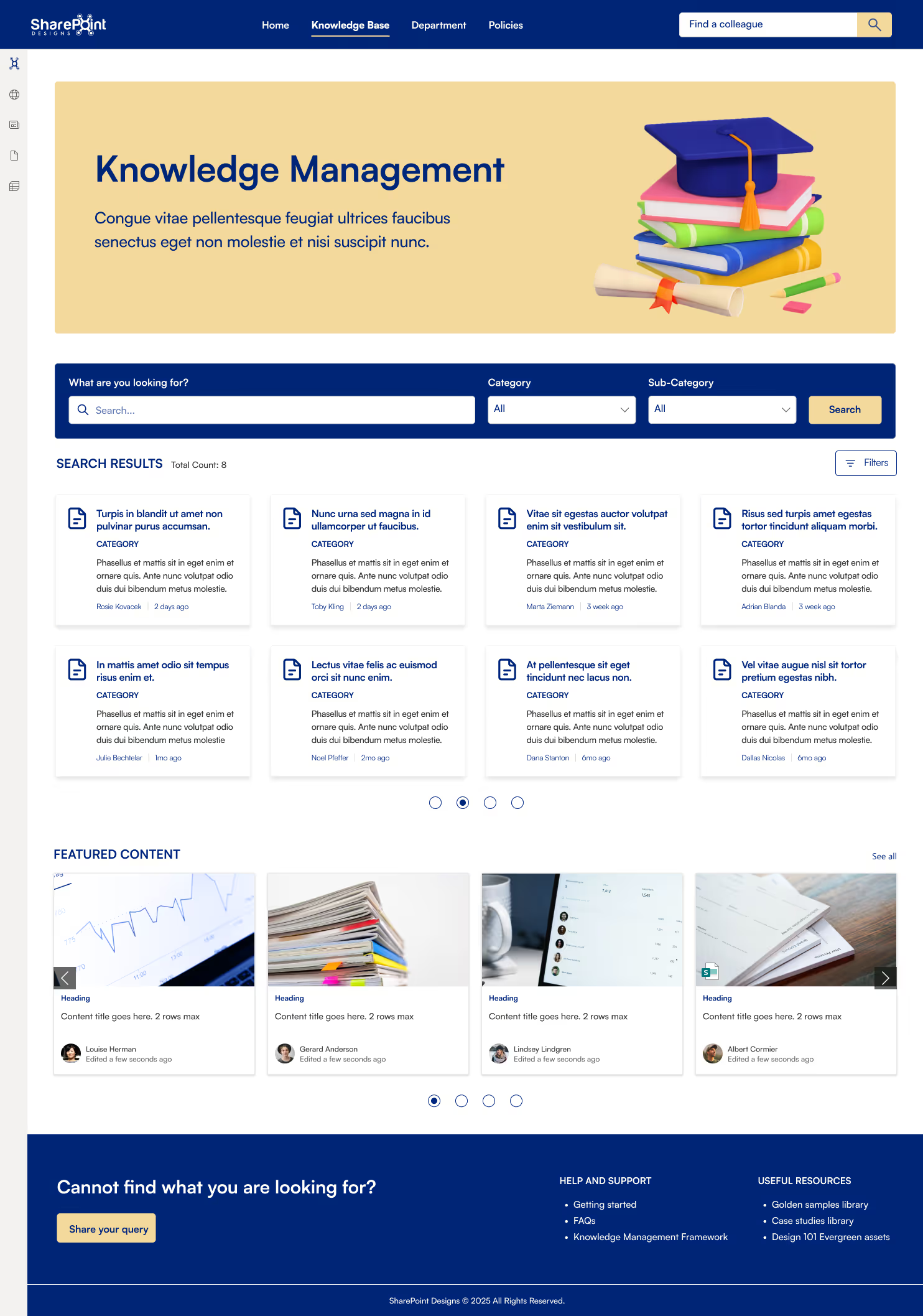
Features:
- Use Wiki pages to collect expertise.
- Guides, FAQs, and troubleshooting documentation are easily accessible through searchable libraries.
- Tools for feedback and continuous improvement
Real-World Impact:
A team of IT professionals can create a Knowledge Base that documents fixes to recurring issues. It reduces tickets and allows employees to solve the problems on their own.

Explore the best examples of SharePoint sites: 16 practical applications
Microsoft SharePoint offers many essential collaboration, information sharing, and communication features.
As we gear up to say goodbye to 2024, it’s time for our annual rewind, think Top 10 Best/Worst lists of everything from movies to food to cities. But hold your horses, because today we’re doing something extra special: Top 10 Intranet Web Parts of 2024!
And hey, if you’re wondering, “What in the world is an intranet? And what’s a web part?”
Don’t sweat it, we’ve got you covered.
What is an intranet?
An intranet is like a private website or network that only people working in your company, can use.
Think of it like a club with a secret password. Once you're inside, you can share files, send messages, and access important tools and information, but only the people who are part of the group can join. It keeps everything safe, organized, and easy to find without letting strangers see what’s inside.
What is an intranet webpart?
Webparts are like apps, divided into sections you can add to make the page more useful and fun for everyone in the group!
Imagine the school bulletin board, where you can stick different things on it, like a calendar, a weather chart, photos of students who won a inter-school game, or a list of fun events. A web part works the same way, lets you add things like news, announcements, quick links or charts to a page so everyone in the group can see and use them. It’s a way to make the page more useful and customized for what people need! Here in this blog, we present the top intranet tools that will help to increase collaboration and productivity in your organization.
Top 10 Intranet Webparts of 2024
These are the best SharePoint web parts that help streamline company intranet, enhance workplace communication, optimize employee engagement, improve workplace efficiency.
1. Hero Section with a personalized welcome banner
The hero section is what makes or breaks a website or an intranet! Make your employees feel welcome with a personalized greeting with their name using our custom SharePoint intranet webpart. Throw in a catchy background image or your company video that represents the Vision / mission / values of the company along with a CTA button to make complete use of the hero section without overcrowding it! Adding festive themes and colorful backgrounds has been trending in 2024.

2. Clock with different time zones
Got a client meeting in London while you’re sipping coffee in New York? Or maybe you’re trying to catch up with colleagues from all corners of the globe? Introducing our super user-friendly custom SharePoint web part! With it, you can easily track 4 or more time zones; perfect for scheduling meetings, managing deadlines, or just knowing when to stop texting your friends in far-off places. Whether you’re working with teams in Asia, Europe, or beyond, you can customize it to fit your needs. No more time zone confusion; just clear, stress-free coordination.

3. Birthday Webpart
A webpart, designed to help you remember and send witty, humorous, and heartfelt greetings to your colleagues on their special occasions. With a vast collection of pre-written messages, clever jokes, and customizable templates, the Birthday reminder component ensures you'll never miss a chance to brighten someone's day with a brilliant and memorable message.
For more details click here -> Birthday Webpart

4. Custom Weather Webpart
Imagine starting a conversation with your colleague from a different location with the phrase, "Such a beautiful day, isn't it?". When in reality they're bracing for a category 5 storm. A Web Part designed to help you stay up to date on the weather, not just for your current location, but also for your other facilities or your client locations. You can configure the SharePoint list with your organization's different locations across the globe. Add in some cool animations for a trendy look and feel.
For more details, click here -> Weather Webpart

5. Facilities / Locations
Got branches all around the world? Then its important to know a few key things about each location: like who’s in charge, what’s happening at the office or why everyone is offline from that location (may be, due to a severe weather condition).
By adding this webpart you can ensure smooth communication within the company, regardless of geographical distance. It makes information easily accessible, employees can connect with the right teams more efficiently, ask relevant questions, and work together effectively.


Top 10 Intranet Webparts of 2024
As we gear up to say goodbye to 2024, it’s time for our annual rewind, think Top 10 Best/Worst lists of everything from movies to food to cities.
In the rapidly evolving world of app development, Microsoft Power Apps continues to lead the way with innovative features that simplify and enhance user experiences. One such groundbreaking addition is the Copilot Control—an AI-powered assistant that revolutionizes how users interact with data in canvas apps. By enabling natural language conversations, it generates insights and streamlines operations, making your apps more intuitive and efficient. Let's dive deeper into leveraging this innovative tool to elevate your app's functionality.
What is the Copilot Control?
The Copilot Control is an AI assistant powered by the Azure OpenAI Service, designed to transform data interaction within Power Apps. It allows users to engage with data intuitively through natural language, making complex queries and actions as simple as having a conversation. Whether it's fetching insights, responding to queries, or performing tasks like opening screens or sending emails, this feature enhances user engagement and productivity.
Key Capabilities:
- Natural Language Processing: Understands and processes user queries in plain language.
- Data Insights: Generates real-time insights from your Dataverse data.
- Actionable Responses: Can initiate actions within the app, such as navigating to screens or triggering workflows.
- Customization: Fully customizable to align with your app's branding and functionality.
Getting Started: Prerequisites
Before integrating the Copilot Control, ensure you have the following:
- Supported Environment: Verify that your environment meets the requirements outlined in the Copilot in Power Apps overview.
- Feature Enablement: A Power Platform administrator must enable the feature via the Power Platform admin center.
- Data Source: Have a Dataverse table set up as your data source, as this is currently the only supported option.
Note: Copilot control is currently a preview feature and is not intended for production use. It may have limited functionality and could undergo significant changes in future updates.
Step-by-Step Guide to Adding Copilot Control
1. Enable Copilot Features
- Open your canvas app for editing in Power Apps Studio.
- On the command bar, select Settings > Updates.
- Navigate to the Preview tab.
- Find and turn on the Copilot component and Edit in Copilot Studio settings.
2. Insert Copilot Control
- In the app authoring menu, go to Insert > Copilot (preview).
- Select the Copilot control to add it to your canvas.
- Connect the Copilot to a Dataverse table as the data source by setting the Items property.
3. Customize Your Copilot
- With the Copilot control selected, click on Edit in Copilot Studio.
- In Copilot Studio, you can:
- Define Topics: Specify the subjects or data areas the Copilot should focus on.
- Set Actions: Determine what actions the Copilot can perform, such as creating records or navigating to screens.
- Customize Responses: Tailor the language and tone of the Copilot's replies to match your app's voice.
- Configure Behavior: Adjust settings for how the Copilot interacts with users, including error handling and feedback mechanisms.
Tips for Effective Customization:
- Understand User Needs: Consider the common queries and tasks your users perform and tailor the Copilot to facilitate these actions.
- Maintain Consistency: Ensure the Copilot's responses align with your organization's branding and communication style.
- Test Thoroughly: Regularly test the Copilot's interactions to refine its performance and address any issues.
Maximizing the Experience
Feedback Collection
- The Copilot Control includes a feedback mechanism where users can rate responses or provide comments.
- This feedback is invaluable for refining the AI model and improving the assistant's performance over time.
- If you prefer to disable feedback collection, adjust the Allow users to provide feedback setting in the Copilot's properties.
User Empowerment
- Real-Time Interactions: Copilot enables users to interact with data dynamically, reducing the need for complex navigation or multiple clicks.
- Accessibility: Simplifies the user experience, making your app more accessible to users who may not be familiar with the underlying data structures.
- Efficiency: By handling routine queries and actions, Copilot frees up time for users to focus on more strategic tasks.
Why Add Copilot Control?
Integrating the Copilot Control into your canvas apps offers several compelling benefits:
1. Enhanced Productivity
- Streamlined Workflows: Users can accomplish tasks faster through conversational interactions.
- AI-Driven Insights: Provides intelligent suggestions and data analysis that might be time-consuming to generate manually.
2. Customizability
- Tailored Experience: Customize the Copilot to meet the specific needs of your users and business processes.
- Scalability: As your app evolves, easily update the Copilot's capabilities to match new functionalities.
3. Future-Ready Solutions
- Innovation Leadership: Early adoption positions your organization at the forefront of Power Apps innovations.
- Continuous Improvement: Gain access to the latest features and improvements as Microsoft enhances the Copilot service.
Best Practices for Using Copilot Control
- Data Security: Ensure that the data accessed by Copilot complies with your organization's security policies and that sensitive information is protected.
- User Training: Provide guidance to users on how to effectively interact with Copilot to maximize its benefits.
- Monitor Performance: Regularly review Copilot's interactions to identify areas for improvement and to ensure it meets user expectations.
- Stay Updated: Keep an eye on updates from Microsoft regarding Copilot features and enhancements, as the preview version may change.
Conclusion
The Copilot Control in Power Apps exemplifies how AI can reshape app development by making data interactions more conversational and dynamic. It not only boosts user satisfaction but also sets the stage for a smarter, more efficient workflow. By embracing this feature, you're not just enhancing your apps—you're pioneering a new era of intuitive and intelligent user experiences.

Add Intelligence to Your Canvas Apps with AI
In the rapidly evolving world of app development, Microsoft Power Apps continues to lead the way with innovative features that simplify and enhance user experiences.
In today's fast-paced business environment, efficiency and agility are paramount. Organizations across industries are constantly seeking ways to optimize their workflows, reduce manual tasks, and improve decision-making processes. One area that often requires significant attention is the approvals process. Whether it's expense reports, time sheets, travel requests, procurement orders, or sales discounts, approvals are integral to business operations.
Microsoft Power Automate has introduced new Business Approvals Templates designed to revolutionize how organizations handle approvals. These no-code templates are built on the robust Microsoft Power Platform, enabling businesses to quickly create sophisticated approval workflows without the need for extensive technical expertise.
In this blog post, we'll delve into an overview of these new templates, explore their key features, and provide use cases to illustrate how they can transform your organization's approval processes.
Why Automate Approvals with Power Automate?
Before we dive into the templates themselves, it's essential to understand the benefits of automating approvals:
- Increased Efficiency: Automation reduces the time spent on manual approval processes, speeding up decision-making.
- Enhanced Transparency: Automated workflows provide visibility into the status of approvals, ensuring accountability.
- Improved Accuracy: Reducing manual intervention minimizes errors and ensures consistent application of approval policies.
- Scalability: Automated processes can easily adapt to growing business needs without additional overhead.
Overview of the Business Approvals Templates
The new Business Approvals Templates in Power Automate are pre-configured workflows that cater to common approval scenarios. They leverage the combined power of Power Apps and Power Automate to deliver a seamless approvals experience. Here's what makes these templates stand out:
- No-Code Solution: Designed for users without technical backgrounds, allowing anyone in the organization to set up and manage approval workflows.
- Customizable: While ready to use out-of-the-box, the templates can be tailored to meet specific business requirements.
- Feature-Rich: Equipped with advanced capabilities like multi-stage approvals, delegation, and conditional branching.
Key Features and Their Use Cases
1. Configure Multi-Stage Approvals
Feature Overview: Set up approval processes that require multiple levels of authorization. Each stage can have its own set of approvers and conditions.
Use Case:
- Procurement Orders: A purchase over $10,000 might require department head approval, followed by finance department approval.
- Expense Reporting: Expenses above a certain threshold may need to go through additional scrutiny.
Benefits:
- Ensures compliance with internal policies.
- Streamlines complex approval hierarchies.
2. Delegate Approvers
Feature Overview: Allow approvers to delegate their approval authority to another individual, either temporarily or permanently.
Use Case:
- Out-of-Office Scenarios: An approver going on vacation can delegate approvals to a colleague.
- Workload Management: High-level executives can delegate routine approvals to their assistants.
Benefits:
- Prevents bottlenecks due to unavailable approvers.
- Maintains workflow continuity.
3. View Approvals Progress and History
Feature Overview: Track the status of approvals in real-time and access historical data for completed processes.
Use Case:
- Audit Trails: Compliance teams can review approval histories for regulatory purposes.
- Status Updates: Employees can check where their requests stand in the approval process.
Benefits:
- Enhances transparency across the organization.
- Facilitates better communication among stakeholders.
4. Manage Out-of-Office for Approvers
Feature Overview: Automate the redirection of approval tasks when approvers are unavailable.
Use Case:
- Holiday Seasons: Automatically route approvals to alternative approvers during public holidays.
- Unexpected Absences: Ensure approvals continue smoothly even when an approver is suddenly unavailable.
Benefits:
- Eliminates delays in the approval process.
- Ensures critical decisions are not held up.
5. Support for Versions of Approval Processes
Feature Overview: Maintain different versions of approval workflows to accommodate changes in business policies or organizational structure.
Use Case:
- Policy Updates: Implement new approval steps when company policies change.
- Organizational Changes: Adjust workflows when departments are restructured.
Benefits:
- Provides flexibility to adapt to business changes.
- Keeps approval processes up-to-date without starting from scratch.
6. Publish Version Approval Workflow
Feature Overview: Easily publish and manage different versions of approval workflows.
Use Case:
- Testing New Workflows: Pilot a new approval process with a select group before organization-wide deployment.
- Rollback Capability: Revert to a previous version if the new process doesn't meet expectations.
Benefits:
- Reduces risk when implementing changes.
- Facilitates continuous improvement of workflows.
7. Handle Workdays and Public Holidays
Feature Overview: Configure workflows to account for non-working days, ensuring deadlines and escalations are appropriately managed.
Use Case:
- Deadline Management: Adjust approval deadlines to skip weekends and holidays.
- Service Level Agreements (SLAs): Ensure compliance with SLAs that specify business days.
Benefits:
- Prevents missed deadlines due to non-working days.
- Aligns approval processes with organizational calendars.
Real-World Scenarios
To further illustrate the impact of these templates, let's explore some real-world scenarios:
Scenario 1: Streamlining Expense Approvals
Challenge: A company requires all employee expenses over $1,000 to be approved by a manager and any expenses over $5,000 to be approved by the finance director.
Solution:
- Utilize the Multi-Stage Approvals feature to set up a two-tier approval process.
- Configure conditions to automatically route expenses to the appropriate approvers based on the amount.
Outcome:
- Reduced processing time for expense approvals.
- Improved compliance with financial policies.
Scenario 2: Managing Approvals During Holidays
Challenge: During the end-of-year holiday season, many approvers are out of office, causing delays in purchase order approvals.
Solution:
- Implement the Manage Out-of-Office feature to automatically delegate approvals to designated alternates.
- Use the Handle Workdays and Public Holidays feature to adjust deadlines.
Outcome:
- Continuous approval flow despite staff absences.
- No disruption in procurement activities.
Scenario 3: Adapting to Organizational Changes
Challenge: Following a merger, the company needs to update its approval processes to align with new corporate policies.
Solution:
- Leverage the Support for Versions of Approval Processes to create new workflows.
- Use the Publish Version Approval Workflow to roll out changes gradually.
Outcome:
- Smooth transition to new approval policies.
- Minimal disruption to daily operations.
Getting Started with the Business Approvals Templates
Step 1: Access the Templates
- Log in to Power Automate.
- Navigate to the Templates section and search for Business Approvals.
Step 2: Choose a Template
- Select the template that best fits your approval scenario.
- Templates are categorized based on common business needs.
Step 3: Customize the Workflow
- Use the intuitive interface to add or modify approval stages.
- Set conditions, notifications, and assign approvers.
Step 4: Test the Workflow
- Run test scenarios to ensure the workflow operates as intended.
- Make adjustments as necessary.
Step 5: Deploy and Monitor
- Publish the workflow for your organization.
- Monitor progress and gather feedback for continuous improvement.
Conclusion
The new Business Approvals Templates in Power Automate offer a powerful, no-code solution to streamline approval processes across your organization. By leveraging these templates, you can:
- Reduce manual workload and increase efficiency.
- Ensure compliance with internal policies and external regulations.
- Enhance transparency and accountability.
- Adapt quickly to changes in business needs.
Empower your teams to focus on strategic tasks rather than administrative hurdles. Start exploring the Business Approvals Templates today and take a significant step toward operational excellence.
Additional Resources
Streamlining Business Approvals with Power Automate's New Templates
In today's fast-paced business environment, efficiency and agility are paramount. Organizations across industries are constantly seeking ways to optimize their workflows,
Rediscovering the Intranet as Our Favorite Place for Collaboration and Productivity
Remember when the company intranet was that dull place where documents went to gather dust? Well, those days are over. In today's busy work life, we're all searching for tools that not only make our jobs easier but also bring us closer as a team. And guess what? The intranet is making a heartfelt comeback.
Modern intranets have transformed into lively, interactive spaces where we can share ideas, collaborate on projects, and stay connected with each other—no matter where we are. At the forefront of this transformation is Microsoft SharePoint, a tool that's helping organizations like ours create intranets that truly feel like home.
The Intranet's Journey Back to Our Hearts
Let's be honest—old intranets weren't exactly inspiring. They were clunky, hard to navigate, and didn't offer much in terms of interaction. But times have changed, and so have intranets. They're now:
- User-Friendly: Designed with us in mind, making it easy to find what we need.
- Interactive: Encouraging conversations and collaboration among everyone.
- Integrated: Working seamlessly with the tools we already use every day.
- Accessible: Available on all our devices, so we can stay connected wherever we are.

Why We're Falling in Love with Intranets Again
- A Central Place to Connect
Our intranet is becoming the heart of our company, bringing together news, updates, and announcements in one place. It cuts down on endless emails and makes sure we're all in the loop. - Tools That Make Teamwork Easy
With features like team spaces and real-time document editing, we can work together effortlessly—even when we're miles apart. - Personal Touches That Matter
We can customize our experience, join groups that interest us, and participate in discussions. It's not just a tool—it's a community. - A Treasure Trove of Knowledge
Need to find a training guide or a company policy? It's all there, making it easy for new and seasoned team members alike. - Stay Connected on the Go
Whether we're in the office, at home, or on the move, our mobile-friendly intranet keeps us connected.
Why SharePoint Feels Like the Right Choice
When it comes to creating a modern intranet that meets our needs, Microsoft SharePoint stands out. Here's why it's making a difference:
It Fits Right In
SharePoint integrates smoothly with the Microsoft tools we already use, like Teams and Outlook. Everything works together, making our digital workspace feel cohesive.
Grows with Us
It's customizable and scalable, adapting as our organization evolves.
Makes Collaboration a Breeze
Real-time co-authoring and easy document sharing mean we can focus on working together without technical hiccups.
Keeps Our Information Safe
Security is a priority, and SharePoint provides the peace of mind we need.
Easy on the Eyes and Fingers
It's designed to be user-friendly, so we spend less time figuring out how things work and more time getting things done.
Find What You Need, When You Need It
Advanced search features help us locate information quickly, reducing frustration and saving time.
The Benefits We're Experiencing
- Getting More Done
Quick access to the tools and info we need boosts our productivity. - Communicating Openly
Transparent communication builds trust and strengthens our relationships. - Feeling Valued and Heard
When we have a platform to share our thoughts, it enhances our engagement and morale. - Saving Time and Resources
Streamlined processes help us work smarter, not harder. - Working Together Seamlessly
SharePoint's collaboration features enhance our teamwork.

Making the Most of Our Intranet
Here's how we can continue to embrace and improve our intranet experience:
- Share Your Thoughts
Let's keep communicating about what we need and how we can make our intranet even better. - Explore the Features
There's a lot to discover—don't hesitate to dive in and see what tools can help you in your daily work. - Customize Your Experience
Make it your own by following the content and groups that interest you. - Stay Engaged
Participate in discussions, share your ideas, and connect with colleagues. - Embrace Continuous Improvement
Technology and our needs are always evolving. Let's stay open to changes and updates that enhance our experience.
A Final Thought
Our intranet isn't just a tool—it's a space that brings us together. By leveraging platforms like Microsoft SharePoint, we're creating an environment where collaboration thrives, and everyone feels connected and valued.
So, how about we make the most of this powerful tool? Let's continue to embrace our intranet, share our ideas, and work together to make our workplace even better.
How Modern Intranets Like SharePoint Are Boosting Teamwork?
Remember when the company intranet was that dull place where documents went to gather dust? Well, those days are over.
Managing brand consistency across an organization can be challenging, especially when assets like logos, fonts, and colors are scattered across different departments. The SharePoint Brand Center makes this easier by centralizing your brand assets in one place, ensuring that everyone in your company has access to the right tools to keep branding consistent.
In this blog, we’ll explore how the SharePoint Brand Center works and the benefits it brings to organizations looking to streamline their branding efforts.

What is SharePoint Brand Center?
The SharePoint Brand Center is a new feature within Microsoft 365 that helps organizations manage all their brand assets from one centralized location. With it, you can store logos, colors, fonts, and other branding materials in one place. Employees can then easily access these assets, ensuring that all internal and external communication follows the same brand guidelines.
Key Features:
- Central Asset Library: Store and manage your brand materials in one place.
- Custom Fonts: Use your own fonts in SharePoint and Viva Connections.
- Fast Access: Utilize Public CDN to ensure quick access to assets.

How It Helps Your Organization
1. Consistent Branding
Ensuring that your brand is consistent across all departments is crucial. The SharePoint Brand Center makes it easy by giving everyone access to the correct and up-to-date brand assets, helping prevent mistakes like using outdated logos or fonts.
2. Saves Time and Resources
Instead of employees wasting time searching for logos or templates, they can easily find everything they need in the SharePoint Brand Center. This streamlined approach frees up time for more important tasks.
3. Empowers Employees
With the Brand Center, every employee has the tools to create professional, on-brand content. This reduces the burden on marketing teams and helps maintain a unified brand identity throughout the organization.
4. Cost Savings
By centralizing your brand management, you can avoid using multiple third-party tools and eliminate redundant work. This helps save both time and money.
Getting Started with SharePoint Brand Center
Setting up the SharePoint Brand Center is simple:
- Admin Setup: A global admin activates the Brand Center in Microsoft 365.
- Create or Connect Asset Library: Use an existing library or create a new one.
- Enable Public CDN: Ensure assets are delivered quickly to all users.
Conclusion: Simplify Your Branding Process
The SharePoint Brand Center is a powerful tool that helps organizations manage their branding efforts efficiently. By centralizing brand assets, saving time, and empowering employees to create on-brand content, it can have a positive impact on both productivity and brand consistency.

Simplify Your Brand Management with SharePoint Brand Center
Managing brand consistency across an organization can be challenging, especially when assets like logos, fonts, and colors are scattered across different departments.
What is biophilic design?
The biophilic design tries to align the built environment with natural processes in a way that encourages human creativity, productivity and wellness.
It holds that people have an intrinsic connection with nature and react positively when they are able to have some elements of the natural world provided they are inside the house.
Benefits of biophilic design in UI/UX
Enhancement of User’s Well-being: By blending nature into an interface, we can achieve a more relaxing and pleasing user experience.
Improvement in Focus and Productivity: Natural designs can help decrease cognitive load thereby making it easy for users to navigate the interface which leads to improved task completion.
Increased Emotional Engagement: Biophilic principles integrated into a program may lead users to feel greater emotional connection and involvement with it.
Biophilic design has been implemented in UI/UX design
This is an innovative approach that can enhance user experience by developing interfaces reflecting the calming and refreshing aspects of nature.
Here’s how you can incorporate biophilic principles into your digital design projects:

Nature-Inspired UI/UX: Harnessing Biophilic Design for Enhanced User Experience
The biophilic design tries to align the built environment with natural processes in a way that encourages human creativity, productivity and wellness.
In SharePoint, you may want to provide users with direct access to the edit form of a particular item in a document library or list. Instead of manually navigating to the item and clicking edit, you can create a URL that redirects users straight to the edit form of the desired item.
Why Use URL Redirection for Edit Forms?
There are several scenarios where redirecting users to the item’s edit form can be useful:
Streamlined Workflows: When users need to frequently update metadata or document properties.
Task Automation: Automating the redirection for approval or review workflows.
User Convenience: Reducing the number of clicks needed to access important information.
Understanding Different Page Types in SharePoint URLs
When constructing a SharePoint URL for redirection, you can choose different Page Types to open specific forms:
- PageType=6: Opens the edit form of the item.
- PageType=4: Opens the display form (read-only view) of the item.
- PageType=8: Opens the new item form, allowing users to create a new document or list item.
Step-by-Step Guide to Creating Direct Links for Different Forms
1. Get the Item ID
Each document or item in a SharePoint document library has a unique ID, which you’ll need for opening the edit or display form.
2. Construct the URL
Here’s the general format of the URL for different forms:
https://[Your SharePoint SiteURL]/_layouts/15/listform.aspx?PageType=[Type]&ListId=[ListGUID]&ID=[Item ID]
Replace [Type] with the appropriate PageType value:
- For edit form (PageType=6)
- For display form (PageType=4)
- For new item form (PageType=8)
3. Retrieve the List GUID
To find the List GUID:
- Go to the document library or list.
- Click on "Library Settings" or "List Settings."
- The URL in your browser will contain List= followed by the GUID.
4. Example URLs
Here’s how the URLs would look for different forms:
Edit Form (PageType=6): EditForm.aspx
https://yourcompany.sharepoint.com/sites/yoursite/_layouts/15/listform.aspx?PageType=6&ListId={3B95E68C-2B4F-4A69-A307-15DF785B2E34}&ID=9

Display Form (PageType=4): DispForm.aspx
https://yourcompany.sharepoint.com/sites/yoursite/_layouts/15/listform.aspx?PageType=4&ListId=3B95E68C-2B4F-4A69-A307-15DF785B2E34&ID=9

New Item Form(PageType=8): Upload.aspx
https://yourcompany.sharepoint.com/sites/yoursite/_layouts/15/listform.aspx?PageType=8&ListId=3B95E68C-2B4F-4A69-A307-15DF785B2E34

5. Use the URL in Hyperlinks or Buttons
You can now embed these URLs in emails, buttons, or dashboard links. Depending on the PageType value, users will be taken directly to the edit, display, or new item form.
6. Key Considerations
- Permissions: Ensure users have the necessary permissions to view or edit the forms.
- Security: Avoid exposing sensitive data in the URL, and make sure permissions are correctly set.
- User Experience: Consider the user flow after opening the forms (e.g., redirection after submission).

How to Open a Specific Item's Edit Form in SharePoint Document Library Using URL Redirection
Unlock the power of SharePoint with our quick guide on using URL redirection to open a document's edit form directly.
SharePoint Syntex, a part of Microsoft 365, is an AI-driven tool that empowers organizations to automate content management processes, enhance productivity, and ensure compliance across various types of content. Whether dealing with documents, images, videos, or app-managed content, Syntex offers a suite of features designed to optimize how information is captured, processed, and utilized within your organization. This blog will explore all the key features of SharePoint Syntex, categorized under Documents & Images, Video, Storage, and App Features.
Documents & Images
1. Autofill Columns
Feature Overview: Autofill Columns allow users to add prompts to specific columns in SharePoint lists or libraries to automatically extract or generate information from the contents of files stored within those locations.
Use Case: This feature is particularly useful for automating metadata generation, ensuring consistency across documents, and reducing the manual effort required to input data into SharePoint lists. For instance, legal teams can extract contract expiration dates or parties involved directly into corresponding columns.
2. Content Assembly
Feature Overview: Content Assembly enables users to create modern templates linked to data sources, such as SharePoint lists, to generate repetitive structured documents automatically.
Use Case: Organizations can streamline the creation of standard documents like contracts, proposals, or reports by pulling data directly from structured data sources, reducing errors, and ensuring consistency in document generation.
3. Document Translation
Feature Overview: The Document Translation feature allows users to create translated copies of documents directly within SharePoint Syntex.
Use Case: This feature is invaluable for global organizations that need to maintain multilingual versions of key documents, such as company policies or marketing materials. It ensures that all employees and stakeholders have access to documents in their preferred language.
4. eSignature (SUPPORTED REGIONS ONLY)
Feature Overview: eSignature functionality within SharePoint Syntex enables users to set up PDFs for electronic signatures by internal and external stakeholders.
Use Case: This feature simplifies the process of gathering signatures for contracts, agreements, and other formal documents, reducing the need for physical document handling and expediting approval processes.
5. Image Tagging
Feature Overview: Image Tagging allows users to categorize and label images with descriptive keywords automatically.
Use Case: This feature is particularly beneficial for marketing, media, and creative teams that manage large libraries of images. By automating the tagging process, it enhances the discoverability of images and improves organization within SharePoint libraries.
6. Optical Character Recognition (OCR)
Feature Overview: OCR capabilities in SharePoint Syntex enable enhanced search functionalities by recognizing and extracting text from images within documents.
Use Case: This feature is essential for organizations that deal with scanned documents, handwritten notes, or images that contain text. It allows users to search for and retrieve information from these documents as if they were regular text documents
7. Prebuilt Document Processing
Feature Overview: Prebuilt Document Processing models in Syntex allow users to configure pretrained models to extract information from common business documents like contracts, invoices, and receipts.
Use Case: These models are pre-trained to recognize and extract structured data from standard documents, making it easy for businesses to automate document processing without the need for extensive model training.
8. Structured and Freeform Document Processing
Feature Overview: This feature lets users train custom models to extract information from structured documents like forms or freeform documents like letters and contracts.
Use Case: Organizations can tailor these models to handle specific document formats unique to their business processes, such as customer service letters or legal contracts, enhancing the precision of data extraction.
9. Taxonomy Tagging
Feature Overview: Taxonomy Tagging automates the process of tagging files using terms from your organization’s managed metadata.
Use Case: This feature helps maintain consistency in how content is categorized and retrieved across the organization, which is critical for compliance and content management.
10. Unstructured Document Processing
Feature Overview: Unstructured Document Processing allows users to train custom models to classify and extract information from a wide range of file types, regardless of format.
Use Case: This feature is ideal for organizations dealing with a diverse array of document types that do not conform to a specific structure, enabling effective content management across various departments.
Video Features
Video Transcript Translation
Feature Overview: SharePoint Syntex allows for the translation of video transcripts and closed captioning files. This feature supports multiple languages and ensures that video content is accessible to a broader audience.
Use Case: Organizations with multilingual teams can use this feature to make video content understandable across different regions by providing translated transcripts or captions, thus improving communication and training efficiency.
Storage Features
1. Microsoft 365 Archive
Feature Overview: The Microsoft 365 Archive is a long-term storage solution for inactive or historical SharePoint content. It maintains the same searchability, security, and compliance standards as active data, ensuring that archived content remains accessible and compliant with organizational policies.
Use Case: Organizations can use the Microsoft 365 Archive to store large volumes of historical data securely, which is not frequently accessed but needs to be retained for compliance purposes.
2. Microsoft 365 Backup
Feature Overview: This feature provides backup and recovery capabilities for SharePoint, Exchange Online, and OneDrive for Business. It ensures that your content is securely backed up and can be restored efficiently in case of accidental deletion or other data loss scenarios.
Use Case: Organizations requiring robust data protection strategies can rely on Microsoft 365 Backup to ensure quick recovery of critical business data, minimizing downtime and data loss risks.
App Features
1. SharePoint Embedded
Feature Overview: SharePoint Embedded is a solution that allows developers to use the SharePoint file and document storage platform within their applications. This API-only solution creates secure, isolated storage partitions within a Microsoft 365 tenant that are accessible only through the specific app that created them.
Use Case: Independent Software Vendors (ISVs) and enterprises can utilize SharePoint Embedded to manage content securely within their applications while benefiting from Microsoft 365's advanced content management features like search, sharing, versioning, and compliance.
2. App-Managed Content Experiences
Feature Overview: Content stored by applications using SharePoint Embedded does not count toward the organization's SharePoint storage quota. Instead, it is billed separately via an Azure subscription based on the total storage used and the number of API calls.
Use Case: This feature is ideal for apps that require extensive storage but need to isolate their data from the organization's general SharePoint usage. It provides a flexible, scalable, and secure storage solution.
Conclusion
SharePoint Syntex is more than just a document management tool; it is a comprehensive AI-powered platform that enhances the way organizations handle a variety of content types, including documents, images, videos, and application-specific data. By automating key processes, improving accessibility, and ensuring robust data management, Syntex empowers businesses to operate more efficiently, stay compliant, and drive innovation.
Whether you are looking to streamline document processing, improve video accessibility, manage large volumes of data securely, or integrate content management capabilities into your apps, SharePoint Syntex offers a wide range of features to meet your needs. As organizations continue to adapt to the evolving digital landscape, the adoption of tools like Syntex will be crucial in maintaining a competitive edge and achieving operational excellence.

Comprehensive Guide to SharePoint Syntex Features and Use Cases: Unlocking the Power of AI for Content Management
SharePoint Syntex, a part of Microsoft 365, is an AI-driven tool that empowers organizations to automate content management processes, enhance productivity,
For organizations heavily reliant on SharePoint Online, customizations play a crucial role in tailoring the platform to meet specific business needs. However, with Microsoft’s continuous delivery model, where updates are automatically rolled out, concerns about the impact of these updates on custom solutions are natural.
At SharePoint Designs, we understand these concerns and have developed a robust approach to ensure that your customizations remain unaffected by updates, providing you with peace of mind and uninterrupted business operations.
1. Proactive Update Management: Keeping You Ahead of the Curve
At SharePoint Designs, we meticulously monitor and manage Microsoft updates to ensure that your SharePoint environment remains stable and fully functional. We are proactive in our approach, closely tracking the Microsoft 365 Roadmap and engaging with early releases to anticipate and prepare for upcoming changes.
Our proactive update management includes:
Early Testing: We leverage the Targeted Release program to test your environment against new updates before they reach your production site. This early testing allows us to identify potential conflicts and resolve them ahead of time.
Continuous Monitoring: Our team continuously monitors Microsoft’s announcements and updates, ensuring that we are always aware of what’s coming next and how it might impact your environment.
2. Strategic Custom Development Aligned with Microsoft Best Practices
Custom development is at the heart of how SharePoint Designs helps organizations maximize the potential of SharePoint Online. We understand that the longevity and reliability of customizations depend on how well they align with Microsoft’s best practices and strategic directions.
Key aspects of our custom development approach include:
Utilizing SharePoint Framework (SPFx): We focus on developing customizations using SPFx, which is Microsoft’s recommended model for SharePoint customizations. SPFx is resilient, future-proof, and supported by Microsoft, ensuring that our solutions are robust against updates.
Following Power Platform Integration: We also integrate Power Apps and Power Automate in our custom solutions, utilizing Microsoft’s low-code/no-code tools to create flexible, scalable, and update-resistant applications.
Adherence to Microsoft’s Development Guidelines: All our custom solutions are meticulously planned and developed in strict adherence to Microsoft’s development guidelines. This alignment ensures that our customizations are built to withstand future changes in the SharePoint environment.
3. Comprehensive Governance and Testing Framework
At SharePoint Designs, we believe that governance and testing are critical to maintaining the integrity of your SharePoint environment. Our comprehensive governance framework ensures that every customization is rigorously reviewed and tested, minimizing the risk of disruption during updates.
Our governance and testing process includes:
Governance Policy: We establish and enforce a governance policy tailored to your organization, which includes guidelines for customization, change management, and regular reviews.
Sandbox Testing: All customizations are first deployed in a sandbox environment that mirrors your production site. This allows us to test the impact of updates without affecting your live environment.
Automated Testing: We employ automated testing tools to continuously monitor customizations and quickly identify any issues that might arise from new updates.
4. Ongoing Support and Continuous Improvement
Our commitment to your SharePoint environment doesn’t end with the deployment of customizations. We provide ongoing support to ensure that your solutions continue to perform optimally, even as the platform evolves.
Support and improvement services include:
24/7 Support: Our support team is available around the clock to address any concerns or issues related to your SharePoint environment, ensuring that you have assistance whenever you need it.
Regular Updates and Refactoring: We regularly revisit and refactor customizations to align with the latest Microsoft best practices and updates. This proactive approach ensures that your custom solutions remain resilient and effective.
Continuous Learning and Innovation: We stay at the forefront of Microsoft’s technological advancements, continuously learning and integrating the latest features and capabilities into your custom solutions.
Conclusion: Your Trusted Partner in SharePoint Customization
At SharePoint Designs, we understand the critical importance of maintaining the integrity of your SharePoint Online environment, especially in the face of continuous updates. By aligning our custom development with Microsoft’s best practices, leveraging modern development frameworks like SPFx, and providing comprehensive governance and support, we ensure that your customizations are not only protected but also positioned to thrive in an ever-evolving digital landscape.
Our meticulous planning and proactive approach mean that you can focus on what you do best—running your business—while we take care of ensuring your SharePoint environment remains a powerful, reliable tool for your organization. Trust SharePoint Designs to safeguard your investment in SharePoint Online, delivering custom solutions that are built to last.

How SharePoint Designs Ensures Customizations Stay Resilient Amid Microsoft SharePoint Online Updates
For organizations heavily reliant on SharePoint Online, customizations play a crucial role in tailoring the platform to meet specific business needs.
In today's digital age, businesses need robust, secure, and efficient platforms to manage their operations and data. SharePoint, a powerful tool from Microsoft, offers extensive capabilities for document management, collaboration, and workflow automation. However, maximizing the potential of SharePoint requires specialized expertise, which is where our niche SharePoint consultancy services come into play.
Why Choose Our SharePoint Consultancy Services?
1. Tailored Solutions for Your Business Needs
Every business is unique, and so are its requirements. We offer bespoke SharePoint solutions that align perfectly with your specific needs, ensuring seamless integration with your existing systems and workflows. Our consultancy services cover the entire spectrum from initial planning and deployment to ongoing support and optimization.
2. Expertise in the Latest Technologies
Staying updated with the latest advancements is crucial in the fast-evolving tech landscape. Our team of seasoned SharePoint consultants is proficient in the latest SharePoint versions and features, including SharePoint Syntex, Microsoft Viva, and Power Platform integrations. This expertise enables us to implement cutting-edge solutions that enhance productivity and collaboration.
3. Comprehensive Service Offerings
Our consultancy services encompass all aspects of SharePoint, including:
1. Architecture and Design: Crafting a robust SharePoint architecture tailored to your organizational needs.
2. Migration Services: Seamlessly migrating your data and workflows from legacy systems to SharePoint.
3. Customization and Development: Developing custom SharePoint solutions that cater to your unique business processes.
4. Training and Support: Providing comprehensive training and support to ensure your team can leverage SharePoint to its fullest potential.
4. Proven Track Record of Success
We have a proven track record of delivering successful SharePoint projects across various industries. Our client testimonials and case studies speak volumes about our commitment to excellence and customer satisfaction.
5. Focus on Security and Compliance
In an era where data breaches and compliance issues are rampant, our consultancy services prioritize security and compliance. We implement best practices and advanced security measures to protect your data and ensure regulatory compliance.
6. Enhanced Collaboration and Productivity
By leveraging the full potential of SharePoint, we help you create a collaborative work environment where teams can work together efficiently, irrespective of their location. Features like document co-authoring, version control, and automated workflows significantly boost productivity and streamline operations.
Our Unique Approach
What sets us apart from other SharePoint consultancy providers is our holistic and client-centric approach. We don't just implement solutions; we partner with you to understand your business challenges and goals, ensuring that our services add real value to your organization. Our approach includes:
1. In-depth Consultation: Conducting thorough assessments to understand your business needs and pain points.
2. Strategic Planning: Developing a comprehensive strategy that aligns with your business objectives and ensures a smooth implementation.
3. Agile Methodology: Using agile methodologies to ensure flexibility, faster delivery, and continuous improvement.
4. Post-Implementation Support: Offering ongoing support and maintenance to ensure your SharePoint environment remains optimized and up-to-date.
Case Study: Transforming Collaboration at a Leading Manufacturing Firm
One of our recent success stories involves a leading manufacturing firm struggling with disjointed communication and inefficient document management. By implementing a customized SharePoint solution, we:
1. Streamlined Document Management: Enabled centralized document storage with advanced search capabilities and version control.
2. Enhanced Collaboration: Introduced team sites and communication sites, fostering better collaboration and information sharing across departments.
3. Automated Workflows: Developed automated workflows for common processes, reducing manual effort and minimizing errors.
The result was a significant increase in productivity and a more cohesive working environment, enabling the firm to focus on its core business operations.
Conclusion
Choosing the right SharePoint consultancy service provider can be the difference between a successful digital transformation and a failed initiative. As a niche provider of SharePoint consultancy services, we bring specialized expertise, a client-focused approach, and a commitment to delivering solutions that drive real business value. Let us help you harness the power of SharePoint to transform your business operations and achieve your strategic goals.

Elevate Your Business with Specialized SharePoint Consultancy Services
In today's digital age, businesses need robust, secure, and efficient platforms to manage their operations and data. SharePoint, a powerful tool from Microsoft,
In today's fast-paced digital landscape, leveraging advanced technologies like Generative AI is becoming essential for businesses aiming to stay competitive. Microsoft Copilot Studio, a versatile AI-powered platform, is designed to transform how organizations operate by automating tasks, enhancing productivity, and providing deep insights. Below, we explore the top 10 use cases for Microsoft Copilot Studio and highlight the benefits of utilizing Generative AI in these scenarios.
1. Personalized Task Automation
Example: Automating Weekly Reports Imagine needing to send a weekly report to your manager every Friday. With Copilot Studio, you can automate this process. The tool can automatically pull the latest data, format the report, and email it to your manager.
Benefit: This automation saves time, reduces repetitive work, and ensures consistency in reporting. Employees can focus on more strategic tasks, enhancing overall productivity.
2. Enhanced Data Analysis
Example: Sales Data Dashboard You need to analyze sales data for the past year to identify trends. Copilot Studio can help you create a Power BI dashboard that updates automatically and highlights critical insights, such as top-performing products and regions.
Benefit: Quickly turning raw data into actionable insights empowers better decision-making and strategic planning, giving your business a competitive edge.
3. Intelligent Meeting Management
Example: Meeting Preparation and Summaries Before a meeting, Copilot can gather all relevant documents, create an agenda, and, after the meeting, summarize key points and action items.
Benefit: This ensures everyone is well-prepared and helps maintain a clear record of decisions and tasks, improving meeting efficiency and follow-through.
4. Content Generation and Summarization
Example: Summarizing Reports When you need to write a summary of a 20-page report, Copilot can read the report and generate a concise overview for you.
Benefit: This feature saves significant time and ensures that important information is captured accurately and consistently, facilitating better communication and understanding.
5. Customer Service Optimization
Example: AI-Powered Chatbots A customer sends an inquiry, and an AI chatbot created with Copilot Studio responds immediately, providing answers to common questions or directing the inquiry to the correct department.
Benefit: Enhances customer experience by providing immediate responses and reduces the workload on human agents, allowing them to focus on more complex issues.
6. Employee Onboarding and Training
Example: Personalized Training Programs New hires need to complete several training modules. Copilot can create a personalized training schedule and provide interactive content tailored to each new hire's role.
Benefit: Streamlines the onboarding process and ensures new employees receive the necessary training, helping them become productive faster.
7. Project Management Assistance
Example: Tracking Project Progress Managing a project with multiple deadlines and team members can be challenging. A copilot can help track progress, remind team members of upcoming tasks, and highlight potential delays.
Benefit: Keeps projects on track, ensures everyone is aware of their responsibilities, and helps in timely project completion, enhancing overall project efficiency.
8. Sales and Marketing Insights
Example: Analyzing Marketing Campaigns You want to understand the most effective marketing campaigns. Copilot can analyze customer data and campaign results to show which efforts drive the most sales.
Benefit: Helps focus marketing efforts on strategies that yield the best results, improving ROI and marketing efficiency.
9. Compliance and Risk Management
Example: Monitoring Regulatory Compliance Your company needs to comply with new regulations. Copilot can monitor your processes, automatically generate compliance reports, and alert you to potential issues.
Benefit: Ensures your company stays compliant with less manual effort, reducing the risk of penalties and enhancing overall governance.
10. Enhanced Collaboration Tools
Example: Collaborative Document Editing Your team is working on a shared document. Copilot can suggest edits, track changes, and help schedule collaboration sessions in Teams.
Benefit: Facilitates seamless collaboration, even among remote teams, ensuring everyone stays on the same page and improving the quality of collaborative work.
Benefits of Utilizing Generative AI with Microsoft Copilot Studio
1. Increased Efficiency
Generative AI can handle repetitive tasks, allowing employees to focus on more strategic activities. This increases overall efficiency and productivity.
2. Improved Decision-Making
By analyzing large datasets and generating insights, Generative AI supports better decision-making. It helps businesses identify trends, opportunities, and potential risks quickly.
3. Enhanced Customer Experience
AI-powered tools can provide immediate responses and personalized interactions, significantly improving customer satisfaction and loyalty.
4. Cost Savings
Automating tasks reduces the need for manual labor, leading to cost savings. Additionally, AI-driven insights can help optimize resource allocation and reduce waste.
5. Scalability
Generative AI solutions can scale quickly to meet the growing demands of the business. Whether handling more data, more users, or complex tasks, AI can adapt and grow with the organization.
Conclusion
Microsoft Copilot Studio, powered by Generative AI, offers a multitude of use cases that can transform how businesses operate. The benefits are clear, from automating routine tasks to providing deep data insights. By leveraging these capabilities, organizations can enhance productivity, improve decision-making, and deliver superior customer experiences. As we navigate the digital age, embracing tools like Microsoft Copilot Studio will be crucial for maintaining a competitive edge and achieving sustained success.

Top 10 Use Cases for Microsoft Copilot Studio: Harnessing the Power of Generative AI
In today's fast-paced digital landscape, leveraging advanced technologies like Generative AI is becoming essential for businesses aiming to stay competitive.
In today's fast-paced digital landscape, businesses need robust, efficient, and user-friendly platforms to stay competitive. Microsoft Power Pages, part of the powerful Power Platform suite, offers an incredible opportunity to create secure, low-code business websites tailored to a variety of use cases. This blog post explores how Power Pages can revolutionize your operations across different sectors, providing strategic insights into their practical applications.
1. Customer Self-Service Portals
Description: Empower your customers to manage their accounts, track orders, and access support independently.
Benefits: By reducing the workload on customer service teams, these portals provide 24/7 access to crucial customer information, enhancing overall satisfaction and loyalty.
Example: Imagine an e-commerce business where customers can log in to track their shipments, view their order history, and initiate returns effortlessly. Power Pages enables the creation of a seamless self-service experience that meets these needs.
2. Partner Portals
Description: Foster collaboration with business partners by sharing essential documents, project updates, and sales data in real time.
Benefits: Some advantages are enhanced partner relationships, improved communication, and streamlined business processes.
Example: A manufacturing company can leverage Power Pages to provide its distributors with a centralized portal for accessing product catalogs, pricing information, and order statuses, ensuring that all parties are on the same page.
3. Employee Onboarding Portals
Description: Simplify the onboarding process by providing new hires access to necessary resources, training materials, and company information.
Benefits: Reduce onboarding time, enhance the new hire experience, and ensure compliance with company policies, all through a streamlined, user-friendly portal.
Example: A tech company can use Power Pages to create an onboarding portal where new employees can complete required paperwork, access training modules, and learn about the company culture, making their transition smoother and more efficient.
4. Community Portals
Description: Engage with community members by providing information, events, and support services tailored to their needs.
Benefits: Build a sense of community, provide easy access to critical information, and support local initiatives effectively.
Example: Local governments can utilize Power Pages to create a community portal where residents can find information about local events, public services, and contact officials, fostering a stronger, more connected community.
5. Supplier Portals
Description: Streamline procurement processes by allowing suppliers to submit bids, track orders, and manage invoices.
Benefits: Increase transparency, reduce administrative tasks, and expedite the procurement cycle, benefiting both the business and its suppliers.
Example: A retail chain can manage its supplier relationships more efficiently by providing a portal for suppliers to submit bids, track purchase orders, and manage invoices, all in one place.
6. Training and Certification Portals
Description: Offer online training courses, certification programs, and learning resources to employees or members.
Benefits: Facilitate employee development, ensure compliance with industry standards, and support continuous learning initiatives.
Example: Professional associations can offer members a portal to access certification programs, register for courses, and track their learning progress, helping them stay competitive and knowledgeable in their fields.
7. Event Management Portals
Description: Manage event registrations, schedules, and communications for conferences, seminars, and workshops.
Benefits: Simplify event planning, improve attendee experience, and provide real-time updates to ensure everything runs smoothly.
Example: Event management companies can use Power Pages to create a comprehensive portal for attendees to register, view event schedules, and receive timely updates, enhancing the overall event experience.
8. Project Management Portals
Description: Share project plans, timelines, and status updates with stakeholders, ensuring transparency and collaboration.
Benefits: Enhance project visibility, improve collaboration, and ensure timely updates to keep projects on track.
Example: Construction firms can provide clients with a portal to track the progress of building projects, view milestones, and access project documents, ensuring that everyone involved is well-informed and aligned.
9. Patient Portals
Description: Provide patients with secure access to their health records, appointment scheduling, and direct communication with healthcare providers.
Benefits: Improve patient engagement, streamline administrative processes, and enhance the quality of care by making health information easily accessible to patients.
Example: A healthcare provider can implement a patient portal that allows patients to view test results, schedule appointments, and communicate with their doctors, fostering better patient-provider relationships and more efficient care management.
10. Membership Management Portals
Description: Manage memberships, renewals, and exclusive member content for clubs, associations, or fitness centers.
Benefits: Simplify membership management, increase member engagement, and provide a centralized platform for accessing member-exclusive resources and benefits.
Example: A fitness center can create a portal where members can manage their subscriptions, book classes, and access exclusive content like workout videos and nutritional advice, enhancing the overall member experience.
Conclusion
Power Pages offers a versatile and robust solution for businesses looking to enhance their digital presence and streamline various operations. Organizations can improve efficiency, foster collaboration, and provide exceptional user experiences by leveraging these portals. Whether you’re managing customer relationships, onboarding new employees, or coordinating with partners and suppliers, Power Pages can be tailored to meet your unique business needs.

Transform Your Business with Power Pages: Versatile Use Cases Across Industries
In today's fast-paced digital landscape, businesses need robust, efficient, and user-friendly platforms to stay competitive.
Let's explore the science behind the Magic of Visuals!
Recently I was reading a book on Cognitive Psychology, which deals with how information is perceived, processed, and stored in the human brain. I was amazed to discover how several concepts of Psychology are utilized in Design, even without realizing it.
In cognitive science and psychology, the adage "A picture is worth a thousand words" reflects the idea that images can convey complex information more efficiently and effectively than text alone. This concept is supported by how our brains process visual information.
Understanding the Science
Visual Processing:
Our brains are highly tuned to process visual information quickly. When we see an image, our brain can immediately recognize patterns, colours, shapes, and scenes, which helps us understand the context and meaning without needing to read or hear a detailed explanation.
Memory
Visuals are often easier to remember than text. This is known as the "picture superiority effect." When you see an image, your brain stores it as both an image and a word, making it easier to recall later.
Comprehension
Images can simplify complex ideas. They can break down information into easily digestible visual chunks, making it simpler to understand and absorb, whereas words take more time and effort to read and comprehend.
Example 1: Traffic Signs
A stop sign immediately conveys the need to stop without any text. Drivers instantly recognize the sign and understand its meaning. Here are some of the road signs that drivers can easily understand without any need for additional text.

Example 2: Icons and Symbols
Icons and symbols can convey messages quickly and universally, transcending language barriers.

Example 3: Graphs and Charts
Graphs and charts can present data in a visually appealing way, making it easier to compare and analyze information at a glance.

Example 4: Infographics
Infographics use striking, engaging visuals to communicate information quickly and clearly. E.g. In the case of COVID-19 safety measures, an infographic can visually represent these safety measures, making it easier for people to understand and remember the guidelines.

Example 5: Emotions
A happy face emoji can instantly convey the emotion of happiness, which might take several words to describe. Here are some of the emojis that most of us can easily understand without any need for further explanation.

Summary
The adage "a picture is worth a thousand words" underscores the power of visual communication. Our brains are wired to process, remember, and understand visual information quickly and efficiently. Images can convey complex ideas, emotions, and instructions in a way that is more immediate and impactful than text alone.
In Conclusion, yes, a picture is indeed worth a thousand words!

Is a Picture worth a Thousand words?
Recently I was reading a book on Cognitive Psychology, which deals with how information is perceived, processed, and stored in the human brain.
In today's digital landscape, seamless authentication processes are paramount for ensuring user convenience and security. One effective solution is integrating Azure Active Directory (Azure AD) with Power Pages, Microsoft's dynamic content management system. By doing so, you can enhance user experience and simplify access management. In this guide, we'll walk through the step-by-step process of configuring Azure AD integration on Power Pages, enabling users to sign in securely from the home page.
Configuring Azure AD Integration on Power Pages
Accessing Power Pages Management
- Open your Power Pages site and navigate to the management section by clicking on the three dots and selecting "Power Pages Management".

Navigating to Site Settings
- Under the website section, locate and click on "Site Settings".

Configuring Authentication Type:
- Search for "LoginButtonAuthenticationType" and click on it.

- In the value field, enter"https://login.windows.net/[tenantid]/", replacing [tenantid] with your specific tenant ID.

Saving Changes:
- Click on "Save and Close" to ensure the configuration is applied.
Syncing and Previewing Changes
- Sync the changes made to ensure they take effect.
Preview the Power Pages site to confirm that the Azure AD integration is functioning as expected.
Streamlining Authentication with Azure AD Integration on Power Pages
In today's digital landscape, seamless authentication processes are paramount for ensuring user convenience and security.
When working with Power Automate and SharePoint, managing time zones can be a complex task. Whether you're scheduling tasks, automating workflows, or simply trying to display the correct time on a SharePoint list, handling time zones correctly is crucial for ensuring your data is accurate and your workflows run smoothly. In this blog, we'll explore common challenges and provide step-by-step solutions to effectively manage time zones in Power Automate.
Understanding the Time Zone Challenge
SharePoint stores date and time values in Coordinated Universal Time (UTC). While this is great for consistency, it can cause issues when users in different time zones access the data. For example, a task due at 5 PM UTC will display differently for users in New York, London, and Tokyo. Power Automate, being a versatile tool, provides sever always to handle these discrepancies.
Step-by-Step Guide to Handling Time Zones in Power Automate
Step 1: Capture the Time Zone
First, it's essential to capture the user's time zone. This can be done in various ways, such as setting Regional Settings from Site Administration in Site Settings.
1. Create a SharePoint Site & List for Time Zones:
- Create a new Site called "SPDDEMO."
- Create a new list in SharePoint called "TimeZone."
- Add columns for "User" (Person or Group) , "SatartDateAndTime" (Date Picker), "EndDateAndTime" (Date Picker).
2. Set the TimeZone:
- Settings > Site Information > View all site settings > Site Administration > Regional Settings
- Set the Time zone & Region accordingly you want.
Step 2: Retrieve the Time Zone in Power Automate
Use Power Automate to retrieve the user's time zone when the workflow runs.
1. Get List Item:
- Add a "Get items" action to retrieve the user's time zone from the "TimeZone" list.

- Add a "Send Http request to SharePoint" action to retrieve the regional time zone from the " SPDDEMO " site.
- Add method GET and Uri as _api/web/regionalSettings/Timezone
2. Get Time Zone:

3. Simplify the output using Parse JSON
- Pass the above output Body through Parse JSON to get simplify output.

4. Change the sign of Bias:
- Use one compose and called “Compose SPDDEMOBias”.
- To Change the Bias received from the Parse JSON multiply it with -1(Minus one)
- Use function: mul(body('Parse_JSON_SPDDEMO_Regional_Time_Setting')?['d']?['Information']?['Bias'],-1)

Step 3: Convert UTC to the User's Time Zone
Convert the UTC time to the user's time zone in Power Automate using simple add Minutes function and Bias.
1. Add a Compose Action:
- Add addMinutes function and the Bias as to be added minutes and then format ‘M/dd/yyyy h:mm tt’ to the get list items in “TimeZone” list like “StartDateAndTime” , “EndDateAndTime”,” Created”, “Modified” etc.
- Use function: addMinutes(outputs('Get_item_SPDDEMO')?['body/Created'],outputs('Compose_SPDDEMO_Bias'),'M/dd/yyyy h:mm tt')


Navigating Time Zones in Power Automate with SharePoint: A Comprehensive Super Change Guide
When working with Power Automate and SharePoint, managing time zones can be a complex task. Whether you're scheduling tasks, automating workflows,
In today's digital age, organizations are continually seeking ways to streamline operations, enhance productivity, and improve user experiences. Leveraging artificial intelligence (AI) to enhance SharePoint forms and workflows presents a strategic opportunity to achieve these objectives. By integrating AI capabilities, businesses can automate repetitive tasks, enhance data accuracy, and gain predictive insights, there by transforming how they operate.
This blog will delve into the power of AI in SharePoint, explore practical applications across various business scenarios, and provide detailed examples of AI-enhanced workflows. We will cover the following sections:
1. The Power of AI in SharePoint
Artificial intelligence is revolutionizing how organizations handle data and automate processes. In SharePoint, AI can be used to create smarter forms and workflows that streamline various business processes. AI capabilities, such as natural language processing (NLP), machine learning, and cognitive services, can be integrated into SharePoint through tools like Microsoft Power Automate and Azure AI.
By embedding AI into SharePoint, organizations can achieve:
- Automated Data Processing: AI can automate the extraction, classification, and validation of data, reducing manual efforts and increasing accuracy.
- Predictive Analytics: AI models can analyze historical data to provide predictive insights, helping businesses make informed decisions.
- Enhanced User Experience: AI-powered features like natural language input and intelligent recommendations make forms easier to complete and more intuitive.
2. Leveraging Microsoft Power Automate
Microsoft Power Automate is a powerful tool that allows users to automate workflows between various apps and services. It enables the synchronization of files, the collection of data, and the automation of notifications. By incorporating AI ,Power Automate can significantly enhance these workflows.
Copilot-Assisted Automation
Power Automate’s Copilot feature leverages AI to assist in creating and managing workflows using natural language inputs. This capability allows users to build complex automation processes without extensive coding knowledge. For instance, users can describe the desired workflow in natural language, and Copilot will generate the necessary automation steps.
Intelligent Document Processing
AI Builder, a feature within Power Automate, enables the integration of AI models into workflows. It can be used to process documents, extract data, classify information, and even translate content. This is particularly useful for automating tasks like invoice processing, contract management, and customer support.
3. Enhancing SharePoint Forms with AI
Integrating AI into SharePoint forms can enhance their functionality and user experience. Here are a few ways to do this:
AI-Powered Search and Recommendation
AI models can enhance search capabilities within SharePoint forms. For example, Azure Machine Learning can be used to build a recommendation engine that suggests relevant documents or data based on user input. This can help users quickly find the information they need.
Natural Language Processing (NLP)
NLP capabilities can be integrated into SharePoint forms to allow users to interact with them using natural language. This can improve the user experience by making forms easier and faster to fill out. For instance, users can describe their needs in natural language, and the form will auto-fill the appropriate fields.
4. Using Azure AI Services
Azure AI offers a comprehensive suite of tools that can be integrated into SharePoint for advanced AI functionalities. These services include Azure AI Studio, Azure Cognitive Services, and more.
Azure AI Studio
Azure AI Studio is a unified platform for developing generative AI solutions. It can be used to create AI models that provide real-time insights and analytics, which can be embedded into SharePoint forms and workflows. This helps organizations leverage their data to gain actionable insights.
Azure Cognitive Services
Azure Cognitive Services provides a range of AI capabilities, including speech-to-text, text-to-speech, language understanding, and more. These services can be integrated into SharePoint to enhance form interactions and automate data processing. For example, speech-to-text can be used to transcribe audio inputs into text fields within forms.
5. Integrating Azure Open AI Studio
Azure OpenAI Studio brings the power of advanced generative AI models like GPT-4 to SharePoint, enabling new capabilities that were previously unimaginable. By integrating Azure OpenAI Studio, organizations can create highly intelligent and interactive forms and workflows.
Generative AI for Enhanced User Interaction
With Azure Open AI Studio, you can develop generative AI models that understand and generate human-like text. This capability can be used to create more interactive and intuitive SharePoint forms. For instance, forms can auto-generate responses based on user inputs, provide detailed explanations, and even offer suggestions for completing tasks.
Advanced Analytics and Insights
Azure OpenAI Studio can be used to analyze large datasets and generate insights that can be embedded into SharePoint workflows. For example, a generative AI model can analyze customer feedback data and provide a summary of key trends and sentiments, helping businesses make data-driven decisions.
Automating Complex Workflows
Generative AI models from Azure OpenAI Studio can automate complex workflows by understanding context and making decisions based on patterns in the data. This can significantly reduce the time and effort required to manage workflows and improve overall efficiency.
6. Leveraging Microsoft Copilot Studio
Microsoft Copilot Studio is designed to help organizations harness the power of AI to transform their business processes. It allows users to create custom AI models that integrate seamlessly with Microsoft 365 and other Microsoft tools.
Personalized AI Models
Copilot Studio enables the creation of personalized AI models that can be tailored to specific business needs. These models can understand and process natural language, making it easier to automate tasks and improve efficiency.
Enhancing Collaboration
Copilot Studio can enhance collaboration by providing AI-driven insights and recommendations within Microsoft Teams and other collaboration tools. This helps teams stay aligned and make better decisions.
Streamlining Processes
With Copilot Studio, organizations can streamline processes by automating repetitive tasks and providing AI-driven support for complex workflows. This reduces the workload on employees and allows them to focus on higher-value activities.
7. Practical Applications and Detailed Examples
Here are detailed examples of how AI can enhance SharePoint forms and workflows across various business scenarios:
Example 1: Expense Report Automation
Scenario: Employees submit expense reports through a SharePoint form.
AI Enhancements
Receipt Scanning: Use Azure Cognitive Services to automatically scan and extract data from uploaded receipts.
Expense Categorization: AI models classify expenses into categories (e.g., travel, meals, accommodation)based on the extracted data.
Policy Compliance Check: An AI engine checks the submitted expenses against company policies and flags any discrepancies.
Workflow
- Employee submits an expense report with receipts.
- AI extracts and categorizes expense data using Azure Cognitive Services.
- Power Automate triggers a workflow that routes the report to the finance team for review.
- AI checks for policy compliance and notifies the employee and finance team of any issues.
- Approved expenses are automatically recorded in the financial system.
Enhanced with Copilot Studio
- Personalized AI models in Copilot Studio can provide tailored recommendations for expense categorization based on historical data.
- Copilot can offer insights into spending patterns and suggest cost-saving measures.
Enhanced with Azure OpenAI Studio
- Generative AI models can provide detailed explanations and guidance on submitting accurate expense reports.
- OpenAI can automate the review process by generating summaries and insights for finance team approval.
Example 2: Customer Feedback Analysis
Scenario: Collecting customer feedback through SharePoint forms.
AI Enhancements
Sentiment Analysis: Use Azure Cognitive Services to analyze the sentiment of customer feedback.
Keyword Extraction: AI extracts key themes and topics from feedback.
Trend Analysis: Machine learning models identify trends over time to inform business decisions.
Workflow
- Customer submits feedback through a SharePoint form.
- AI performs sentiment analysis and keyword extraction using Azure Cognitive Services.
- Power Automate triggers a workflow to categorize feedback based on sentiment and keywords.
- Feedback trends are analyzed and visualized in Power BI dashboards.
- Automated alerts are sent to relevant teams if negative trends are detected.
Enhanced with Copilot Studio
- Copilot can provide real-time recommendations for responding to customer feedback.
- Personalized AI models can suggest improvements based on historical feedback data.
Enhanced with Azure OpenAI Studio
- Generative AI models can generate detailed summaries of feedback trends and provide actionable insights.
- OpenAI can automate the creation of customer response templates based on the sentiment and content of feedback.
Example 3: Employee Performance Review
Scenario: Managing employee performance reviews using SharePoint forms.
AI Enhancements
Goal Tracking: AI tracks progress on individual and team goals.
Performance Prediction: Machine learning models predict future performance based on historical data.
Personalized Recommendations: AI provides personalized training and development recommendations based on performance data.
Workflow
- Manager and employee complete performance review forms in SharePoint.
- AI tracks progress on goals and provides a summary of achievements.
- Machine learning models predict future performance and identify areas for improvement.
- Power Automate triggers a workflow to schedule follow-up meetings and training sessions.
- Personalized training recommendations are sent to the employee and manager.
Enhanced with Copilot Studio
- Copilot can provide personalized coaching tips and development plans based on individual performance data.
- AI models can generate insights into team dynamics and suggest ways to improve collaboration.
Enhanced with Azure OpenAI Studio
- Generative AI models can create detailed performance reports and highlight key achievements.
- OpenAI can provide predictive insights into future performance trends and potential areas of improvement.
Example 4: Inventory Management
Scenario: Automating inventory management processes with SharePoint forms.
AI Enhancements
Demand Forecasting: AI models predict future inventory needs based on historical sales data.
Stock Level Alerts: AI monitors stock levels and sends alerts when inventory is low.
Supplier Recommendations: Machine learning algorithms recommend suppliers based on price, delivery time, and past performance.
Workflow
- Employee submits inventory update through a SharePoint form.
- AI forecasts future demand and adjusts inventory levels accordingly.
- Power Automate triggers a workflow tore order stock when levels are low.
- AI recommends suppliers and generates purchase orders.
- Automated notifications are sent to relevant departments.
Enhanced with Copilot Studio
- Copilot can provide real-time insights into inventory trends and recommend optimal ordering times.
- Personalized AI models can predict seasonal demand fluctuations and suggest adjustments.
Enhanced with Azure OpenAI Studio
- Generative AI models can automate the creation of detailed inventory reports and supplier evaluations.
- OpenAI can generate predictive insights into potential supply chain disruptions and suggest contingency plans.
Example 5: Incident Reporting and Resolution
Scenario: Managing incident reports and resolutions in the workplace.
AI Enhancements
Incident Classification: AI classifies incidents based on type and severity.
Resolution Recommendations: Machine learning models provide recommendations for resolving incidents based on past cases.
Automated Follow-Up: AI ensures follow-up actions are taken and tracks resolution progress.
Workflow
- Employee submits an incident report through a SharePoint form.
- AI classifies the incident and assigns a severity level using Azure Cognitive Services.
- Power Automate triggers a workflow to notify the relevant response team.
- AI provides resolution recommendations and tracks progress.
- Automated follow-up actions are scheduled and tracked until the incident is resolved.
Enhanced with Copilot Studio
- Copilot can provide real-time guidance on best practices for incident resolution.
- Personalized AI models can predict the impact of incidents on operations and suggest mitigation strategies.
Enhanced with Azure OpenAI Studio
- Generative AI models can create detailed incident reports and suggest preventive measures.
- OpenAI can automate the generation of follow-up action plans and monitor their implementation.
8. Benefits of AI-Enabled SharePoint Solutions
Integrating AI into SharePoint forms and workflows offers numerous benefits:
Increased Efficiency
By automating repetitive tasks, AI reduces the time required to process forms and handle workflows. This allows employees to focus on higher-value tasks, improving overall productivity.
Enhanced Accuracy
AI models improve data accuracy by validating and cross-referencing information in real-time. This reduces errors and ensures that data is consistent and reliable.
Better User Experience
Natural language inputs and intelligent recommendations make forms easier and faster to fill out. This enhances the user experience and increases user satisfaction.
Proactive Decision-Making
AI-powered predictive analytics provide insights that help businesses make proactive decisions. This enables organizations to anticipate issues and opportunities, leading to better business outcomes.
Cost Savings
Automating processes with AI reduces the need for manual intervention, leading to cost savings. Additionally, AI-driven insights can help optimize resource allocation and reduce operational costs.
Conclusion
Integrating AI into SharePoint forms and workflows is a transformative strategy that can significantly enhance business processes. By leveraging tools like Power Automate, Azure AI, Azure OpenAI Studio, Microsoft Copilot Studio, and AI Builder, organizations can create intelligent, responsive, and efficient systems that adapt to their evolving needs.
Whether it’s automating expense reports, analyzing customer feedback, managing performance reviews, handling inventory, or resolving incidents, AI-enabled SharePoint solutions offer a wide range of benefits that drive productivity, accuracy, and user satisfaction.
For organizations looking to stay competitive in today’s digital landscape, investing in AI-enhanced SharePoint forms and workflows is a crucial step toward achieving operational excellence and business success. Explore the comprehensive resources available on Microsoft's official site and stay updated with the latest advancements in AI and the Power Platform to unlock the full potential of your SharePoint environment.
Transforming Business Processes with AI-Enabled SharePoint Forms and Workflows
In today's digital age, organizations are continually seeking ways to streamline operations, enhance productivity, and improve user experiences.
Managing API permissions in SharePoint can be a crucial task for maintaining the security and functionality of your organization's digital environment. If you're a Global Admin, you can grant these permissions with ease by following the steps outlined below.
Prerequisite: Global Admin Role
Before you begin, ensure that you have the Global Admin role. This role is necessary to access and modify API permissions in the SharePoint Admin Center.
Benefits of granting API Access
Granting API access in SharePoint Online unlocks powerful features for custom webpart development. By leveraging APIs, you can build webparts that extend SharePoint's functionality beyond its core features.
Eg: Fetching User Details.
Step 1: Access SharePoint Admin Center
First, navigate to the SharePoint Admin Center. You can do this by going to the following
URL: https://<your-tenant-name>-admin.sharepoint.com/_layouts/15/online/AdminHome.aspx#/webApiPermissionManagement
Replace <your-tenant-name> with the actual name of your tenant. This link will take you directly to the Web API Permission Management section within the SharePoint Admin Center

Step 2: Approve API Requests
Once you're in the SharePoint Admin Center, follow these steps to approve API requests:
Click on "Pending Requests”: Locate and click on the "Pending Requests" section. This will display all the API requests that are awaiting approval.
Review Pending API Requests: Look through the list of pending API requests permissions type. These requests come from external applications (Such as Custom Webpart development) that are seeking permission to access your SharePoint data.

Select the API: Find the API in the list of pending requests.
Click "Approve": After selecting the API, click the "Approve" button to grant the necessary permissions.

By following these steps, you can easily manage and approve API permissions in SharePoint. This ensures that only trusted applications have access to your SharePoint environment, maintaining both security and functionality.
Conclusion
Granting API permissions in SharePoint is a straightforward process when you have the Global Admin role. By navigating to the SharePoint Admin Center and approving pending requests, you can control which external applications interact with your SharePoint data. Always review requests carefully to ensure they are legitimate and necessary for your organization’s needs.

How to grant API permissions in sharepoint admin?
Managing API permissions in SharePoint can be a crucial task for maintaining the security and functionality of your organization's digital environment.
What is PowerApps and How Can It Benefit Your Business?
Feeling overwhelmed by repetitive tasks? Struggling with outdated systems that are slowing down your workflow? In today's fast-paced business environment, streamlining workflows and boosting productivity is crucial for success. This is where PowerApps comes in.
PowerApps is a powerful low-code development platform from Microsoft. It helps you to develop customized business applications without requiring a deep understanding of coding. Think of it as a user-friendly tool that allows you to build solutions specifically tailored to your unique needs.
Here are just a few key benefits of using PowerApps
- Increased Efficiency: Automate repetitive tasks and manual processes, freeing up valuable time for your team to focus on higher-level work.
- Improved Productivity: Streamline workflows and provide employees with the tools they need to get things done faster and more efficiently.
- Enhanced Collaboration: Facilitate teamwork and information sharing through collaborative applications that connect your workforce.
- Reduced Costs: Save time and money by building custom solutions in-house, instead of relying on expensive traditional development or third-party software.
- Scalability and Flexibility: PowerApps applications can grow and adapt alongside your business needs, ensuring your tools continue to support your evolving workflows.
Top 10 PowerApps Templates to Streamline Your Workflow
Now that you understand the power of PowerApps, let's explore some of the most valuable pre-built templates available. These Free PowerApps Templates offer a great starting point to address common business challenges and can be easily customized to fit your specific needs.
1. Expense Tracker
Say goodbye to paper receipts and manual expense reports! This user-friendly template allows employees to easily capture and submit expense details on the go, with automatic calculations and clear categorization. Managers can review and approve submissions within the app, saving everyone time and frustration.
2. Inventory Management
Never run out of stock again! This template provides real-time insights into your inventory levels. Track product details, quantities, and reorder points, all within a centralized and accessible platform. Generate reports to identify trends and optimize your ordering process for maximum efficiency.
3. Leave Request and Approval
Streamline your leave request process with this intuitive template. Employees can submit requests with clear details and justifications, while managers can review and approve or deny leave electronically. Automated notifications keep everyone informed throughout the process, eliminating the need for email back-and-forth.
4. Customer Relationship Management (CRM)
Build stronger customer relationships with a custom CRM template. Track customer interactions, manage leads, and oversee sales pipelines, all within a user-friendly interface. This template allows you to centralize customer data, personalize interactions, and improve overall customer satisfaction.
5. Survey and Feedback
Capture valuable insights from employees, customers, or stakeholders with a customizable survey template. Design surveys with various question formats, gather real-time data, and analyze results visually. Utilize this feedback to improve processes, identify areas for improvement, and gain a deeper understanding of your target audience.
6. Asset Management
Keep track of your company assets with this comprehensive template. Log asset details, track maintenance schedules, and monitor locations, all within a central platform. This streamlines asset management, reduces loss, and ensures preventative maintenance is performed on time.

Supercharge Your Workflow: Top 10 PowerApps Templates and How They Benefit Your Business
Feeling overwhelmed by repetitive tasks? Struggling without dated systems that are slowing down your workflow? In today's fast-paced business environment,
1. Delight Your Users
Small, delightful experiences can greatly influence how users perceive your product. These moments are not about functionality; they are about adding fun, lifting spirits, and inspiring joy.
Consider ways to evoke emotions in your users, aiming to create enjoyable and memorable moments.
Key Benefits:
- Increased Engagement: Positive experiences create feedback loops that encourage users to return.
- Organic Growth: Delightful interactions are more likely to be shared, naturally extending your reach through word of mouth—the most powerful form of marketing.
- User Happiness: Boosts overall satisfaction and fosters a deeper emotional connection with your product.
2. Make the Effort Visible
Revealing the hard work behind your service enhances its perceived value. When users seethe effort put into creating a product, their appreciation grows.
Key Benefits:
- Higher Conversions: Highlighting your dedication can improve conversion rates.
- Greater Trust: Users are more likely to trust and value your service when they recognize the effort behind it.

3. Use Faces
Using human faces in your design can attract attention and evoke empathy.
- Guide Attention: Faces looking towards CTAs or key content can effectively direct user focus.
- Stay Authentic: Choose real, relatable photos to maintain authenticity.
- Evoke Emotion: Select faces that reflect the emotions you want users to feel.
Key Benefits:
- Increased Engagement: Faces build personal connections with users.
- Enhanced Trust: Authentic visuals humanize your product and build trust.
%201.avif)

The directional gaze image emerged as the clear winner, revealing the powerful impact of guiding viewer attention with simple visual cues.

7 Design Approaches to Build Stronger Emotional Engagement
Small, delightful experiences can greatly influence how users perceive your product. These moments are not about functionality; they are about adding fun, lifting spirits, and inspiring joy.
In design, the first impression is paramount. Just as we judge people based on their looks, behavior, and actions, users also quickly assess digital interfaces. To captivate users, designers can use methods that mimic human judgment. Here are four simple tips to enhance your design and create a positive impression on users.

Looks Matter
Just like we notice someone's appearance, the visual appeal of a digital interface is crucial. A clean and uncluttered design, like the below website, should grab attention and make it easy for users to find what they need.
By keeping things neat and focusing on what's needed, designers make users feel comfortable and in control.


4 Tips for making a Great First Impression in Design
In design, the first impression is paramount. Just as we judge people based on their looks, behavior, and actions, users also quickly assess digital interfaces.
Modern design is crucial in today's digital environment, and this is especially true for SharePoint intranets. The design of these digital hubs is critical to user engagement and productivity enhancement. They are the cornerstone of internal collaboration and interaction within enterprises.
When it comes to intranet platforms, SharePoint is a global leader because it provides unmatched scalability, flexibility, and integration possibilities. Because of its many capabilities and easy interaction with third-party apps and Microsoft 365, it is the platform of choice for companies all around the world.
Why Modern Design Matters for SharePoint Intranets
A modern SharePoint intranet is more than just a place to keep files and documents. It's an interactive platform that promotes information accessibility and user engagement. This is how your intranet will benefit from a modern design approach:
1. Elevate User Experience (UX)
Empower users to swiftly and efficiently access the resources they need through an intuitive interface and seamless navigation.
2. Boost Employee Engagement
A visually captivating and user-friendly intranet design encourages user adoption, fostering a sense of excitement with modern layouts and captivating imagery..
3. Maximize Productivity
Streamlined workflows and an intuitive information architecture empower employees to focus on their core responsibilities by simplifying the resource search process.
4. Foster Collaboration
Modern design elements inspire employee interaction and the exchange of knowledge, promoting a strong sense of community within the organization.
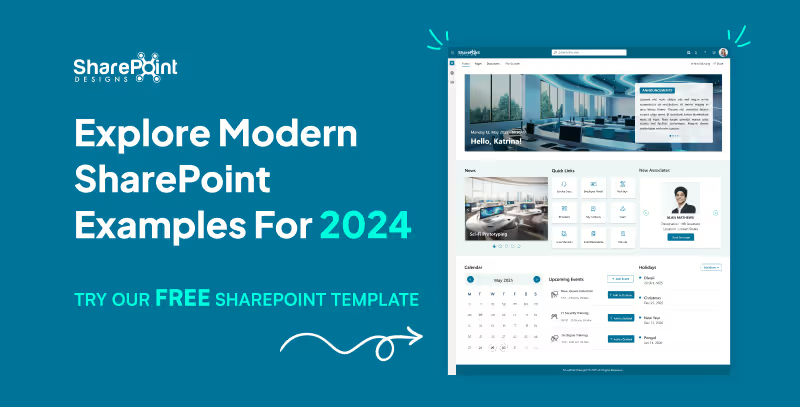
Explore Modern SharePoint Intranet Examples for 2024
Modern design is crucial in today's digital environment, and this is especially true for SharePoint intranets.
In the rapidly evolving digital landscape, organizations continuously seek tools that enhance efficiency and streamline operations. A pivotal development in this quest is the general availability of SharePoint eSignatures, slated for release in 2024. This feature marks a significant advancement in Microsoft's document management capabilities, integrating seamlessly with Microsoft Syntex to enhance user experience and security.
1. Streamlined Document Handling
SharePoint eSignatures revolutionize how businesses handle contracts and agreements by enabling digital signing directly within the SharePoint environment. This integration eliminates the need for third-party eSignature solutions, reducing costs and complexity while ensuring data remains secure within the Microsoft ecosystem.


Embracing Digital Transformation: SharePoint eSignatures Available in 2024
In the rapidly evolving digital landscape, organizations continuously seek tools that enhance efficiency and streamline operations.
Introduction
In today's digital-first environment, organizations are continuously searching for ways to streamline processes and enhance productivity. SharePoint Syntex, part of the Microsoft 365 suite, leverages artificial intelligence to transform the way your business manages and utilizes content. This blog post outlines a practical roadmap for IT leaders looking to deploy SharePoint Syntex effectively.
1. Assessment and Planning
Kickstart your journey by identifying which business processes could benefit most from AI insights. SharePoint Syntex excels in automating data extraction and enhancing document management. Begin with mapping the location and structure of content across SharePoint libraries or other data repositories, pinpointing where Syntex can deliver the most impact.
2. Configuration and Setup
Ensure your organization is equipped with the necessary SharePoint Syntex licenses. Setting up your SharePoint environment to integrate Syntex involves configuring SharePoint sites and connecting essential data sources, laying the foundational framework for sophisticated data handling.
3. Model Training
Central to SharePoint Syntex’s functionality is its AI-driven model training:
- Create a Content Center: Designate a space in SharePoint where models are trained and managed.
- Develop Models: Depending on your needs, train document understanding models for structured or unstructured documents, or form processing models for automated data extraction.
4. Applying Models
Deploy your trained models to automatically classify and extract information from documents in specified libraries or repositories. This step is crucial for converting raw data into actionable insights.

Unleashing Efficiency: Your Step-by-Step Guide to Implementing SharePoint Syntex
In today's digital-first environment, organizations are continuously searching for ways to streamline processes and enhance productivity.
Most organizations know SharePoint as a place to store files. But the businesses that get real value from it use SharePoint very differently.
They use it to:
- Reduce email overload
- Centralize knowledge
- Automate everyday processes
- Support hybrid and remote work
- Create a single digital workplace employees actually rely on
This article explains what SharePoint is, and more importantly, how it helps businesses improve collaboration, productivity, and information management in real-world scenarios.
What is SharePoint?
SharePoint is a web-based platform from Microsoft that helps organizations store, manage, share, and collaborate on information securely.
Over time, it has evolved from a basic file-sharing tool into a full digital workplace platform that supports:
- Intranets and internal portals
- Document management with version control
- Team and department sites
- Workflow automation
- Integration with Microsoft 365 tools
Today, SharePoint acts as a central layer that connects people, content, and processes across the organization.
Why Businesses Use SharePoint (Beyond File Storage)
The real value of SharePoint lies in how it brings structure to everyday work.
Instead of scattered files, emails, and disconnected tools, SharePoint provides a single source of truth where teams can collaborate with clarity and control.
This combination makes SharePoint especially valuable for growing and distributed teams.
How SharePoint Improves Everyday Workflows
In many organizations, work slows down because information lives in too many places.
SharePoint simplifies this by bringing documents, discussions, and processes together.
Practical workflow improvements include:
- Teams collaborating on the same document without email attachments.
- Automated approval flows replacing manual follow-ups.
- Department sites replacing shared drives.
- Clear ownership and visibility over content.
When structured properly, SharePoint reduces friction rather than adding another tool to manage.
What is SharePoint and How it Helps Businesses Work Better
Most organizations know SharePoint as a place to store files. But the businesses that get real value from it use SharePoint very differently.
TL;DR
The simple answer is Yes and No. If you use a prompt into ChatGPT to generate a result, you cannot claim copyright protection for the output. On the bright side, if you modify the output in creative ways, it may be eligible for copyright protection! It's important to remember that only the parts of the work that are authored by humans can be copyrighted.
In a world where artificial intelligence is increasingly contributing to creative endeavours, a question arises regarding the copyrightability of AI-generated content. The debate surrounding this topic is complex and multifaceted. Hence, it requires a thorough examination to fully understand the issue. Let’s dive into this murky digital pool with a dash of wit.

Picture this: A robot tapping away at its keyboard, spewing out sonnets that would make Shakespeare blush. Now, who owns those sonnets? The robot? Its creator? Or perhaps the ghost of the Bard himself? Cue dramatic music.
Sure, AI can churn out content faster than a caffeinated squirrel on a treadmill, but does that mean it deserves the same copyright protections as human-made masterpieces? It’s like asking if a blender can claim royalties for the smoothie it blends.

Legal scholars are scratching their heads (and probably reaching for the Advil) trying to decipher this conundrum. After all, copyright law was crafted with human ingenuity in mind, not algorithms that binge-watch cat videos for inspiration.
On the flip side, denying AI copyright protection could stifle innovation faster than you can say “404 error.” Imagine a world where AI creators throw in the towel because they can’t monetize their digital brainchildren. It’s like telling a toddler they can’t keep their finger paintings.

So, can AI-generated content be copyrighted? The answer is about as clear as mud in a hurricane but there's some light at the end of this tunnel.
The U.S. Copyright Office has recently provided some guidance on this topic. AI-generated content can sometimes be copyrighted, according to David Siegel, partner at Grellas Shah LLP. Thus far, the Copyright Office, has explained that, for a work to be afforded copyright protection in the U.S., it must have a human author. Yet, Siegel said he is not sure what that means in the world of AI.
If the only human involvement is the input of a chat prompt into ChatGPT, for example, one cannot obtain copyright protection for the raw result of that prompt," Siegel said. On the other hand, if a user inputs a prompt into an AI tool, gets a response and then modifies the result in creative ways, that can potentially result in content afforded copyright protection. However, only human-authored parts of the work can be copyrighted.
One thing’s for sure: as long as there are humans behind the AI, there’ll be a legal circus worthy of the big top. Grab your popcorn and enjoy the show!

The Copyright Conundrum: Can AI-Generated Content be copyrighted
In a world where artificial intelligence is making strides in creative endeavours, one burning question arises: Can AI-generated content be copyrighted? It’s a debate that’s as perplexing as trying to teach a goldfish to fetch.
Introduction
In the modern era of data management and analysis, seamless integration between platforms is paramount. SharePoint, a widely used collaboration tool, often houses valuable data that organizations need to leverage for decision-making. Power Pages, on the other hand, offers robust capabilities for data visualization and analysis. By syncing data from SharePoint lists to Power Pages tables, organizations can streamline workflows and enhance data-driven insights. Below are step-by-step instructions on how to achieve this synchronization effortlessly.
This is my SharePoint library which I’m going to sync it to Power Pages

- Go to Power Pages and select "Table" in the Data section.

- Opt for "New table from external data".

- If a Sharepoint connection exists, choose it; otherwise, create a new connection and proceed.

- Input the SharePoint List URL for data retrieval, then click "Next".


- Select the desired list from the available options on the site.

- Provide a display name and proceed by clicking "Next".

- Complete the setup by clicking "Finish".

- Once done, the selected list will be visible in the Data section.

- All items from the list will populate in Power Pages table.
- Additionally, you can add new items or update existing ones, and these changes will be automatically synced.


Conclusion
Efficient data management is crucial for organizations aiming to stay competitive in today's dynamic business landscape. By syncing SharePoint list data to Power Pages tables, organizations can harness the power of their data seamlessly. This synchronization process enables users to access, analyze, and update SharePoint data within the familiar interface of Power Pages, thereby enhancing productivity and facilitating informed decision-making. With these steps, organizations can unlock the full potential of their data assets, driving innovation and growth.

Step-by-Step Guide: Syncing SharePoint List to Power Pages Table
In the modern era of data management and analysis, seamless integration between platforms is paramount. SharePoint, a widely used collaboration tool,
Prerequisites
- Access to Power Automate
- Published Dataset
- Power BI Desktop
Power BI and Power Automate have emerged as powerful tools to harness the potential of data. In this blog post, we'll explore a practical scenario where you can seamlessly send notifications based on Power BI data using Power Automate. Specifically, we'll walk through the process of sending notifications to users who haven't logged their work hours, demonstrating the efficiency and ease of integrating these Microsoft Power Platform tools.
Example: Work Hours Tracking Notification
This example demonstrates how to send an email notification to users who haven't logged their worked hours:
Steps 1: Power BI Desktop
To start the process, open the report in Power BI Desktop and follow these steps:
- Create a new tab: Add a "Power Automate" tab or any descriptive name.
- Add Visual: Add a table Visual from the visualization pane
- Apply filters: Select "Visualizations"> "Filters" and create a filter where "Logged Hours" equals 0.

- Performance Analysis: Navigate to the Optimize tab and select Performance Analyzer. Start recording, then click Refresh Visual to capture and analyze the query.


- Copy Query: Once the performance analysis is complete, copy the generated query. This will be crucial for the subsequent steps in Power Automate.
Step 2: Power Automate Integration
Now, let's seamlessly integrate Power BI data with Power Automate to automate notifications:
- Create a flow: Click "Create" > "Scheduled Cloud Flow".
- Set the frequency: Choose the desired interval for checking (e.g., daily, hourly).
- Add a trigger: Search for "Power BI" > "Run a query against a dataset."
- Select the workspace and then choose the dataset from the dropdown menu.

- Input Query Text: Paste the previously copied query from Power BI Desktop into the Query Text field. This ensures that Power Automate retrieves the specific dataset based on your defined criteria.
- Parse the retrieved data.
- Condition Check (Optional): Set up any additional condition to check if needed.

- Send Notification: Add Send an email action to send a notification.
Schedule Your Expert Session
Are you on the lookout for top-tier Power BI consultancy or specialized Power Automate consulting services to enhance your business's data management and automation strategies? Look no further! Our team of seasoned experts is here to guide you through the complexities of data visualization and process automation, ensuring your business leverages the full spectrum of capabilities offered by Power BI and Power Automate.
Don't miss this opportunity to transform your data strategy and automation processes. Connect with us. Schedule your consultation today with our experts. Our dedicated support will help you navigate the evolving digital landscape, ensuring your business remains ahead of the curve. Let's work together to turn your data into your most powerful asset and optimize your workflows for maximum efficiency.

How to run a query against a dataset in power automate?
Power BI and Power Automate have emerged as powerful tools to harness the potential of data. In this blog post, we'll explore a practical scenario where you can seamlessly send notifications based on Power BI data using Power Automate.
In the rapidly evolving digital landscape, Artificial Intelligence (AI) stands as a transformative force, reshaping how businesses operate, innovate, and deliver value to customers. As organizations embark on their AI journey, crafting a clear and strategic roadmap is imperative for unlocking AI's full potential. This guide outlines essential steps for business leaders to develop a robust AI strategy, ensuring successful integration and sustainable growth.
1. Aligning AI with Business Strategy
The journey begins by aligning AI initiatives with overarching business goals. Key actions include:

- Defining Business Objectives: Identify critical areas such as enhancing customer experience, boosting productivity, driving revenue growth, and enriching employee experience.
- Measuring Success: Establish metrics to gauge the impact and value of your AI-driven objectives.
- Prioritizing AI Use Cases: Select AI applications that align closely with your strategic goals, ensuring a focused approach to adoption.
- Investment Planning: Develop a portfolio management plan to guide investment in AI technologies, maximizing returns and strategic impact.
2. Crafting a Technology Strategy for AI
Technology serves as the backbone of AI implementation. Crucial considerations include:

- Application Strategy: Decide whether to buy existing solutions, modernize current applications, or build new AI applications from scratch.
- Infrastructure Assessment: Ensure your infrastructure supports secure, scalable, and efficient AI application deployment.
- Cloud vs. On-Premises: Evaluate hosting options for your data and AI applications, considering scalability, performance, and reliability.
- Zero Trust Security: Strengthen your security posture to protect data and AI assets against emerging threats, leveraging AI for enhanced security measures.
3. Developing an AI Strategy and Experience
To fully leverage AI, understanding and integrating generative AI into your business processes is key:

- Exploring Generative AI: Learn about generative AI applications and their potential to drive business innovation.
- Systematic AI Integration: Establish a process for evaluating AI's applicability across various use cases.
- Building Intelligent Apps: Utilize your data to develop apps that enhance the relevance and intelligence of AI model outputs.
- Leveraging Microsoft 365 Copilot: Consider using or developing your own AI copilot to expedite learning and value realization.
4. Fostering an Organizational Culture for AI
Success with AI transcends technology, deeply rooted in the organization's culture and operations:

- AI Operating Model: Define how AI will function within your organization, ensuring alignment with business strategies.
- Leadership and Support: Secure executive backing, underpinned by adequate resources and a vision for AI-driven transformation.
- Change Management: Strengthen your organization's adaptability to change, fostering an environment conducive to AI integration.
- Learning and Development: Implement learning paths and skill-building initiatives to empower your workforce with AI competencies.
5. Implementing AI Governance
Responsible AI use and governance are paramount for ethical and effective AI deployment:

- Responsible AI Practices: Share resources and adopt models that align with your organization's values and ethical standards.
- Governance Models: Choose a governance model (hub-and-spoke, centralized, distributed) that fits your organizational structure and needs.
- Secure AI Principles: Ensure comprehensive data protection, from the platform to applications and end-users.
- Data Privacy and Security: Develop processes and controls for AI governance, addressing data privacy and security implications.
Conclusion
Embarking on an AI journey requires meticulous planning, strategic alignment, and a commitment to ethical principles and continuous learning. By following this guide, leaders can lay a solid foundation for AI success, driving innovation and achieving strategic objectives. As AI continues to evolve, staying agile and informed will be key to leveraging AI's transformative potential.

Building a Foundation for AI Success: A Leader’s Guide
In the rapidly evolving digital landscape, Artificial Intelligence (AI) stands as a transformative force, reshaping how businesses operate, innovate, and deliver value to customers.
What is data refresh in Power BI?
Power BI serves as a crucial bridge connecting raw data to analytical tools, emphasizing the importance of maintaining current datasets for accuracy. Without regular updates, data becomes outdated, leading to unreliable analytics and misguided decisions. Refreshing your data in Power BI ensures you're working with the most recent information, allowing for effective tracking of data shifts, trends, and patterns. This process not only aids in making informed decisions but also in fine-tuning strategies based on evolving data insights.
Furthermore, refreshing data in Power BI can uncover discrepancies or errors, such as issues with the data source or its linkage to Power BI, indicating potential updating failures. Addressing these discrepancies is essential for guaranteeing the precision and trustworthiness of your data analysis.
Prerequisites
- Access to Power BI service
- Access to Power Automate
- A published Power BI dataset
To ensure your Power BI reports always reflect the latest trends, automating dataset refresh is crucial. This blog explores two effective methods: Scheduled refresh and Power Automate.
Method 1: Scheduled Refresh - Simple and Straightforward
- Navigate to your Dataset: In the Power BI Service, locate the dataset you want to automate.
- Access Settings: Click on the ellipsis (...) next to the dataset name and select "Settings."

- Schedule the Refresh: Under "Semantic Model," find the "Scheduled refresh" section. Click "Enable" and choose your desired refresh schedule. Options include hourly, daily, weekly, or monthly intervals.

- Save and Relax: Click "Apply" to activate the schedule. Power BI will automatically fetch new data based on your chosen frequency.
Method 2: Power Automate - Advanced Automation
- Create a Flow in Power Automate: Click here Power Automate and sign in. Click "Create" and choose a flow template (e.g., "Instant Cloud Flow" or “Scheduled Cloud flow”).

- Connect to Power BI: Search for the "Power BI - Refresh a Dataset" action and add it to your flow.
- Select Dataset: Choose the dataset you want to refresh.

- Save and Test: Click "Save" and run a test to ensure the flow functions correctly.
For additional expert guidance or services, don't hesitate to reach out for our Power BI consulting services. Our team of skilled Power BI consultants is ready to assist you in leveraging the full potential of your data analytics and reporting needs.
How to Refresh Power BI Dataset Automatically in 2024
Power BI serves as a crucial bridge connecting raw data to analytical tools, emphasizing the importance of maintaining current datasets for accuracy.
Unleashing the Economic Impact of Microsoft 365 E3
In the rapidly evolving digital landscape, businesses continually seek solutions that offer both operational efficiency and cost-effectiveness. Microsoft 365 E3 emerges as a formidable player in this arena, promising not just enhanced productivity but also significant cost savings. A comprehensive analysis of the Total Economic Impact™ of Microsoft 365 E3 reveals its potential to transform the financial dynamics of organizations.
1. Cost-Effective Licensing and Infrastructure Management
One of the most striking benefits of Microsoft 365 E3 is the considerable reduction in licensing costs. Organizations can consolidate their solution sets under Microsoft 365 E3, eliminating redundant licenses for communication, collaboration, file sharing, endpoint management, and more. This strategic move results in an average of 60% decrease in per-user licensing spend, translating to substantial savings over time.
2. Streamlining End-User Device Management
The shift towards a Bring-Your-Own-Device (BYOD) model, supported by Microsoft 365 E3, leads to a notable reduction in corporate expenditures on hardware, device plans, and administrative efforts. This strategic approach not only enhances mobile productivity but also fosters a more flexible and cost-efficient work environment.
3. Simplified IT Management and Reduced Workload
The inclusion of Microsoft Intune in Microsoft 365 E3 simplifies the deployment and management of software, security updates, and operating systems. This unified endpoint management tool significantly reduces the resources and time required for IT administration, freeing up IT personnel to focus on higher-value tasks.
4. Boosting End-User Productivity
Microsoft 365 E3 integrates seamlessly with tools like Microsoft Teams, OneDrive, and SharePoint, improving communication and collaboration. This integration saves users an average of 60 hours per year, enhancing overall organizational productivity and reducing time spent on routine tasks.
5. Travel and Expense Savings
The capability of Microsoft Teams to facilitate remote meetings cuts down on travel and associated expenses. This shift to virtual collaboration not only fosters a sustainable work culture but also results in substantial cost savings in terms of airfare, meals, insurance, and more.
6. Enhanced Security and Reduced Risk
Microsoft 365 E3 enhances organizational security, reducing the risk of data breaches and other cybersecurity threats. Features like Multi-Factor Authentication (MFA), conditional access policies, and integrated security logs fortify the organization’s defense against emerging digital threats.
Conclusion
The shift to Microsoft 365 E3 represents a strategic decision that goes beyond mere technological upgrade. It embodies a cost-effective, secure, and productivity-enhancing solution, aligning perfectly with the needs of modern businesses. The economic impact of this transition is evident in the significant cost savings, enhanced security, and improved operational efficiency it brings. As organizations continue to navigate the complexities of the digital era, Microsoft 365 E3 stands as a beacon of efficiency and economic viability.
Note: The insights and data presented in this blog are based on a comprehensive study, The Total Economic Impact™ of Microsoft 365 E3, commissioned by Microsoft and conducted by Forrester Consulting. The study provides an in-depth analysis of the financial impacts and benefits of Microsoft 365 E3 adoption.

Smart Ways to Reduce Costs with Microsoft 365 E3
In the rapidly evolving digital landscape, businesses continually seek solutions that offer both operational efficiency and cost-effectiveness.
Creating a vacation approval flow and sending a notification back to there quester is a great way to streamline processes within an organization. Given your company's expertise in SharePoint, Power Platform, and AI, you can leverage Microsoft Power Automate to build this flow. Here's a step-by-step guide:
Step 1: Set Up SharePoint List
- Create a SharePoint List: Name it "Vacation Approval".
- Add Necessary Columns: Include columns for Employee Name, Start Date, End Date, Supervisor email (for approval), and Status (New, Approved, Rejected) etc.
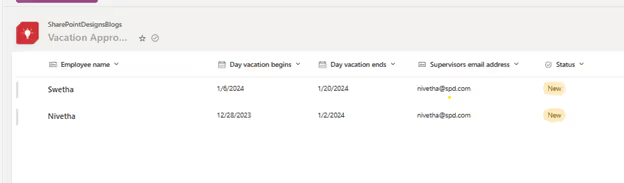
Step 2: Create the Power Automate Flow
- Access Power Automate: Log in to your Microsoft 365 account and open Power Automate.
- Create a New Automated Cloud Flow: Choose the template “When an item is created”

Step 3: Trigger Setup
- Set SharePoint Site and List: Select the SharePoint site and the "Vacation Approval" list as the trigger. This starts the flow when a new item is added to the list.
Step 4: Approval Process
- Add an Approval Action: Search for and add the “Start and wait for an approval” action.
- Configure Approval Details: Set the Title, Assigned To (Manager’s email), Details (like vacation period), and Link to Item.

Step 5: Condition to Check Approval Status
- Add a Condition: After the approval action, add a Condition to check the Outcome of the approval.
- Set Conditions: Use the dynamic content to set conditions like Outcome is equal to Approve and Outcome is equal to Reject.
Step 6: Update SharePoint List Based on Approval
- Add Actions for Approved and Rejected:
- If approved, add an action to update the SharePoint list item status to “Approved”.
- If rejected, update the item status to “Rejected”.
Step 7: Send Notification to Employee
- Add Email Action: For both Approved and Rejected branches, add “Send an email notification” action.
- Configure Email: Use dynamic content to include the Employee's email, a relevant subject, and a personalized message about the approval status.
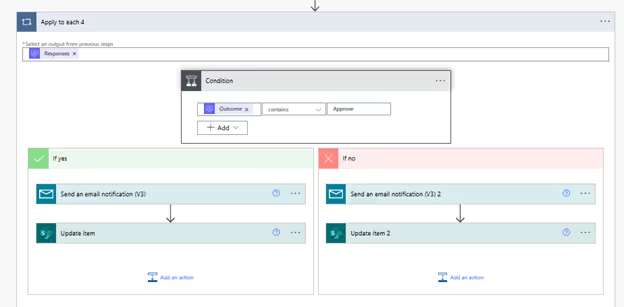
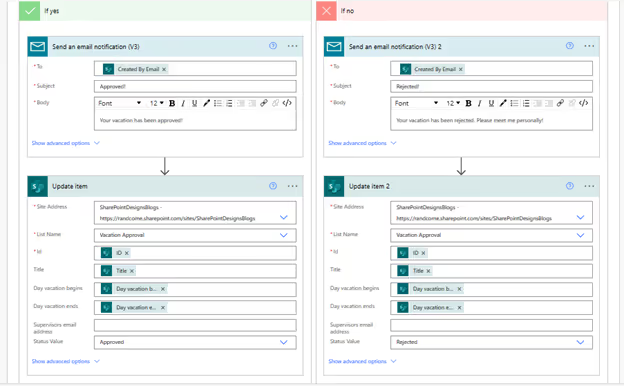
Step 8: Update SharePoint List Based on Approval
- Add Actions to Update the SharePoint List:
- In the Approved branch, after the email action, add an action to update the SharePoint list item status to “Approved”.
- In the Rejected branch, follow the email action with an update to change the status to “Rejected”.
Step 9: Save and Test
- Save Your Flow: Ensure all steps are correctly configured.
- Test the Flow: Create a test vacation request in SharePoint and observe the flow execution.
Flow results:
1. Vacation Request Email

2. Email Notification to the sender

3. List updated with Status.

Looking to revolutionize your approval processes? Connect with our expert sharepoint consultants for personalized guidance. Explore our Power Automate services to seamlessly integrate sophisticated approval workflows in SharePoint. Click here and schedule a call to elevate your business efficiency with our tailored solutions. Start your journey with us today!

How to Create a Vacation Approval Flow in SharePoint
Creating a vacation approval flow and sending a notification back to the requester is a great way to streamline processes within an organization.
Introduction
As organizations adapt to the dynamic landscape of HR technology, Microsoft Viva emerges as a pivotal player in the People Analytics Technology (PAT) arena. The insights from the "State of the Market 2023" report by RedThread Research underscore the relevance of Viva in addressing key PAT trends and challenges. Let's explore how Viva is positioned in this evolving market.
PAT Market Growth and Microsoft Viva
The PAT market has grown substantially, indicating a strong demand for data-driven HR solutions. Microsoft Viva, with its integrated employee experience platform, capitalizes on this trend, offering tools that enhance decision-making and productivity within HR processes.
Strategic Adaptation in PAT
The slowdown in acquisitions and investments in PAT suggests a more mature, focused market. Viva, with its comprehensive suite of tools, aligns with this strategic shift, offering a robust solution that caters to diverse business needs without the necessity for multiple disparate systems.
Employee Experience in Focus
The rise of Employee Experience (EX) technologies, especially in hybrid work environments, is a key trend. Microsoft Viva excels in this area, providing a seamless platform for enhancing employee engagement, well-being, and productivity, resonating with the market's shift towards EX-centric solutions.
Retention and Efficiency with Viva
In the current competitive labor market, retention and efficiency are paramount. Microsoft Viva addresses these challenges through features like Viva Insights, which offer actionable data to improve employee satisfaction and operational efficiency.
Conclusion
The alignment of Microsoft Viva with the key trends highlighted in the "People Analytics Technology: State of the Market 2023" report is clear. As organizations seek to navigate the complexities of modern HR technology, Viva stands out as a comprehensive, adaptable solution poised to meet the evolving demands of the PAT market.

Embracing the Future of People Analytics: How Microsoft Viva Aligns with 2023 Market Trends
As organizations adapt to the dynamic landscape of HR technology, Microsoft Viva emerges as a pivotal player in the People Analytics Technology (PAT) arena.
In every business, managing documents and collaborating on files is essential. Microsoft SharePoint offers robust features to support these needs, with the Document Library being a key component. By managing your SharePoint Document Library effectively, you can significantly enhance your document handling experience.
Understanding and Creating a Document Library in SharePoint
A SharePoint document library provides a secure and easily accessible place for you and your team to store, collaborate on, and access documents from any device. For example, you might use a document library on a SharePoint site to consolidate all files related to a specific project or client. Adding files to the library or moving data between folders is as simple as dragging and dropping.
Step-by-Step guide for document library creation
Creating a document library in SharePoint is a straightforward process that can greatly enhance your organization's document management capabilities. Here’s a step-by-step guide to get you started:
Step 1: Log in to Your SharePoint Site
- Access your SharePoint site by logging in with your credentials.
- Ensure you have the necessary permissions to create a document library.
Step 2: Navigate to Site Contents
- Once logged in, Select ‘Site Contents’ on the top right-hand side.
Step 3: Create a New Document Library
- In the Site Contents page, click on ‘+ New’ and then select ‘Document library’ from the options.
- This action will prompt you to create a new document library.


- Select ‘Blank document’ and proceed.
Step 4: Configure Your Document Library

- Enter a name for your document library. Choose a name that clearly represents the type of documents it will contain.
- Optionally, you can provide a description for the library to give more context to its users.
- Decide whether to display this library on the site navigation.

Step 5: Add Documents to Your Library
- Navigate back to your document library.
- You can upload documents by clicking on ‘Upload’ and selecting the files from your computer.
- Alternatively, you can drag and drop files directly into the library.

Step 6: Organize and Manage Documents
- Use the features of the document library to organize your files. Create folders or use metadata columns to categorize your documents.
- Set up views to display your documents in the most useful way for your team.
Step 7: Share and Collaborate
- Share your document library or individual documents with team members.
- Utilize SharePoint’s collaboration features like co-authoring and comments to collaborate on documents.
Step 8: Access and Use Your Document Library
- Access your document library anytime from the SharePoint site.
- Use the library to store, share, and manage your documents effectively.
Conclusion
In our guide on establishing a well-structured document library in SharePoint, we've gone beyond mere file storage. We provide a roadmap for equipping your team with a dynamic platform that enhances both collaboration and data management. Our comprehensive blog post, "How to Create a Document Library in SharePoint," offers insights into elevating your document management strategies, pushing your organization towards heightened efficiency, clarity, and achievement.
By following these steps, you can set up a well-organized, easy-to-use document library that enhances your team’s productivity and collaboration. Creating a document library in SharePoint can significantly improve how your team stores and accesses important documents. Remember to take advantage of SharePoint’s robust features to get the most out of your document library.
As the digital world evolves, embracing new methodologies becomes crucial. With SharePoint Designs, you're at the forefront of a robust SharePoint environment, driving productivity amidst the ever-evolving dynamics of contemporary business. Should you need additional technical support, please don't hesitate to contact us at sales@sharepointdesigns.com

How to Create a Document Library in SharePoint – A Step-by-Step Guide
In every business, managing documents and collaborating on files is essential. Microsoft SharePoint offers robust features to support these needs,
What is List?
In SharePoint, a list is essentially a structured set of data, serving as a dynamic platform for you and your colleagues to systematically arrange and access various types of information. You can think of it as like a spread sheet, but with more advanced and integrated features. SharePoint lists allow you to store, share, and manage data – these can be contacts, calendar appointments, tasks, or any other type of information. Lists in SharePoint come with the added benefits of being customizable, supporting various data types (like text, choice, date), and being able to integrate with other Microsoft services, such as PowerApps and Power Automate, for enhanced functionality. They are essential tools for collaboration and data management within the SharePoint environment.
How to create a list in SharePoint?
1. Sign into your SharePoint Site:
- Navigate to your SharePoint site and log in with your credentials.
2. Create site using the create site option

- Select the site type.

- Select a template

- Click Use Template to apply.
- Give a unique name to the site and unique site address will be created and then click Next!

- Select language you want and select create site.
- Then your site will be created and look like this!

3. Create a New List:
- Click on + New, and then select List from the dropdown menu.

- Select the Blank list Or Whatever you want. Here I go with Blank list.

4. Set Up Your List:
- Enter a name for your list.
- Optionally, you can add a description.
- Choose whether to show this list in site navigation.

5. Customize the List:
- Once the list is created, you can add columns by clicking on Add column.
- Choose the type of column (e.g., text, number, date).
- Provide a name for the column and set any additional settings as required.

6. Enter Data into Your List:
- Click on New to add items to your list.
- Fill in the fields for each new item you add.
- Click Save and your data will be added to your list.

- You can also edit your list using Grid view and if it’s not needed you can exit.

7. To change List name
- Click on the list name.
- Go to Column Setting and Select rename
- Rename your list name whenever you need!

8. Save and Share Your List:
- After adding your items, click Save.
- You can share your list with others by clicking on the Share button.
- If you want to export the list and you can dousing Export

9. Customize Views (Optional):
- You can create custom views to filter, sort, and display your data in different ways.
10. Integration:
- You can integrate your list with Power Apps and Power Automate integration if needed.

Final thoughts!
SharePoint lists are a key component in organizing and tracking critical information, making them a cornerstone of effective SharePoint consulting services. These lists integrate seamlessly with Microsoft PowerApps, Power Automate, and Microsoft Teams, amplifying their functionality. For professionals on the go, SharePoint's mobile applications for iOS and Android ensure you can manage your lists from anywhere. Mastering the creation of SharePoint lists is a simple yet impactful skill.
If you encounter any queries or need guidance on SharePoint lists, our SharePoint consultants at SharePoint Designs are ready to assist. Schedule a free consultation, feel free to reach out to us at sales@sharepointdesigns.com

How to create SharePoint list - A step-by-step Guide
In SharePoint, a list is essentially a structured set of data, serving as a dynamic platform for you
Are you ready to revolutionize your organization’s document management? SharePoint Document Library is the key to unlocking unparalleled efficiency and collaboration capabilities. In this blog post, you will learn how to maximize productivity with essential SharePoint Document Library tactics, from organizing your library to enhancing collaboration with co-authoring and version control.
Key Takeaways
- SharePoint Document Libraries offer enhanced organization, collaboration and integration capabilities for improved document management.
- Leverage metadata fields, content types and logical folder structures to maximize productivity in a SharePoint Document Library.
- Establish secure sharing practices to ensure the integrity of documents stored in a centralized document center.
- Utilize SharePoint Syntex for advanced content understanding and automation. SharePoint Syntex uses advanced AI and machine teaching to amplify human expertise, automate content processing, and transform content into knowledge. It delivers innovative experiences for understanding content, enabling teams to capture, use, and reuse expertise.
Understanding SharePoint Document Libraries

SharePoint Document Libraries, powered by SharePoint Server, are engineered to optimize employees’ time and effort by streamlining the management, storage, and prompt access of documents within a site collection. Compared to a different document library filled with file cabinets and physical folders, a modern SharePoint Document Library provides a secure, centralized repository that allows employees to store, edit, and access documents from any device.
Documents in SharePoint Document Library can be organized using the following methods:
- Folders
- Lists
- Document sets
- Meta tags
Best practices suggest keeping the document volume under 10,000 and having a robust SharePoint document management plan.
Defining a Document Library
A SharePoint Document Library is a centralized repository for the storage and management of documents, which supports various types of documents, including spreadsheets, images, and audio files, and enables users to share these documents with other users on the SharePoint site. Metadata and version control are provided in a single document library, allowing for efficient organization and management of documents.
A SharePoint Document Library is structured using metadata to facilitate document retrieval, with a focus on centralizing and reusing content whenever possible, such as in a document center site. This approach to document library organization ensures efficient management of SharePoint documents.
Document Libraries vs. Folders
While folders are used for categorizing files within a Document Library, Document Libraries offer a more extensive framework for administering documents and folders. The primary benefits of utilizing Document Libraries instead of Folders in SharePoint include:
- Efficient organization with metadata fields
- Seamless collaboration
- Granular access control
- Advanced features such as workflows and version history, which help manage documents effectively.
It is recommended to use a flat folder structure with one layer of broad-category folders within a broader-category document library, allowing for efficient organization and documents management in one document library. Content types, on the other hand, are a classification of documents that use metadata such as department name, file type, modified by, date of creation, etc., to provide more specific information.
Document Libraries vs. Lists
Lists store data in tabular format, while Document Libraries manage files, documents, document sets, or folders. A SharePoint Document Library offers functions such as storing and organizing files, collaboration, offline syncing, metadata, and integration with other tools.
In contrast, a SharePoint List offers the following functions:
- Storing and organizing data
- Allowing users to add, edit, and delete items
- Sorting and filtering data
- Creating custom views
- Automating processes with workflows
- Creating calculated columns and formulas
- Collaborating and sharing lists
- Integrating with other SharePoint features and applications.
To leverage Document Libraries and Lists together in SharePoint, users can utilize dynamic filtering and combined views, promoting collaboration and organization, and optimizing productivity.
Organizing Your SharePoint Document Library

For effective document management in your SharePoint Document Library, implementing a logical folder structure, leveraging metadata for organization, and utilizing content types are key. By organizing content within SharePoint Document Libraries using these methods, you can ensure that your library is easy to navigate and aligns with your organization’s needs, allowing users to easily find and access documents.
Creating a Logical Folder Structure
A logical folder structure in SharePoint Document Library refers to the organization and arrangement of folders within the library that facilitates navigation and document retrieval. It involves creating a hierarchical structure of folders that aligns with the organization’s needs and structure, allowing for effective categorization and retrieval of documents.
To create a logical folder structure in a SharePoint Document Library, navigate to the SharePoint site, open the Document Library where you wish to create the folders, click the “+ New” button, select “Folder” from the dropdown menu, enter a name for the folder, and click “Create”. When structuring folders, it’s recommended to keep the folder structure flat, use brief and descriptive folder names, avoid nesting subfolders more than three levels deep, avoid spaces or special characters in folder names, and utilize meta tags or data columns for document tagging.
A well-structured folder system can:
- Boost navigation and organization
- Promote collaboration
- Ascertain that files are stored in the appropriate location
- Simplify the process for team members to locate and collaborate on shared documents.
Leveraging Metadata for Organization

Metadata improves the searchability of documents in SharePoint Document Libraries by providing additional information about the documents, enabling users to search for documents based on certain attributes or tags associated with the metadata. Users can leverage each metadata column to facilitate navigation and file discovery, thus enabling them to find documents based on specific criteria, such as client, department, or date.
Incorporating metadata into SharePoint Document Libraries can lead to enhanced document management productivity.
Implementing Content Types
Content types provide information related to individual items in SharePoint Document Libraries, helping to establish filters in views and optimize organization and productivity. Content types can be accessed in SharePoint Document Library by configuring metadata navigation settings, adding columns from existing site columns, and switching the default experience.
Utilizing content types across sites, lists, and libraries in your collection can lead to a more organized and efficient SharePoint Document Library.
Permissions and Security in SharePoint Document Libraries
Maintaining the integrity of your documents and preventing unauthorized access requires ensuring security and proper access control in your SharePoint Document Library. Configuring permission levels, implementing item-level security, and practicing secure sharing are all essential components of a secure SharePoint Document Library.
Configuring Permission Levels
To modify a user’s permission level in a SharePoint Document Library, follow these steps:
- Access the Document Library.
- Select the ‘Settings’ (gear icon).
- Choose ‘Library settings’.
- In the ‘Permissions and Management’ section, select ‘Permissions for this document library’.
- Locate the user whose permission level is to be adjusted.
- Select the user.
- Click on ‘Edit User Permissions’.
- Choose the desired permission level.
- Select ‘Save’ to apply the changes.
Configuring permission levels allows you to restrict user access and uphold security in your SharePoint Document Library.
Item-Level Security
Item-level security in SharePoint Document Libraries enables users to set permissions on individual items within the library, providing a more granular level of security and control. This allows users to have different levels of access, edit, or view specific items within the library.
To implement item-level security in SharePoint Document Libraries, follow these steps:
- Navigate to the List Settings.
- Select Advanced Settings.
- Scroll down to the Item Level Permissions section.
- Enable the option for Item-level permissions.
- Assign the specific permissions for each item in the library.
By implementing item-level security, you can ensure that sensitive or confidential documents are only accessible to authorized individuals.
Enabling item-level permissions allows for managing access to individual items within the document library based on user roles and permissions.
Secure Sharing Practices
Practicing secure sharing is essential for maintaining the integrity of your documents and preventing unauthorized access. To grant appropriate permissions for secure sharing in SharePoint Document Libraries, follow these steps:
- Right-click on the file that requires permission.
- Select ‘Manage access’ from the context menu.
- Enter the email addresses or group names of the users or groups that require access.
- Select the appropriate permission level for each user or group.
- Click ‘Share’ to grant the permissions and securely share the document.
Following these steps ensures that your documents are shared securely and exclusively with the appropriate users.
Enhancing Collaboration with Co-Authoring and Version Control

Co-authoring and version control, integral features in SharePoint Document Libraries, allow multiple users to work on documents simultaneously while maintaining a comprehensive history of document changes. By implementing co-authoring, version control, and the check-out system, you can enhance collaboration and maintain control over document editing in your SharePoint Document Library.
Co-Authoring Capabilities
SharePoint Document Library provides co-authoring capabilities that enable multiple users to access the same document concurrently, enhancing collaboration, and increasing productivity. Utilizing co-authoring in SharePoint Document Libraries offers benefits such as:
- Heightened productivity
- Version control
- Improved communication
- Flexibility and accessibility
However, one should note that the advisable maximum number of concurrent editors for co-authoring a document in SharePoint is 10, with a boundary of 99, but there is no definitive limit to the number of users who can co-author a document.
Managing Document Versions
Versioning in SharePoint Document Library enables the storage and tracking of multiple versions of a document, allowing users to monitor changes made to a document, view previous versions, and restore or compare different versions if necessary. To enable versioning in a SharePoint Document Library, one can navigate to the Library Settings or List Settings and select the Versioning settings, which will allow for the enabling of versioning and the setting of versioning limits.
Utilizing document versioning enables users to locate the appropriate files swiftly, refine their search results, and navigate through the document library more effectively.
Check-Out System
The Check-Out system in SharePoint Document Library enables users to reserve a file for exclusive editing, preventing other users from accessing the file while someone is already editing it. The Check-Out system facilitates the prevention of conflicts and the maintenance of control over document editing by allowing users to ‘check out’ a document prior to making any changes, ensuring that only one person can make alterations at any given time. However, there are limitations to the Check-Out system, such as the maximum number of items that can be checked out, the total storage limit across all synced devices, and the length of URLs and file paths.
Streamlining Processes with SharePoint Document Library Automation
Automation in SharePoint Document Libraries allows for more efficient document management through features such as workflows, Power Automate integration, and alerts and notifications. By streamlining processes, SharePoint workflows save time, increase efficiency, and reduce the risk of human error, ultimately enhancing the overall document management experience.
Setting Up Automated Workflows
Automated workflows are processes that are activated upon certain conditions or events and can be utilized to optimize and automate common business processes, such as project approval or document review.
To set up automated workflows in a SharePoint Document Library, follow these steps:
- Open Power Automate.
- Navigate to the SharePoint site where you want to create the workflow.
- Click on ‘Create’.
- Select ‘Automated flow’ or ‘Instant flow’ depending on your requirements.
- Choose the trigger that will start the workflow.
- Add actions to the workflow.
- Configure the actions by providing the necessary inputs and parameters.
- Customize the workflow logic.
- Test the workflow.
- Save and publish the workflow.
Power Automate Integration
Power Automate is a workflow automation tool that enables you to create automated processes and workflows in SharePoint Document Libraries, facilitating processes by automating repetitive tasks, such as creating document libraries, initiating approval flows when new files are added, retrieving files from libraries, and more.
Utilizing Power Automate can save time and enhance productivity by automating manual processes in SharePoint Document Libraries.
Alerts and Notifications
Alerts and notifications in SharePoint Document Libraries enable users to receive updates and notifications regarding changes and activities occurring in a SharePoint Document Library, allowing users to configure alerts to be notified when new documents are added, documents are modified, or when specific criteria are met. These alerts can be established at the library level or at the individual document level, ensuring users stay informed about document changes and updates.
Advanced Features and Customization of SharePoint Document Libraries
SharePoint Document Libraries feature advanced options and customization opportunities that can boost user experience and productivity. By incorporating the following customizations, you can create a tailored and efficient Document Library that meets your organization’s specific needs and preferences:
- Custom views
- Filters
- Library settings
- Web parts
Custom Views and Filters
Custom views provide the ability to alter the sort order of documents and folders, display or conceal particular columns, or filter the information in specific ways, allowing users to quickly and easily locate and access specific content based on certain criteria.
Utilizing custom views and filters allows users to enhance navigation and productivity within the document library.
Library Settings and Configuration
Properly configuring library settings in SharePoint Document Libraries is essential for ensuring that your library operates efficiently and meets your organization’s needs. Best practices for configuring a SharePoint Document Library include:
- Determining the library type based on specific needs
- Capturing organizational knowledge and best practices in the library
- Planning for content governance
- Setting appropriate permissions for the document library to ensure proper access control
Adding and Using Web Parts
Web Parts in SharePoint Document Library are components that can be integrated into a SharePoint page to display and interact with documents and files stored in a document library. Users can leverage web parts to create new folders and documents, upload files and folders, and carry out various operations related to document management.
Incorporating web parts into your SharePoint Document Library can enhance functionality and elevate user experience.
Optimizing File Management and Access
Efficient file management and access in your SharePoint Document Library can be realized through features such as bulk upload, OneDrive synchronization, and thumbnail views. By implementing these features, you can optimize your document library for easier file identification, navigation, and collaboration.
Bulk Upload and Drag-and-Drop Features
The bulk upload and drag-and-drop features in SharePoint Document Library enable users to upload multiple files simultaneously, streamlining the process of adding files to the library and increasing productivity. To utilize these features, navigate to the SharePoint site, open the Document Library, click the “+ New” button, select “Folder” from the dropdown menu, enter a name for the folder, and click “Create”.
Remember that the file size limits for bulk upload and drag-and-drop in SharePoint Document Library are a maximum of 100 GB total file size, no more than 30,000 files, and each file should not exceed 15 GB.
Synchronizing Files with OneDrive
Synchronizing files with OneDrive provides the following benefits:
- Seamless access to SharePoint files without the need to log into SharePoint Online
- The ability to work on SharePoint files offline and synchronize changes when connected to the internet
- Improved productivity and connectivity
- Extended storage space
- Tracking file activity and version history
Integrating OneDrive with your SharePoint Document Library can boost collaboration, enhance file management, and ensure your documents are always updated and accessible.
Thumbnail View and Previews

Thumbnail view and previews in SharePoint Document Library enable users to view a visual preview of their files, providing rapid visual recognition and efficient browsing. However, there are limitations to using thumbnail view and previews in SharePoint Document Library, such as SharePoint Online Picture Library may not display thumbnail previews, and loading image thumbnails in SharePoint libraries may be slow when using Windows Explorer with WebDAV technology.
Establishing a Single Source of Truth
A single source of truth is crucial for efficient document management. It ensures that end users can locate documents when needed and maintains a consistent and accurate record of document changes. By centralizing documents in a SharePoint Document Center, addressing challenges, and implementing solutions, you can establish a single source of truth for your organization and optimize your document management processes.
Benefits of a Centralized Document Center
A centralized Document Center in SharePoint offers numerous benefits, such as:
- Centralized storage and management
- Automation of document processes
- Simplified access and sharing
- Enhanced collaboration and inter-departmental cross-referencing
- Increased efficiency in document management.
Implementing a centralized Document Center in your organization can ensure all users have access to the most current and accurate information, leading to enhanced productivity and collaboration.
Challenges and Solutions
Maintaining a single source of truth in a SharePoint Document Center presents challenges such as:
- Ensuring a single source of truth is maintained
- Controlling certain areas
- Guiding users to enter the correct data
- Addressing poor document management practices
Configuring permission levels, implementing item-level security, and practicing secure sharing can help address these challenges and ensure that your SharePoint Document Center remains a reliable and accurate information source for your organization.
Summary
In conclusion, SharePoint Document Library offers a powerful solution for organizations to optimize their document management processes. By implementing the essential tactics discussed in this blog post, such as organizing your library, enhancing collaboration with co-authoring and version control, streamlining processes with automation, customizing your library with advanced features, and establishing a single source of truth, you can revolutionize your organization’s document management and unlock unparalleled efficiency and collaboration. It’s time to harness the full potential of SharePoint Document Library and take your organization’s productivity to new heights.

Maximizing Productivity with SharePoint Document Library: Essential Tactics
SharePoint Document Library is the key to unlocking unparalleled efficiency and collaboration capabilities.
As a designer, crafting an effective Call to Action (CTA) is a crucial aspect of digital design. It's not just about aesthetics; it's about creating a functional pathway that guides users towards a desired action. Whether it's signing up, making a purchase, or just getting more information, a well-designed CTA can make a significant difference in the user experience and conversion rates. This guide focuses on the key design principles for creating CTAs that are not only visually appealing but also highly effective in driving user action.
10 Key Design Techniques for Crafting Effective CTAs
1. Size and Visibility
Ensure the CTA is large enough to be easily clickable, especially on hand held devices.
Buttons need a minimum touchable area of 44x44 points for easy identification and interaction. This size ensures users can comfortably tap or click on them, enhancing accessibility and user experience across different devices and input methods. These guidelines are sourced from the Web Content Accessibility Guidelines (WCAG).

2. Color Contrast
Use colors that create a visual pop against the background.
High contrast not only draws attention but also aids in accessibility.
3. Margin and Padding

Surround CTAs with sufficient whitespace to make them stand out.
Padding is crucial to prevent accidental clicks and to maintain design cleanliness.
4. Consistent Styling
Keep a uniform style across the website for brand consistency.
Consistent styling includes colors, shapes, and typography.
5. Interactive Elements (Hover and Active States)

Design interactive elements like hover effects to provide feedback and enhance engagement.
Subtle animations or color changes can indicate interactivity.
6. Strategic Positioning

Place CTAs where they are most likely to be noticed and acted upon.
Common effective locations include near vital information, at content's end, or within forms.
7. Hierarchy and Prominence
Establish a clear hierarchy among different CTAs.
More critical actions like "Sign Up" or "Buy Now" should be more prominent.
8. Mobile Responsiveness
Ensure CTAs are easily accessible and functional on mobile devices.
Adjust button sizes and spacing for smaller screens.
9. Typography and Clarity
Use legible fonts and appropriate sizes for clarity.
Avoid overcrowding with text; keep the message concise and direct.
10. Testing Across Browsers and Devices
Regularly test CTAs across different browsers and devices for consistent performance.
Adapt and refine based on feedback and user interaction data.
Conclusion
Designing effective CTAs is a critical skill for any digital designer. It's about combining aesthetics with functionality to create an intuitive pathway for user interaction. By considering these key design elements, you can create CTAs that not only enhance the visual appeal of your website or app but also significantly improve user engagement and conversion rates. Remember, a successful CTA is one that resonates with the user and seamlessly guides them towards the desired action, making it an indispensable tool in your design toolkit.

Designing Impactful CTAs: A Designer's Guide to Call-to-Action Excellence
As a designer, crafting an effective Call to Action (CTA) is a crucial aspect of digital design.
Once you've created a report in Power BI, you can easily share it with others by embedding it into a SharePoint site page. This allows your colleagues and collaborators to view your report with out having to access Power BI directly.
Prerequisites
- A Power BI report published to the Power BI service.
- A SharePoint site with access permissions.
- Power BI web part installed on the SharePoint site.
Steps to Embed a Power BI Report into a SharePoint Site Page
1. Open the SharePoint site page where you want to embed the report.
2. Click the Edit button in the top right corner of the page.
3. Click the + New button in the top left corner of the page.
4. Search for and select the Power BI web part.

5. Click the Add report button.
6. Copy the embed URL of the Power BI report you want to embed. You can find the embed URL by opening the report in Power BI, clicking the File tab, and then selecting Embed in SharePoint Online.

7. Paste the embed URL into the Power BI report link field in the web part properties pane.
8. Select the Show Filter Pane and Show Navigation Pane checkboxes if you want these features to be visible in the embedded report.

9. Click the Publish button to publish the SharePoint page and make the embedded report visible to others.
Explore our previous blog, The Ultimate Step-by-Step Guide to Power BI Report Creation for a detailed walk through on crafting reports in Power BI. Dive into the steps for expert insights. Connect with our Power BI Consultants for expert guidance on embedding reports in SharePoint. For more insights like this, join our weekly newsletters and follow our blog updates.

Easy 9 Steps Guide to Embed Power BI Report in SharePoint
Once you've created a report in Power BI, you can easily share it with others by embedding it into a SharePoint site page.
Navigating Microsoft Copilot: A Guide to Its Products
Microsoft’s AI offerings, such as Bing Chat and Microsoft 365 Copilot (including GitHub Copilot), are paving the way for a more productive future. These intelligent tools simplify tasks through features like conversational bots and custom searches tailored to your needs. Let’s explore how you can use Microsoft Copilots to optimize your workflow today.
The Pioneers of AI Productivity
Microsoft integrates AI across its products, making them user-friendly and intuitive.
- Bing Chat leverages large language models within Microsoft Edge.
- Integration with Microsoft Graph ensures seamless connection between apps and services.
Available Across:
- Bing
- Edge
- Microsoft 365
- Windows (Windows Copilot)
Microsoft recently launched a Copilot, offering a unified AI productivity experience in Windows 11, allowing users to manage tasks and settings through a centralized assistant.
1. Best for Integrated OS Experience - Microsoft Copilot
Microsoft Copilot in Windows 11 offers:
- AI-powered assistance integrated into Windows 11
- App launching and system setting adjustments (volume, dark mode) via voice command
- Bing Chat Enterprise integration for combining web and work data
IT admins can deploy Copilot with access control, ensuring security and personalization.
2. Best for Conversational AI - Bing Chat
Microsoft Edge + Bing Chat:
- Ideal for remote work and flexible workflows
- Powered by Open AI’s GPT-4 for deep understanding
- DALLE 3 generates activity-specific images
- Free and always available at bing.com/chat
Microsoft continues improving Bing Chat to reduce hallucinations and enhance reliability.
3. Best for Office Productivity - Microsoft 365 Copilot
Microsoft 365 Copilot boosts productivity in Teams, Word, Outlook, Excel, and PowerPoint:
- Generate text and tables in Word
- Summarize and draft emails in Outlook
- Create Python visualizations in Excel
- Access insights in OneDrive without opening files
Enterprise Plan: $30/user/month – offering:
- Intelligent writing assistance
- Advanced data analysis and visualization
- Personalized productivity insights
- Automated email management
- Voice dictation and transcription
Integration ensures a streamlined experience across Microsoft 365 apps for everyday efficiency.
4. Best for Modern Computing - Windows 11
Windows 11 offers:
- Modern UI with upgraded Start menu and Taskbar
- Microsoft Copilot for AI assistance in system settings
- Gaming features: Game Bar, Direct Storage, Auto HDR, Game Mode, Game widget store, Xbox app
Access to Android apps via Windows Subsystem for Android and Amazon Appstore
5. Best for Developers - GitHub Copilot
GitHub Copilot helps developers:
- Get real-time code suggestions
- Work with multiple programming languages
- Reduce errors and accelerate workflows
Supported languages:
- JavaScript, Python, C#, C++, Java, PHP, Ruby, Go
- Pricing: $10/month or $100/year.
Powered by OpenAI Codex, Copilot translates comments or code lines into natural language.
Choosing Your AI Copilot
- Microsoft Copilot: For unified AI in Windows 11
- Bing Chat: For advanced conversational AI
- Microsoft 365 Copilot: For office productivity and automation
Select the copilot that fits your specific workflow needs.
Summary
To sum up, Microsoft’s AI copilots can provide the perfect solution for any need. Ranging from workplace efficiency to coding and regular computing. By understanding how these tools differ, you can decide which works best in accordance with your requirements and take advantage of all the features that this technology has to offer.
Welcome to a new era with an AI-driven productivity upgrade due to its empowering capabilities. Take full control over every aspect of your job thanks to artificial intelligence - don’t miss out on such groundbreaking opportunities!
Ready to harness AI in your workflow?
Contact us for Microsoft Copilot Consulting Services and elevate your productivity. Embrace AI-driven solutions tailored for your needs get in touch now!

Navigating Microsoft Copilot: A Guide to Its Products
Microsoft’s AI offerings, such as Bing Chat and Microsoft 365 Copilot (also known as GitHub Copilot), are paving the way for a more productive future.


